iPhone Contact Photo Disappeared? Fix It
A contact's photo vanished from Messages and calls, leaving just initials. Contact photos sync through iCloud, so a sync pause, a duplicate contact, or a photo update on another device can remove it. The sync side resembles contacts duplicated after sync, which is the same iCloud Contacts problem in another form.
TL;DR / Quick Fix
Quick fix: confirm iCloud Contacts is on, check the contact entry itself, re-add the photo, merge duplicates, restart the phone, and wait for sync to finish. If it still fails after these steps, note exactly when it happens, since that pattern usually reveals the cause.
Follow these steps
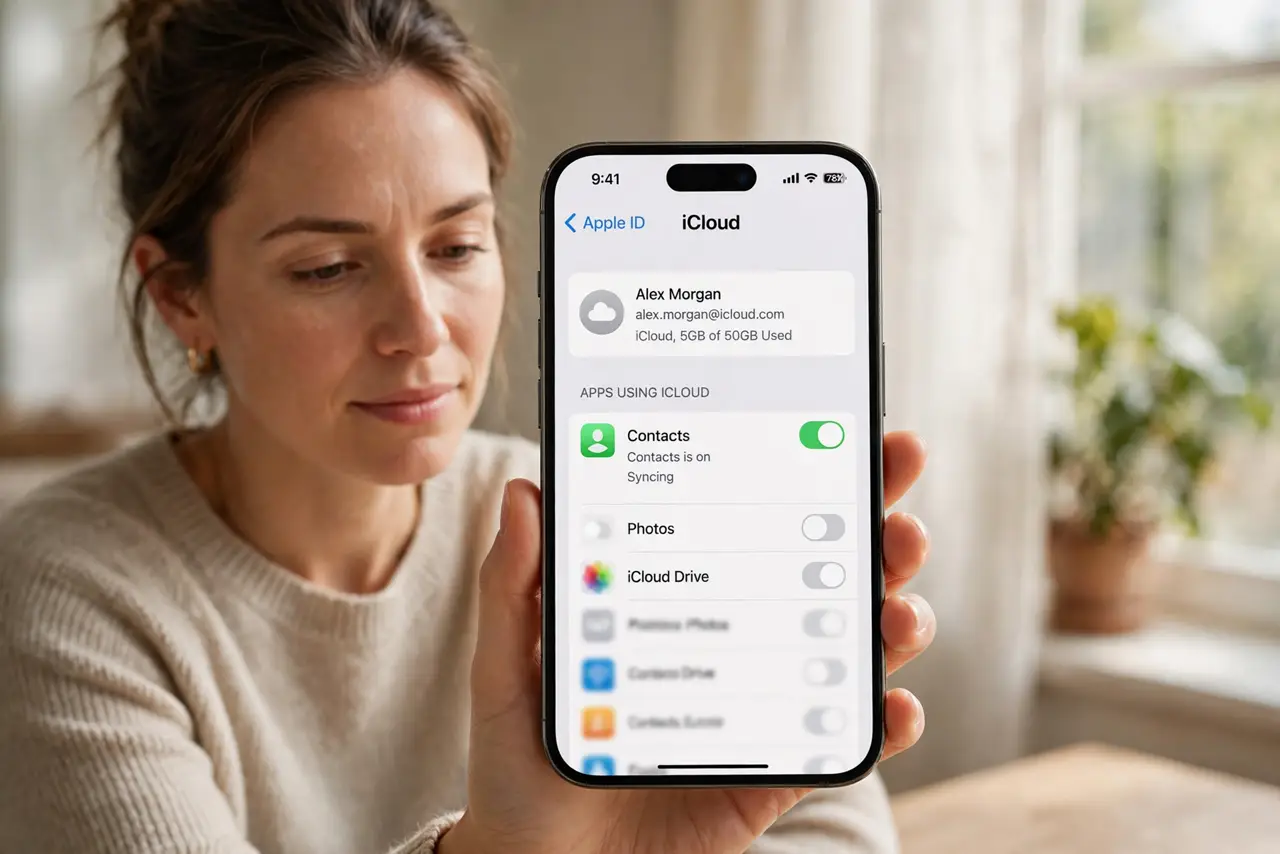
- Confirm iCloud Contacts is on. Open Settings, then your name, then iCloud, and make sure Contacts is on. If sync paused, photos and details may not match across devices.
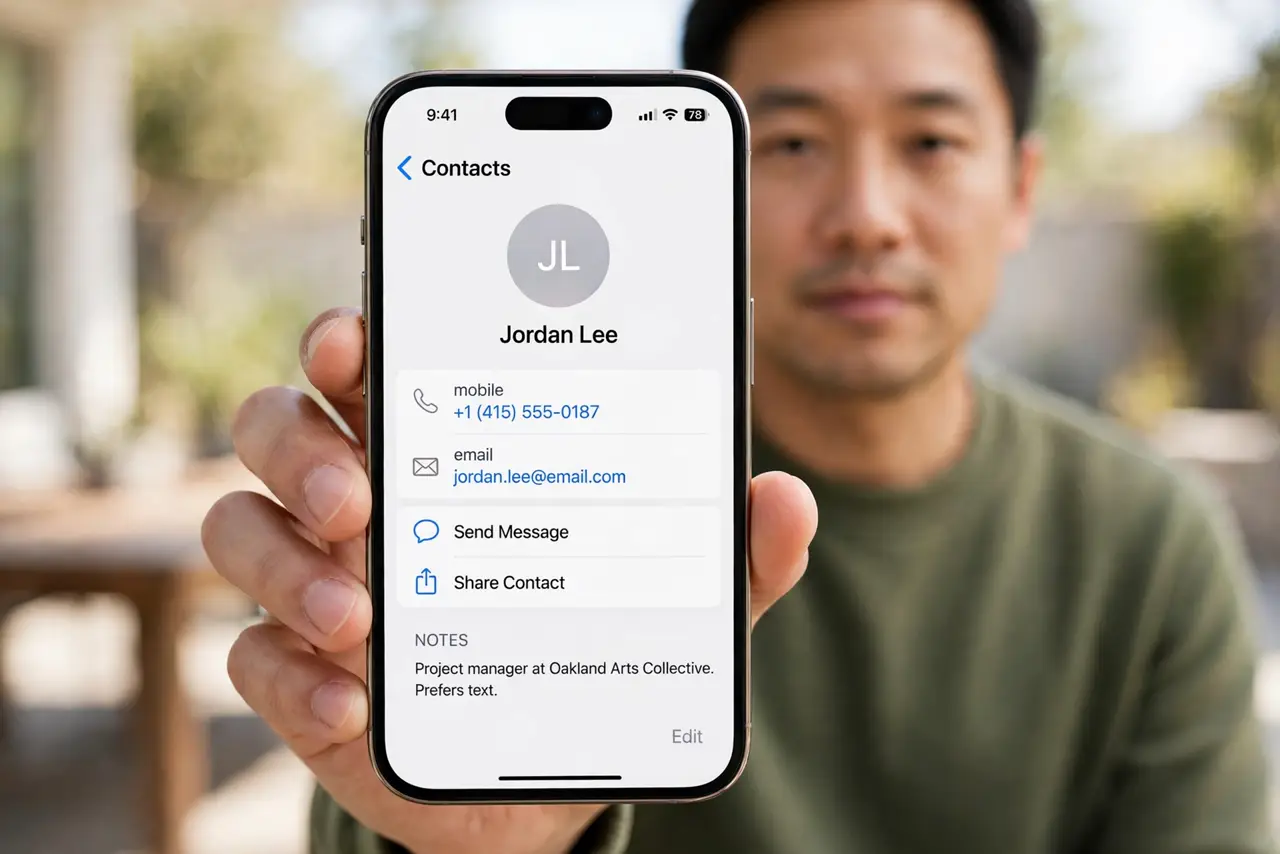
- Check the contact entry itself. Open Contacts and find the person. The photo may have been removed from the entry itself, in which case re-adding it once fixes it everywhere.
- Re-add the photo. Tap Edit on the contact, tap the photo circle, choose a photo, adjust it, and tap Done. The new photo should sync to your other devices within minutes.
- Merge duplicate contacts. If the person appears twice, one entry may have the photo and the other may not. Link or merge the duplicates, keeping the entry with the photo.
- Restart and wait for sync. Restart the phone, then give iCloud a few minutes on Wi-Fi. Contact photos sometimes return on their own once sync catches up.
- Check on another device. Look at the same contact on another Apple device. If the photo is there, the issue is local sync; if it is missing everywhere, the entry itself lost the photo.
What NOT to do
- Do not delete and recreate the contact as a first step. That can lose notes and details, while re-adding the photo fixes the visible problem.
- Do not turn iCloud Contacts off and on carelessly. Toggling it can prompt to delete local contacts, so read the prompt before confirming.
- Do not use a photo from a stranger's social profile without care. Use a photo you own or one the contact shared with you.
- Do not assume the photo is gone forever. Check another device and the contact entry before deciding it was deleted.
Frequently asked questions
Why did one contact lose its photo?
Usually a sync pause, a duplicate entry, or a photo update on another device removed it from this entry.
Will re-adding the photo sync everywhere?
Yes, if iCloud Contacts is on. Give it a few minutes on Wi-Fi to reach your other devices.
Why do some contacts show photos and others not?
Because only contacts with a photo assigned show one. Others show initials, which is normal.