Auto-Reply While Driving
Texts pile up while you drive, and every buzz tempts a glance that should stay on the road. The iPhone can reply automatically while you drive — telling people you are behind the wheel and will answer later — without you touching anything. This guide sets up Driving Focus, customizes the auto-reply message, and chooses who can break through in a real emergency. For winding down at night instead, set up a sleep schedule.
TL;DR / Quick Fix
Quick fix: in Settings, open Focus and set up Driving to activate automatically when the iPhone detects driving. Turn on Auto-Reply and customize the message. Allow urgent contacts to break through, and let the phone handle the rest — eyes on the road, always.
Follow these steps
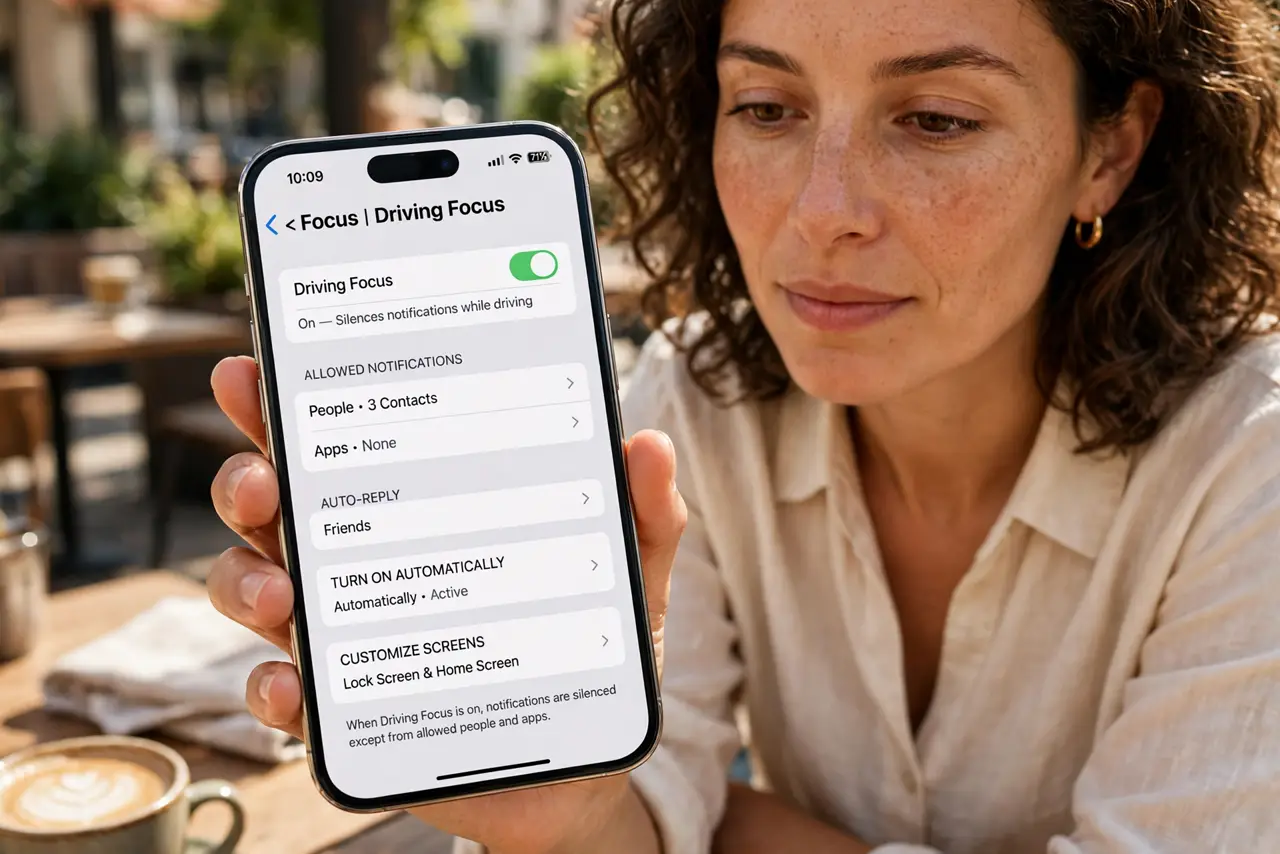
- Open Driving Focus settings. Go to Settings, then Focus, then Driving. If you have never set it up, tap through the intro — it takes a minute and the defaults are sensible.
- Set it to activate automatically. Choose Automatically so the iPhone enables Driving Focus when motion suggests driving, or When Connected to Car Bluetooth. Manual activation gets forgotten; automatic does not.
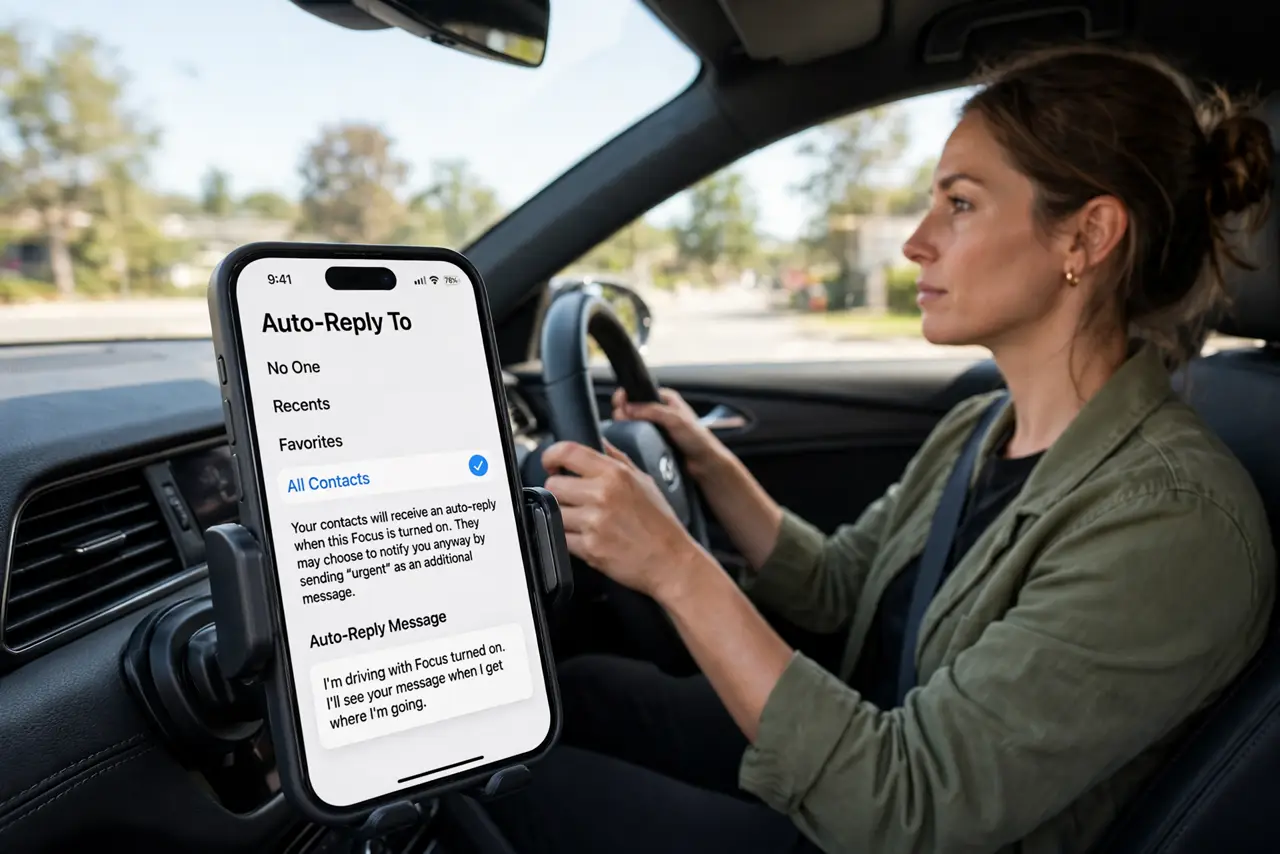
- Turn on Auto-Reply. Under Auto-Reply, choose who gets the automatic text — Recents, Favorites, or All Contacts. The message tells them you are driving and will reply later.
- Customize the message. Edit the auto-reply text to sound like you. Short and clear beats clever: driving now, will reply when I arrive. Save the wit for when you are parked.
- Allow emergency breakthroughs. Keep the option for urgent contacts to break through enabled, and know that a second text within three minutes marked urgent can come through. Real emergencies still reach you.
- Test it as a passenger. Ride along while someone else drives and text yourself from another phone. Seeing the auto-reply work builds the trust to leave the phone alone.
What NOT to do
- Do not read 'just one text' at a red light. The habit transfers to motion — let the auto-reply handle every message, every time.
- Do not disable automatic activation because it triggered once as a passenger. Tune the trigger instead of turning the safety feature off.
- Do not set Auto-Reply to nobody. An unexplained silence worries people; the automatic message is the courtesy.
- Do not mount the phone where it blocks your view. A dash mount is for navigation glances, not for reading the auto-replies.
Frequently asked questions
Will navigation still work in Driving Focus?
Yes. Maps and navigation apps keep working and speaking directions — Driving Focus silences notifications, not navigation.
Can passengers use the phone?
Yes — anyone can tap 'I am not driving' to dismiss it for that trip. The feature trusts the tap.
Does it reply to group chats?
Auto-reply targets direct messages from your chosen contact groups. Group chats are silenced but do not each get a reply.