Watch Together with SharePlay
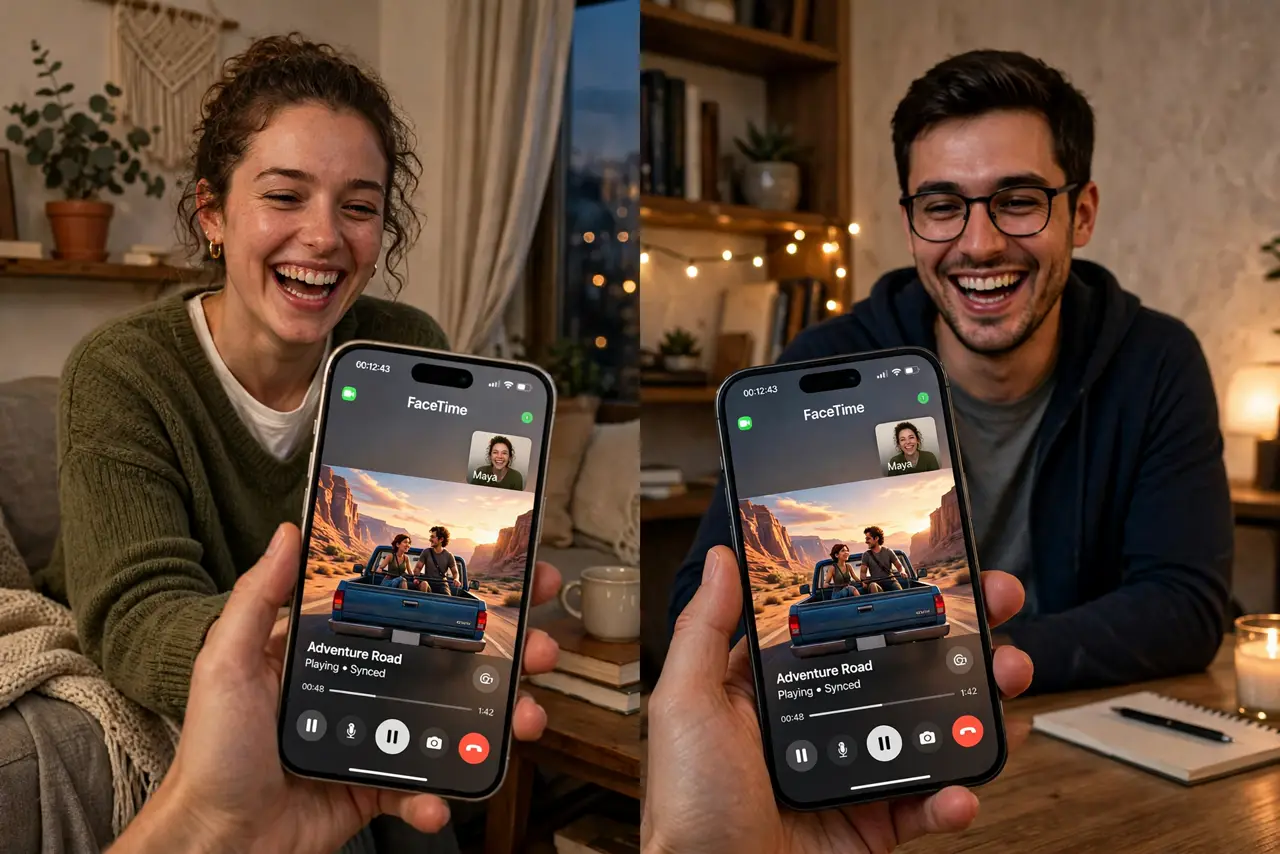
You want to watch a movie with someone across the country — same laughs, same gasps, at the same time. SharePlay syncs playback on a FaceTime call so everyone watches together, pauses together, and reacts together, with the show on screen and your people in picture-in-picture. This guide starts a SharePlay session, picks apps that support it, and fixes the usual sync hiccups. To get everyone on the call first, invite Android users to FaceTime.
TL;DR / Quick Fix
Quick fix: start a FaceTime call, open a supported streaming app, and tap the SharePlay prompt to watch together — playback stays in sync for everyone. All viewers need their own subscription to the service. If sync drifts, pause and resume once to snap everyone back together.
Follow these steps
- Start a FaceTime call first. Call everyone on FaceTime — audio or video. SharePlay rides on the call, so the group needs to be connected before the show starts.
- Open a supported app. Launch a streaming app that supports SharePlay and start the movie or show. A prompt appears asking if you want to SharePlay — tap it.
- Confirm everyone can watch. Each person needs their own subscription or access to the content. SharePlay syncs playback; it does not share one account's login.
- Use the shared controls. Play, pause, and scrubbing sync for the whole group — anyone can pause and everyone pauses. The picture-in-picture tiles keep faces visible during the show.
- Chat without disrupting. Keep the FaceTime audio on for reactions, or mute and use texts for commentary. Agree on the style upfront — nothing kills a movie like a debate about talking.
- Fix drift with pause-resume. If someone falls out of sync, have everyone pause for three seconds, then resume. The resync is nearly instant and fixes almost all drift.
What NOT to do
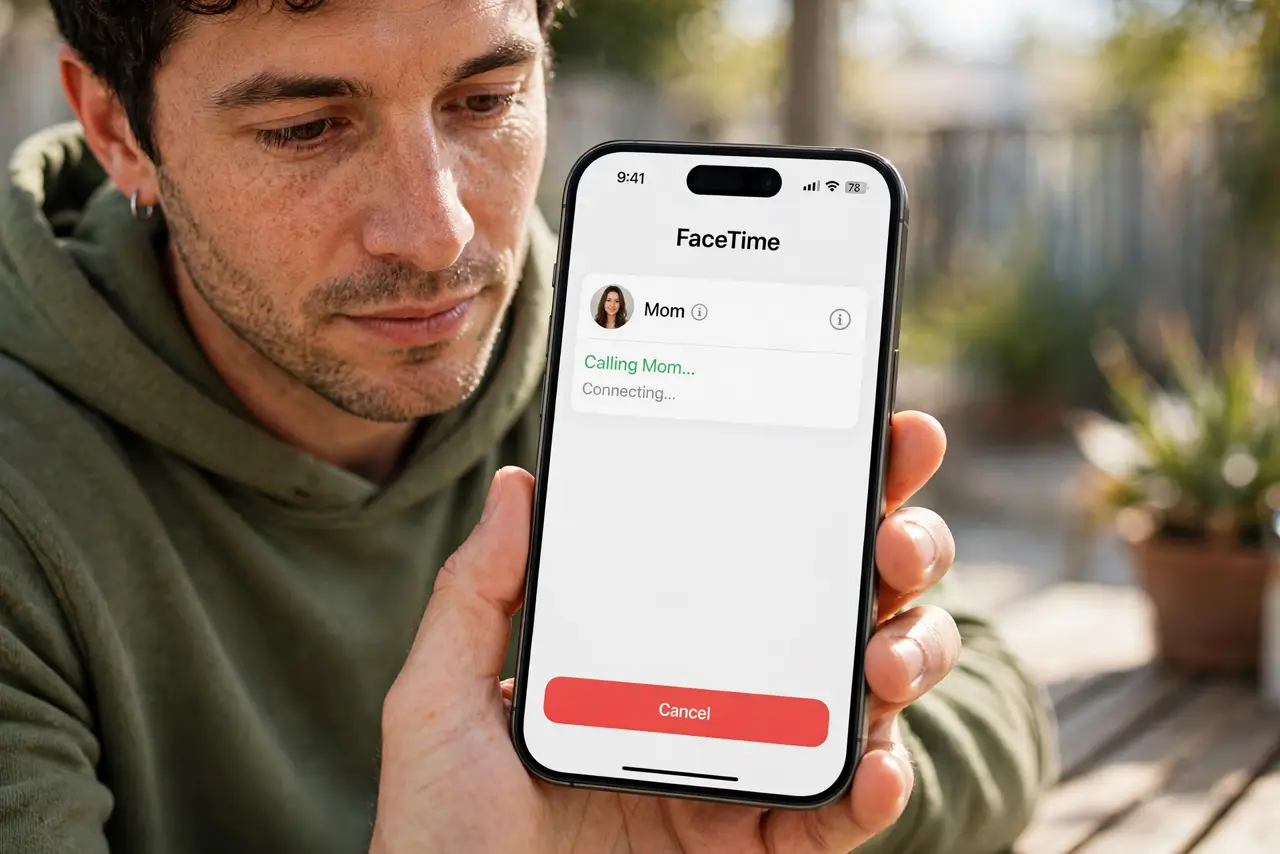
- Do not start the movie before the call. SharePlay needs the FaceTime session first — starting the show early leaves people out.
- Do not share your streaming password to make it work. Everyone needs their own access; password sharing breaks the model and the terms.
- Do not expect every app to support it. If your favorite service lacks SharePlay, check their help pages — support varies widely.
- Do not forget time zones. The only unsyncable problem is someone joining at midnight their time — schedule kindly.
Frequently asked questions
Does SharePlay work with Android?
Only through FaceTime links in a browser, with limited features. Full SharePlay with synced playback needs Apple devices on both ends.
Who controls playback?
Anyone in the session can play, pause, or scrub — it syncs for all. With great power comes great responsibility.
Does it use extra data?
Each person streams their own copy, so data use is per-viewer, same as watching alone. The sync itself is tiny.