Share Location Safely
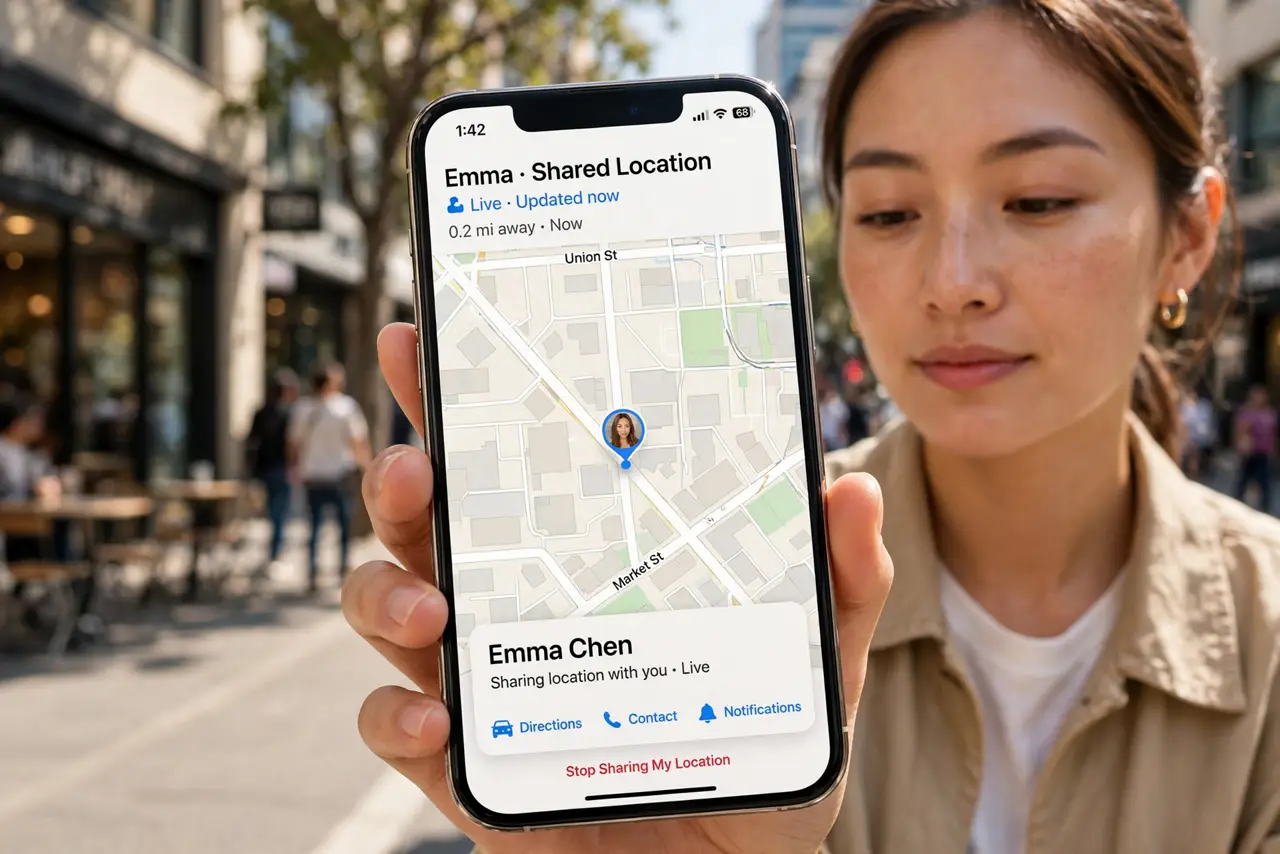
The text when home message is the modern I arrived safe — and both iPhone and Android can send it automatically. Location sharing with family, automatic arrival notifications, and check-in timers mean nobody has to remember to text. Set it up once, and the phone handles the reassurance silently.
TL;DR / Quick Fix
Quick fix: share your location with family through Find My on iPhone or Google Maps location sharing on Android, and set automatic notify-when-I-arrive alerts for home. Use check-in timers for solo trips. Share with specific people, for specific times — never publicly, never permanently.
Follow these steps
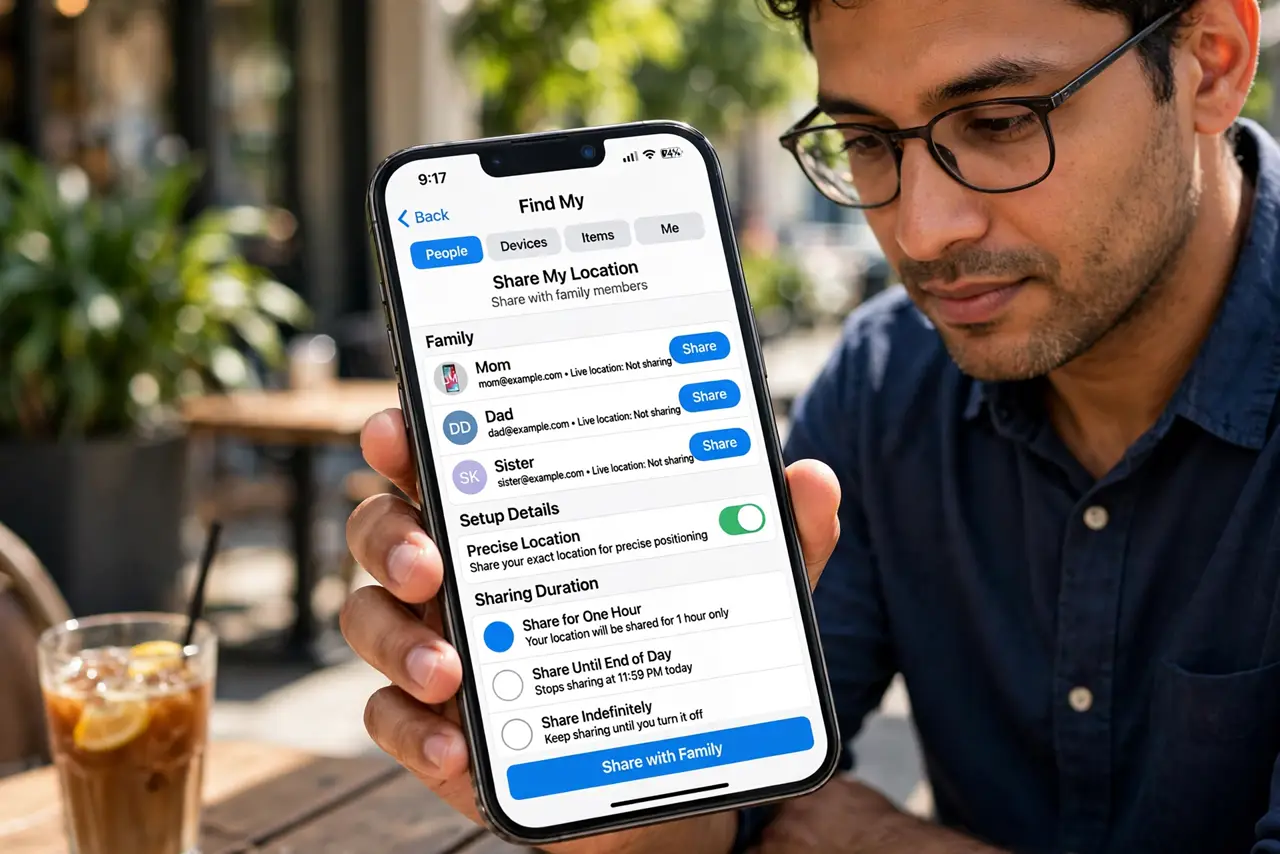
- Share with family on iPhone. Open Find My, tap the People tab, and share with family members. They see your live location — and the setup details cover the precision and sharing-duration options.
- Share on Android with Maps. In Google Maps, tap your profile, then Location sharing, and pick contacts and duration. Time-limited sharing is the safe default — share for the trip, not forever.
- Set arrive-home notifications. Both systems can notify a contact when you reach home automatically. This is the text when home killer — no remembering, no 1 a.m. worry texts.
- Use check-in timers for solo outings. Heading out alone? Start a check-in with a timer — if you do not respond when it ends, your contact gets your location. Hikers and night-shift workers love this.
- Review who can see you. Audit the sharing list monthly. Ex-partners and old friends linger on these lists — the stale location fix mindset applies to people too: remove who should not see you.
- Teach kids the boundaries. Family sharing is great; constant surveillance is not. Agree on when sharing is on — and note the tablet sharing risks before handing kids devices.
What NOT to do
- Do not share your location publicly or indefinitely. Specific people, specific times — permanent public sharing is never the answer.
- Do not use location sharing to spy on a partner. Trust issues need conversation, not tracking.
- Do not forget sharing is two-way visible. Anyone you share with knows you are watching — that transparency is a feature.
- Do not rely on it in dead zones. No signal means no updates — tell someone your plan before remote trips.
Frequently asked questions
Can someone see my location without me knowing?
No — both systems notify you when sharing starts and show an indicator while it is active.
Does it drain the battery?
Mildly. Occasional sharing is negligible; all-day live sharing with many viewers adds up.
How do I stop sharing?
Same screen where you started it — one tap ends sharing immediately on both platforms.