Dim the Flashlight
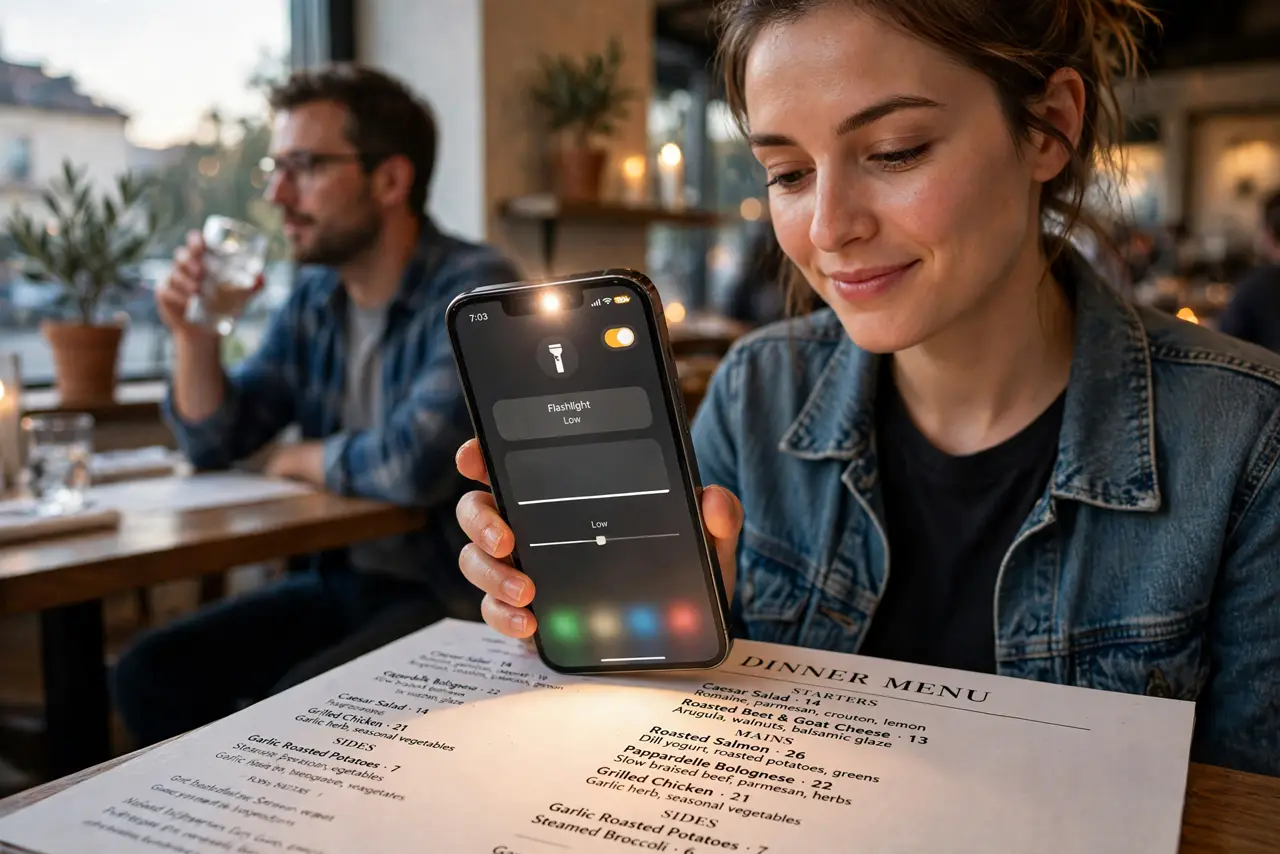
The iPhone flashlight has two modes in most people's minds: off, and blinding. But it actually has four brightness levels — perfect for reading a menu in a dark restaurant without lighting up the whole room, or finding a keyhole without waking anyone. Almost nobody knows the control exists. This guide finds it.
TL;DR / Quick Fix
Quick fix: the iPhone flashlight has four brightness levels — open Control Center, long-press the flashlight icon, and drag the slider. Lower it for close-up tasks to avoid blinding yourself, raise it for dark paths. Most people never touch it, but the dimmest level saves battery too.
Follow these steps
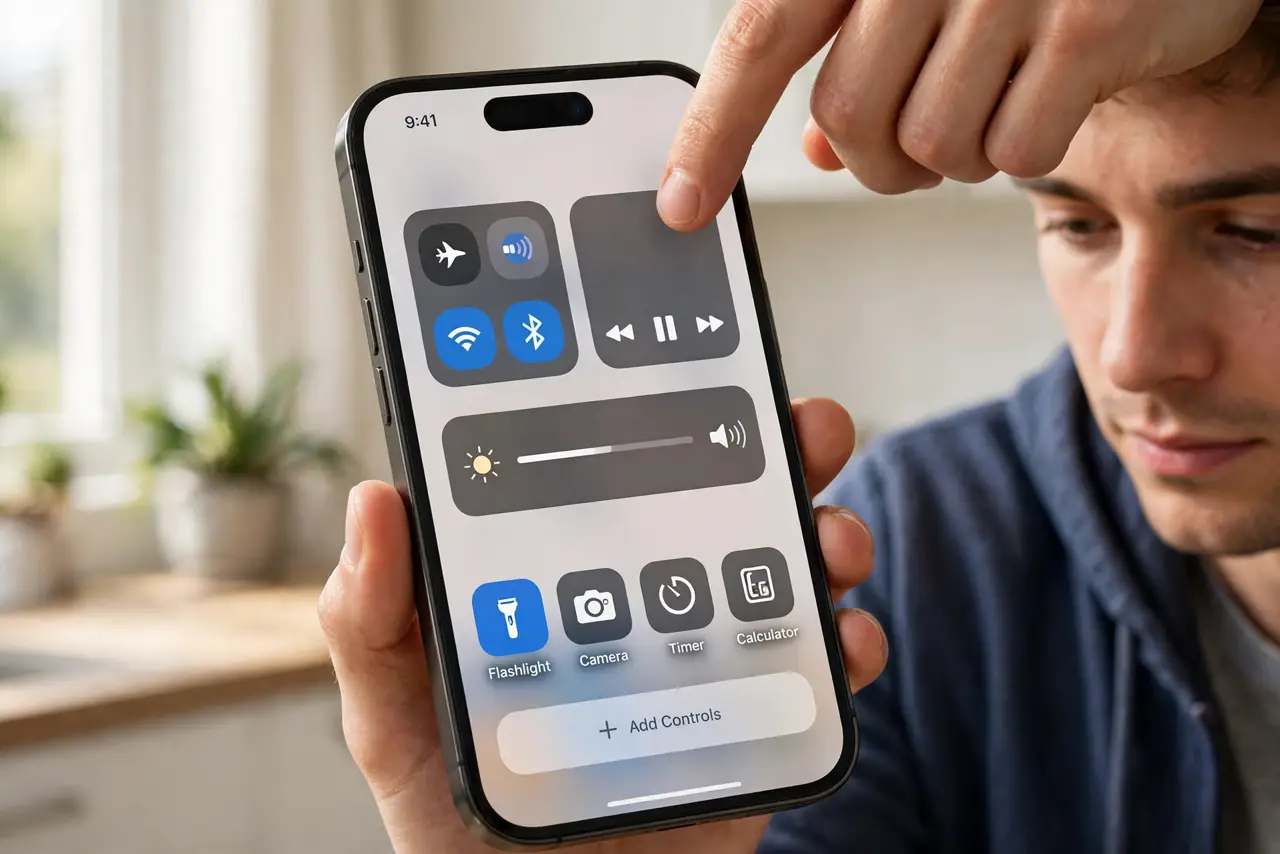
- Open Control Center. Swipe down from the top-right corner. The flashlight toggle is there by default — if you removed it during Control Center customization, add it back first.
- Long-press the flashlight icon. Press and hold the flashlight toggle. A full-screen slider appears with four brightness segments — this is the hidden control most people never discover.
- Drag to the level you need. Slide up for full brightness on dark paths, down to the dimmest for close-up tasks like reading menus or checking on sleeping kids. The setting persists until you change it.
- Use low for close work. The dimmest level is genuinely useful — enough to read by, gentle enough not to blind yourself on reflective surfaces or wake a partner. Try it once and the full-blast default will feel barbaric.
- Use high for distance. Full brightness earns its keep outdoors: dark parking lots, trails, power outages. This is the mode the flashlight was built for — save it for when you need throw, not spill.
- Remember it saves battery too. Lower brightness draws less power. On a long night with no charger, the dim setting stretches the flashlight's runtime dramatically — a real consideration during outages.
What NOT to do
- Do not leave it on full blast in people's faces. The brightest level is genuinely painful up close — dim it for any social or indoor situation.
- Do not forget it is on. The flashlight is a classic battery killer — a glance at the Lock Screen icon or Dynamic Island confirms its state.
- Do not expect fine-grained control. Four levels is all you get — it is a flashlight, not a studio light. Pick the nearest level and move on.
- Do not confuse it with the camera flash. The flashlight toggle is a steady light; the camera flash setting is separate and only fires with photos.
Frequently asked questions
Why does my flashlight turn on by itself?
Usually the Lock Screen shortcut getting pressed in a pocket or bag. You can remove the lock-screen flashlight button in iOS 18's customization to stop it.
Does brightness affect battery a lot?
Yes, proportionally — full brightness is one of the hungriest things the phone does. Dim it whenever full power is not needed.
Can I adjust it from the Lock Screen?
The Lock Screen flashlight button is on/off only. For brightness, go through Control Center's long-press slider.