HEIF vs JPEG?
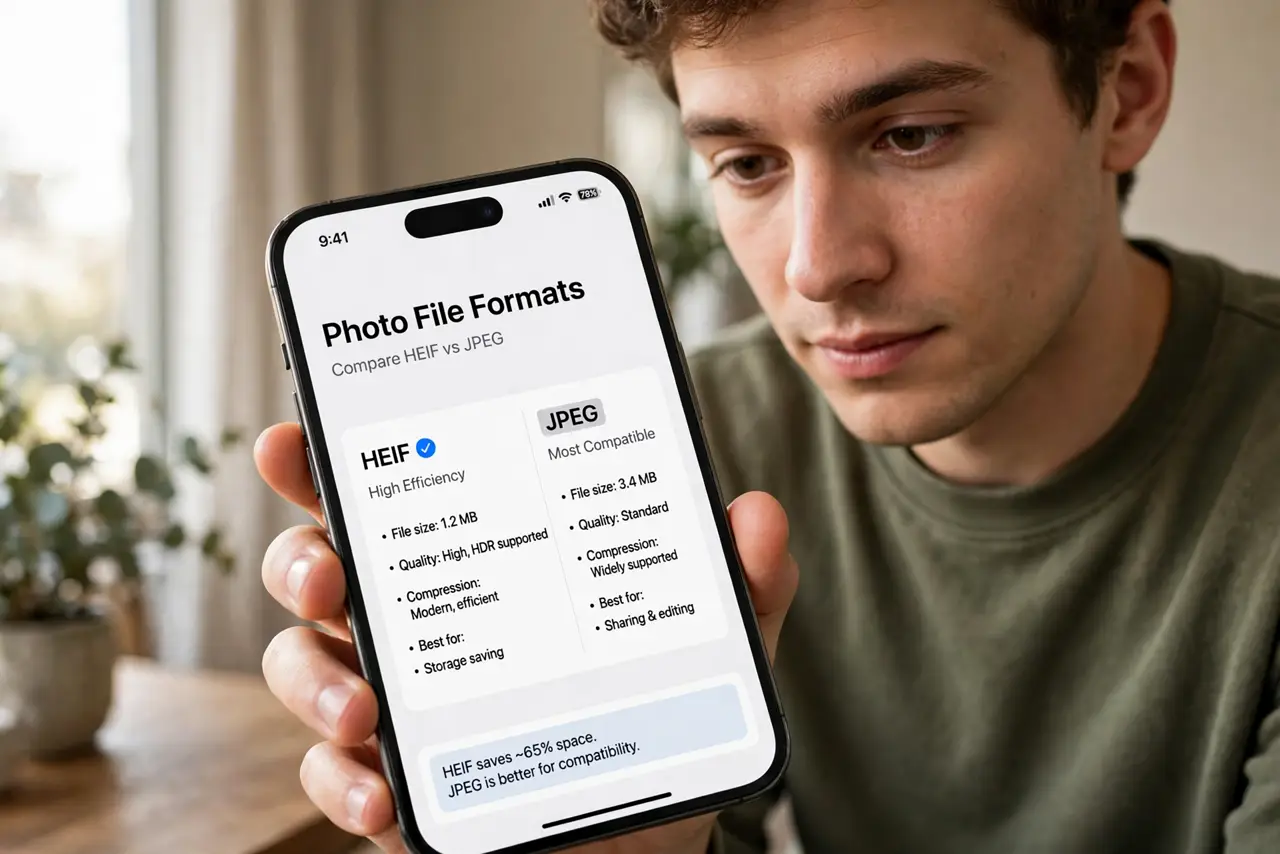
Your iPhone saves photos as .HEIC, and some website just rejected the upload. HEIF is Apple's modern format — better quality per megabyte than JPEG — but the rest of the world still speaks JPEG. The good news: your iPhone converts automatically in most cases, and the fix for the rest is one setting. Here is the complete picture.
TL;DR / Quick Fix
Quick fix: HEIF is Apple's photo format — half the size of JPEG at equal quality. iPhones shoot HEIF by default; Apple devices and recent Windows handle it. Switch to JPEG (Settings > Camera > Formats > Most Compatible) for older devices or picky sites. Keep HEIF unless something breaks.
Follow these steps
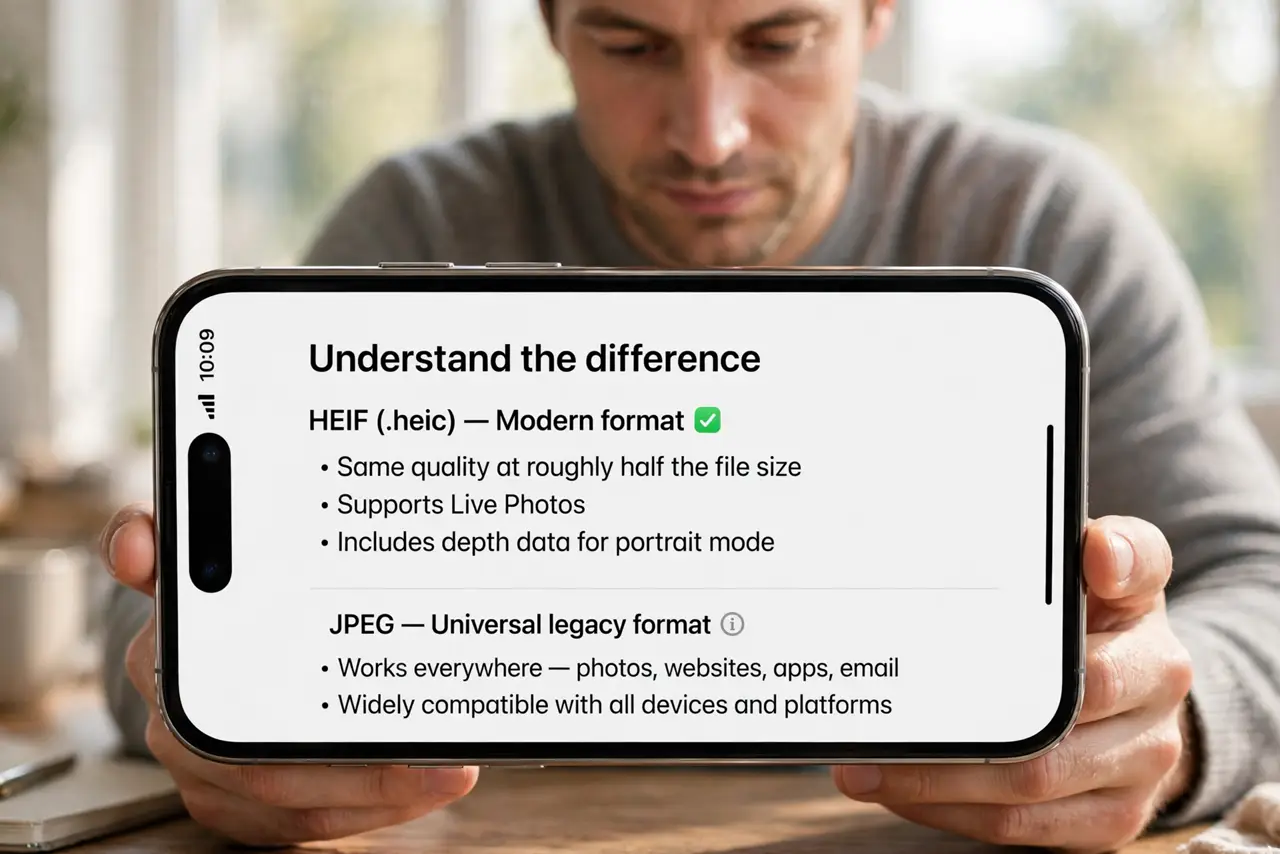
- Understand the difference. HEIF (.heic) is the modern format: same quality at roughly half the file size, plus features like live photos and depth data. JPEG is the universal legacy format everything accepts.
- Know what your iPhone shoots. Settings > Camera > Formats: High Efficiency = HEIF, Most Compatible = JPEG. Default is HEIF — your photo library is probably HEIF already and you have never noticed.
- Share without fear (mostly). When you share via Messages, Mail, or AirDrop, iPhone auto-converts to JPEG for compatibility. The HEIF original stays in your library; recipients get JPEG.
- Switch to JPEG when needed. Uploading to a picky website, an old Windows PC, or a client's ancient system? Temporarily switch to Most Compatible — or convert specific photos on export.
- Handle HEIF on Windows. Windows 10/11 open HEIF with the free HEIF Image Extensions from the Microsoft Store. One install, and File Explorer treats them like any photo.
- Do not convert your whole library. Bulk-converting HEIF to JPEG doubles storage for zero visible gain. Keep originals in HEIF; convert only at the point of sharing when needed.
What NOT to do
- Do not panic when a site rejects .heic. It is a format issue, not a broken photo — convert that one file or switch formats temporarily.
- Do not assume HEIF means worse quality. Smaller file, same quality — that is the entire point of the format.
- Do not shoot JPEG just in case forever. You are doubling storage for compatibility problems that auto-conversion already solves.
- Do not email HEIC files to non-Apple users raw. The auto-convert only kicks in through Apple's share paths — manual email attachments may stay HEIC.
Frequently asked questions
Why are my iPhone photos .HEIC instead of .JPG?
Your camera is set to High Efficiency. It is the default since iOS 11 — smaller files, same quality, and most people never notice.
Can I convert HEIC to JPG on iPhone?
Yes — the Files app or a shortcut converts, and sharing via most apps auto-converts. No extra app needed for the common cases.
Will HEIF replace JPEG?
Slowly, maybe. JPEG's universality is a 30-year moat — HEIF wins on efficiency, JPEG wins on works everywhere. Both will coexist for years.