Change Hotspot Password?
Your iPhone's Personal Hotspot shares its data connection with your laptop or a friend's phone -- and the password guarding it deserves attention. The default password is random and strong, but after sharing it with half the office it is effectively public. Changing it takes thirty seconds and keeps strangers off your data plan.
TL;DR / Quick Fix
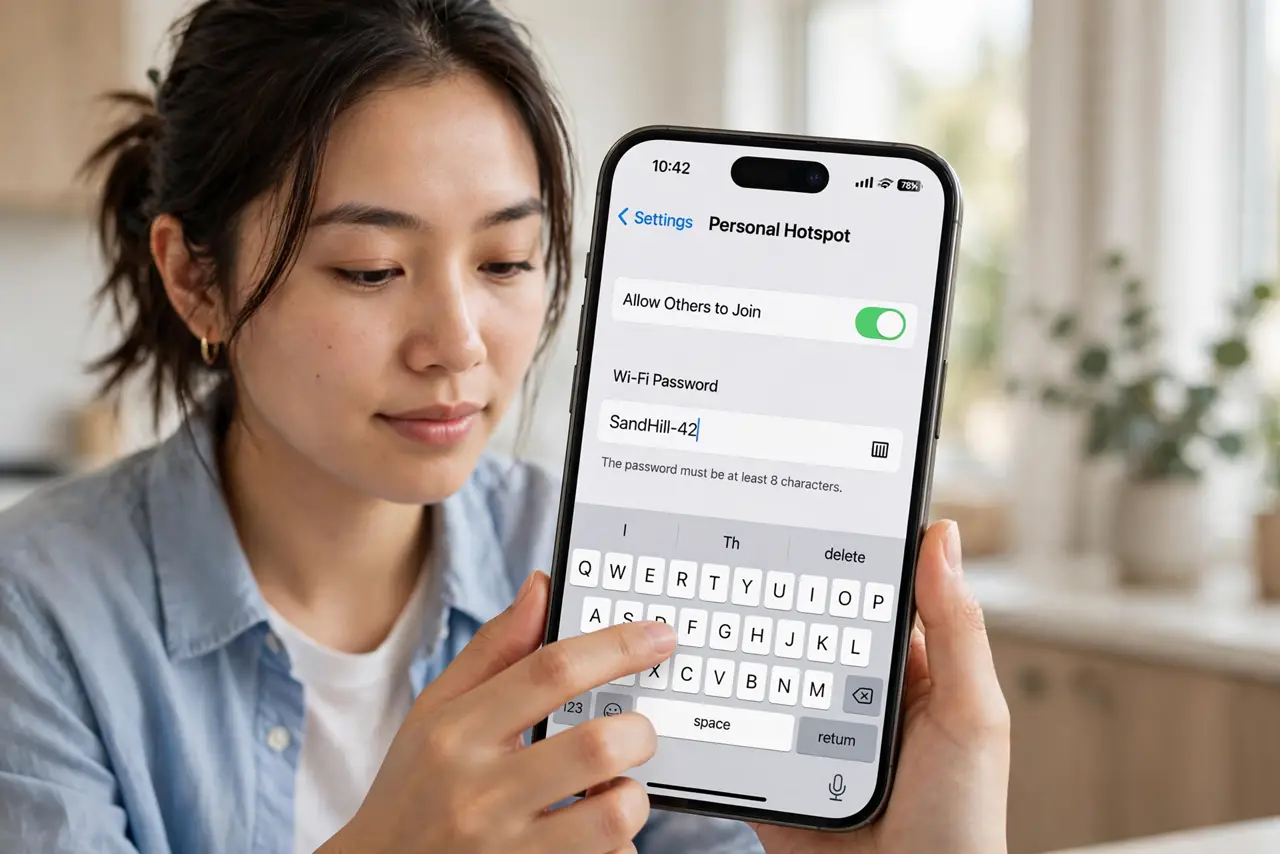
Quick fix: change your hotspot password in Settings, then Personal Hotspot, then Wi-Fi Password -- pick something long but typable, since guests enter it by hand. Changing the password disconnects everyone, so warn connected devices first. Never leave the hotspot on with the factory password after sharing it widely.
Follow these steps
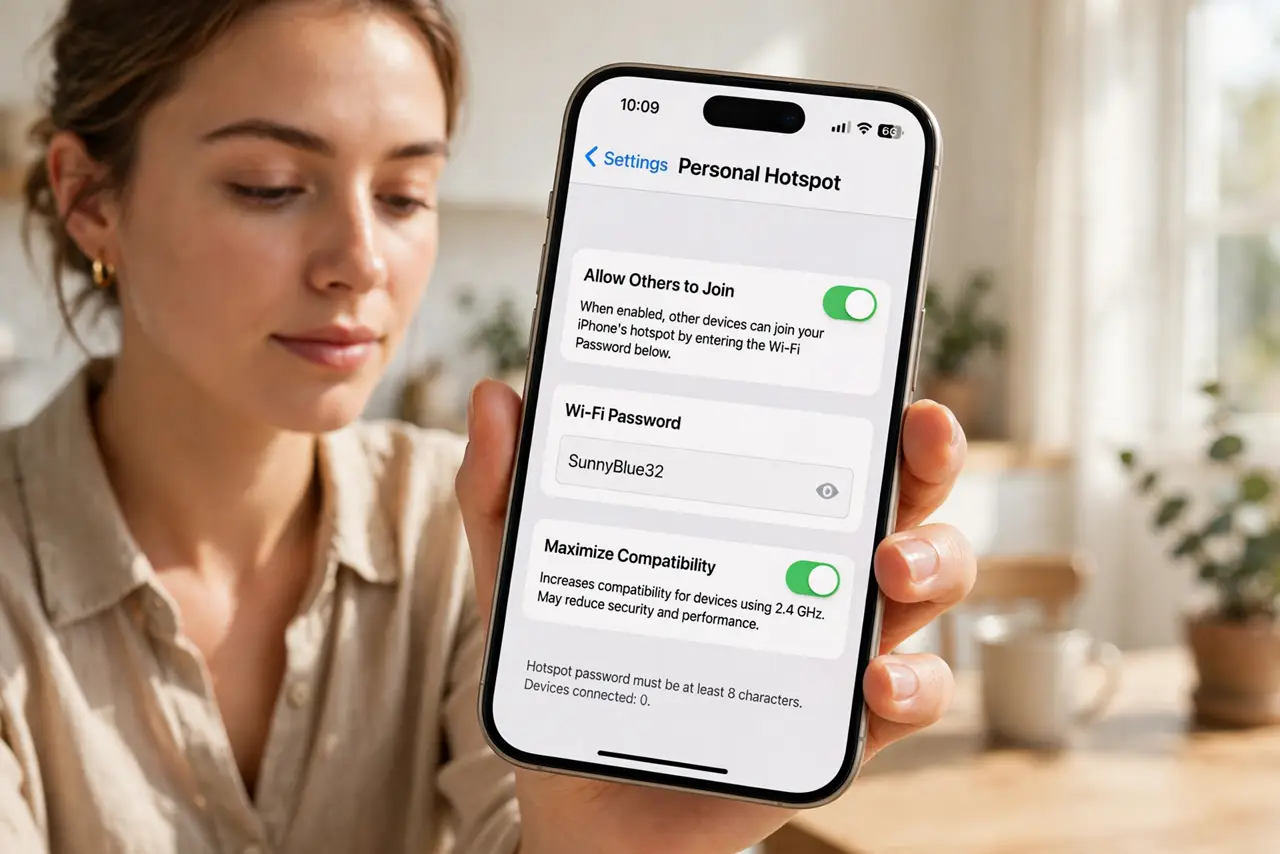
- Open the hotspot settings. Settings, then Personal Hotspot -- or Settings, then Cellular, then Personal Hotspot on some versions. This screen holds the password and the allow-others toggle.
- Tap Wi-Fi Password to change it. Enter a new password of at least 8 characters. Long and typable beats short and cryptic -- guests type this on phones, often while you dictate it aloud.
- Warn connected devices first. Changing the password boots every connected device immediately. Give your laptop a heads-up or save your work -- the drop is instant and silent.
- Turn the hotspot off when done. An active hotspot broadcasts your presence and drains battery. Toggle Allow Others to Join off when nobody needs it -- the hotspot should be a tool, not a lighthouse.
- Know who is connected. The status bar shows hotspot activity; some iOS versions list connected devices. An unknown device on your hotspot is someone spending your data -- change the password.
- Consider USB or Bluetooth tethering. For your own laptop, USB tethering is faster and more secure than Wi-Fi hotspot -- see the tethering comparison. Wi-Fi hotspot is for sharing with others, not for yourself.
What NOT to do
- Do not keep sharing one password forever. After a trip or a project with many guests, rotate it -- old guests stay connected otherwise.
- Do not use a weak or obvious password. Your data plan and overage fees are on the line -- 'password123' is not a joke here.
- Do not leave the hotspot broadcasting all day. Battery drain is real, and every open hour is an hour strangers can probe it.
- Do not forget hotspot uses your data plan. Streaming video over hotspot burns through caps fast -- warn guests or set expectations.
Frequently asked questions
How do I see who is on my hotspot?
The status bar turns blue (or shows a hotspot icon) while active. iOS does not always name devices, so an unfamiliar connection means it is time to rotate the password.
Why is my hotspot so slow?
Hotspot speed depends on your cellular signal and how many devices share it. One laptop is fine; five phones streaming is not.
Does hotspot cost extra?
It uses your plan's data -- some carriers cap or throttle hotspot data separately. Check your plan before heavy use.
What to read next
- USB Tethering vs Hotspot?
- Share Wi-Fi as Hotspot on Windows?