Schedule Journal Reminders
Apple's Journal app is lovely for capturing moments, but an empty journal stays empty — most people open it twice and forget it. The feature that fixes this is scheduled reminders: a gentle nudge at the same time each day, plus journaling suggestions that resurface photos and places worth writing about. This guide sets up a reminder routine that sticks, keeps entries short on purpose, and shows how to look back at what you wrote. Pair it with medication reminders and your phone quietly runs the routines you keep forgetting.
TL;DR / Quick Fix
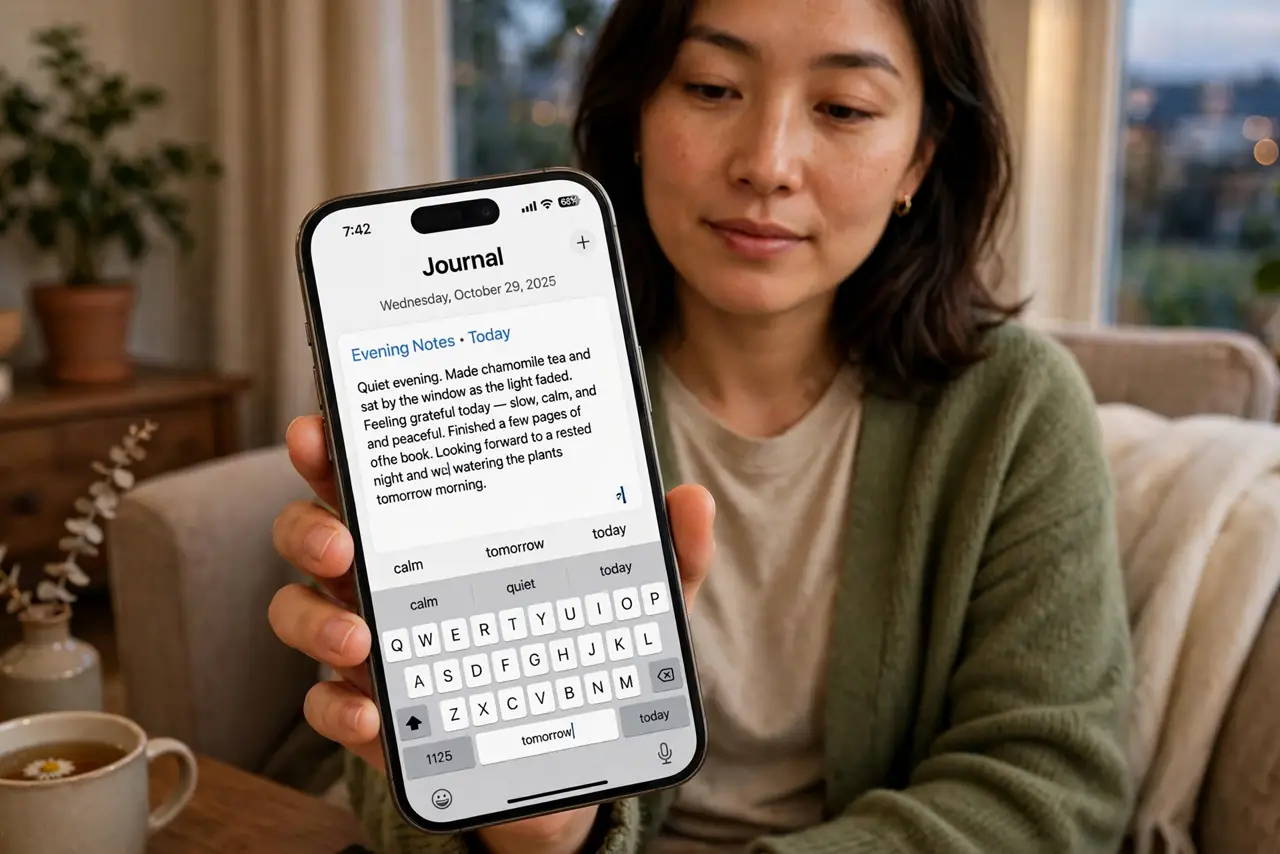
Quick fix: in the Journal app settings, turn on a daily journaling schedule at a time you will actually keep, like after dinner. Enable suggestions so the app offers photos and moments to write about. Keep entries to two or three sentences — short entries survive past week two.
Follow these steps
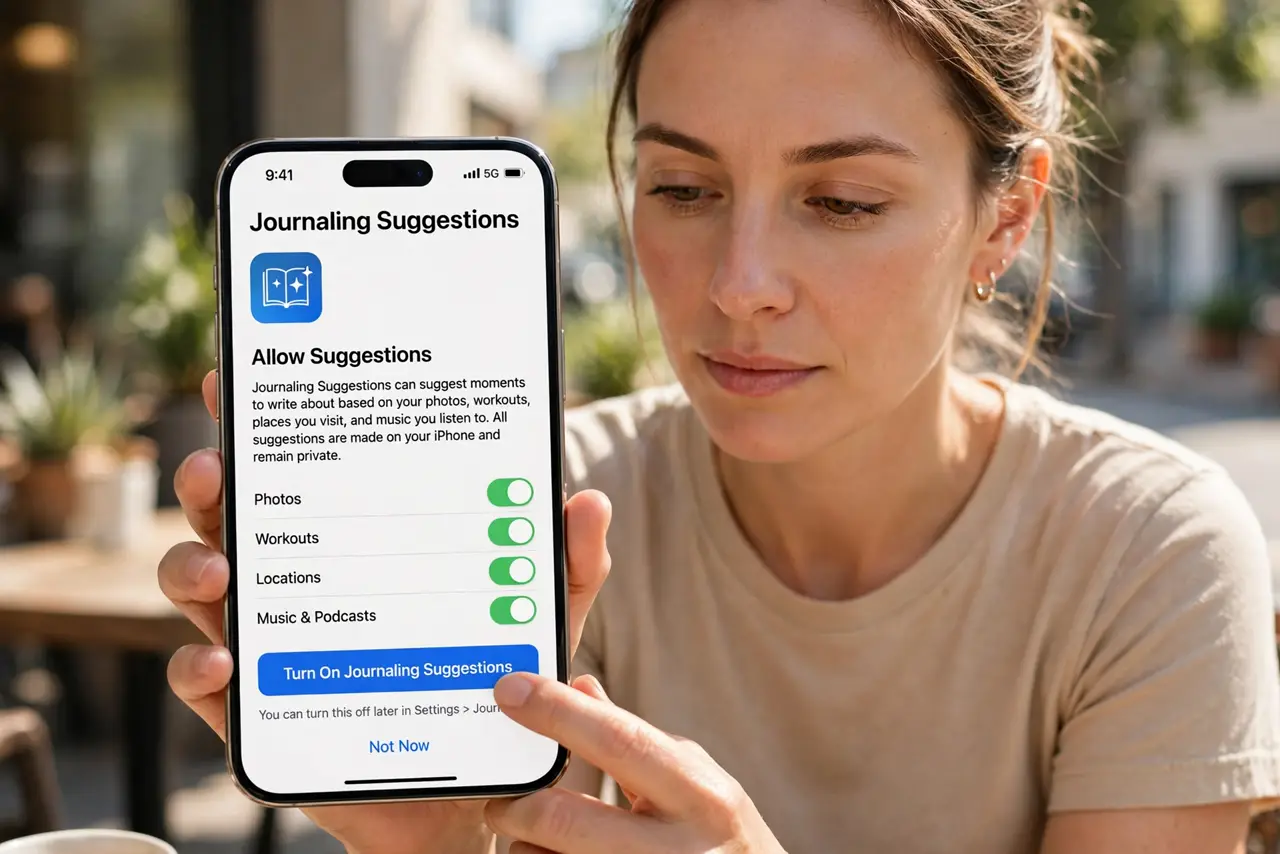
- Open the Journal app and allow suggestions. Launch Journal and let it enable journaling suggestions. These surface recent photos, workouts, and places as writing prompts, which removes the blank-page problem on day one.
- Turn on the journaling schedule. Go to Settings, then General, then Journaling Schedule, and switch on Schedule. Pick a time tied to an existing habit — right after dinner or before bed works better than a random afternoon slot.
- Keep entries deliberately short. Aim for two or three sentences: what happened, how it felt. Long essays kill the habit; short entries keep the streak alive and are more fun to reread later.
- Use the prompt when you are stuck. Tap the suggestion cards or the reflection prompts when you have nothing to say. Answering a prompt counts as journaling — the format does not matter, the showing up does.
- Lock Journal for privacy. In Journal settings, turn on Lock Journal so entries require Face ID. A private-feeling journal gets more honest entries, and honest entries are the ones worth keeping.
- Review entries monthly. Open Journal and scroll back a month. Seeing the habit pay off in memories is what keeps it going — and it takes two minutes.
What NOT to do
- Do not schedule three reminders a day. One well-timed nudge beats a barrage you start ignoring by day three.
- Do not write essays to catch up on missed days. Write today only; backfilling turns journaling into homework.
- Do not keep Journal unlocked if anyone else handles your phone. The lock exists for a reason — use it before you need it.
- Do not delete the app in a purge and expect the habit to survive. The schedule is the habit; without the nudge it fades.
Frequently asked questions
Where do Journal entries go?
They stay on your iPhone, encrypted, and can sync across your Apple devices with iCloud if you enable it. Nothing is posted anywhere.
Can I journal on days I missed?
Yes, but do not backfill marathons. Write a short entry for today and, if you like, one line about yesterday. Keep it light.
Does Journal drain the battery?
No more than any app. Suggestions are generated on-device from data your phone already collects, so there is no constant uploading.