Swipe-Type on iPhone
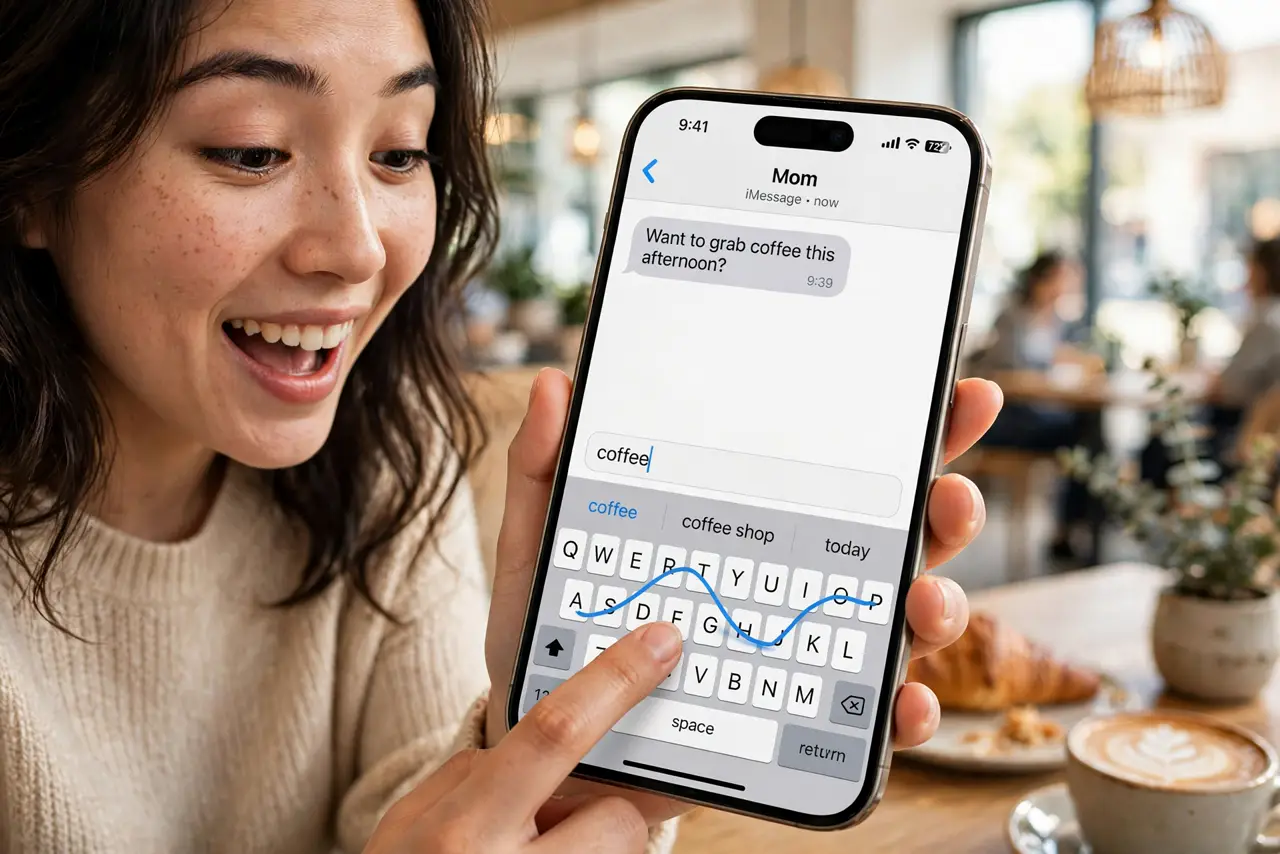
You tap out every message letter by letter while swipe-typers glide through sentences in half the time. Both iPhone and Android keyboards support glide typing — slide your finger across the letters without lifting, and the keyboard guesses the word. It is already on your phone; you just never tried it.
TL;DR / Quick Fix
Quick fix: just start swiping — on iPhone, slide your finger across the letters of a word without lifting; the word appears. It works in any app with the stock keyboard. Give it three days; the first day feels clumsy, the fourth feels like flying.
Follow these steps
- Try it right now. Open any text field and slide your finger from letter to letter of a word without lifting. Lift at the end — the word appears. No setting to enable on iPhone; it is on by default.
- Trust the predictions. The keyboard guesses from the path, not perfect letter hits — close is good enough. If it guesses wrong, the suggestions above the keyboard offer alternatives; tap the right one.
- Swipe whole sentences. Chain words by swiping one, lifting, swiping the next — with space inserted automatically. Sentences flow in a rhythm of swipes, not a march of taps.
- Add words to the dictionary. When it misses your slang or names, type them once manually and the keyboard learns. A week of corrections personalizes it to your vocabulary.
- Know when to tap. Passwords, unusual names, and precise codes still deserve tapping — swipe for prose, tap for precision. The two modes coexist; switch freely.
- Check Android options. Android's Gboard has used glide typing for years with the same gesture. Third-party keyboards vary — if swiping does nothing, check the keyboard's own settings.
What NOT to do
- Do not judge it in five minutes. Day one is clumsy for everyone; the payoff lands around day three or four.
- Do not swipe passwords. Glide typing learns from what you swipe — keep secrets on taps, out of the learning model.
- Do not fight wrong guesses. Tap the correct suggestion once and move on — arguing with the keyboard wastes the time it saves.
- Do not assume it is off. On iPhone it is enabled by default; if swiping does nothing, you may be in a third-party keyboard.
Frequently asked questions
Is swipe typing slower than tapping?
After the learning curve, usually faster — especially one-handed. Speed typists who tap may match it, but most people gain.
Why does it keep guessing the wrong word?
Your swiping path is ambiguous for those words, or the dictionary lacks them. Type them manually a few times to teach it.
Does it work in every app?
With the stock keyboard, yes — Messages, mail, browsers, notes. Some secure fields like banking apps may disable it deliberately.