Make Home Screen Icons Bigger
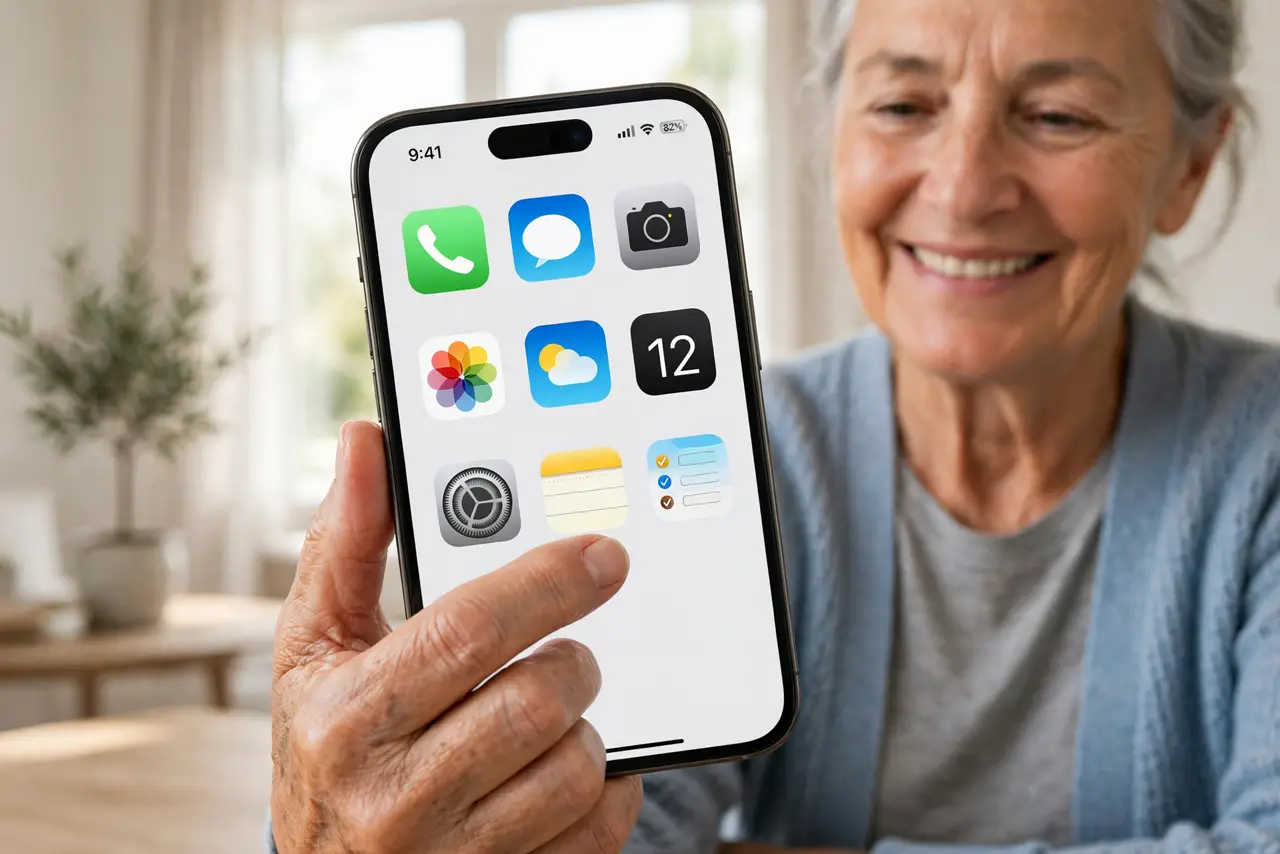
You keep missing the tiny app icons, or you just want a bolder, cleaner home screen with less visual clutter. Since iOS 18, the iPhone can display large app icons — bigger tap targets, no icon labels, maximum legibility. It is a genuine accessibility win disguised as a style choice. This guide turns it on.
TL;DR / Quick Fix
Quick fix: iOS 18 lets you enlarge home screen icons — long-press the wallpaper, tap Edit, then Customize, and choose Large. Icon names disappear but everything gets easier to tap. It pairs well with Display Zoom in Accessibility settings for an even bigger, more readable phone.
Follow these steps
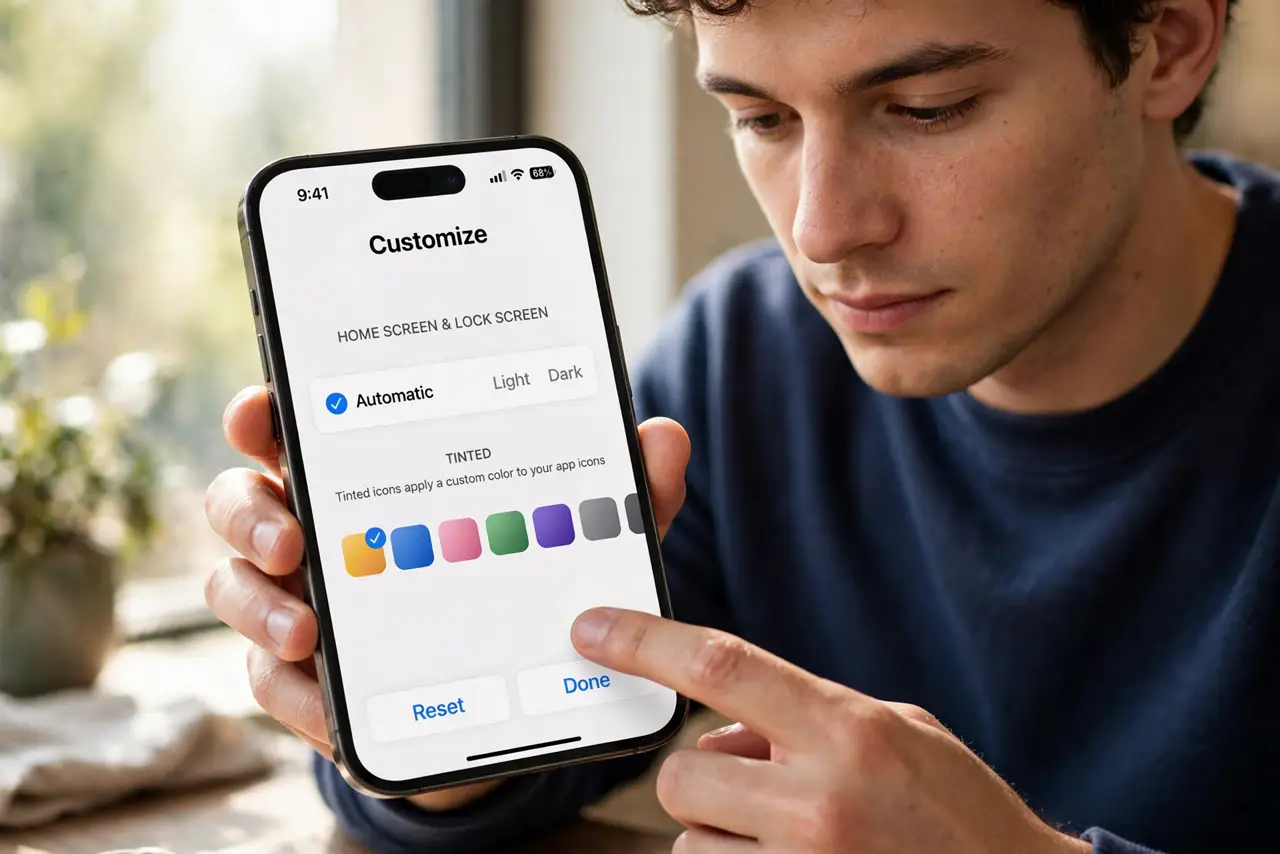
- Open the Customize panel. Long-press an empty area of the wallpaper until icons jiggle, tap Edit, then Customize. The same panel that holds the tinted icons option also holds the size choice.
- Choose Large. Tap Large in the panel. Icons grow, labels vanish, and the grid loosens — the whole home screen breathes. It applies everywhere instantly.
- Check your widgets. Widgets resize to match the new grid. Confirm your key widgets still show the info you need — some compact widgets gain breathing room, others just get bigger.
- Pair it with Display Zoom if needed. For maximum readability, also try Display Zoom under Settings, then Display & Brightness. Large icons plus Display Zoom is the most legible iPhone setup short of accessibility text sizes.
- Reorganize for the new grid. Fewer icons fit per page now, so your most-used apps may have spilled onto a second page. Take a minute to re-promote favorites to page one.
- Revert anytime. Tap Small in the same panel to go back. Nothing is lost — layout, folders, and widgets all restore exactly as they were.
What NOT to do
- Do not enable it and ignore the spillover. Apps pushed to page two might as well not exist — reorganize right away or the feature backfires.
- Do not assume labels are gone forever. They are just hidden in Large mode; switching back to Small restores every label instantly.
- Do not forget older users in your family. This is one of the best iPhone accessibility features — set it up on parents' and grandparents' phones proactively.
- Do not confuse it with text size. Large icons affect the home screen grid; Settings, then Display, then Text Size affects text inside apps — they are independent.
Frequently asked questions
Will large icons drain more battery?
No. It is a layout change, not an active effect — battery impact is zero.
Can I have large icons but keep labels?
No — Large mode drops the labels by design. If you need labels, stay on Small and use Display Zoom instead for bigger everything.
Does it affect the App Library?
The App Library keeps its own layout. Large icons apply to home screen pages; the library view is unchanged.