Tint Your Home Screen Icons
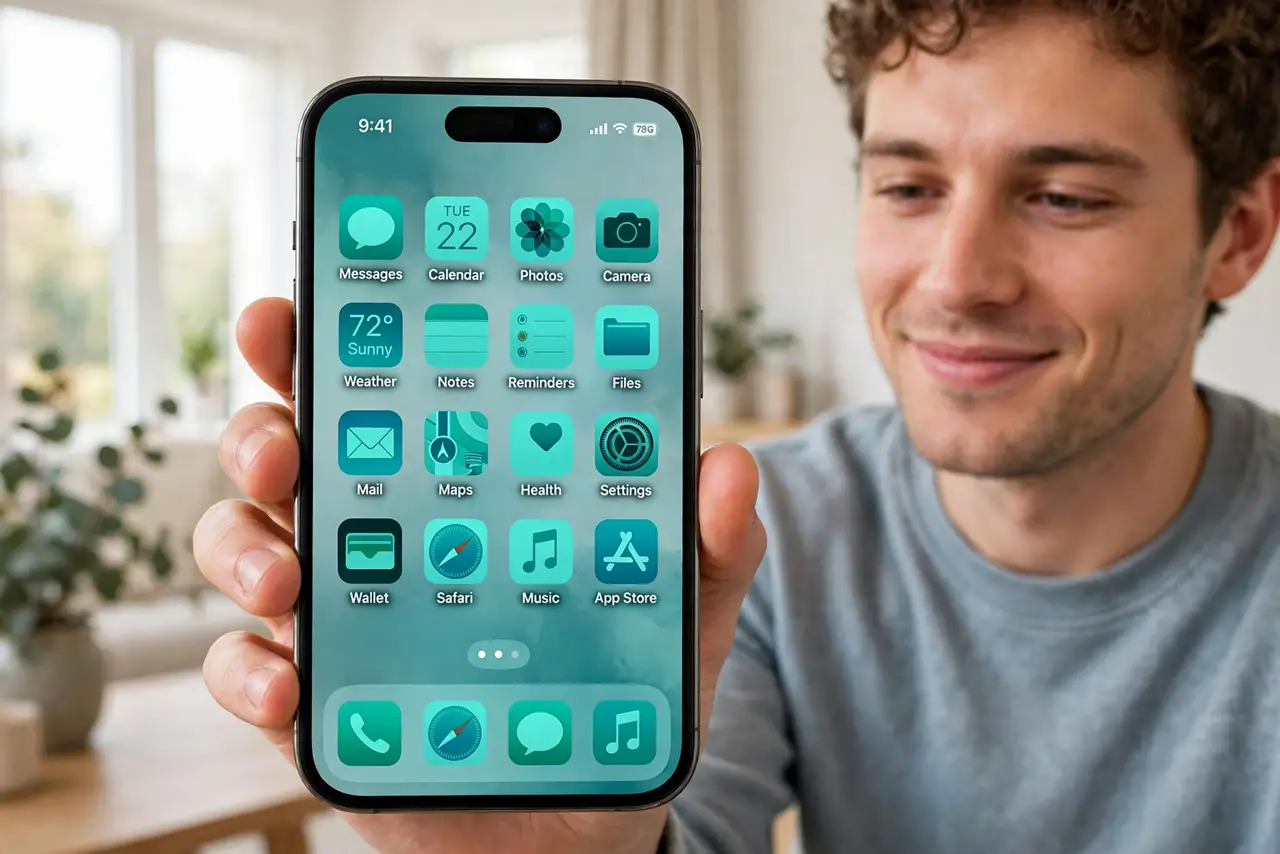
Your new wallpaper is gorgeous — deep teal, sunset orange — and the home screen icons clash with it horribly. Since iOS 18, the iPhone can tint every app icon to a single color so the whole home screen matches your aesthetic. It takes twenty seconds and changes nothing about how the apps work. This guide shows the setting and how to pick a tint that actually looks good.
TL;DR / Quick Fix
Quick fix: iOS 18 can tint every home screen icon to one color — long-press the wallpaper, tap Edit, then Customize, and choose Tinted. Pick a color that matches your wallpaper and icons recolor automatically. Tap Automatic or Dark to switch back; it is purely cosmetic and changes nothing.
Follow these steps
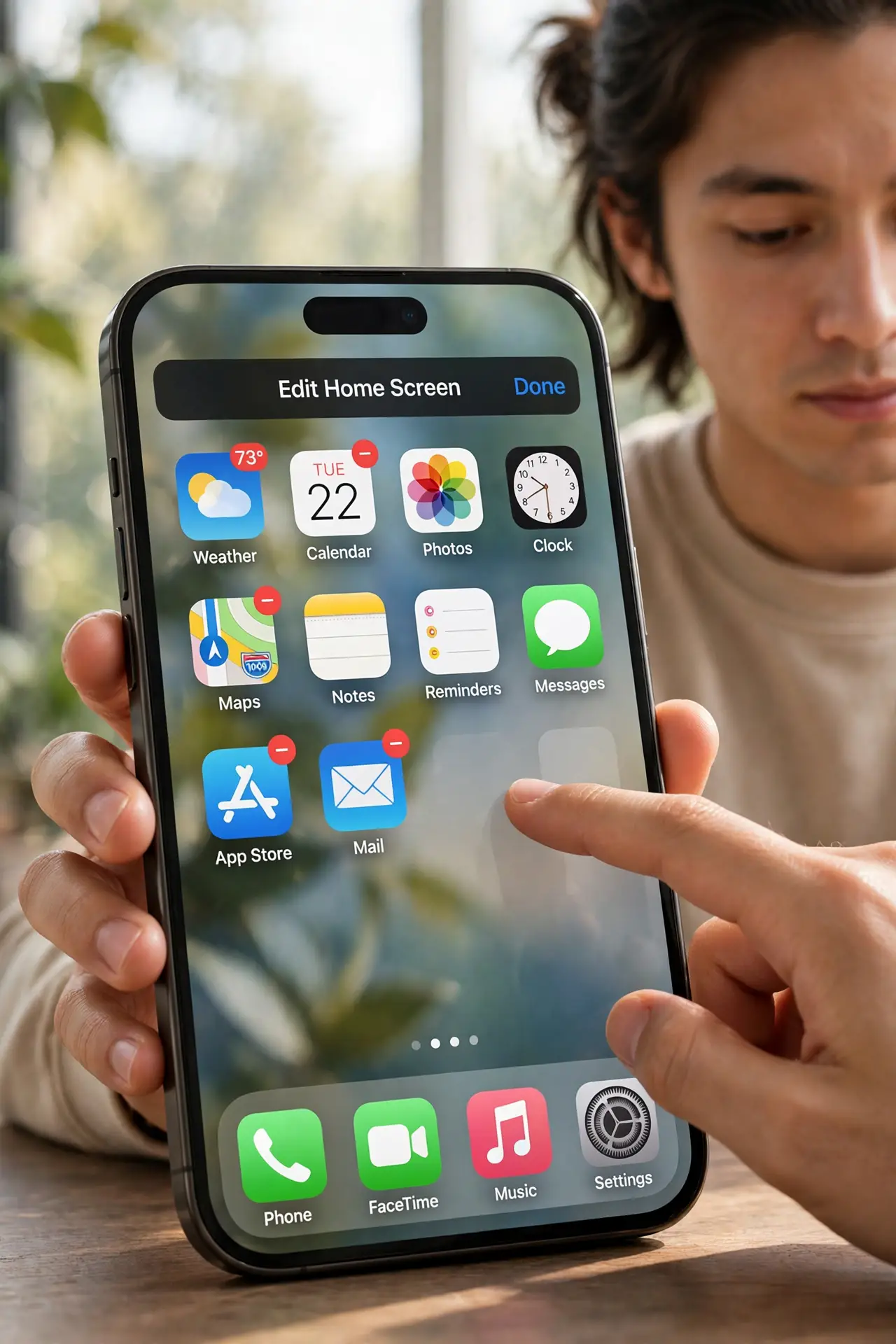
- Enter home screen edit mode. Long-press on an empty area of the wallpaper (not on an icon) until the icons jiggle. This is the same mode used for moving apps — the customization lives here.
- Open the Customize panel. Tap Edit in the top-left corner, then choose Customize. A small panel appears at the bottom with icon style options — this is new since iOS 18.
- Choose Tinted. The panel offers Automatic, Dark, Light, and Tinted. Tap Tinted and a color picker appears. Every icon on every home screen page shifts to your chosen tint immediately.
- Pick a color from your wallpaper. Use the eyedropper-style picker or drag to a color sampled from your wallpaper. Matching the wallpaper's dominant or accent color is what makes the look cohesive instead of random.
- Adjust for light and dark mode. The tint applies in both modes but reads differently against light and dark wallpapers. Check both appearances — a tint that glows on a dark wallpaper can look washed out on a light one.
- Revert anytime. Tap Automatic or Dark in the same panel to undo the tint instantly. Nothing is permanent, no app is affected, and your layout stays exactly as it was — unlike hiding entire pages, which changes navigation.
What NOT to do
- Do not pick a tint so dark the icons vanish. Very dark tints on dark wallpapers make icons hard to find — legibility beats aesthetics.
- Do not expect third-party icons to match perfectly. Apps with colorful brand icons get tinted too, but some render slightly differently than Apple's own icons.
- Do not confuse tinted with Dark mode icons. Tinted is a custom color; Dark is Apple's dark icon set. They are separate choices in the same panel.
- Do not forget widgets. Tinted mode affects widgets too — check that your key widgets still read clearly in the new color.
Frequently asked questions
Does tinting affect app functionality?
Not at all. It is a purely visual theme over the icons — apps open, badge, and notify exactly as before.
Can I tint only some icons?
No — tinting is all-or-nothing across the home screen. For per-app control you would need custom icon shortcuts, which is a much bigger project.
Will the tint use more battery?
No measurable difference. It is a static color theme, not an active effect.