Apps with Live Activities
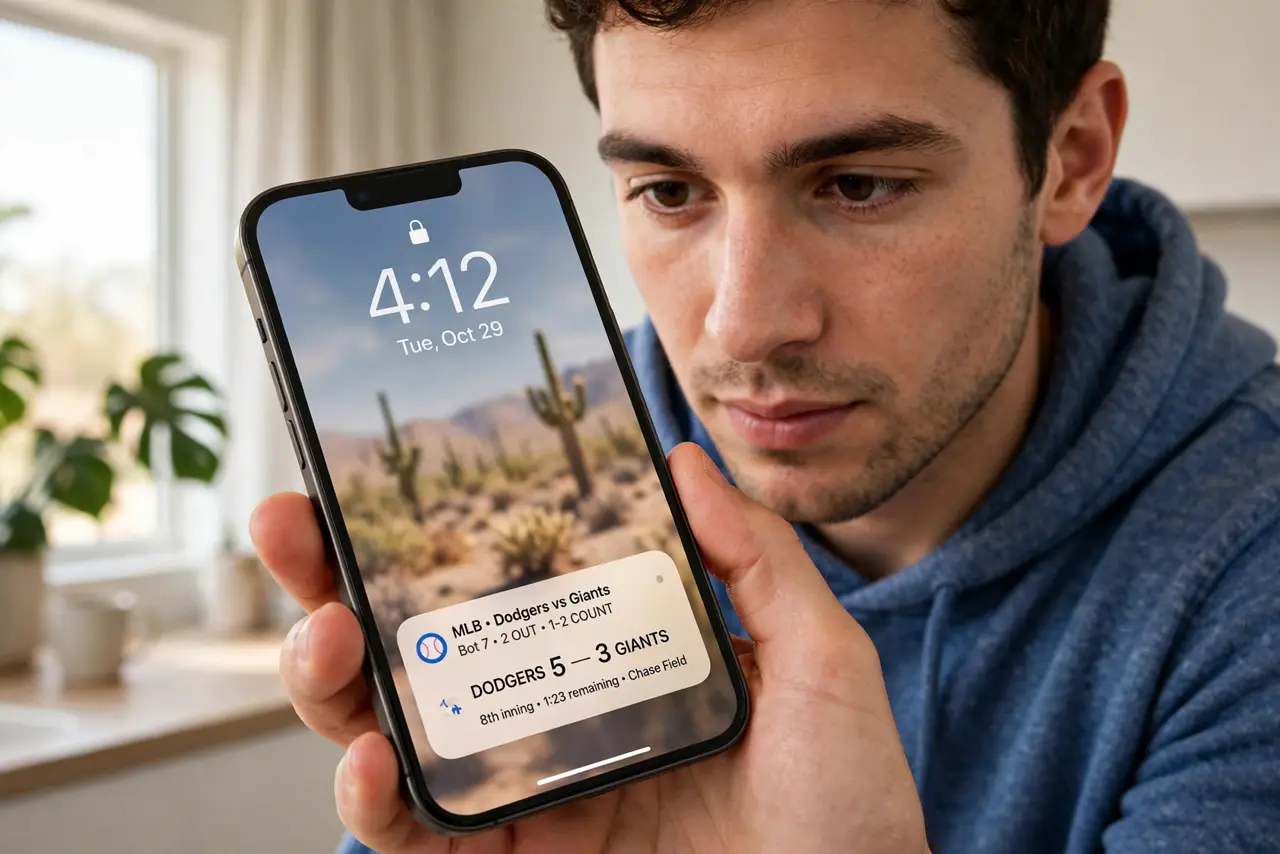
Live Activities turn your lock screen — and the Dynamic Island — into a live scoreboard for the things you care about: sports scores, delivery drivers, flight gates, timers. But they only work if the app supports them and you have granted permission. This guide finds the apps that do it well and turns them on.
TL;DR / Quick Fix
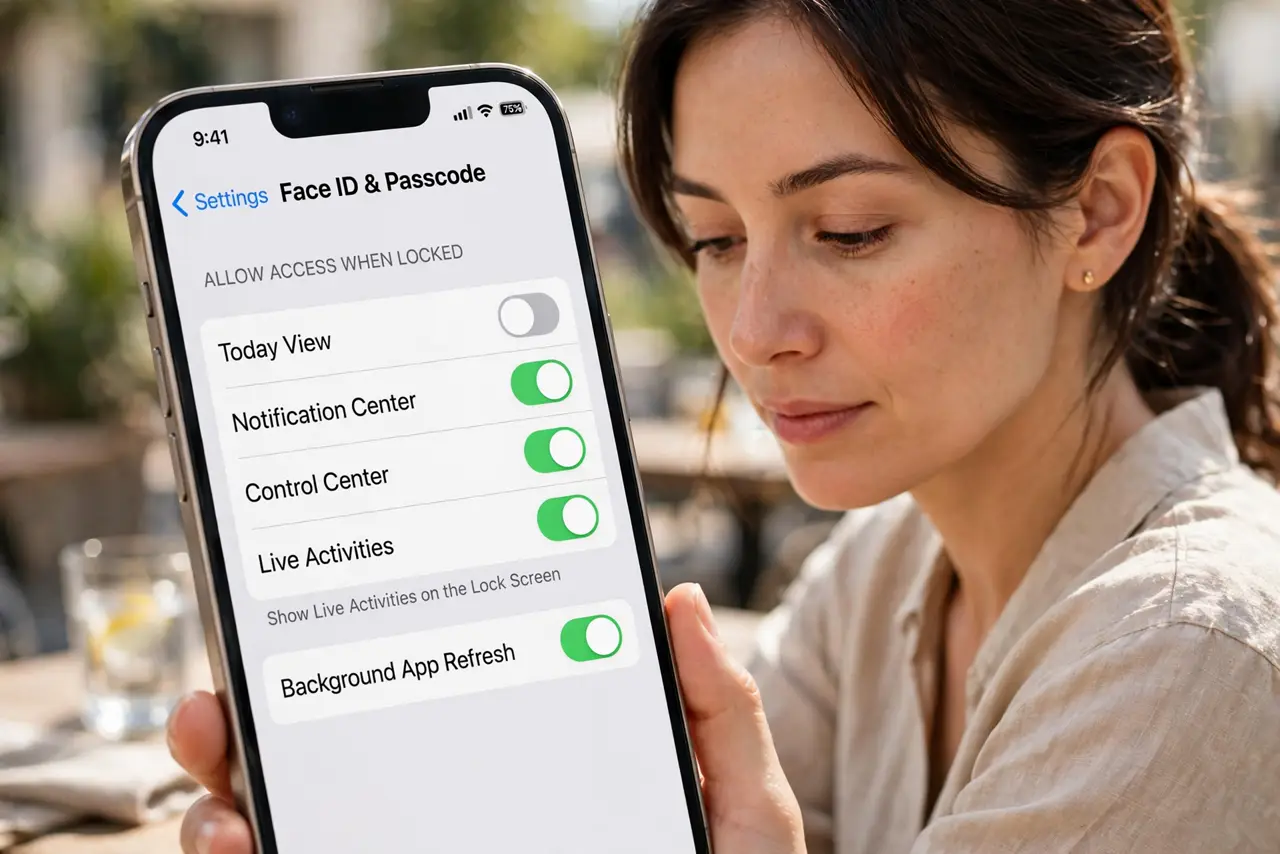
Quick fix: Live Activities show live updates from sports, delivery, ride, and timer apps on your lock screen and Dynamic Island. Enable them in Settings under Face ID and Passcode, then allow per app. Start with one app to see the value before enabling a dozen.
Follow these steps
- Enable Live Activities system-wide. Go to Settings, Face ID and Passcode, and turn on Live Activities. Without this master switch, no app can show them.
- Allow it in the apps you care about. Open each app's settings or its entry in Settings and enable Live Activities. Sports, delivery, rideshare, and timer apps are the ones that shine.
- Start an activity and lock your phone. Order food, start a match tracker, or begin a timer — then lock the phone. The live update appears on the lock screen and in the Dynamic Island.
- Manage which apps can interrupt. In Settings, review each app's permission. Keep the useful ones; revoke the ones that turned your lock screen into an ad board.
- Use them for travel days. Flights, rideshares, and delivery ETAs are the killer use case — glanceable updates without unlocking, exactly when your hands are full.
- Know they expire. Live Activities end when the event ends or after several hours. A stuck one can be swiped away — it is a display, not the app itself.
What NOT to do
- Do not enable Live Activities for every app at once. A lock screen full of live widgets is noise, not information.
- Do not expect them on older iPhones the same way. Without a Dynamic Island, they live on the lock screen only.
- Do not leave a finished activity sitting. Dismiss completed ones so the next live update is easy to spot.
- Do not grant the permission to apps you do not trust. A live activity is a window into that app's data — keep it to apps you use.
Frequently asked questions
Why do I not see Live Activities from my app?
Either the master switch is off, the app does not support them, or you denied the permission — check all three.
Do Live Activities drain battery?
Minimally. They update on events, not continuously, so the impact is small.
Can Android phones do this?
Many Android phones show similar live updates in notifications or on always-on displays, though the exact feature varies by maker.