Hear Better with Live Listen
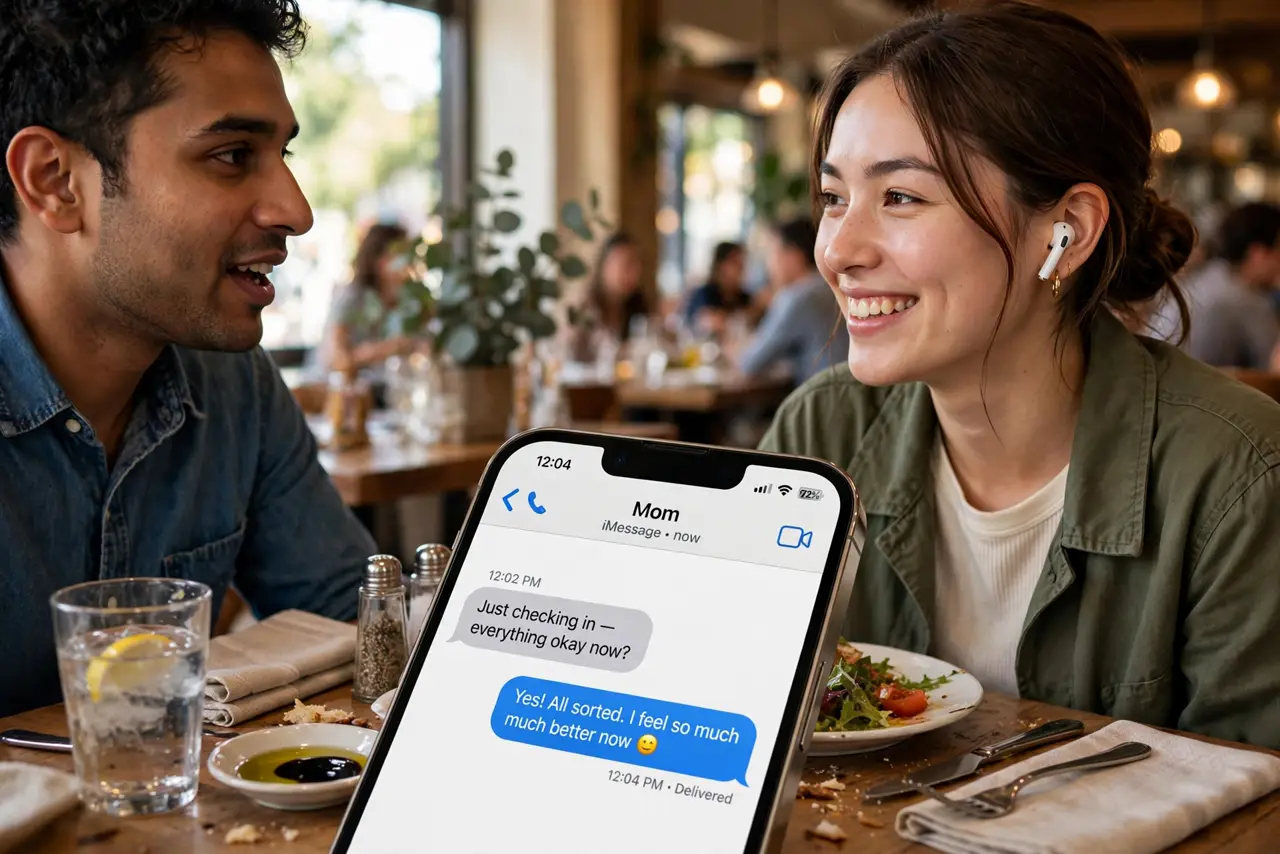
You are at a noisy restaurant straining to hear across the table. Live Listen turns your iPhone into a microphone that streams to your AirPods — set the phone near the speaker and hear them clearly. It is an accessibility gem hiding in Control Center.
TL;DR / Quick Fix
Quick fix: add Hearing to Control Center, then connect your AirPods and tap the ear icon to start Live Listen. Place the iPhone near the person speaking. Adjust volume on the phone for the clearest sound. It works best in steady background noise — it amplifies everything, not just voices.
Follow these steps
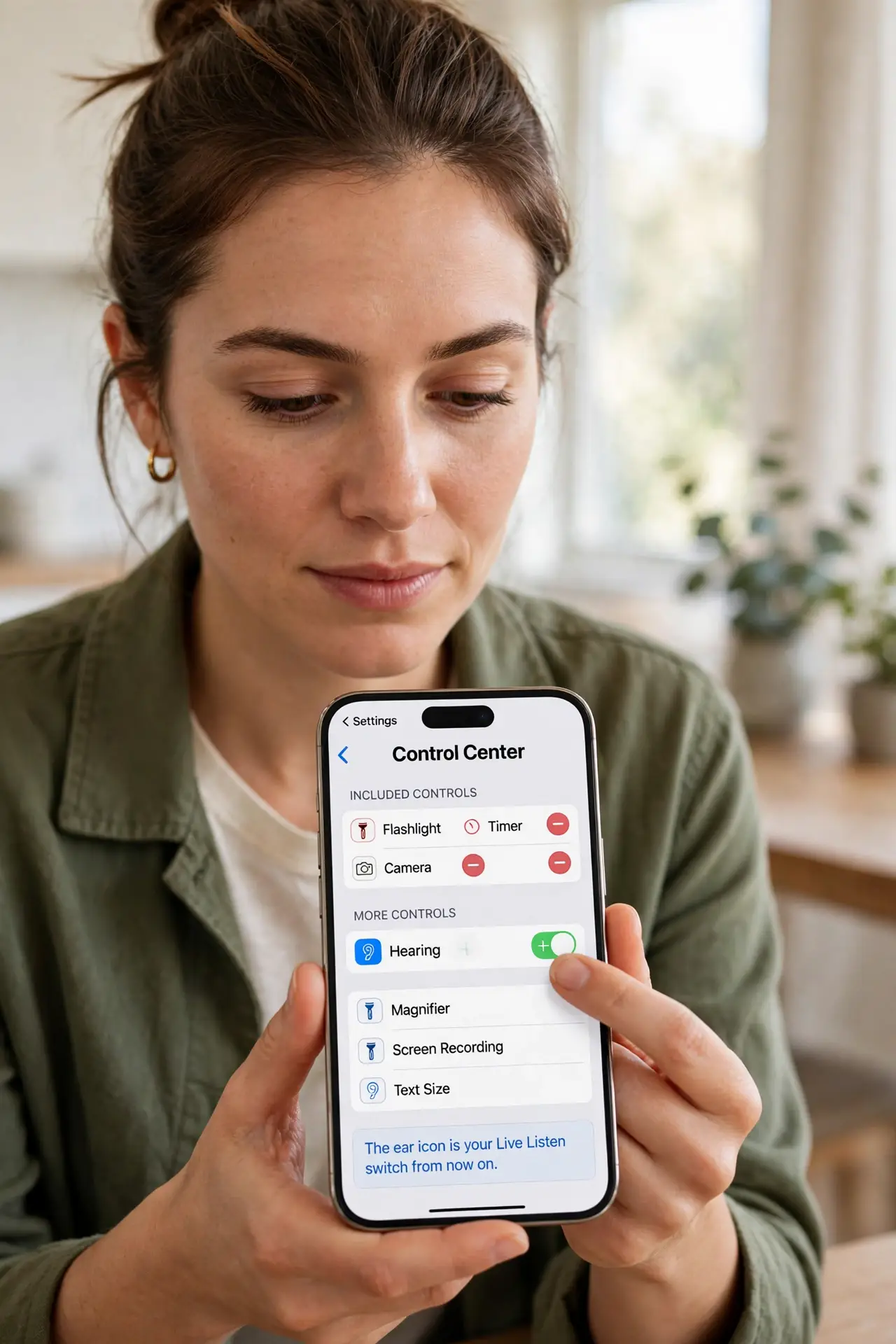
- Add Hearing to Control Center. Go to Settings, Control Center, and add Hearing. The ear icon is your Live Listen switch from now on.
- Connect your AirPods. Live Listen streams to AirPods, AirPods Pro, or Made-for-iPhone hearing devices. Connect them first — no buds, no stream.
- Start Live Listen. Open Control Center, tap the ear icon, then Live Listen. The iPhone's microphones go live instantly.
- Position the phone well. Set the iPhone near the person you want to hear, screen down. Closer to the speaker means clearer audio and less room noise.
- Tune the volume. Adjust with the phone's volume buttons while listening. Too high amplifies the clatter too — find the sweet spot.
- Try Conversation Boost too. For AirPods Pro, Conversation Boost focuses the beamforming mics forward — pair it with Live Listen for the hardest rooms.
What NOT to do
- Do not use it to eavesdrop. Recording or listening to conversations you are not part of can be illegal — use it for your own conversations.
- Do not expect studio clarity. It amplifies everything including clatter; it helps, it does not perform miracles.
- Do not leave it running. Live Listen streams constantly and drains both phone and bud batteries fast.
- Do not forget it is one-way. The other person cannot hear you better — speak up yourself too.
Frequently asked questions
Is Live Listen a hearing aid replacement?
No — it is an assistive listening aid for specific situations, not a medical device. See an audiologist for real hearing loss.
Does it work with wired earbuds?
It needs compatible wireless audio — AirPods or Made-for-iPhone devices. Plain wired buds do not receive the stream.
Why is there a delay?
A slight Bluetooth delay is normal. If it is very laggy, reconnect the AirPods and try again.