iPhone Reminders Do Not Alert? Fix Them
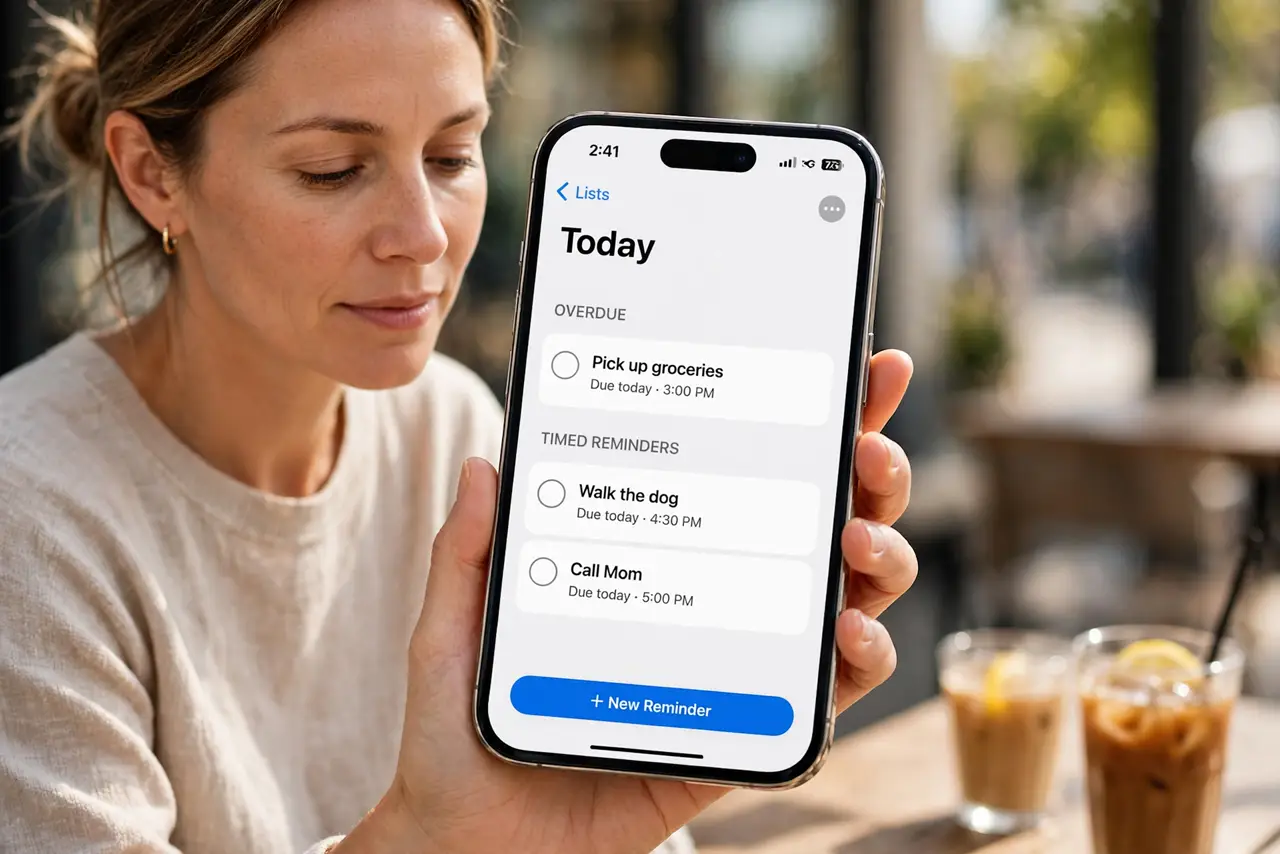
A reminder never sounds, or it appears silently with no alert at the time you set. The reminder is often set without an alert time, muted by Focus, or blocked by notification settings, while the list itself works fine.
TL;DR / Quick Fix
Quick fix: open Reminders, open the reminder, and confirm it has the right date and time with alerts turned on. Then open Settings, then Notifications, then Reminders, and confirm alerts and sounds are allowed. Test once more after a restart. Write down what worked for next time.
Follow these steps
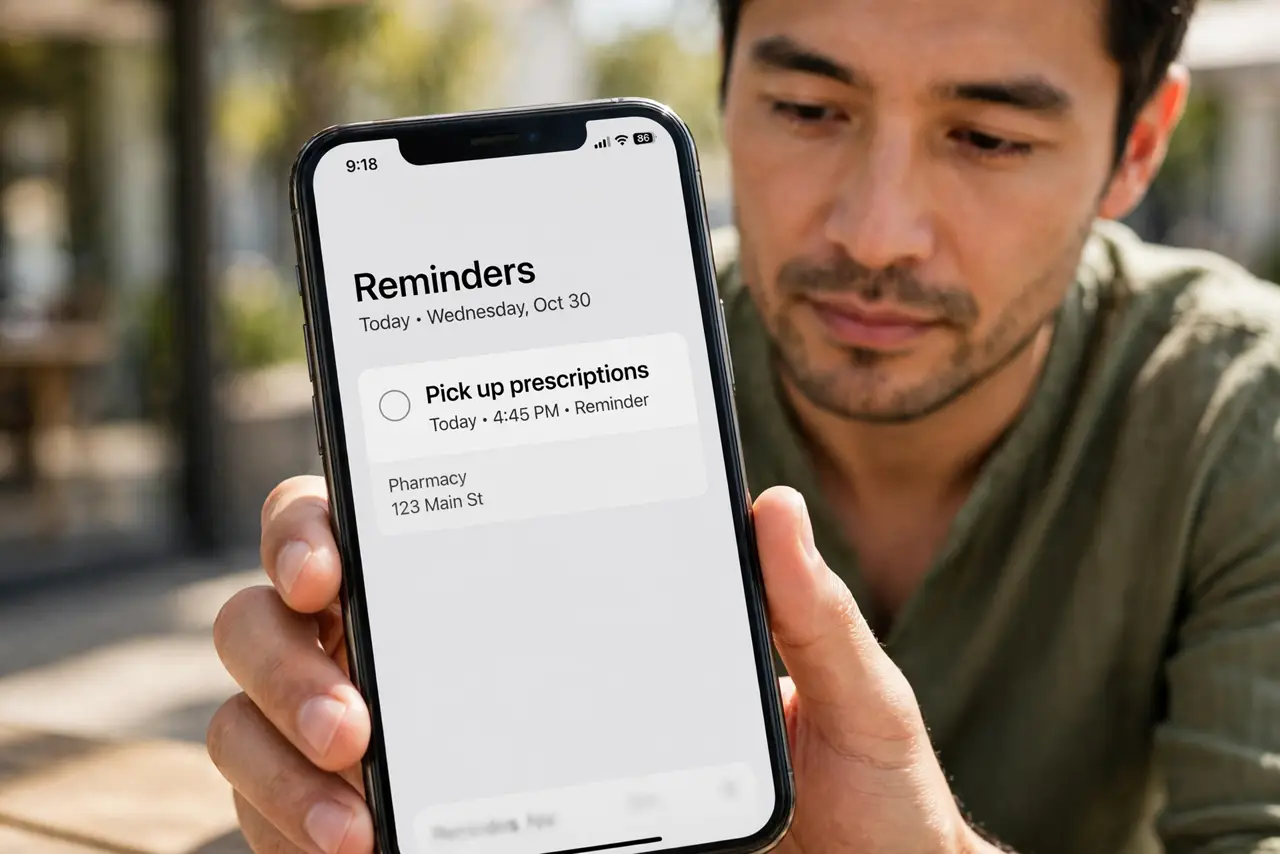
- Open the reminder and check its time. Open Reminders, tap the reminder, and confirm the date and time are set and correct. A reminder with no time will not alert at a time, it will only sit in the list.
- Allow Reminders notifications. Open Settings, then Notifications, then Reminders, and turn on Allow Notifications with sounds and banners. Without this, the reminder cannot alert even when the time is right.
- Check Focus and Do Not Disturb. If a Focus or Do Not Disturb is active at the reminder time, alerts may be silenced. Check the Focus settings and allow Reminders, or test with Focus off.
- Check the reminder list and alerts. Make sure the reminder is in a list with notifications enabled, and that you did not mark it complete by accident. A completed reminder will not alert again.
- Test with a new reminder. Create a test reminder for two minutes from now, with a sound, and wait for it. If the test alerts, the settings work, and the old reminder itself was the problem.
- Restart and update if tests fail. Restart the iPhone and check for an iOS update if even the test reminder stays silent. A restart clears a stuck notification state.
What NOT to do
- Do not set every reminder as urgent to force alerts. Urgent alerts are for rare cases, and overusing them trains you to ignore them.
- Do not turn off Focus entirely just for reminders. Allow Reminders inside Focus instead, so you keep quiet hours and still get alerts.
- Do not delete and recreate every reminder at once. Fix one reminder and test it, so you learn whether settings or the reminder itself failed.
- Do not rely on a silent banner alone. Turn on sounds too, so a reminder can catch your attention when the phone is face down.
Frequently asked questions
Why does a reminder show in the list but never alert?
It may have no alert time set, or its notifications are off. Check the reminder time and the Reminders notification settings.
Does Do Not Disturb silence reminders?
Yes, it can silence their alerts at that time. Allow Reminders in Focus settings, or test with Focus off.
Why did only one reminder fail?
That reminder may have the wrong time, or it was marked complete. Check that one reminder before changing settings for all.