iPhone Mail Shows Old Emails Only? Fix It
Mail opens to old messages, and new emails only appear on another device or on the web. The iPhone app is usually fetching on a slow schedule, or the account stopped syncing, while the mailbox itself is fine.
TL;DR / Quick Fix
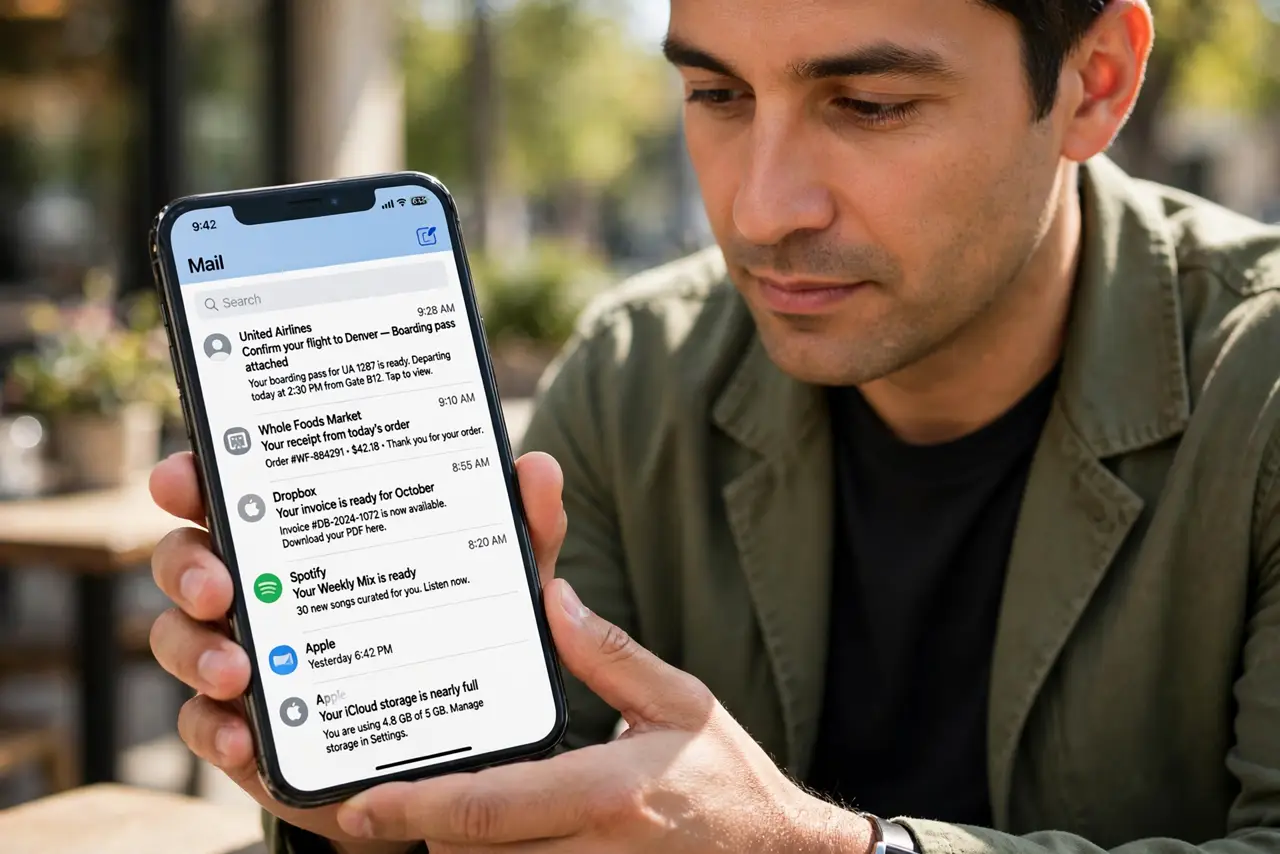
Quick fix: open Mail, pull down on the inbox to refresh, and wait for new messages. Then open Settings, then Mail, then Accounts, and check that Fetch is set to Push or a short interval for that account. Write down what worked for next time.
Follow these steps
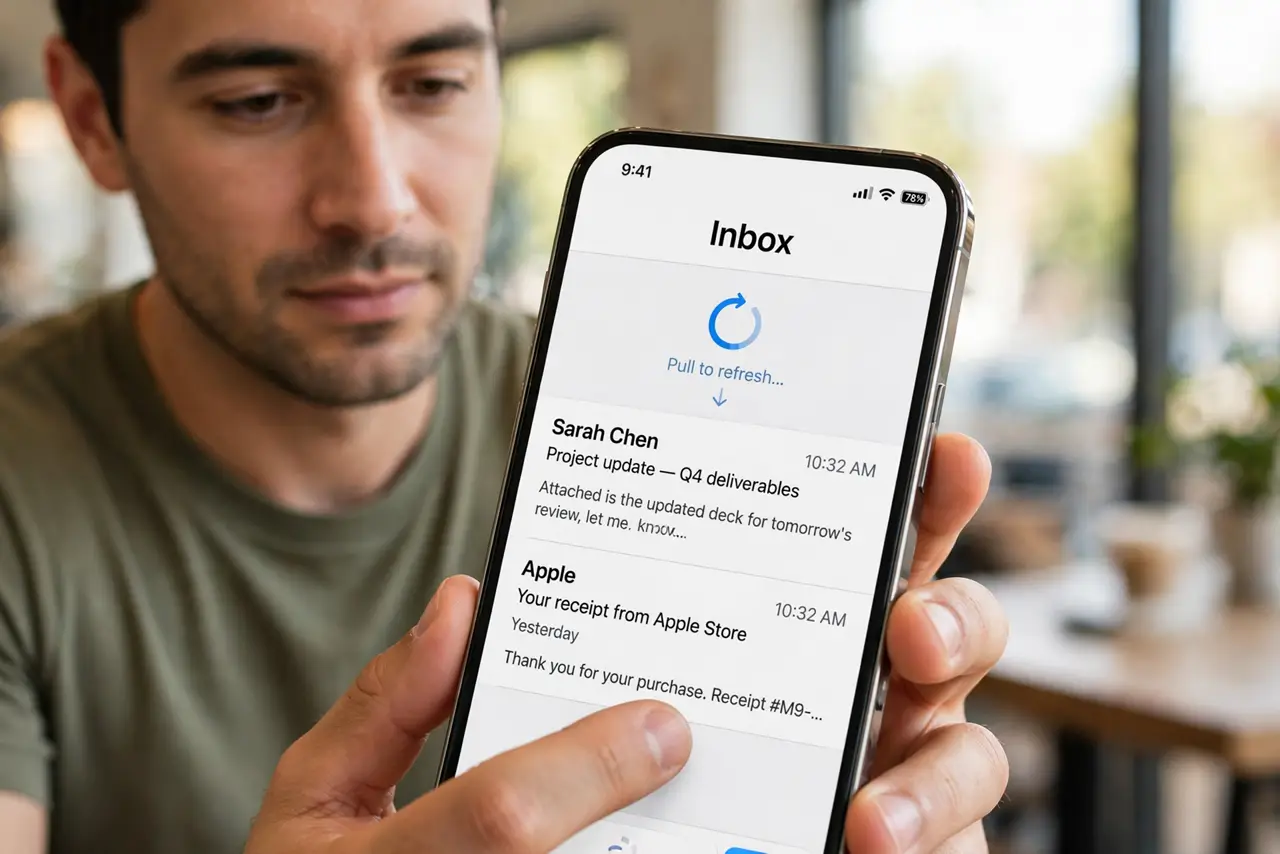
- Pull to refresh the inbox. Open Mail, go to the inbox, and pull down until the refresh spinner appears. Wait for it to finish before deciding nothing new arrived.
- Check Fetch and Push settings. Open Settings, then Mail, then Accounts, then Fetch New Data, and confirm Push is on or the schedule is short for that account. A long fetch interval delays new mail.
- Check the right mailbox. Make sure you are looking at the inbox for the right account, not All Inboxes filtered oddly or a single folder. New mail may be sitting in the correct inbox while you check another view.
- Check storage and account status. If the mailbox is full or the account needs a password again, sync stops. Open the account in Settings and confirm it shows no error or password prompt.
- Restart Mail and the phone. Close Mail fully, reopen it, and pull to refresh again. If that fails, restart the iPhone and check the inbox once more.
- Remove and re-add the account only as a last step. If sync still fails, remove the account and add it again, but only if you know the password and the account is backed up. Re-adding forces a full fresh sync.
What NOT to do
- Do not delete emails to force new ones to appear. Deleting old mail does not restart sync, and you may delete messages you still need.
- Do not turn off the account and leave it off. That stops sync entirely and hides the inbox instead of fixing it.
- Do not keep pulling to refresh every few seconds. Give each refresh time to finish, or you will interrupt the sync you are waiting for.
- Do not remove the account before you know the password. Without it, you cannot add the account back, and mail stays out of reach.
Frequently asked questions
Why does mail arrive on my computer but not my iPhone?
The iPhone account may fetch on a slow schedule or have stopped syncing. Check Fetch settings and refresh the inbox.
What is the difference between Push and Fetch?
Push delivers mail as it arrives, while Fetch checks on a schedule. Fetch with a long interval delays new messages.
Will removing the account delete my emails?
No, if the mail lives on the server. Still, confirm you know the password before removing any account.