Add Stops in Maps
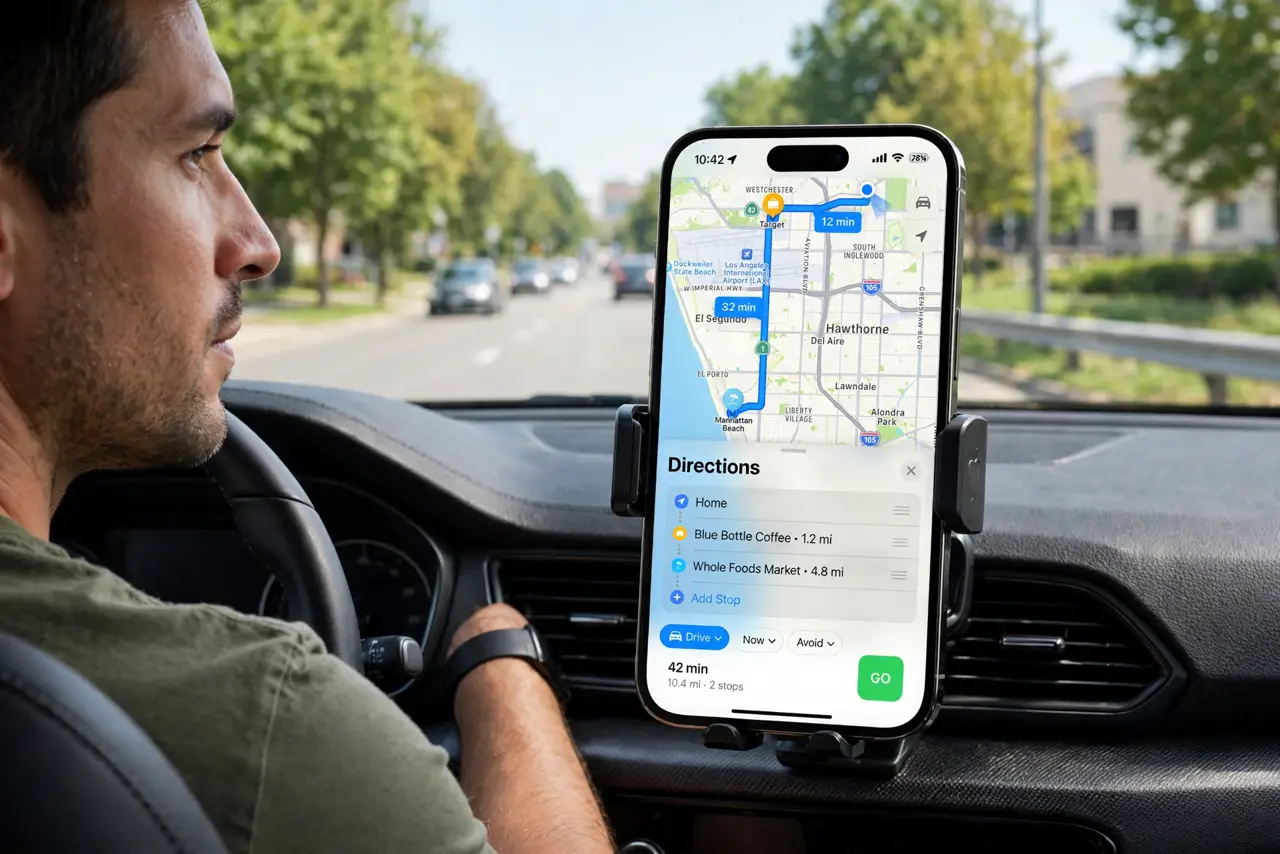
Errand day means five stops and a route you are inventing at every red light. Apple Maps lets you add multiple stops to one route — groceries, pharmacy, dry cleaner — and orders them sensibly instead of the order you typed them. Here is how to build a proper multi-stop route.
TL;DR / Quick Fix
Quick fix: in Apple Maps, start directions to your destination, swipe up the route card, and tap Add Stop — search each errand and Maps reorders the route efficiently. Rearrange stops by dragging. It works for driving, walking, and transit, and recalculates if you skip one.
Follow these steps
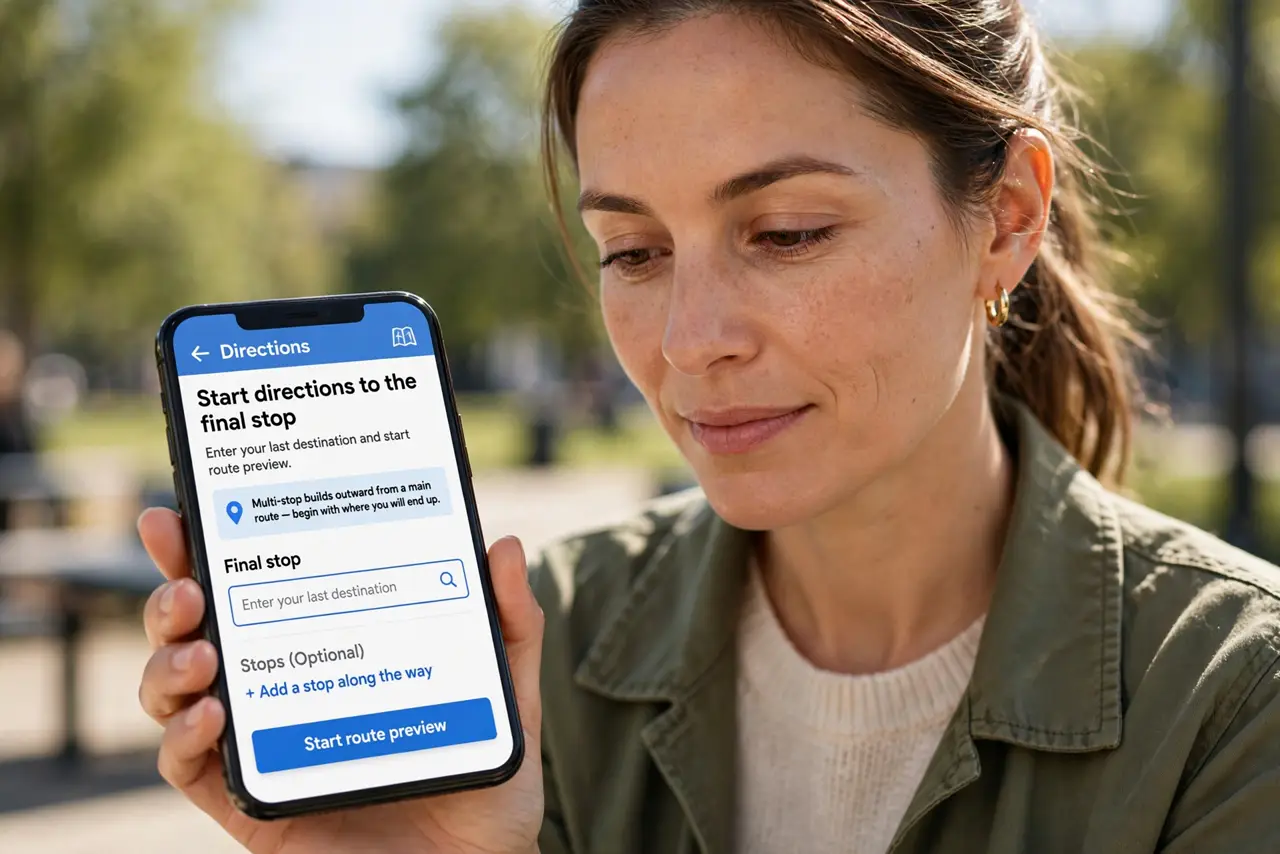
- Start directions to the final stop. Enter your last destination and start route preview. Multi-stop builds outward from a main route — begin with where you will end up.
- Open the route card. Swipe up the card at the bottom of the screen to reveal the route details. The Add Stop button lives here.
- Add each errand. Tap Add Stop, search for each place, and add it. Maps inserts them into the route in an efficient order rather than the order you added them.
- Drag to reorder. If Maps' order does not suit you — the pharmacy closes early, say — drag stops into your preferred sequence. The route recalculates instantly.
- Pair it with CarPlay. Multi-stop routes work on CarPlay too, so the whole errand run shows on the dashboard. See the best CarPlay apps to keep the setup clean.
- Plan charging on long runs. For EV drivers, combine stops with charging — see the EV routing guide for planning charger stops into the same trip.
What NOT to do
- Do not add stops while driving. Build the route parked — editing stops at speed is dangerous and illegal in many places.
- Do not trust the order blindly. Maps optimizes for distance, not your schedule — drag stops to match opening hours and priorities.
- Do not forget to check each stop's hours. An efficiently routed stop at a closed store is a wasted detour.
- Do not skip the final review. Glance at the full route before departing — one wrong pin can send the whole plan sideways.
Frequently asked questions
How many stops can I add?
Maps supports a generous number of stops per route — more than most errand days need. Add freely.
Does it work for walking and transit?
Yes — multi-stop works across driving, walking, cycling, and transit, with sensible routing for each.
Can I save a multi-stop route?
You can save the destinations as favorites or guides. Full multi-stop routes are rebuilt per trip rather than saved as one.