Plan Multi-Stop Routes
Saturday errands: groceries, pharmacy, dry cleaner, hardware store — and you drive in circles because you planned the order in your head. Apple Maps lets you add multiple stops to one route and reorder them for the shortest drive. Two minutes of planning saves twenty minutes of backtracking.
TL;DR / Quick Fix
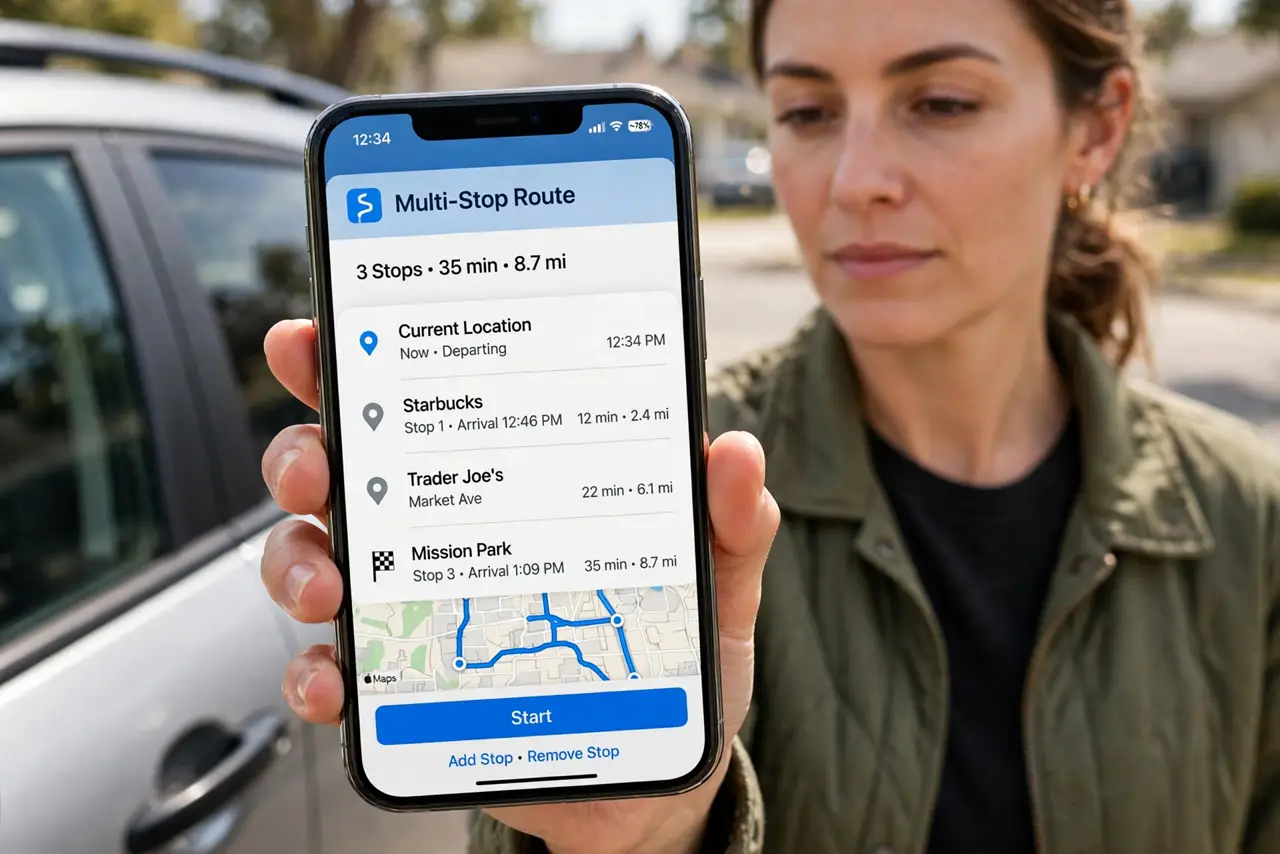
Quick fix: in Apple Maps, start a route to your first stop, tap Add Stop, and keep adding destinations — drag to reorder them into the smartest sequence. Maps shows total time for the whole loop. Combine with EV charging on road trips, or share your ETA.
Follow these steps
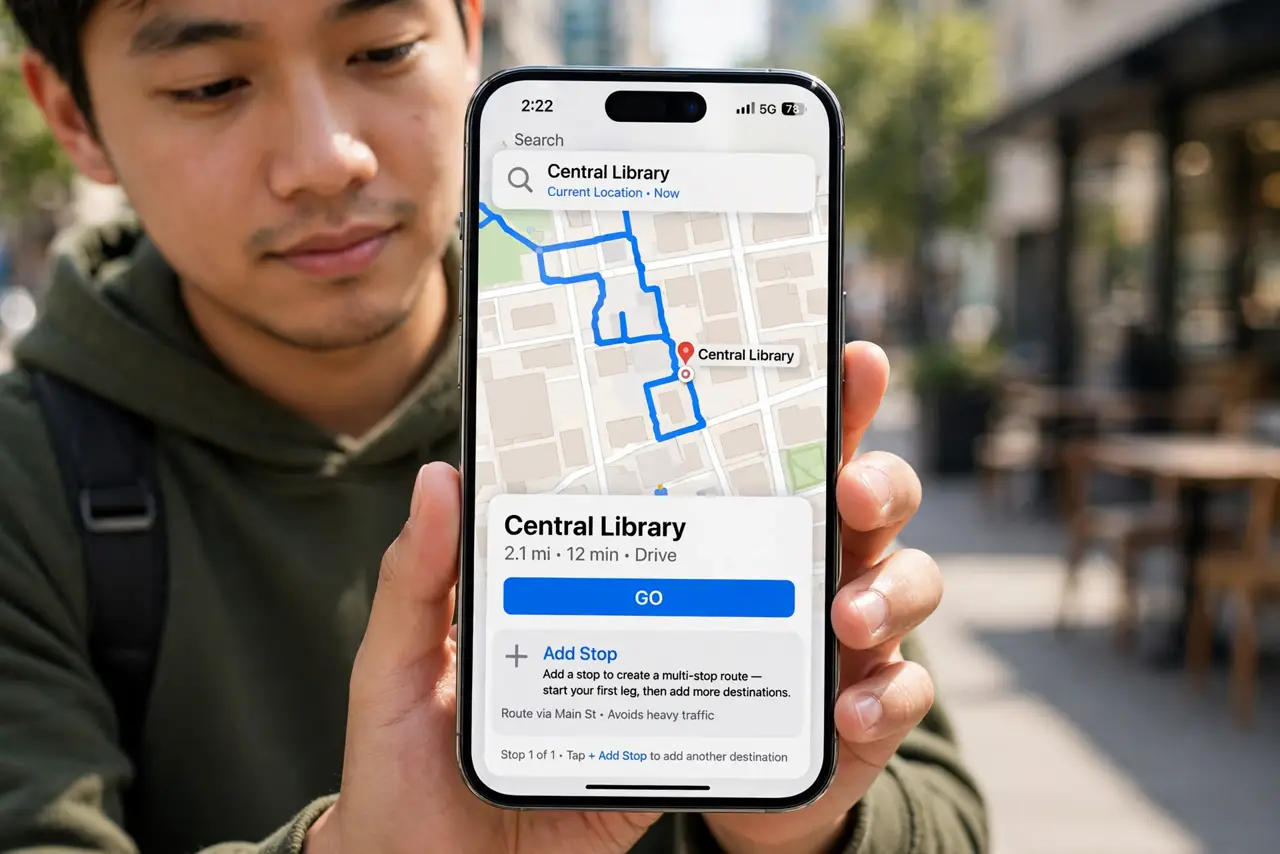
- Start with your first destination. Search and route to stop one normally. The multi-stop magic builds on a regular route — get the first leg going, then add.
- Add stops from the route card. Tap the route card at the bottom and choose Add Stop. Search each additional destination and add it — Maps appends them in order.
- Reorder for the smartest loop. Drag stops into the most efficient sequence — usually a loop that ends near home. Maps shows total time updating live as you reorder.
- Check each stop's details. Tap a stop to see hours and details. Routing to a pharmacy that closes in ten minutes is a classic multi-stop failure — verify before driving.
- Share the whole trip's ETA. Start Share ETA and your contact follows the entire multi-stop journey, not just one leg — arrival updates at each stop automatically.
- Save frequent routes. For weekly errand loops, save the destinations in Guides. Next Saturday is three taps instead of ten minutes of typing.
What NOT to do
- Do not add stops while driving. Build the full route before you leave — fumbling with destinations at 60 mph is exactly what this feature prevents.
- Do not trust the default order. Maps appends stops in added order, not smartest order — always review and drag into sequence.
- Do not forget stop durations. Maps counts drive time, not the 20 minutes inside each store — add mental buffer per stop.
- Do not skip checking hours. A perfectly ordered route to three closed stores is a perfectly wasted afternoon.
Frequently asked questions
How many stops can I add?
Apple Maps supports up to 15 stops per route — plenty for errand days. Beyond that, split into two routes.
Does it optimize the order automatically?
Not fully — you drag to reorder. Third-party route optimizers exist for delivery-style routes with dozens of stops.
Can I add a stop mid-drive safely?
Use Siri: 'Add a stop at...' works hands-free. Typing while driving does not — ever.