Automate Tasks with NFC Tags
Those little stickers that trigger your phone to do things — start a playlist when you tap the car mount, turn on Do Not Disturb at the nightstand — are NFC tags, and they cost pennies. iPhones and Androids both automate with them, but iPhones need the automation set up in Shortcuts first or the tap does nothing at all.
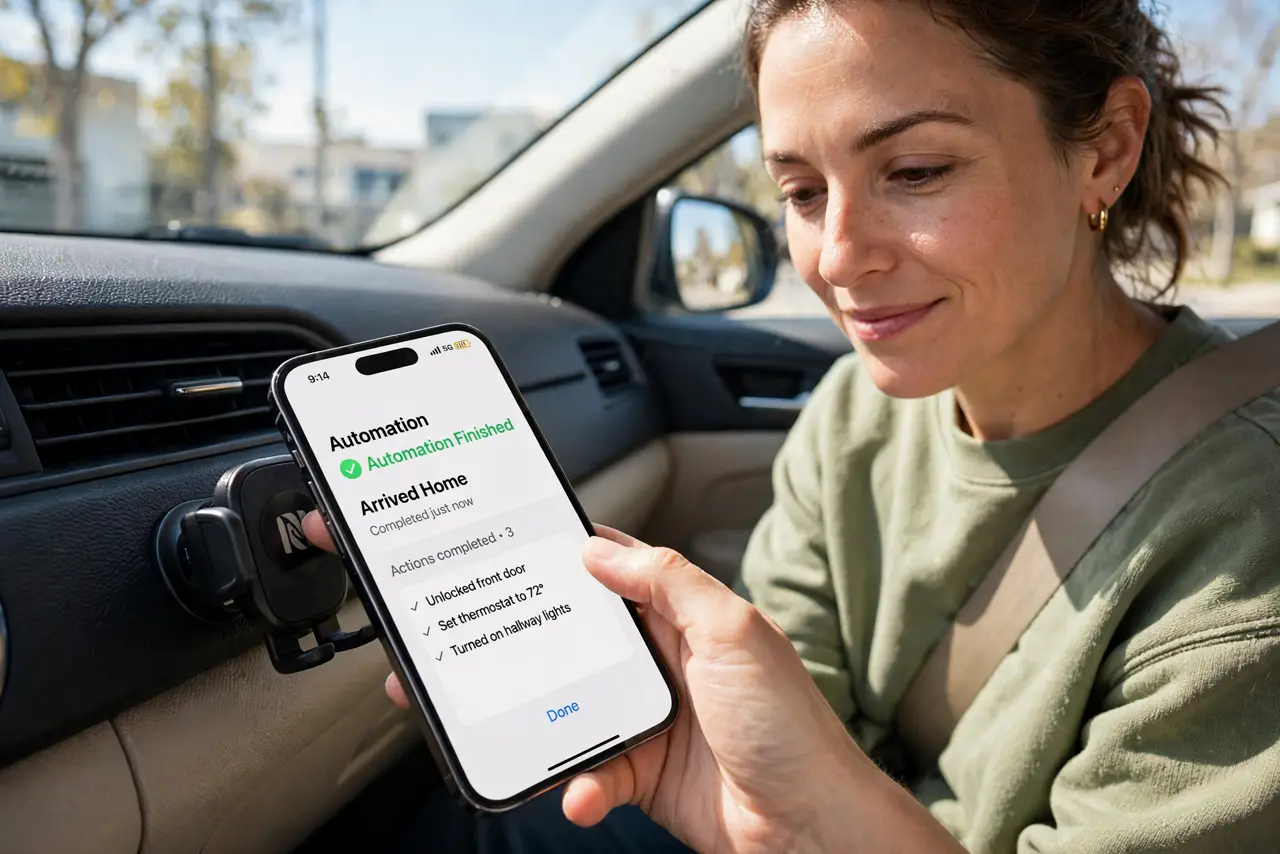
TL;DR / Quick Fix
NFC tags are cheap stickers that trigger phone automations on tap — playlists, timers, smart-home scenes. Buy blank NTAG215 tags; on iPhone create a Personal Automation in Shortcuts set to NFC, on Android use your automation app. If taps do nothing, the NFC troubleshooting guide covers causes.
Follow these steps
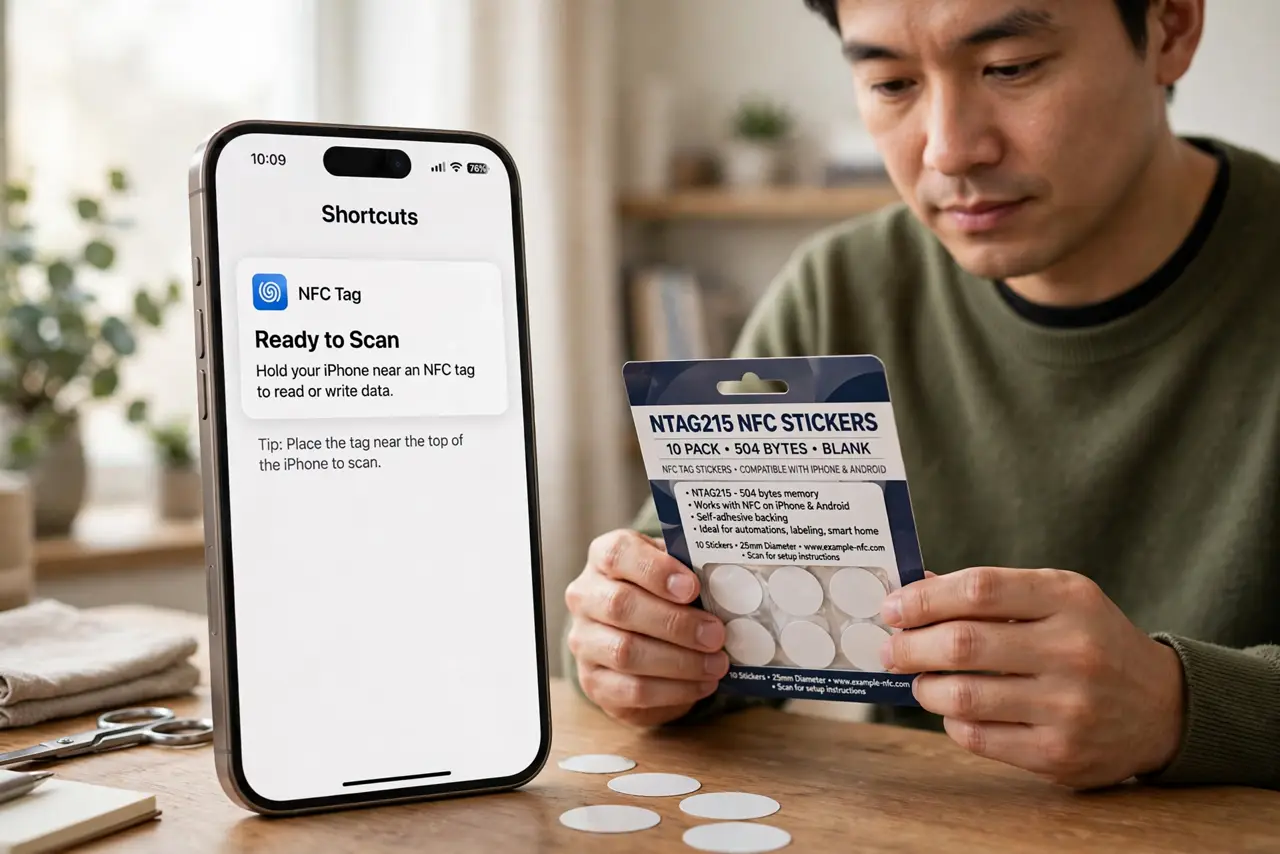
- Buy the right blank tags. Get NTAG215 stickers — the widely compatible type both iPhone and Android write and read reliably. A multipack costs little and gives you spares for experiments.
- On iPhone, build the automation in Shortcuts. Open Shortcuts, go to Automation, tap +, choose NFC, then scan the tag and name it. Add the actions you want (play playlist, set volume, start timer) and save — without this step, the tap does nothing.
- On Android, write the tag with an NFC app. Use your phone's built-in automation or a reputable NFC writer app to record the action onto the tag. Android generally handles tags more directly than iPhone.
- Place tags where the habit lives. Car mount for driving mode, nightstand for sleep mode, desk for work focus. The automation only helps if the tag sits where the routine already happens.
- Test every tag after writing. Tap the phone and confirm the full automation runs. Re-write any tag that triggers inconsistently — a bad write is the most common dud.
- Label tags you cannot tell apart. Blank stickers all look identical. A tiny written label ('car', 'bed') saves you from tapping the wrong automation for a week.
What NOT to do
- Do not buy obscure tag types. NTAG215 is the safe standard — exotic chips may not write or read on your phone.
- Do not stick a tag on metal without a shield. Metal blocks NFC; use anti-metal tags or place them on non-metal surfaces.
- Do not write Wi-Fi passwords to tags left in public. Anyone tapping the tag gets the password — handy at home, reckless at a cafe.
- Do not expect iPhone to act without Shortcuts setup. iOS will not run tag automations you have not explicitly created — the tap alone does nothing.
Frequently asked questions
Do NFC automations work with the phone locked?
On iPhone, NFC automations can run with a confirmation tap when locked; some actions need the phone unlocked. Android varies by manufacturer.
How close does the phone need to be?
Within a few centimeters — NFC is tap-range by design. If it is not triggering, you are probably just too far away.
Can one tag do multiple things?
Yes — an automation can chain many actions (dim lights, play music, silence phone) from a single tap. The tag is just the trigger.