Offload Unused Apps
Your phone hoards apps — the airline app from 2022, three photo editors, games untouched for a year — each squatting on storage. Offloading removes the app but keeps its documents and data: the icon stays, grayed, and one tap re-downloads it. Storage back, nothing lost.
TL;DR / Quick Fix
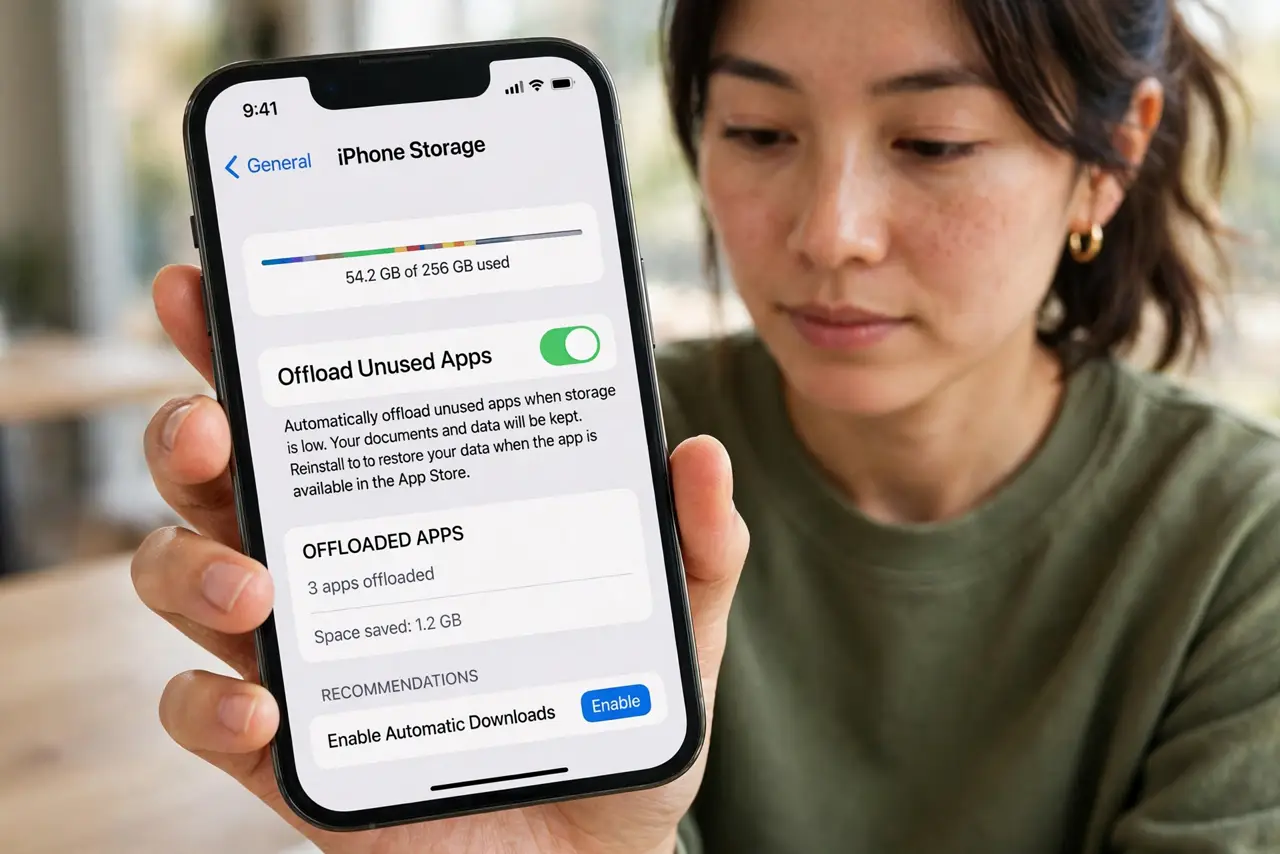
Quick fix: on iPhone go to Settings, General, iPhone Storage and tap Enable next to Offload Unused Apps — the phone auto-removes dormant apps, keeping their data. Offload individual hogs manually from the same screen. On Android, use the equivalent unused-app archival in the Play Store settings.
Follow these steps
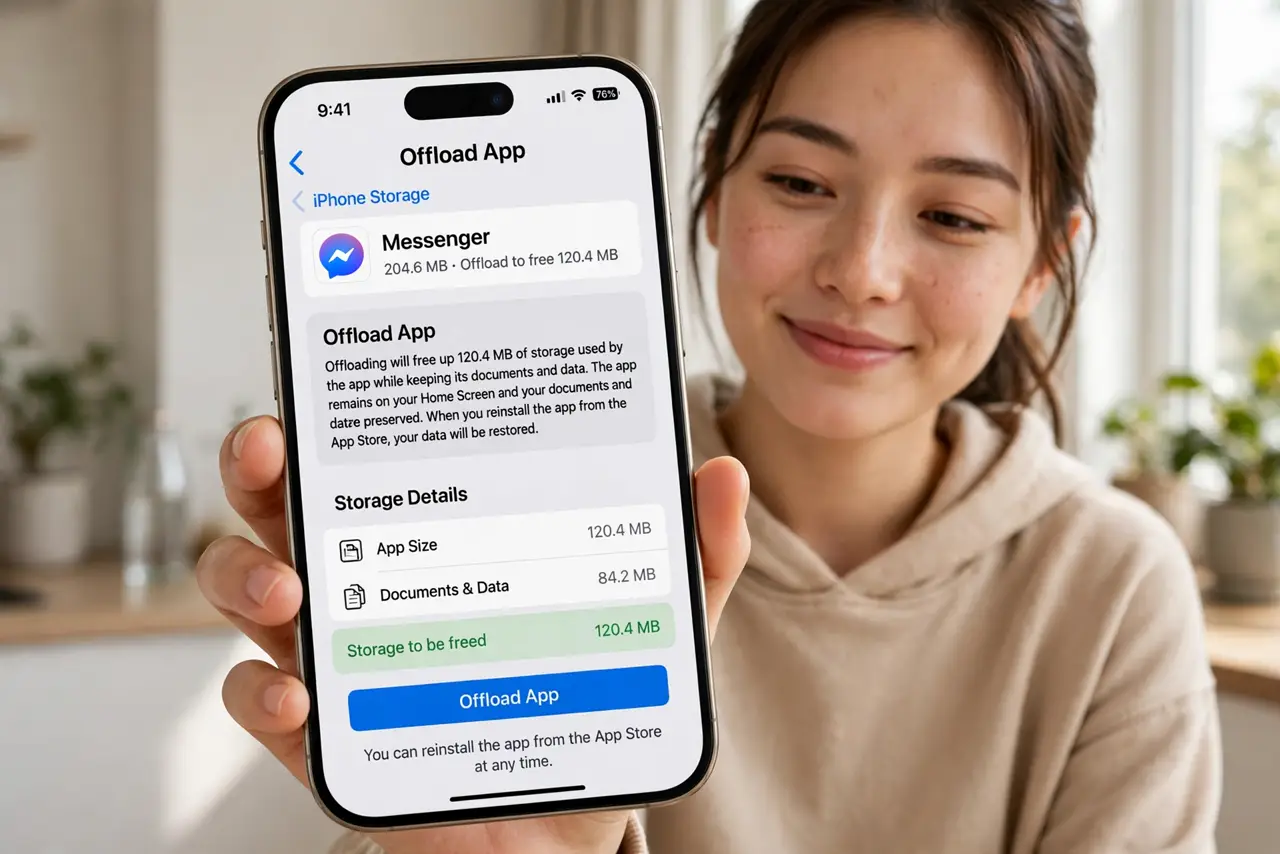
- Enable automatic offloading. Settings, General, iPhone Storage — tap Enable by Offload Unused Apps. The phone quietly archives apps you ignore — the offload details confirm what survives.
- Offload the big hogs manually. In the same storage list, tap any dormant giant and choose Offload App. Games and old travel apps are the classic wins — gigabytes each.
- Know what stays. Documents, saves, logins — your data remains on the phone. Only the app binary leaves, re-downloading on tap. Nothing you made disappears.
- Do it on Android too. The Play Store auto-archives unused apps similarly. The Android version walks the equivalent path — same idea, different menus.
- Re-download on demand. Tap the grayed icon and the app returns with data intact. Offloading is a pause, not a goodbye — un-pause anytime.
- Audit yearly. Some offloaded apps deserve deletion, not limbo. Yearly, convert the never-coming-back ones to full deletes.
What NOT to do
- Do not offload apps with pending uploads. Finish syncing first — offloading mid-upload can strand data.
- Do not confuse offload with delete. Delete removes data too; offload preserves it — pick deliberately.
- Do not offload your authenticator or banking apps. Re-downloading in an emergency without connectivity is a trap.
- Do not ignore the storage screen otherwise. Offloading is one tool; the ranked list shows every other win.
Frequently asked questions
Will I lose my game progress?
No — saves and data stay on the phone. Re-download and continue exactly where you left off.
Does offloading need internet to restore?
Yes, for the re-download. Fine at home; plan ahead for trips.
How is this different from deleting?
Delete removes app plus data. Offload removes only the app — your stuff stays.