Free iPhone Storage
The storage full warning appears at the worst moment — mid-vacation, mid-video, mid-everything. Before deleting memories, know where the gigabytes actually live: the Settings storage screen names the hogs precisely. Most full phones are fixed by offloading apps, clearing caches, and moving photos — not by deleting the good stuff.
TL;DR / Quick Fix
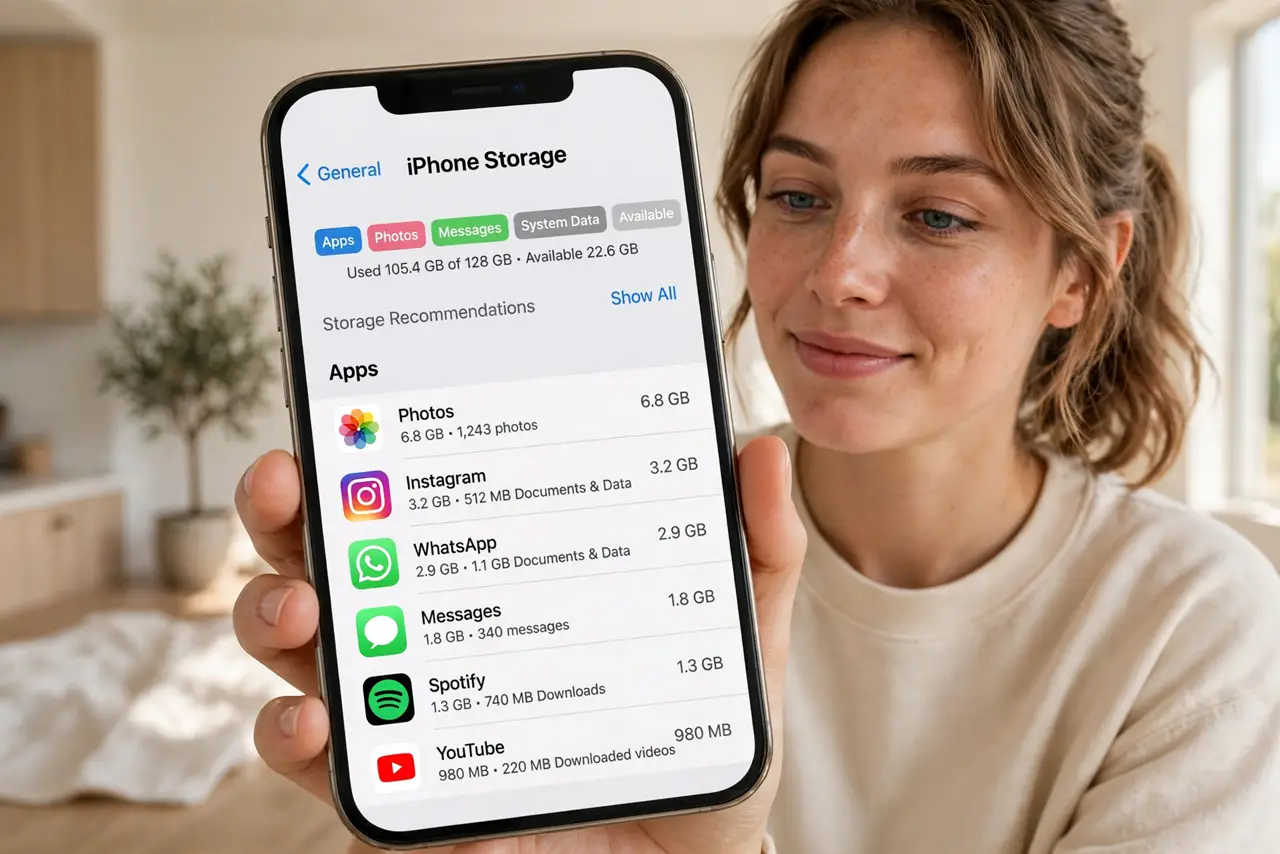
Quick fix: open Settings, General, iPhone Storage and attack the top of the list — offload unused apps, delete downloaded videos, and clear bloated chat caches. Move photos to cloud or computer before deleting any. The biggest wins are always at the top of that list.
Follow these steps
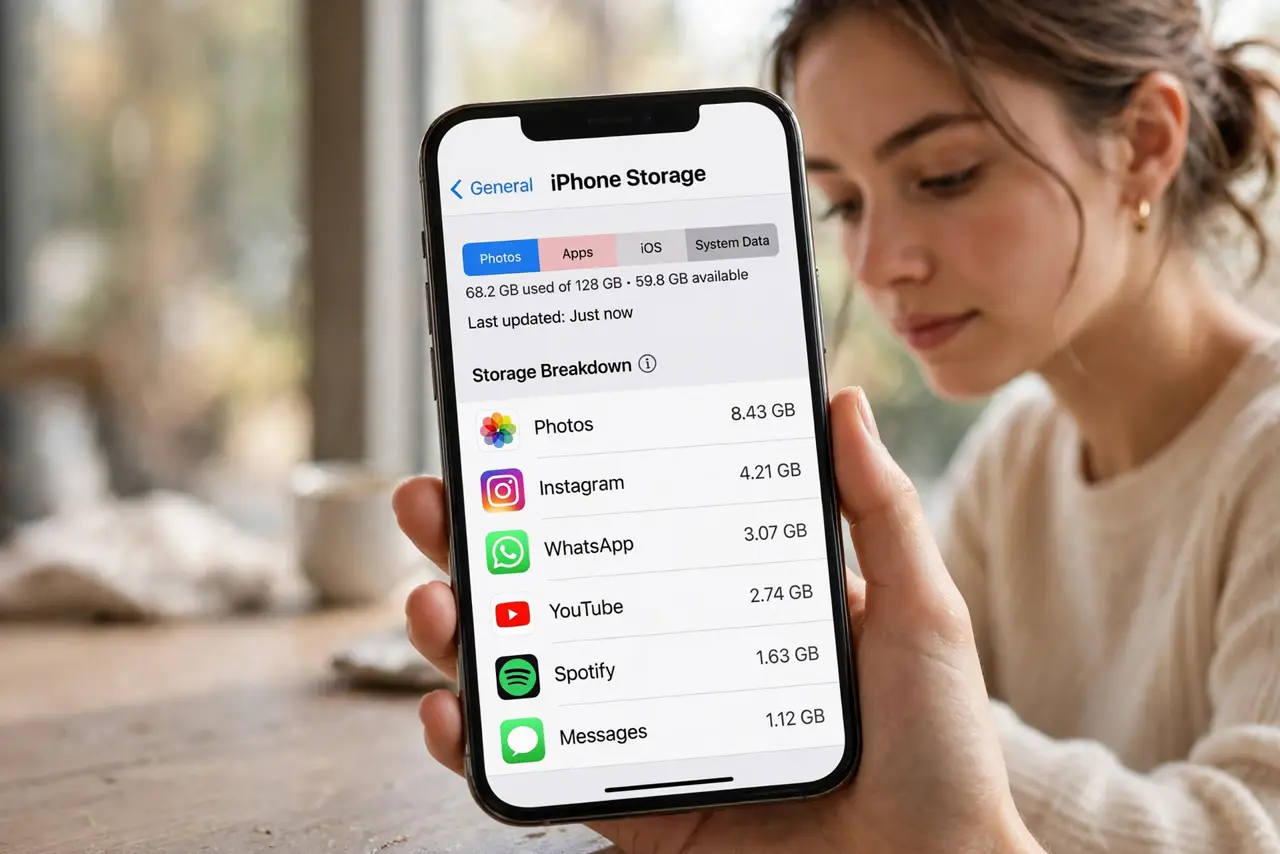
- Open the storage breakdown. Settings, General, iPhone Storage. Wait for the bar to load — it ranks every app by size, which turns panic into a prioritized list.
- Offload unused apps. Tap Enable next to Offload Unused Apps. The offload details explain what stays and what goes — documents survive, the app binary does not.
- Clear the chat caches. Messaging apps balloon with years of videos. Clear caches inside each app — and the Android twin covers the same trick cross-platform.
- Move photos first. Photos are usually the biggest chunk. Back them up to cloud or computer, verify the backup, then delete locally — the full-after-deleting quirk explains when space does not free up.
- Delete downloaded media. Offline maps, downloaded shows, podcast backlogs — downloaded-for-a-trip content forgotten for a year. Purge it; re-download takes minutes.
- Check the System Data blob. A giant System Data entry often shrinks after a restart and an update. If it stays huge, the iCloud space angle and a backup-restore are the deeper fixes.
What NOT to do
- Do not delete photos before verifying the backup. Deleted-from-phone plus failed-upload equals gone forever.
- Do not pay for more iCloud storage before cleaning. Paid space fills with the same junk — clean first, then decide.
- Do not trust cleaner apps with your photos. The built-in storage screen does the job; third-party cleaners want your data.
- Do not ignore the Recently Deleted album. Deleted photos sit there 30 days still eating space — empty it to actually free the gigabytes.
Frequently asked questions
Why is my storage still full after deleting?
Recently Deleted albums, cached data, and the System Data blob — the usual suspects all have their own clearing steps.
Is offloading safe?
Yes — your documents and data stay; only the app itself is removed and re-downloads on tap.
How much free space should I keep?
Aim for 10% free or a few gigabytes. iPhones get cranky — updates fail, cameras stall — when truly stuffed.