Offload Unused Apps Deletes App Data Too
Offload is supposed to keep app data while removing the app — but sometimes the data goes with it. The difference between offloading, deleting, and a failed reinstall decides what survives.
TL;DR / Quick Fix
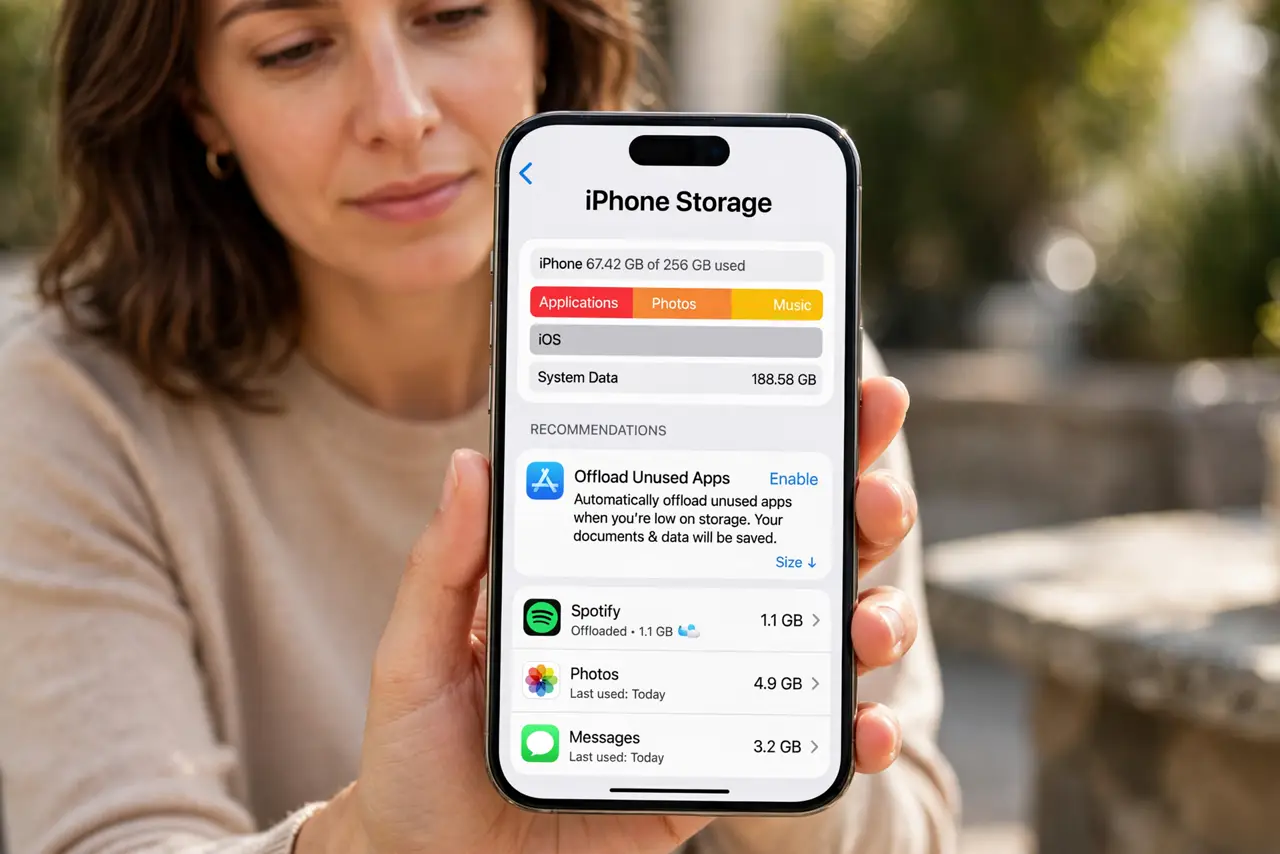
Quick fix: open Settings, then General, then iPhone Storage, and check whether the app shows as offloaded or deleted. Then reinstall it from the App Store, and check whether its data returns before you delete anything else and back up before offloading important apps again.
Follow these steps
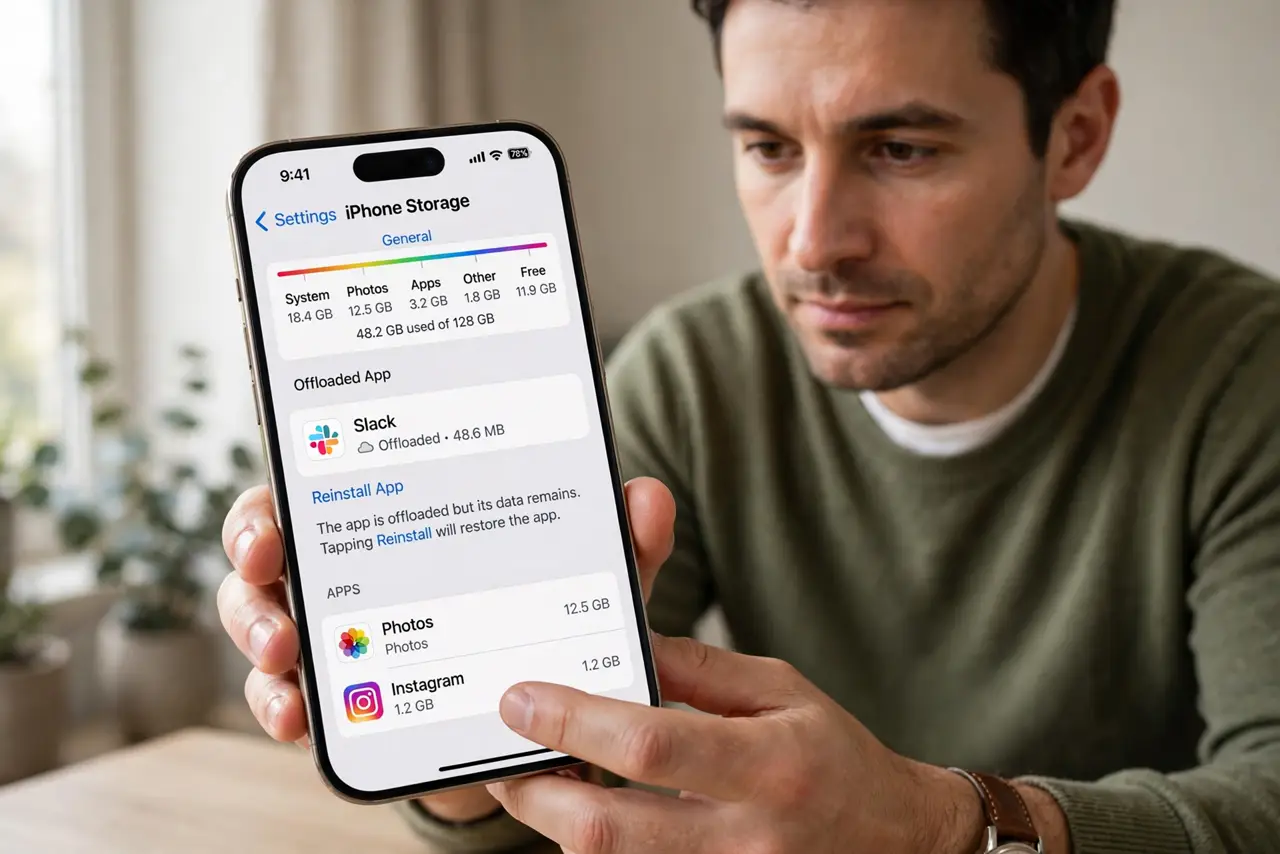
- Confirm the app was offloaded, not deleted. Open Settings, then General, then iPhone Storage, and find the app. An offloaded app keeps its icon with a cloud symbol and its data, while a deleted app leaves nothing behind.
- Reinstall the app from the App Store. Tap the offloaded app and reinstall it. Offloaded data returns when the same app reinstalls, so a successful reinstall is the real test of what survived.
- Check the app's own cloud or account data. Open the reinstalled app and sign in if asked. Apps that store data in an account restore from that account, even when local offload data did not survive.
- Check whether the app was ever reinstalled before. If the app was deleted and reinstalled in the past, its data may already have been lost then. Offload only protects data from the offload itself, not from an earlier deletion.
- Turn off automatic offloading if data matters. Open Settings, then App Store, and turn off Offload Unused Apps. Manual control stops the iPhone from offloading an app whose data you cannot afford to lose.
- Back up before the next offload. Back up the iPhone before offloading apps with important local data. A backup is the only safety net if an offload and reinstall do not restore everything.
What NOT to do
- Do not confuse offloading with deleting. Offload keeps data by design, while Delete removes the app and its data together.
- Do not reinstall a different app with a similar name. Only the same app restores offloaded data, so a lookalike install leaves the data stranded.
- Do not offload apps that hold irreplaceable local data without a backup. Notes, documents, and game progress stored only on the phone deserve a backup first.
- Do not assume every app's data survives offload. Apps that store data only in ways the system cannot preserve may lose it, so check the app's own backup options.
Frequently asked questions
Does offloading delete app data?
No, by design. Offload removes the app but keeps its data, while Delete removes both.
Why did my data vanish after offloading?
Possibly the app was deleted rather than offloaded, or the app's data was not stored in a way offload preserves.
How do I stop automatic offloading?
Turn off Offload Unused Apps in App Store settings, and offload apps only by hand from then on.