Find Your Parked Car
Every driver knows the slow walk through a parking garage, clicking the key fob and listening. Your phone already knows where you parked — iPhones save it automatically via CarPlay or Bluetooth, and Android takes one tap. Here is how to make sure it is on and how to use it.
TL;DR / Quick Fix
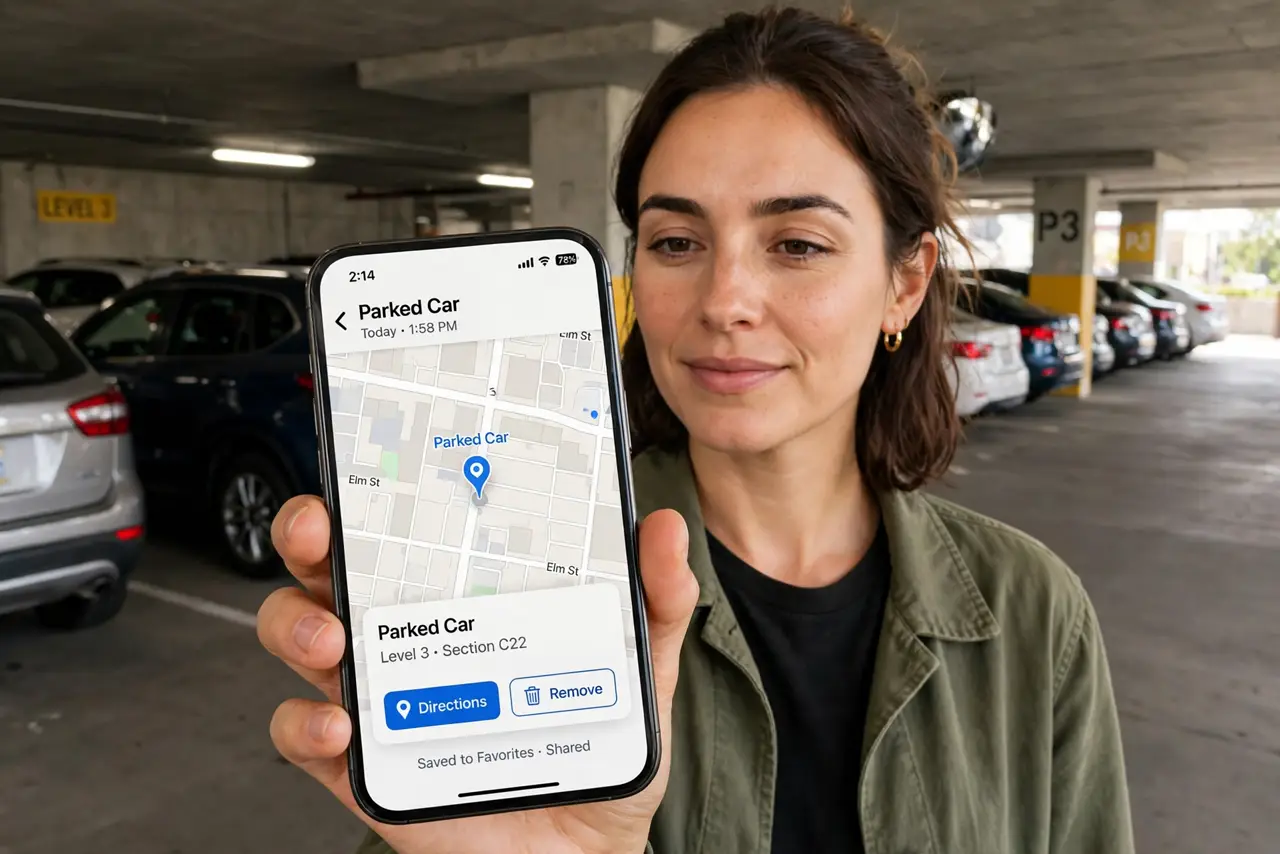
Quick fix: on iPhone, your parked car’s location saves automatically when you disconnect from CarPlay or Bluetooth — check Maps’ parked-car pin. On Android, tap the blue location dot in Google Maps and save your parking. Take a photo of the level and row sign too; tech fails, photos don’t.
Follow these steps
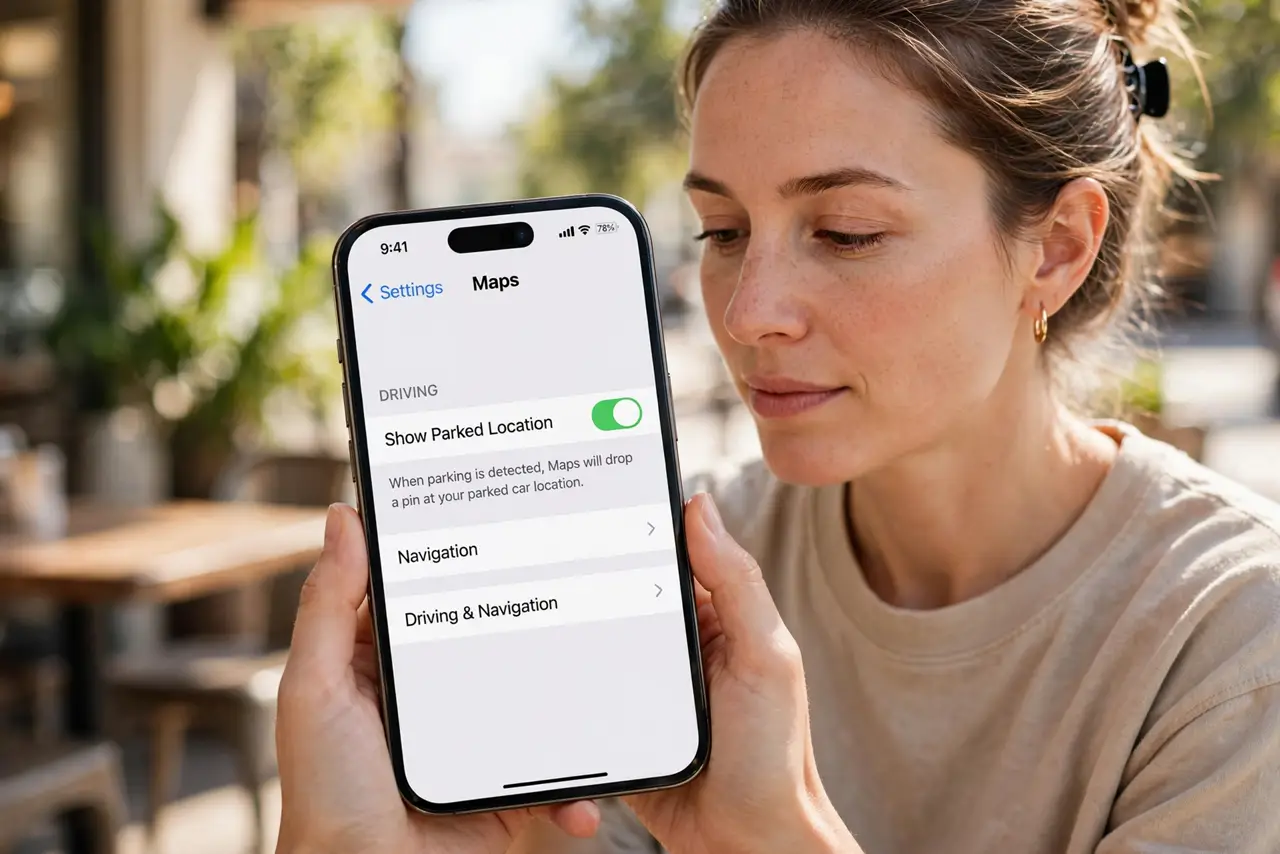
- Check it is enabled on iPhone. Go to Settings > Maps and confirm Show Parked Location is on. Without it, the automatic pin never appears — one toggle, checked once.
- Let CarPlay or Bluetooth do the work. When you disconnect from CarPlay or the car’s Bluetooth, iPhone drops a parked-car pin in Maps automatically. No action needed — just do not force-quit Maps habitually.
- Save manually on Android. In Google Maps, tap the blue location dot and choose Save your parking. Add a note with the level and row — the note is what actually saves you in a big garage.
- Navigate back to it. Tap the parked-car pin and get walking directions. In a multi-level garage, the pin gets you to the right area; your photo of the row sign finishes the job.
- Add the photo backup. Snap the level/row sign and any landmark near the car before walking away. Batteries die and signals fail; a photo is forever.
- Clear it when you leave. Delete the pin or saved parking after driving off — stale pins confuse next time. iPhone clears automatically on the next drive; Android needs the manual tap.
What NOT to do
- Do not rely on it in underground garages. GPS dies below concrete — the pin may be the entrance, not your spot. The photo matters most there.
- Do not force-quit Maps after parking. On iPhone, the background process places the pin — killing the app can kill the pin.
- Do not forget it needs Bluetooth or CarPlay. The automatic save triggers on disconnect — if you never connect the phone to the car, nothing triggers. Manual save is the fallback.
- Do not share the pin publicly. It is your car’s location — convenient for family, not for social media.
Frequently asked questions
Why didn’t my iPhone save the parking?
Show Parked Location is off, Bluetooth was disconnected, or Maps was force-quit. Check the toggle first — it is the cause most of the time.
Does it work without CarPlay?
Yes — disconnecting from the car’s Bluetooth triggers it too. Any regular car Bluetooth connection counts.
How accurate is the pin?
Within a few car lengths outdoors. Indoors or underground, treat it as ‘this area’ and rely on your photo for the exact spot.