iPhone Photos Not Backing Up on Wi-Fi
Your photos sit on the iPhone refusing to upload even on strong Wi-Fi, and the backup status spins forever. Uploads pause for low battery, low power mode, or iCloud settings. This guide gets the queue moving again.

TL;DR / Quick Fix
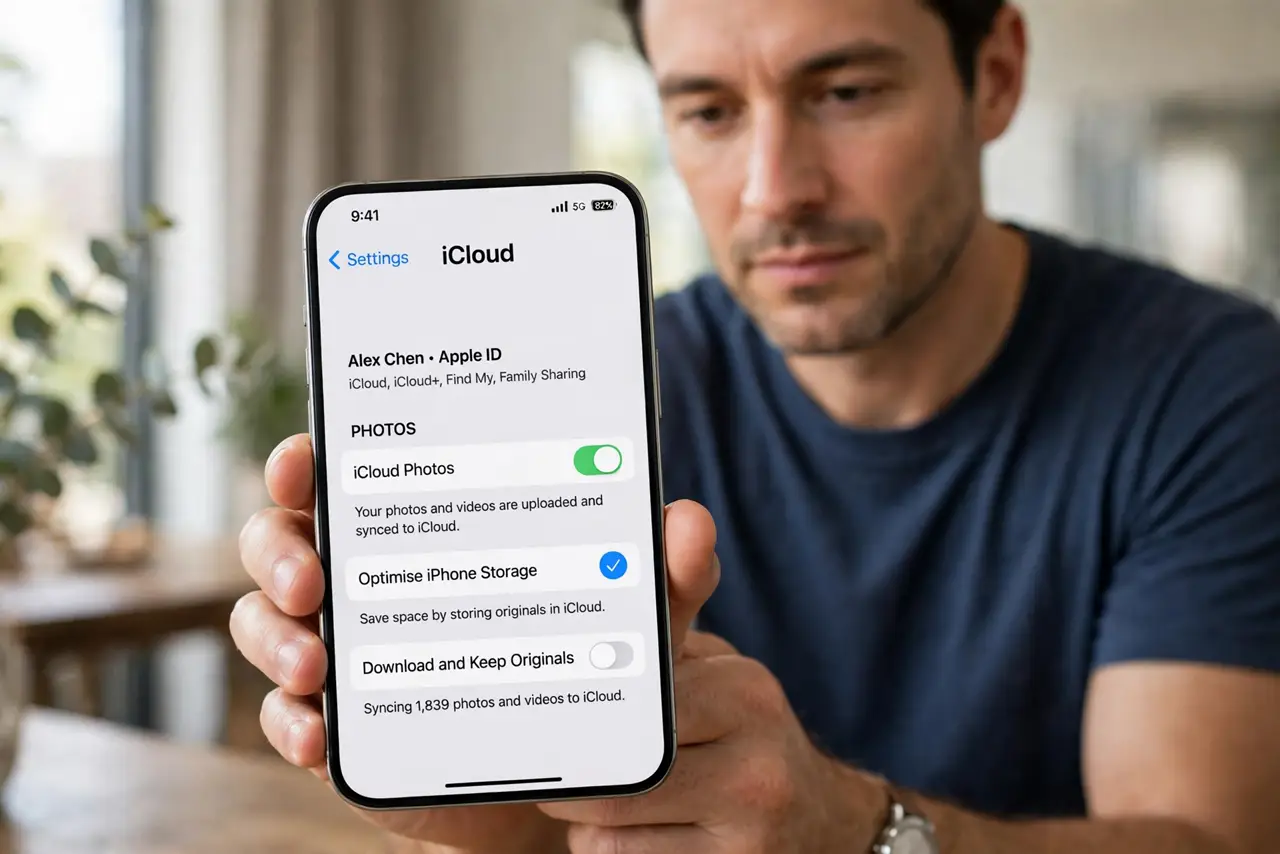
Quick fix: plug the iPhone into power, connect to stable Wi-Fi, and open Settings, then your Apple ID, then iCloud, then Photos to confirm iCloud Photos is on. Turn off Low Power Mode, leave the phone locked and charging, and give it an hour.
Follow these steps
- Confirm iCloud Photos is on. Open Settings, tap your Apple ID, then iCloud, then Photos, and verify Sync this iPhone is enabled. Without it, nothing uploads no matter how good the Wi-Fi is.
- Plug into power and Wi-Fi. iCloud Photos waits for power and Wi-Fi by default. Charging plus a stable network is the green light the queue needs.
- Turn off Low Power Mode. Low Power Mode pauses background uploads. Disable it in Settings, then Battery, and watch the queue resume.
- Check iCloud storage room. If iCloud is full, uploads stall silently. This is the reverse of the iPhone full with iCloud room case: here the cloud bucket is the bottleneck.
- Rule out bandwidth hogs. A stuck WhatsApp backup or a big app update can saturate the upload. Pause other big transfers and retest.
- Leave it locked and charging. iOS uploads most aggressively when the phone is locked, dark, and charging. An hour in that state clears most queues.
What NOT to do
- Do not delete photos to fix a stuck upload. Deletion can sync too, turning a backup delay into real loss.
- Do not toggle iCloud Photos off and on repeatedly. Each toggle restarts the queue from scratch and lengthens the wait.
- Do not assume the photos are lost. A stalled queue keeps everything on the phone; the risk is delay, not disappearance.
- Do not use mobile data as the fix. Uploading gigabytes over cellular burns data; Wi-Fi plus power is the intended path.
Frequently asked questions
Why won't my photos upload on Wi-Fi?
Usually Low Power Mode, no charger connected, iCloud Photos off, or full iCloud storage. The checklist above covers all four.
How long should a big library take?
Hours to days on typical home upload speeds. Leave it locked and charging overnight for the honest answer.
Do I need iCloud storage space?
Yes. Photos count against your iCloud plan, and a full plan stalls every upload silently.