Raise to Wake Wakes Your iPhone Too Easily
Pick the iPhone up, shift in bed, or walk with it — and the screen lights up every time. Raise to Wake is eager by design, but you can calm it without losing the convenience.
TL;DR / Quick Fix
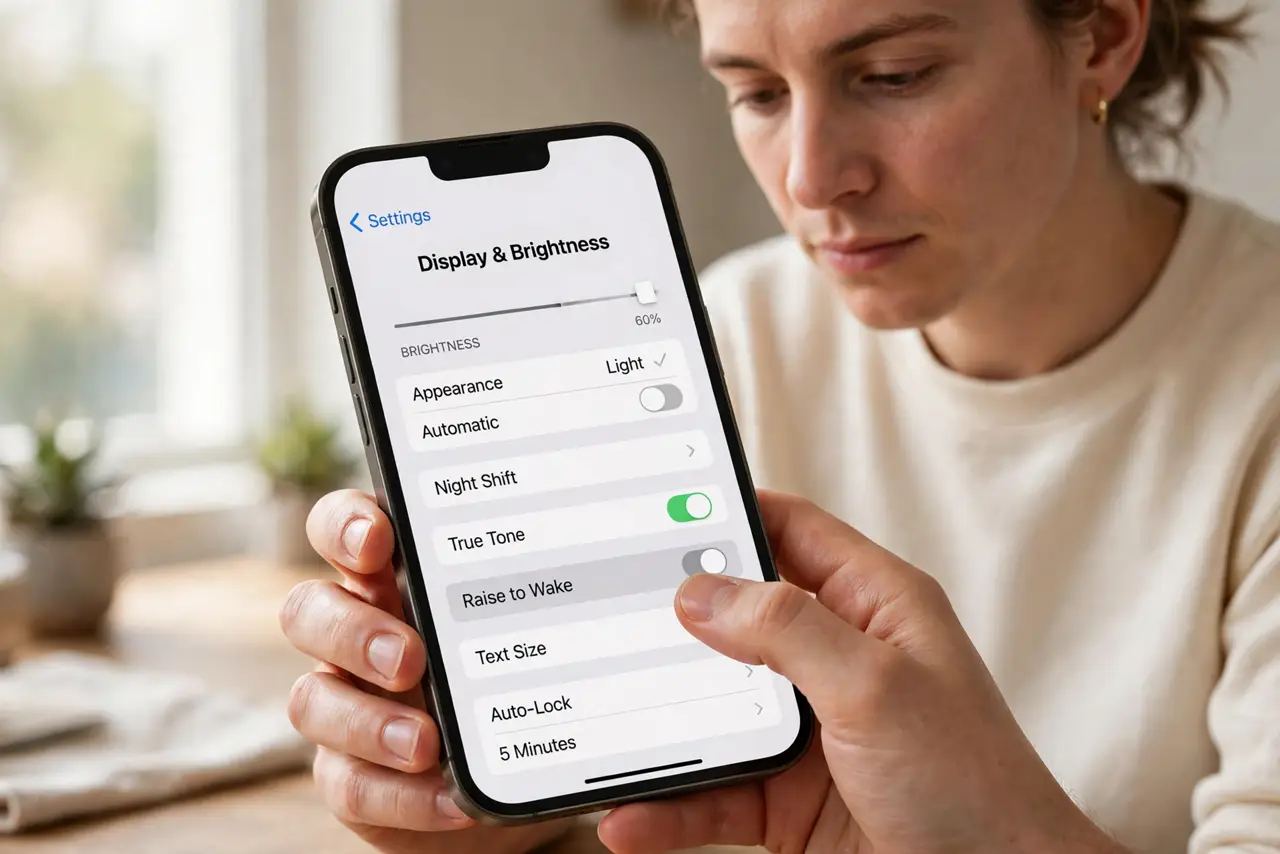
Quick fix: open Settings, then Display and Brightness, and turn off Raise to Wake for a test day. Then check whether the wake-ups stop, and decide if tap-to-wake alone suits you better and use tap to wake if the screen still lights too often.
Follow these steps
- Turn off Raise to Wake to test. Open Settings, then Display and Brightness, and turn off Raise to Wake. If the screen stops lighting on every movement, the feature — not a fault — was waking it.
- Use tap to wake instead. With Raise to Wake off, tap the screen to wake the iPhone. Tap to wake gives you the screen only when you ask for it, instead of on every lift.
- Check the case and pocket carry. A tight pocket or a case that presses the side button can wake the screen too. Carry the iPhone with the screen facing away from keys and pressure points.
- Check notifications as a second cause. Notifications also light the screen, so a chatty app can look like over-sensitive Raise to Wake. Silence the noisiest app for a test hour and compare.
- Keep Raise to Wake if you miss it. If you turn it off and keep tapping a dark screen expecting it lit, turn it back on. The feature suits people who glance at the phone often, and sensitivity is a preference, not a fault.
- Restart if the screen wakes with no movement. If the screen lights while the iPhone sits still on a table, restart once. A stuck sensor can wake the screen without movement, and a restart clears that state.
What NOT to do
- Do not assume a waking screen means someone touched your phone. Raise to Wake lights the screen on movement alone, with no touch needed.
- Do not turn off all notifications to fix wake-ups. Test Raise to Wake off first, so you silence only the cause you confirmed.
- Do not set the screen to stay dark by lowering brightness. Brightness does not stop wake-ups, so the screen still lights — just dimmer — and you lose readability.
- Do not ignore a screen that wakes while perfectly still. That pattern points to a stuck sensor or a notification, and a restart plus a notification check finds which.
Frequently asked questions
Why does my screen light on every movement?
Because Raise to Wake lights the screen whenever the iPhone is lifted, which includes walking, shifting in bed, and picking it up.
What replaces Raise to Wake?
Tap to wake, which lights the screen only when you tap it deliberately.
Why does the screen light while sitting still?
That is not Raise to Wake. Check notifications or restart to clear a stuck sensor.