Reminders? Plain Basics
The Reminders app is already on your iPhone, free, and far more capable than most people realize — location alerts, smart lists, subtasks, and Siri integration included. If your to-dos live on sticky notes and in your head, this is the gentle upgrade. Here is how to actually use it, from first list to the power features.
TL;DR / Quick Fix
Quick fix: the iPhone Reminders app is a capable free to-do manager — create lists, add due dates and locations, break tasks into subtasks, and ask Siri to add items hands-free. Lists sync through iCloud to your Mac and iPad. Start with one list, like groceries, and add from there.
Follow these steps
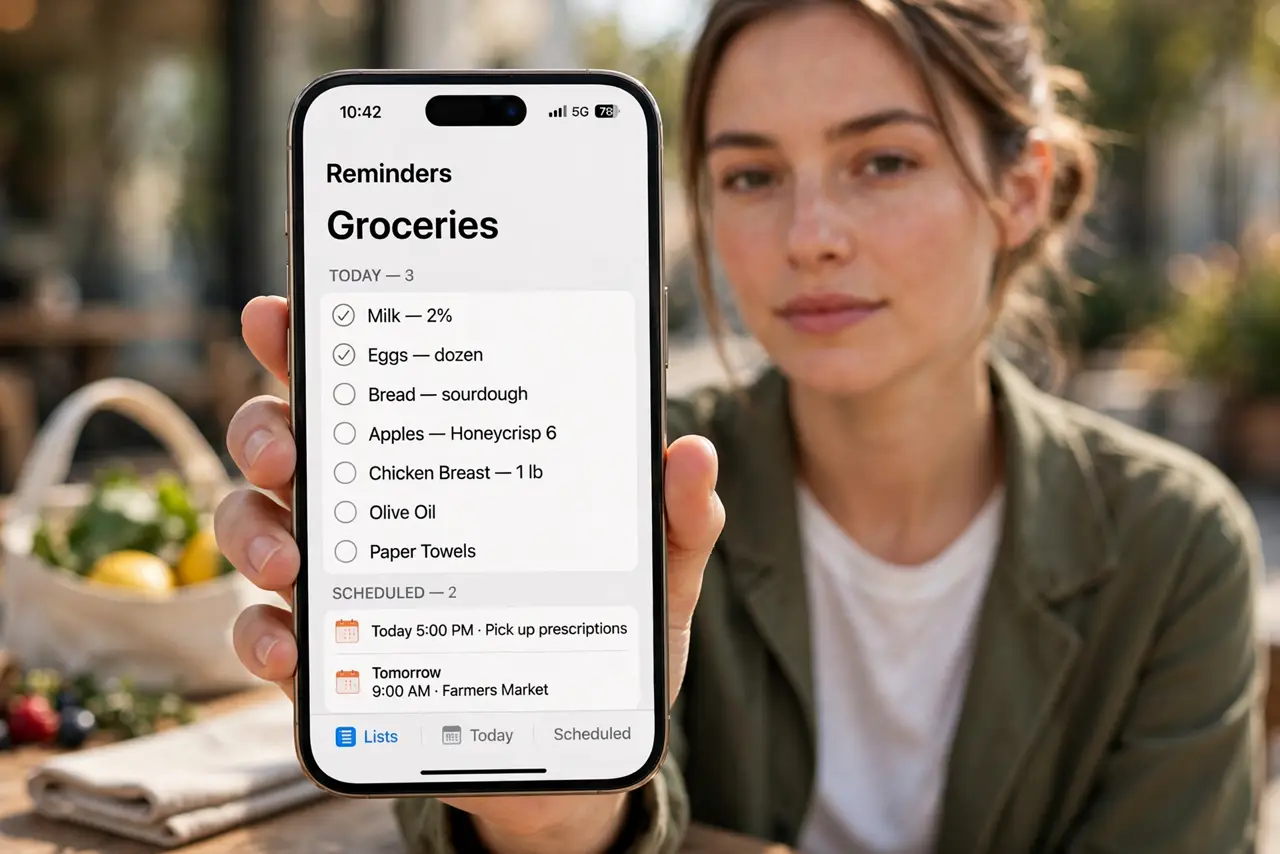
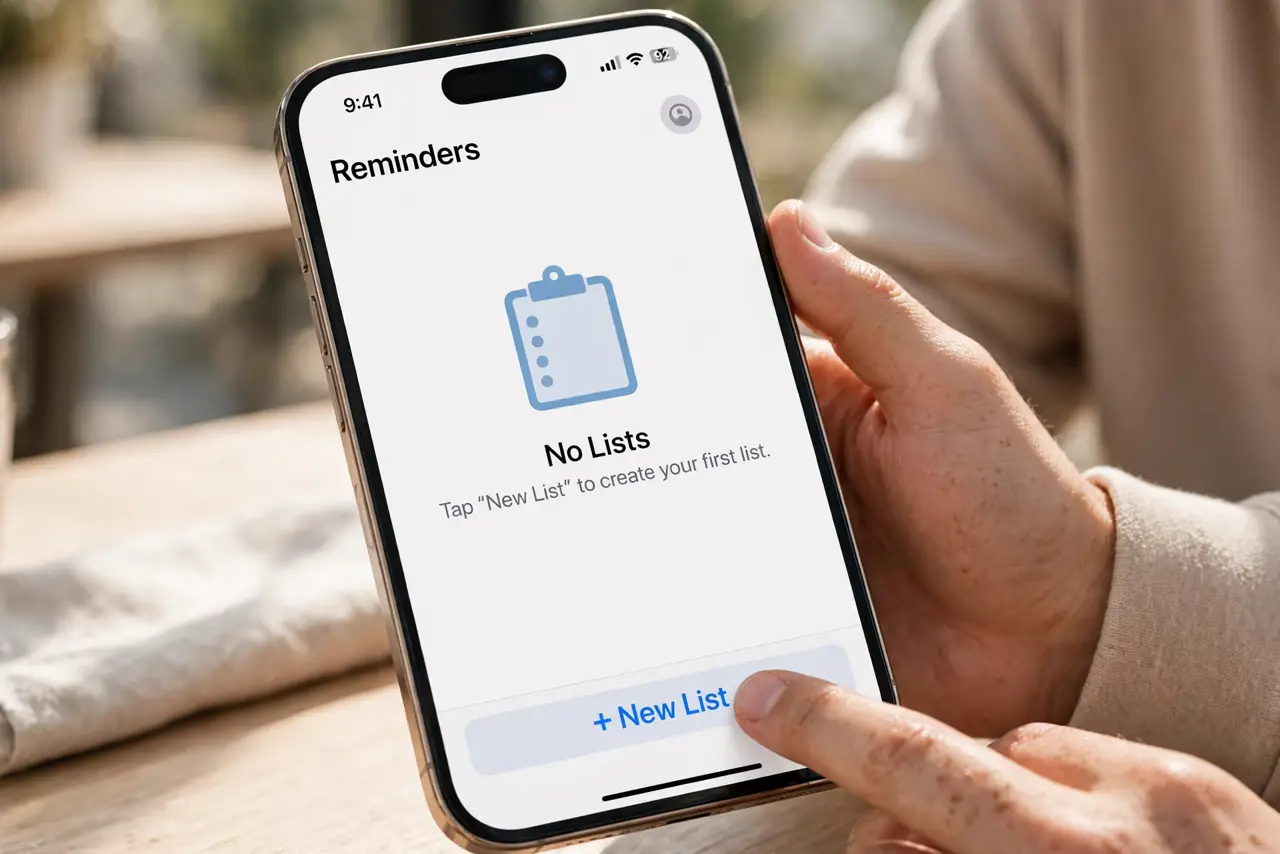
- Create your first list. Open Reminders, tap Add List, name it, and pick a color and icon. One list per area of life — groceries, work, home — beats one giant chaotic list.
- Add tasks with dates and times. Tap a list, add an item, then tap the (i) to set a due date, time, and repeat schedule. Dated tasks surface automatically in the Scheduled smart list.
- Use location-based reminders. Set a reminder to fire when you arrive at or leave a place — 'buy milk' at the grocery store. It is the feature that converts skeptics; just keep Location Services on for Reminders.
- Break big tasks into subtasks. Swipe or use the (i) panel to add subtasks under a parent item. 'Plan birthday' becomes venue, cake, and invites — each checkable on its own.
- Let Siri do the capturing. 'Hey Siri, remind me to call the dentist tomorrow at nine' — hands-free capture is how the system actually gets used. Review the missed-alert fixes if notifications seem silent.
- Share lists with family. Tap the share icon on a list to invite household members. A shared grocery list that everyone edits beats five separate scraps of paper.
What NOT to do
- Do not dump everything into one list. Unsorted mega-lists get ignored — separate by area and let smart lists do the overview.
- Do not set reminders without dates and expect to see them. Undated tasks hide in their list; dates push them in front of you.
- Do not ignore notification settings. If alerts are silent, the app looks broken — check Settings > Notifications > Reminders first.
- Do not over-engineer on day one. Start with simple lists; add tags, smart lists, and templates after the habit sticks.
Frequently asked questions
Do Reminders sync to my Mac?
Yes, through iCloud — the same lists appear in the Reminders app on Mac and iPad when you are signed into the same Apple Account.
Why didn't my reminder alert me?
Check the date and time on the task, notification permissions, and whether a Focus mode silenced it. The alert troubleshooting guide covers each cause.
Can I use Reminders without iCloud?
Yes, with On-My-iPhone local lists — but they will not sync or back up. iCloud lists are the safer default.