Reset the Keyboard Dictionary?
Your iPhone keyboard learned your typos — now it autocorrects real words into your old mistakes, and the suggestions feel haunted. Resetting the keyboard dictionary wipes everything it learned and starts fresh. It does not delete anything else: no messages, no contacts, no photos. Here is when to reset and what actually happens.
TL;DR / Quick Fix
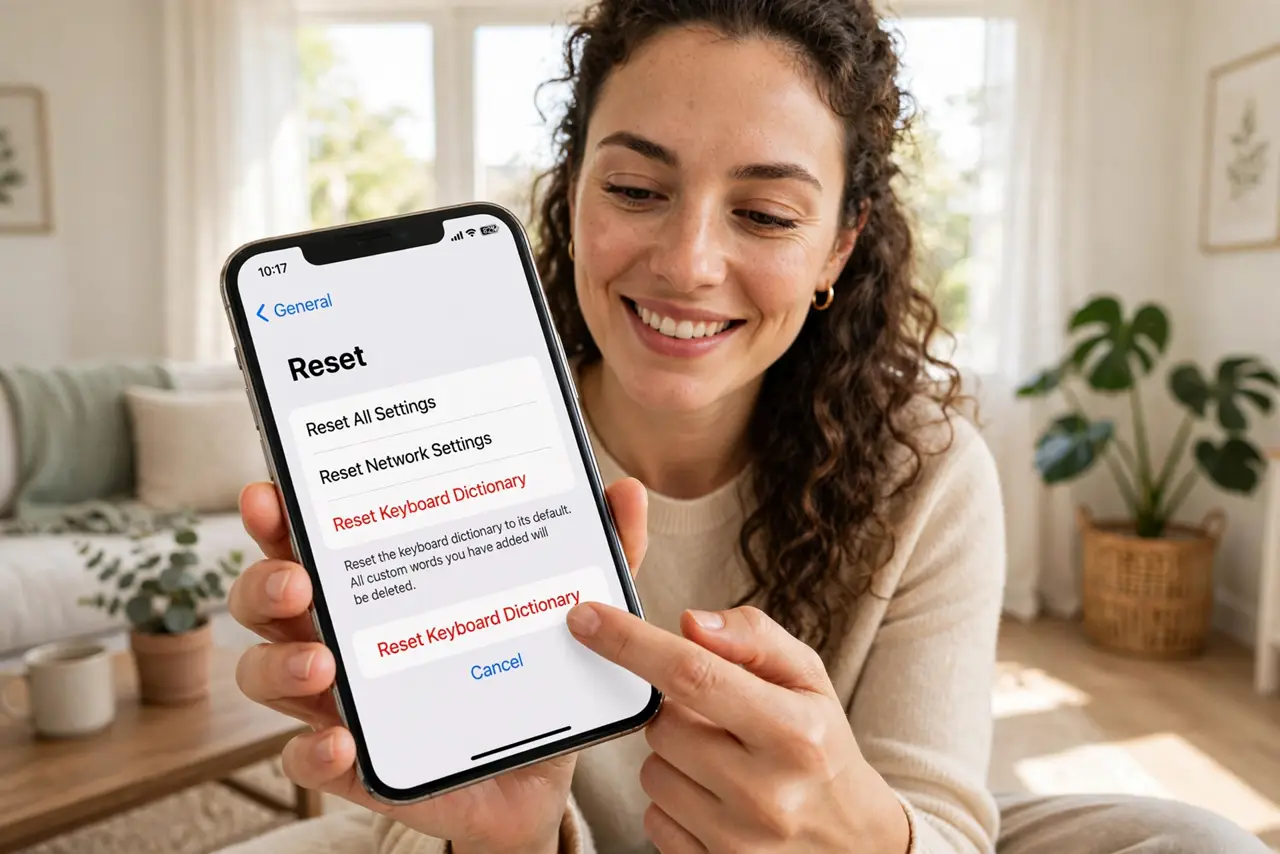
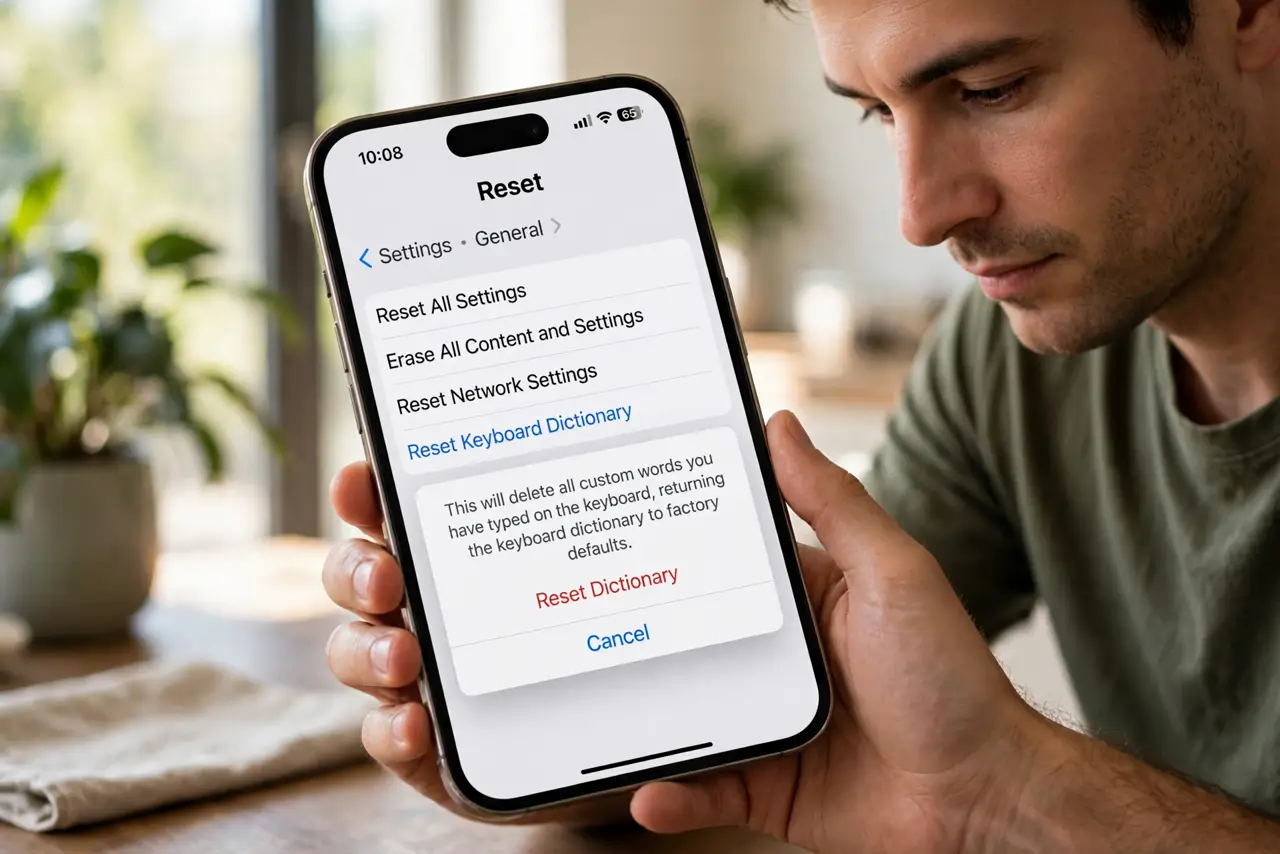
Quick fix: on iPhone open Settings, General, Transfer or Reset iPhone, Reset, Reset Keyboard Dictionary, and confirm. The keyboard forgets every learned word — autocorrect returns to factory behavior. Your texts and contacts are untouched. Give it a week to relearn your vocabulary.
Follow these steps
- Know what the reset wipes. Only the keyboard's learned vocabulary — custom words it picked up, including typos it memorized. Messages, contacts, notes, and text replacements you created manually all survive. It is a narrow, safe reset.
- Reset on iPhone. Settings, General, Transfer or Reset iPhone, Reset, Reset Keyboard Dictionary. Enter your passcode and confirm. Done in ten seconds — the keyboard is instantly back to factory smarts.
- Reset on Android. Open Settings, Apps, your keyboard app (Gboard or Samsung Keyboard), Storage, Clear data for learned words — or use the keyboard's own dictionary settings. Steps vary by brand but the idea is identical.
- Expect a relearning week. Fresh out of reset, autocorrect is dumber about your slang and names — that is normal. It relearns from your typing within days. Correct it gently rather than fighting it; every correction teaches.
- Fix the root cause. If the keyboard keeps learning garbage, the issue is autocorrect habits or a wrong language adding foreign words. Reset treats the symptom — check those settings to stop recurrence.
- Consider text replacements instead. For words autocorrect always mangles — your surname, jargon — add a Text Replacement in Settings, General, Keyboard. Forced corrections survive resets and retraining alike.
What NOT to do
- Do not reset expecting smarter autocorrect. Reset returns it to factory — dumber at first, then it relearns. Patience required.
- Do not confuse it with Reset All Settings. Keyboard Dictionary reset touches only learned words — the big resets are separate buttons.
- Do not re-teach typos. After reset, correct mislearnings promptly instead of accepting them — the keyboard believes what you accept.
- Do not skip the language check. A stray second language keyboard pollutes predictions — remove languages you do not type.
Frequently asked questions
Will resetting delete my text messages?
No. It deletes only the keyboard's learned words. Messages, contacts, photos, and manual text replacements are completely untouched.
How often should I reset the keyboard dictionary?
Rarely — only when autocorrect is clearly haunted by old typos. Most people never need it; once a year at most.
Why does autocorrect keep changing names?
It learned them wrong once and never forgot. Reset, then add problem names as text replacements so they stick correctly.