Customize Safari's Start Page
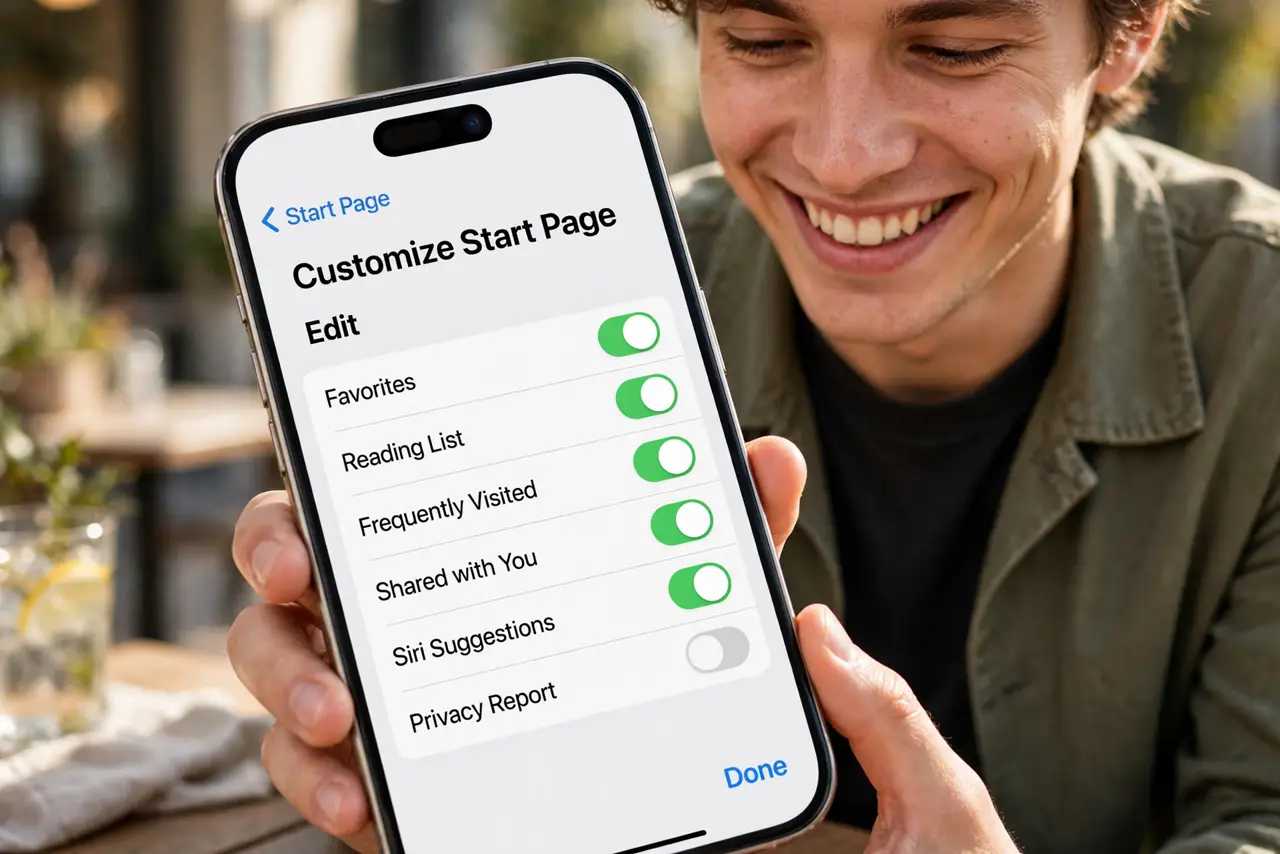
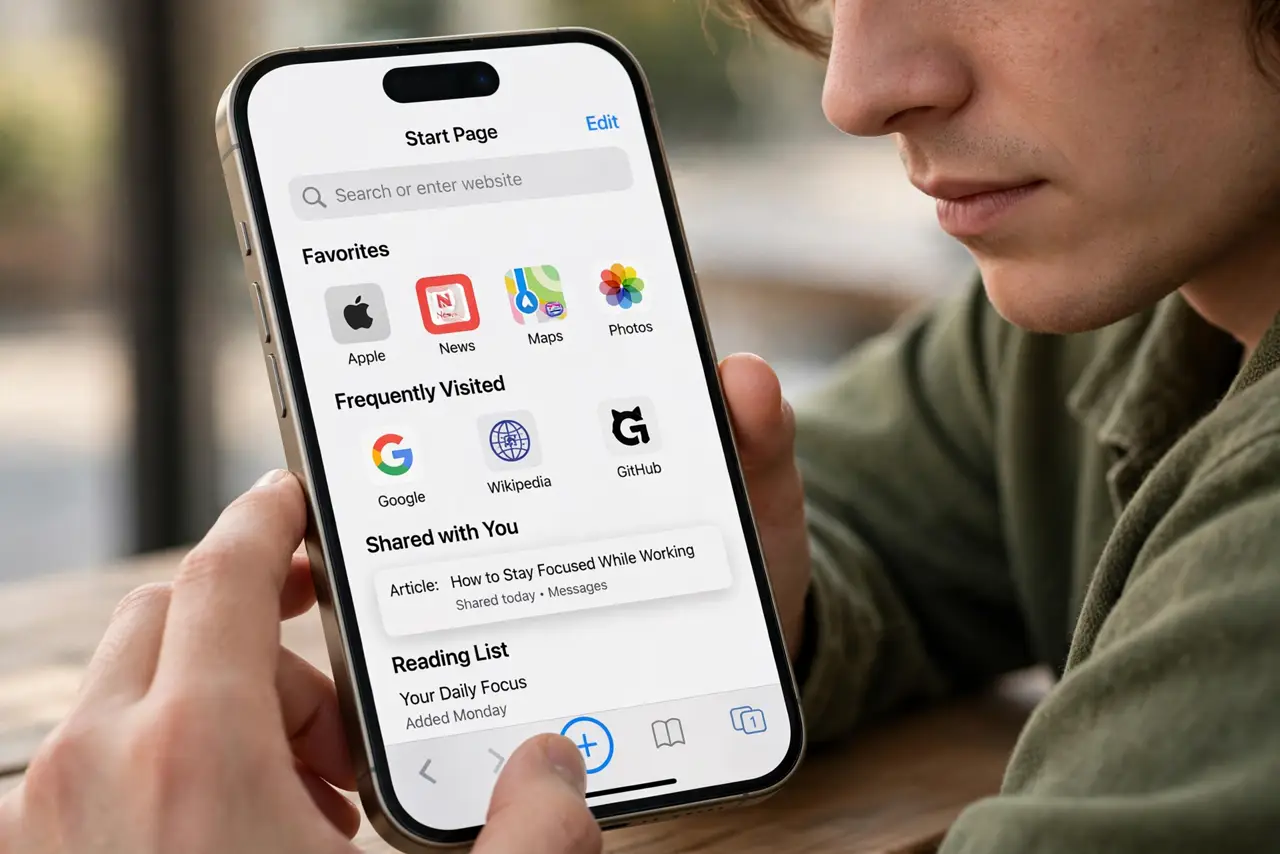
Safari's start page is the first thing you see in every new tab — and by default it shows Apple's picks, not yours. The Edit button at the bottom lets you choose exactly which sections appear: favorites, reading list, iCloud tabs, and a background that is actually yours.
TL;DR / Quick Fix
Quick fix: open a new tab in Safari, scroll to the bottom, and tap Edit. Toggle the sections you want — Favorites, Reading List, iCloud Tabs — and pick a background image. The layout syncs across your devices with iCloud.
Follow these steps
- Open a fresh tab. Open Safari and start a new tab — the start page with its sections appears. This is your canvas.
- Scroll down and tap Edit. The Edit button hides at the very bottom of the start page. Tap it to reveal every toggle.
- Toggle the sections you use. Favorites for daily sites, Reading List for later, iCloud Tabs for the Mac handoff. Switch off the sections you never glance at — less noise, faster page.
- Set a background image. Pick from Apple's gallery or your own photos. A personal photo makes the browser feel like yours in one tap.
- Reorder with intention. Favorites first if you navigate by them; Reading List first if you read in bursts. The order is the workflow.
- Check it on the Mac too. Start page settings sync via iCloud — customize once on the iPhone and the Mac follows. Your tab groups ride along the same sync.
What NOT to do
- Do not enable every section. A start page with nine sections is a scroll, not a dashboard — keep the three you use.
- Do not use a busy photo background. Text over a chaotic image is unreadable — pick something calm or let Safari dim it.
- Do not expect extensions here. The start page is Apple's layout — content blockers and extensions live elsewhere.
- Do not forget it is per-device optional. Sync is convenient until it is not — you can keep a different layout on the iPad if you prefer.
Frequently asked questions
Why is the Edit button missing?
You are not on the start page — it only appears on a new tab page, not on a loaded website. Open a new tab.
Can I remove the Favorites section?
Yes — toggle it off in Edit. Your bookmarks stay saved; they just leave the start page.
Does the background sync too?
The layout and toggles sync; custom photo backgrounds may need re-picking per device.