Add a Security Key to iPhone
SMS codes can be intercepted and authenticator apps live on a phone that can be stolen — a physical security key is the strongest login protection you can get. Adding one to your iPhone takes minutes: plug it in or tap it, and your Apple Account gets phishing-proof sign-in.
TL;DR / Quick Fix
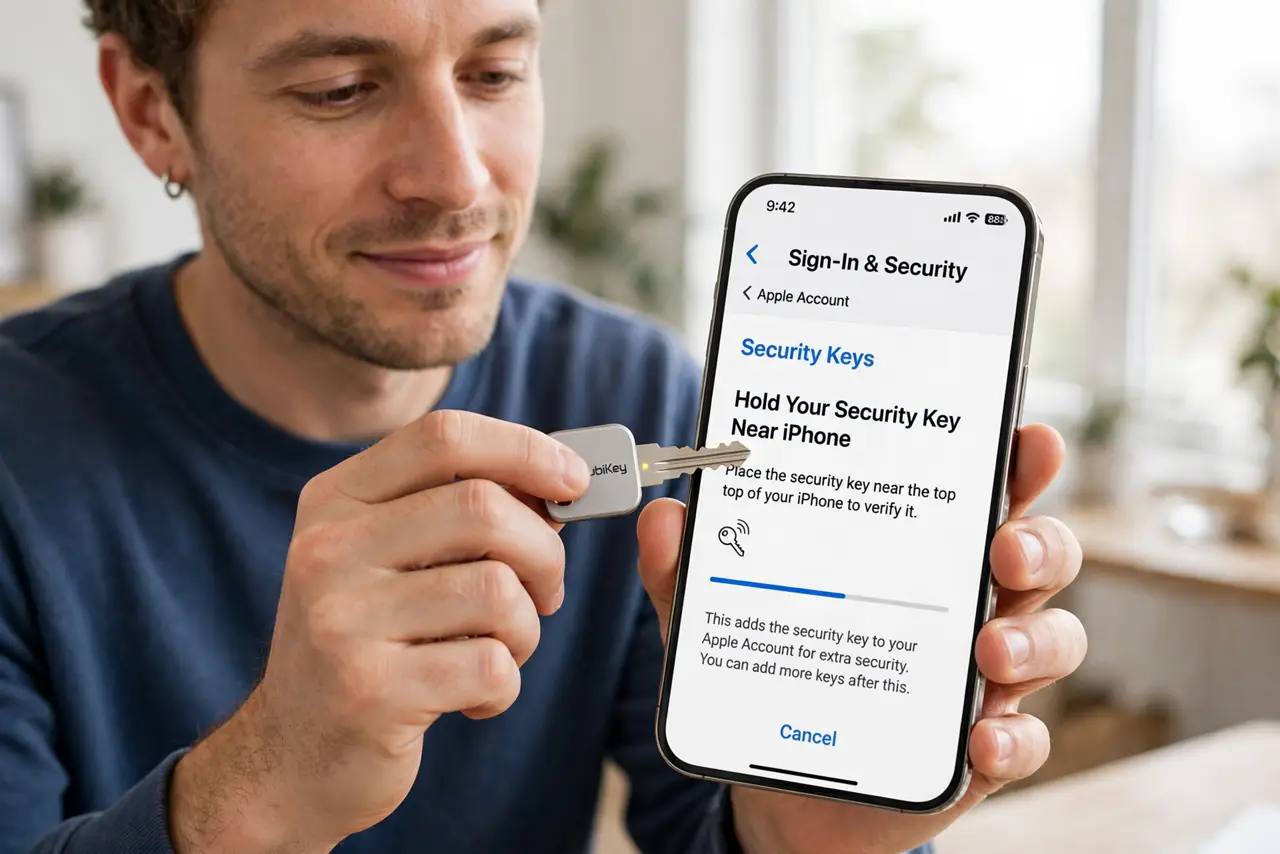
Quick fix: get a security key that fits your iPhone — USB-C, Lightning, or NFC — in Settings open your Apple Account, go to Sign-In & Security, and add it. Register two keys so losing one never locks you out. You'll tap or plug the key instead of typing codes.
Follow these steps
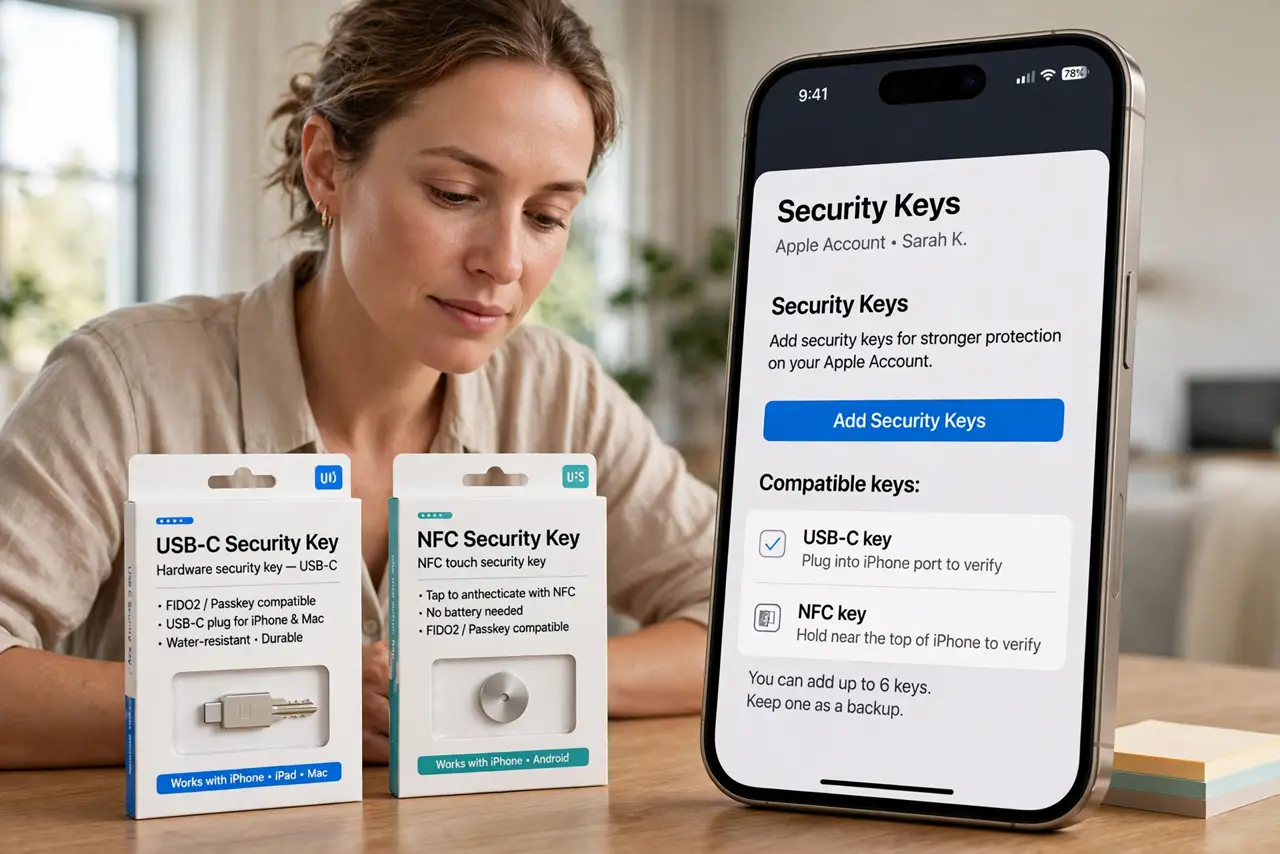
- Get a compatible security key. Buy a key with the right connector for your iPhone — USB-C, Lightning, or NFC — from a reputable maker. Learn the key basics first if the category is new to you.
- Open Apple Account security settings. In Settings, tap your name at the top, then Sign-In & Security. This is where Apple manages its strongest login options.
- Add the security key. Choose the security-key option and follow the prompts — you'll tap the NFC key to the phone or plug in a wired one. The iPhone registers it to your Apple Account in under a minute.
- Register a SECOND key. This is the step everyone skips and regrets. Buy two keys and register both — see the key vs authenticator comparison for why redundancy matters.
- Test signing in with the key. Sign out and back in somewhere to confirm the key works. Discovering a dud key during an emergency is the nightmare scenario.
- Store recovery info safely. Keep Apple's account-recovery details current and store the backup key somewhere separate from the first — not in the same drawer.
What NOT to do
- Do not register only one key. A single key is a single point of failure — losing it without a backup means a painful account recovery.
- Do not buy a key with the wrong connector. Check your iPhone's port before ordering — USB-C and Lightning are not interchangeable.
- Do not expect every app to accept the key. Start with your Apple Account, then add it to the big services that support it — coverage is growing, not universal.
- Do not toss the packaging with the backup codes. Some keys ship with recovery info you'll want later — file it before you forget.
Frequently asked questions
Which security key should I buy?
Any reputable FIDO2 key with your iPhone's connector works with Apple Account. NFC keys are the most convenient if your iPhone supports them.
What if I lose both keys?
Apple's account recovery can still get you back in, but it's slow by design. Two registered keys plus current recovery info makes this a non-issue.
Does it replace my passcode?
No — the key strengthens sign-ins to your Apple Account and services. Your device passcode stays as the phone's own lock.