Automate iPhone with Shortcuts
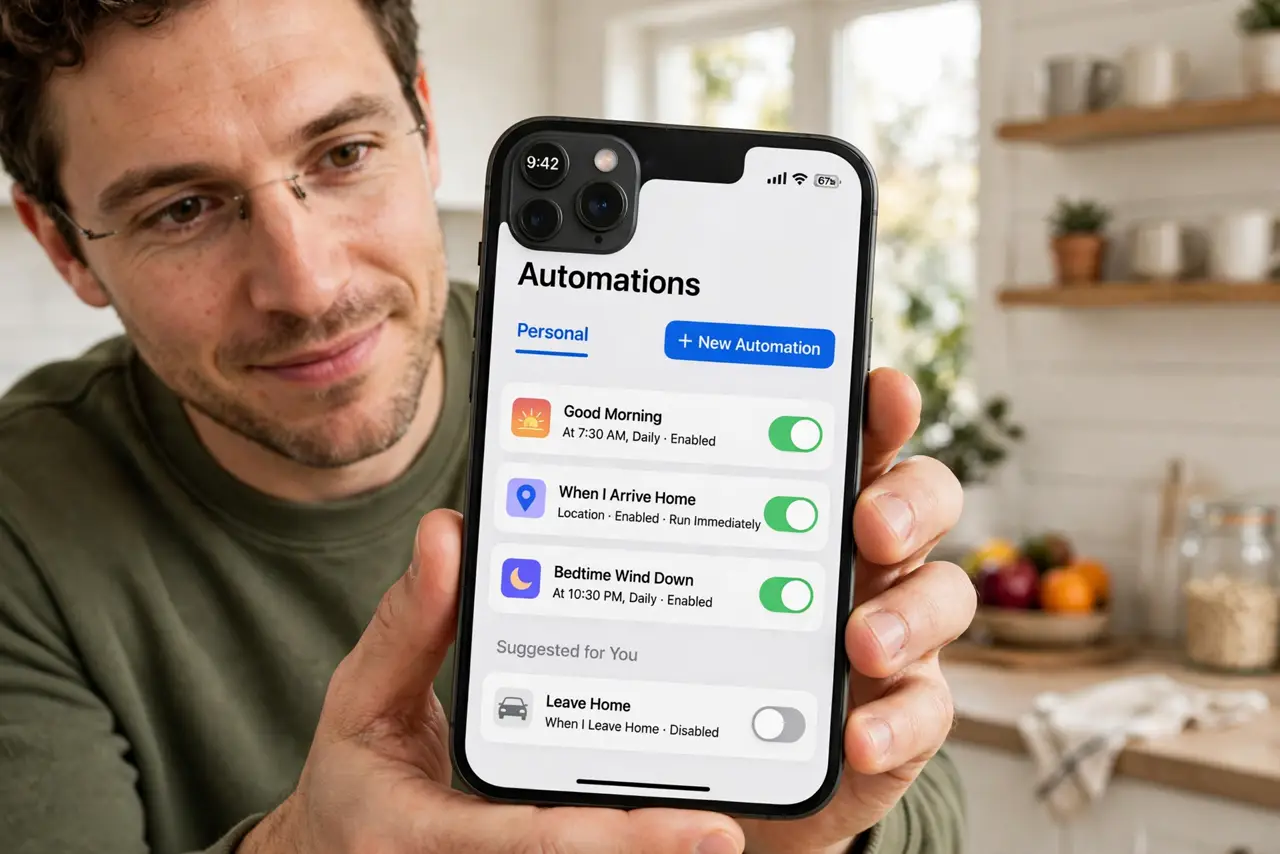
You do the same phone chores every day — texting when you leave work, turning on Do Not Disturb at bedtime, logging water. The Shortcuts app can do these automatically with triggers like time, location, or opening an app. You don't need to code; you just describe the chore.
TL;DR / Quick Fix
Quick fix: open the Shortcuts app, tap Automation, and pick a trigger like time of day or arriving home. Add the actions you want, test it once, and turn off 'Ask Before Running' for automations you trust. Start simple — one trigger, one action — and build from there.
Follow these steps
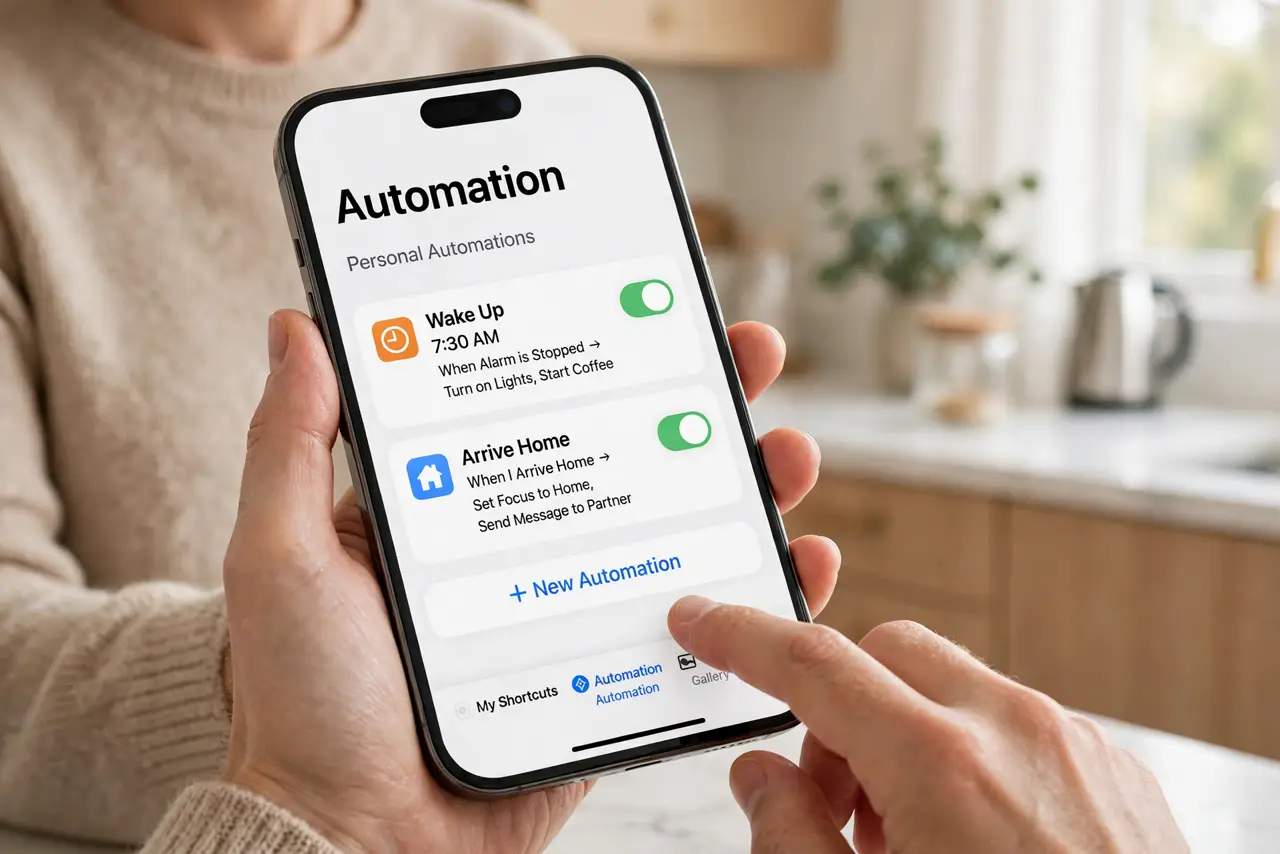
- Open Shortcuts and tap Automation. The Shortcuts app has an Automation tab at the bottom. That's where scheduled and triggered routines live — separate from the manual shortcuts gallery.
- Pick a trigger for your routine. Choose what starts it: time of day, arriving or leaving a location, opening an app, connecting to CarPlay, or battery level. Match the trigger to the chore — bedtime routines want a time trigger.
- Add the actions you want. Tap through the action list: set Do Not Disturb, send a message, open an app, adjust brightness. Chain a few — 'when I arrive home, turn on Wi-Fi and text my partner' is two actions.
- Test it once before trusting it. Run the automation manually first and watch each step. Testing catches the wrong contact or the backwards toggle before it fires at 6 AM.
- Turn off 'Ask Before Running' for trusted ones. Automations ask permission each time by default. For routines you've tested, disable the confirmation so they run silently — keep it on for anything involving messages or purchases.
- Start simple and add later. One trigger and one action that works beats a ten-step dream that misfires. Add complexity only after the simple version runs reliably for a week.
What NOT to do
- Do not automate purchases or payments blindly. Money-moving automations deserve the confirmation prompt — convenience isn't worth a surprise charge.
- Do not download random shortcuts from the internet without reading them. A shortcut's actions are visible before you add it — read every step, since malicious ones exfiltrate data.
- Do not expect automations to run with the phone off or dead. They need a powered, unlocked-at-least-once phone like everything else.
- Do not grant every permission a shortcut requests. If a bedtime routine wants your contacts, that's a red flag — deny what the task doesn't need.
Frequently asked questions
What are good first automations?
Bedtime Do Not Disturb, a 'leaving work' text, low-battery power saving, and opening your workout playlist when headphones connect — all simple, all useful.
Can I share my automations with someone?
You can share shortcuts, but automations with personal triggers don't transfer cleanly — they'll need to rebuild the trigger on their phone.
Do automations drain the battery?
Negligibly — they run briefly on triggers. A dozen simple automations cost less battery than five minutes of scrolling.