Build a Mac Automator Workflow
You rename fifty files the same way every week, or resize every image for the website by hand. Automator — free on every Mac — lets you build that chore once as a drag-and-drop workflow and run it forever. No coding; you just stack actions like blocks.
TL;DR / Quick Fix
Quick fix: open Automator, choose Workflow, and drag actions from the library into the area — for example, rename a batch of files. Press Run to test on copies first, then save it as an application or Quick Action. One small working workflow beats an ambitious one that never runs.
Follow these steps
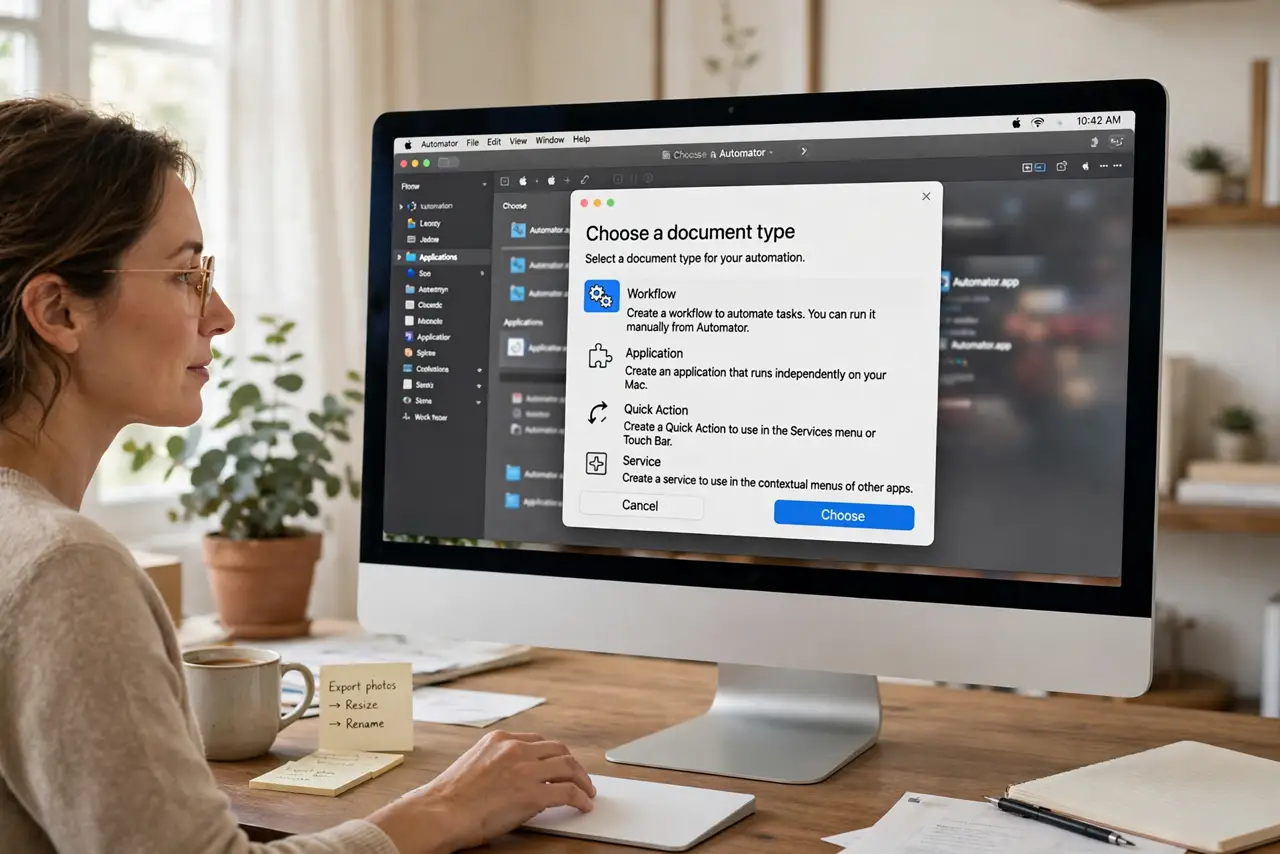
- Open Automator and choose Workflow. Find Automator in Applications and launch it. Choose Workflow for a general sequence — the other types (Application, Quick Action) are just different ways to run the same idea.
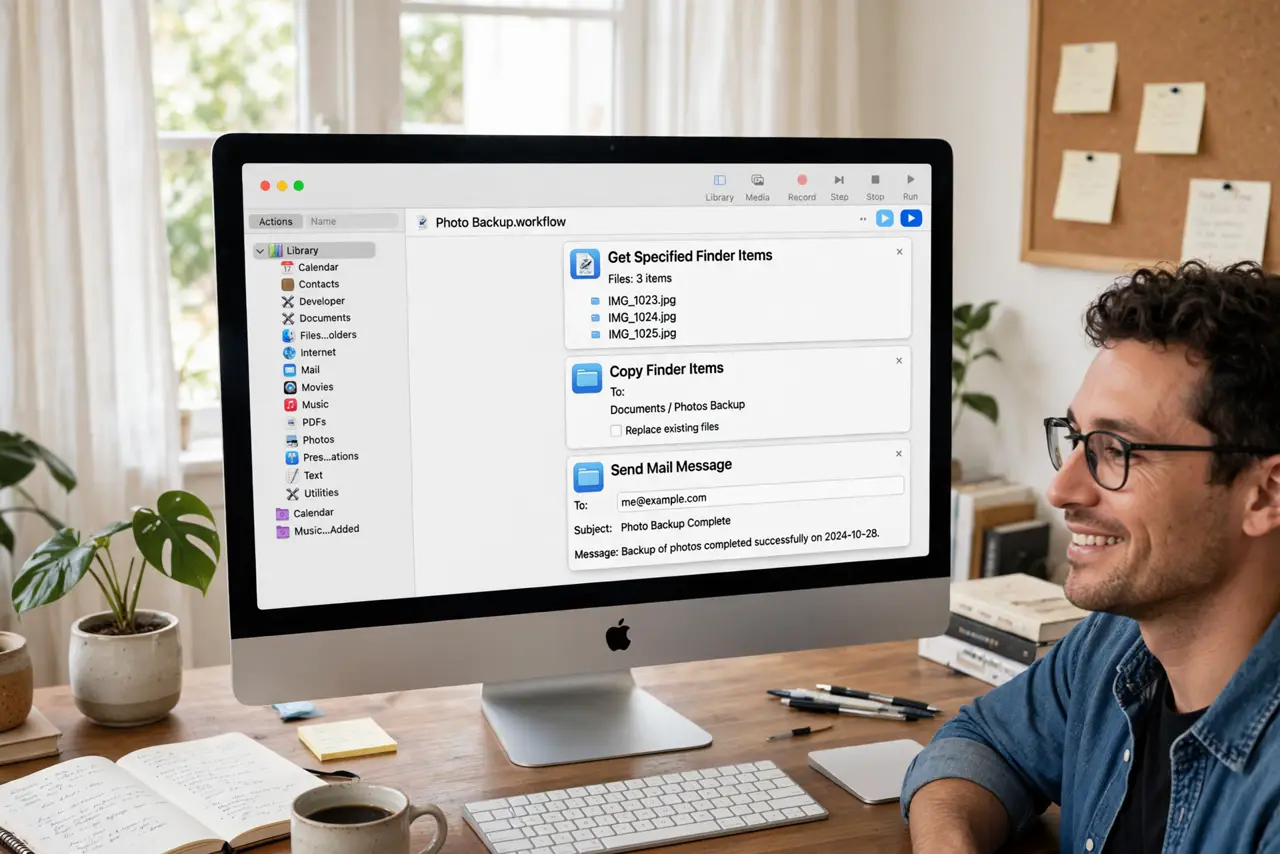
- Drag actions from the library. The left sidebar lists actions by app and category. Drag them into the main area in order — each action's output feeds the next. A rename workflow might be: Get Selected Finder Items, then Rename Finder Items.
- Configure each action's options. Click an action to set its details — the rename pattern, the folder, the format. Defaults are sensible, but the power is in these little settings.
- Test with Run on COPIES first. Duplicate a few test files into a scratch folder and press Run. Watch what happens — testing on copies means mistakes cost nothing. Check the saved-workflow locations so you know where things land.
- Save it as an app or Quick Action. Save as an Application for double-click running, or as a Quick Action to appear in Finder's right-click menu. Pick the one matching how you'll actually use it.
- Start small, then grow it. One working three-action workflow beats a twenty-action monster that never runs. Add steps only after the simple version proves itself.
What NOT to do
- Do not automate file deletion without testing on copies. A delete action with the wrong target is how folders vanish — test first, always.
- Do not expect Automator to read your mind on ambiguous inputs. Be explicit: which files, which folder, which format — vagueness breaks workflows.
- Do not save over your only originals while testing. Copies, copies, copies — the originals stay untouched until the workflow is proven.
- Do not ignore the log when a workflow fails. Automator shows which action choked — read it instead of rebuilding from scratch in frustration.
Frequently asked questions
Automator or Shortcuts — which should I learn?
Shortcuts is Apple's newer focus and the safer long-term bet; Automator still works fine for classic file chores. Learn Shortcuts for new projects.
What are good first workflows?
Batch-renaming photos, resizing images for the web, and converting file formats — repetitive, well-defined, and instantly rewarding.
My workflow broke after a macOS update — now what?
Re-open it in Automator and re-test step by step; updates occasionally rename actions. Small workflows are quick to repair.