SIM PIN Locks Your Card After Restart
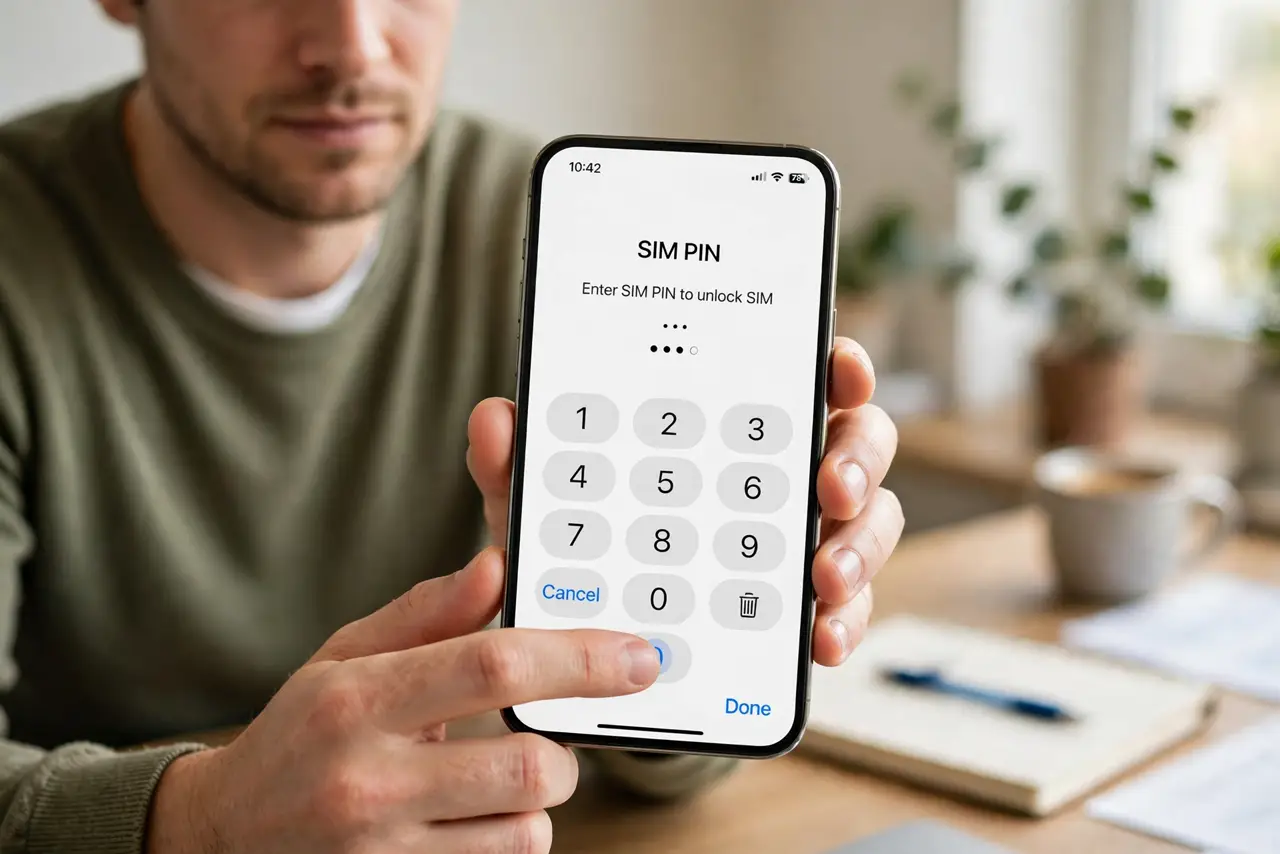
Every restart makes your iPhone ask for a SIM PIN before calls or texts work. That PIN locks the SIM card itself, not the phone — it is separate from your screen passcode, and too many wrong guesses can lock the card until your carrier resets it.
TL;DR / Quick Fix
Quick fix: enter the SIM PIN your carrier gave you after a restart — check the card your SIM arrived in. Do not guess: after several wrong tries the SIM locks and needs a PUK code. Ask your carrier for it, or switch the SIM PIN off in Settings.
Follow these steps
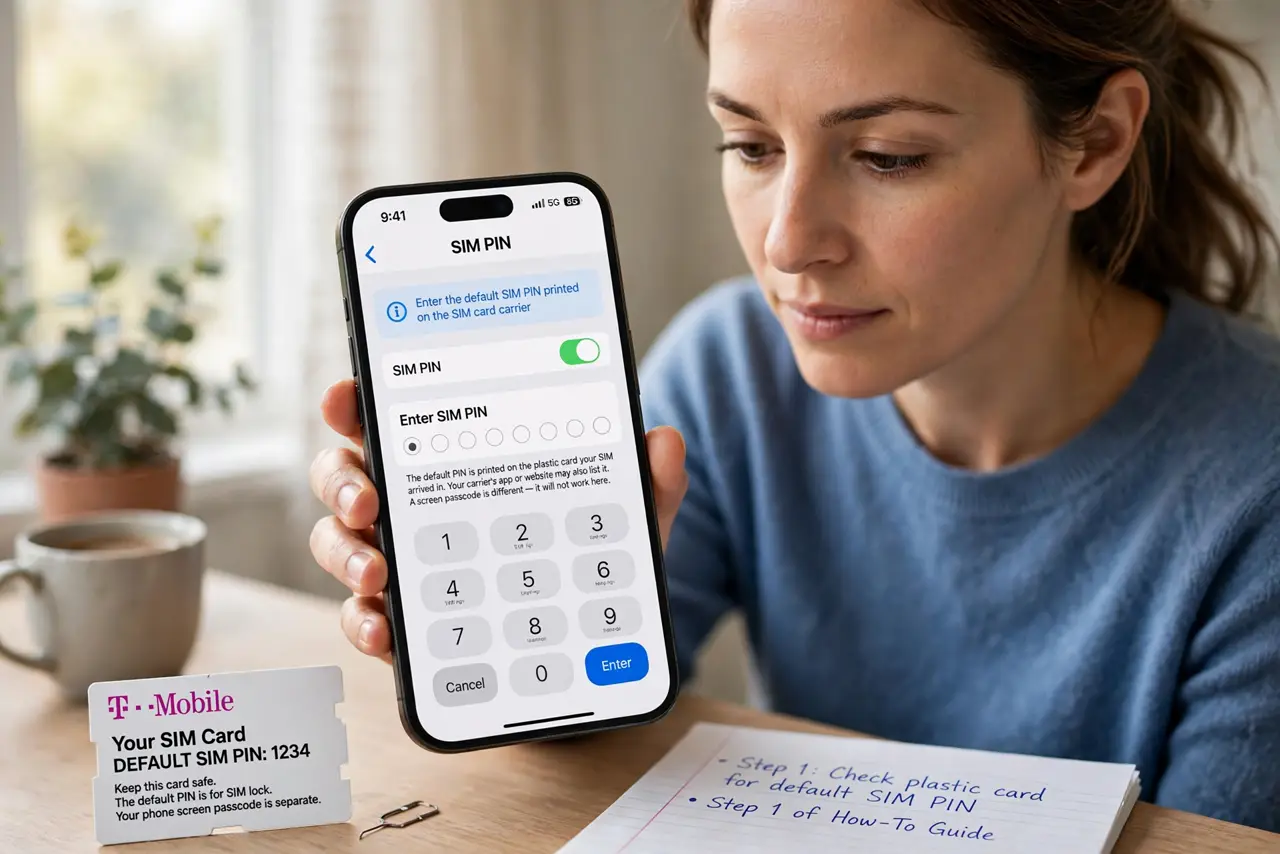
- Find your carrier's default SIM PIN. Check the plastic card your SIM arrived in — the default PIN is printed there. Your carrier's app or website may also list it. Enter it carefully; a screen passcode is a different code and will not work here.
- Do not guess more than twice. After three wrong tries most SIM cards lock and demand a PUK code. If the first careful try fails, stop guessing and call your carrier instead of risking a locked card.
- Ask your carrier for the PUK code. Call customer service or check your carrier's website for the PUK. Entering it correctly unlocks the SIM; entering it wrong too many times can permanently disable the card.
- Turn the SIM PIN off if you do not want it. On iPhone, open Settings, then Cellular, then SIM PIN, and switch it off — you will enter the current PIN once to confirm. Without it, the iPhone never asks after a restart.
- Change the PIN to one you will remember. In the same SIM PIN screen, choose to change the PIN and pick something memorable. A PIN you chose yourself removes the guessing game after every restart.
- Restart once to confirm the fix. Restart the iPhone and check whether it still asks for a PIN. If the prompt is gone or accepts your new PIN, the card is unlocked and working.
What NOT to do
- Do not keep guessing the PIN hoping to get lucky. Three wrong tries lock the SIM, and too many wrong PUK tries can kill the card for good.
- Do not enter your screen passcode in the SIM PIN field. The two codes are different, and the passcode will never unlock the SIM.
- Do not throw away the SIM card holder with the printed PIN. That little card is the easiest way to recover the default code later.
- Do not buy an unlock code online for a SIM lock. The SIM PIN is your carrier's lock, and only your carrier gives the correct PUK for free.
Frequently asked questions
Is the SIM PIN the same as my iPhone passcode?
No. The SIM PIN locks the SIM card, while the passcode locks the iPhone screen. They are set and changed in different places.
What happens if I lock the SIM with wrong PIN tries?
The iPhone asks for a PUK code from your carrier. Enter it right and the SIM unlocks; too many wrong PUK tries can permanently disable the card.
Can I remove the SIM PIN prompt completely?
Yes. Turn it off in Settings, then Cellular, then SIM PIN, and confirm with the current PIN. The iPhone will stop asking after restarts.