SOS Without Cell Service
You are hurt or stranded somewhere with zero bars — no cell signal, no Wi-Fi — and you need help now. Newer iPhones can reach emergency services by texting over satellite, straight from the Emergency SOS screen, with no carrier signal at all. It only works outdoors with a clear view of the sky, and there is a specific way to trigger it. Set it up before you need it, because you cannot Google the instructions when it matters.
TL;DR / Quick Fix
Quick fix: newer iPhones can text emergency services via satellite with no cell or Wi-Fi signal — hold the side and volume buttons, choose Emergency SOS via satellite, and follow the prompts outside under open sky. Set up emergency contacts and Medical ID now, before you ever need them.
Follow these steps
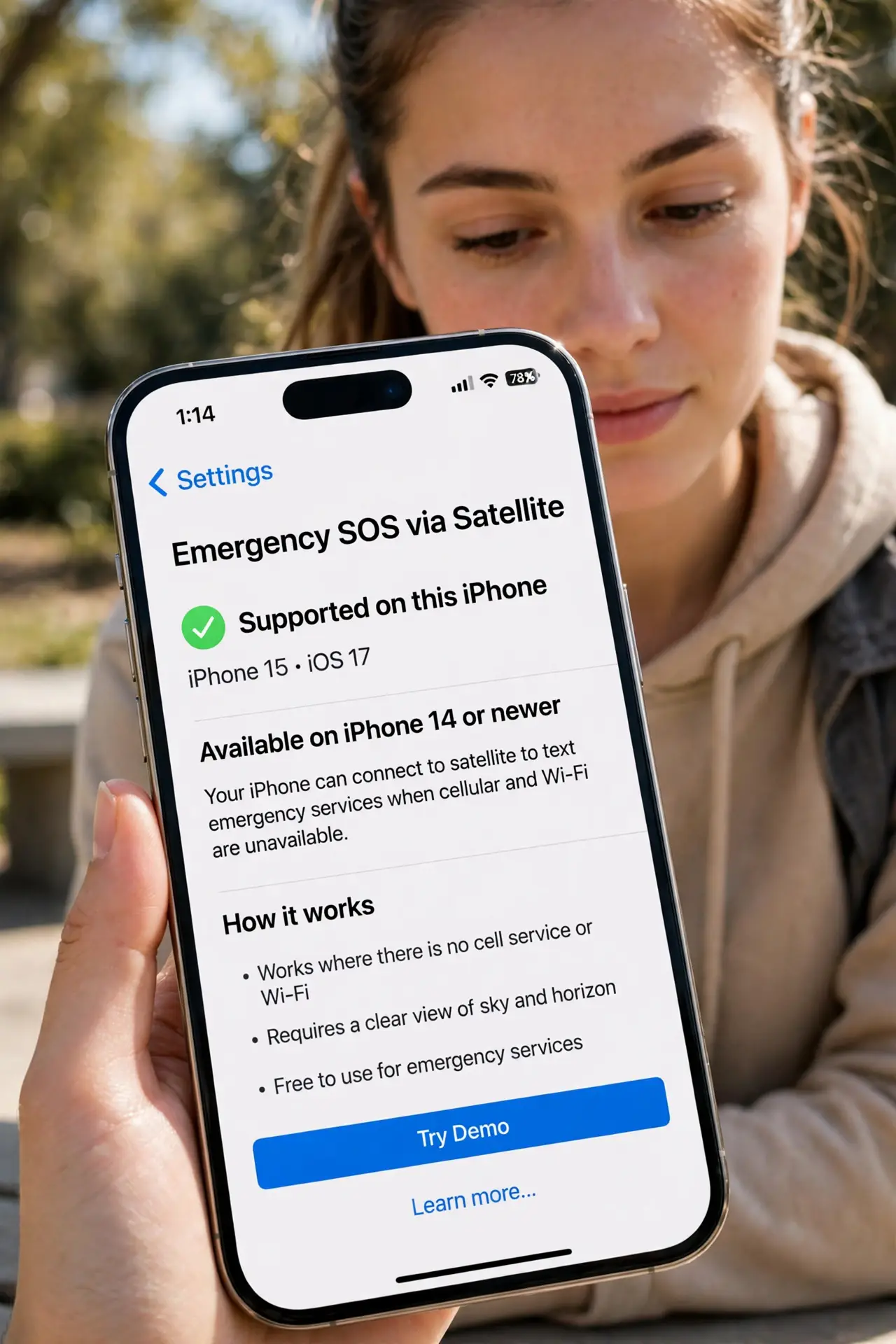
- Know which phones can do this. Emergency SOS via satellite needs an iPhone 14 or newer. Older iPhones simply lack the satellite radio — if yours qualifies, the option appears automatically when there is no cellular or Wi-Fi coverage.
- Set up Medical ID and emergency contacts now. Open the Health app, fill in Medical ID, and add emergency contacts. When you trigger SOS, responders and your contacts get useful information without you having to type it under stress.
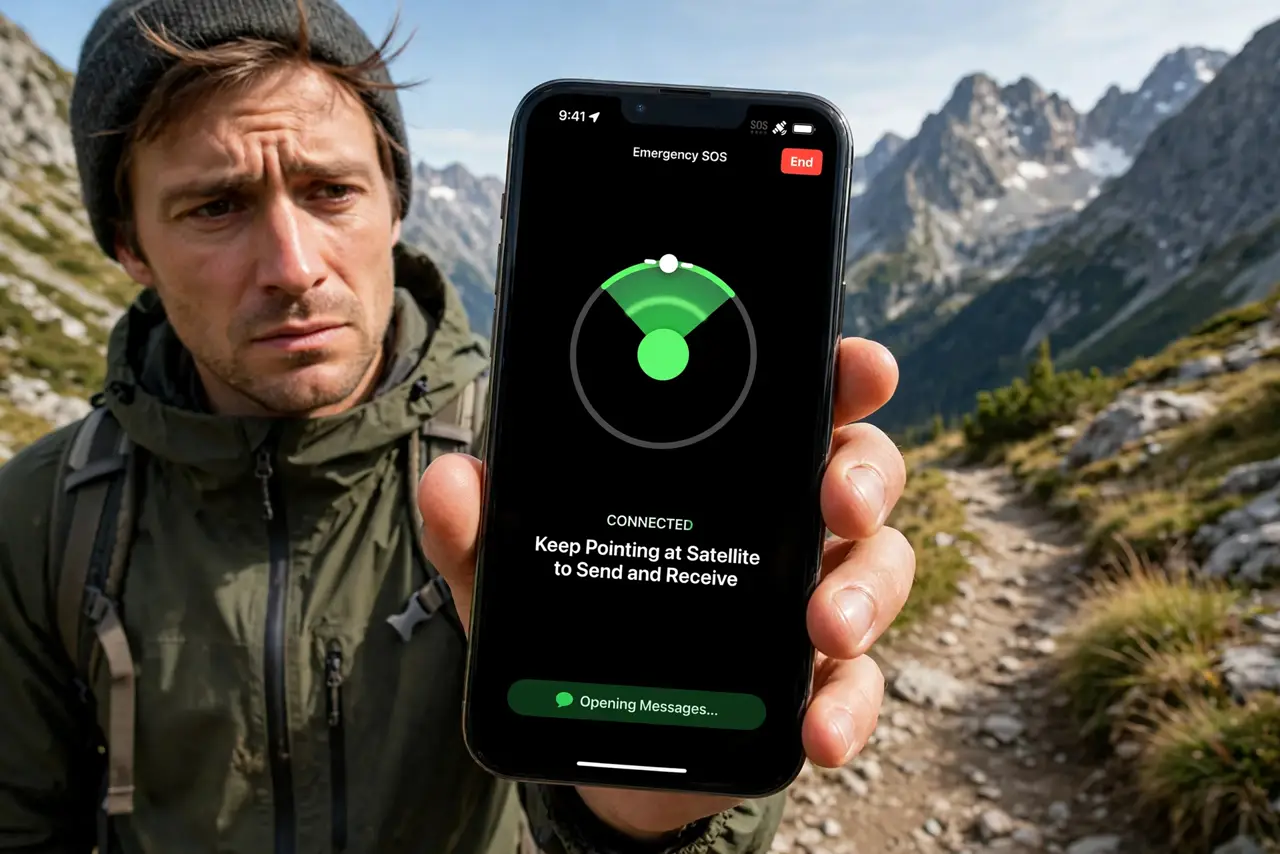
- Trigger it the right way. Press and hold the side button plus either volume button until the Emergency SOS slider appears, then slide it — or press the side button five times rapidly. With no signal, the phone offers the satellite option by itself.
- Follow the on-screen questionnaire. The phone asks a few tap-to-answer questions about your emergency. Answer briefly and honestly — these answers go to responders first, before the chat opens, so they know what is coming.
- Stay still and keep the sky visible. Satellite messaging needs a clear view of the sky; the phone shows you which direction to point it. Stay put, keep the phone pointed as directed, and be patient — messages take longer than texts. If your car broke down instead, roadside help via satellite is the right feature.
- Know your phone may call for you. If you are unresponsive after a severe car crash, crash detection can trigger the SOS call automatically — another reason to keep Medical ID current.
What NOT to do
- Do not test this with a real emergency call. Use the built-in demo (Settings — Emergency SOS — Try Demo) instead of dialing for a test.
- Do not expect it to work indoors, in a canyon, or under dense tree cover. Satellite needs open sky — step outside and away from obstructions.
- Do not treat it as your only safety plan. Tell someone your route and return time before remote trips; technology is a backup, not the plan.
- Do not hang up or close the session early. Stay connected until responders confirm — dropping the satellite link means starting over.
Frequently asked questions
Does it cost extra?
Apple has included satellite SOS free with qualifying iPhones; the terms can change, so check Apple's current satellite page for your region before relying on it abroad.
What about Android phones?
Some newer Android phones (such as recent Pixel models) offer their own satellite SOS feature through carriers — the steps differ, but the open-sky requirement is the same.
Will it work in another country?
Coverage varies by country and region. Check availability for your destination before the trip, not during the emergency.