iPhone StandBy Shows the Wrong Widgets at Night
At night on the charger, StandBy should show the clock and widgets you chose. When it shows someone else's layout — or yesterday's widgets — the StandBy setup or a focus mode is usually the cause.
TL;DR / Quick Fix
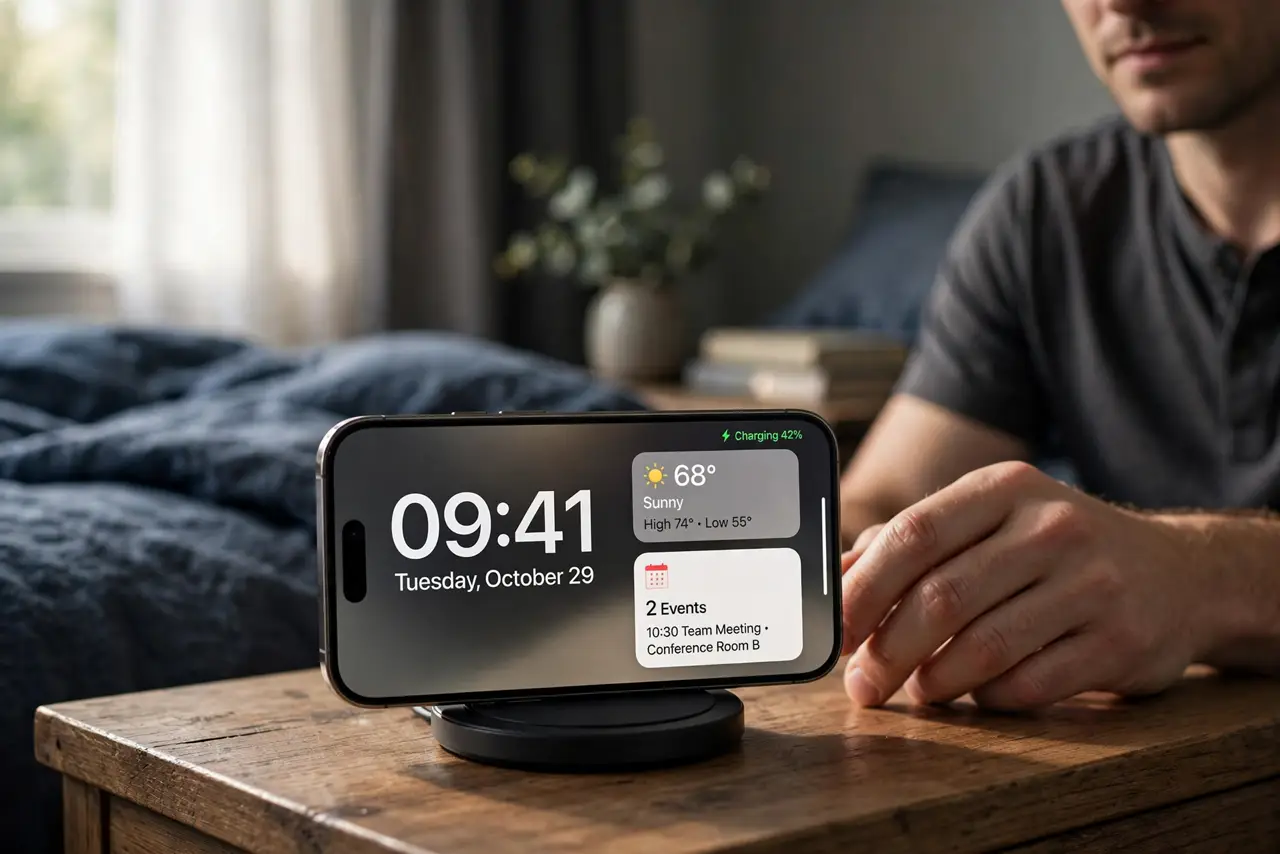
Quick fix: put the iPhone on its side while charging, swipe to your StandBy widgets, and press and hold to edit them. Remove the wrong widget, add the one you want, and check that Night Mode is not hiding it.
Follow these steps
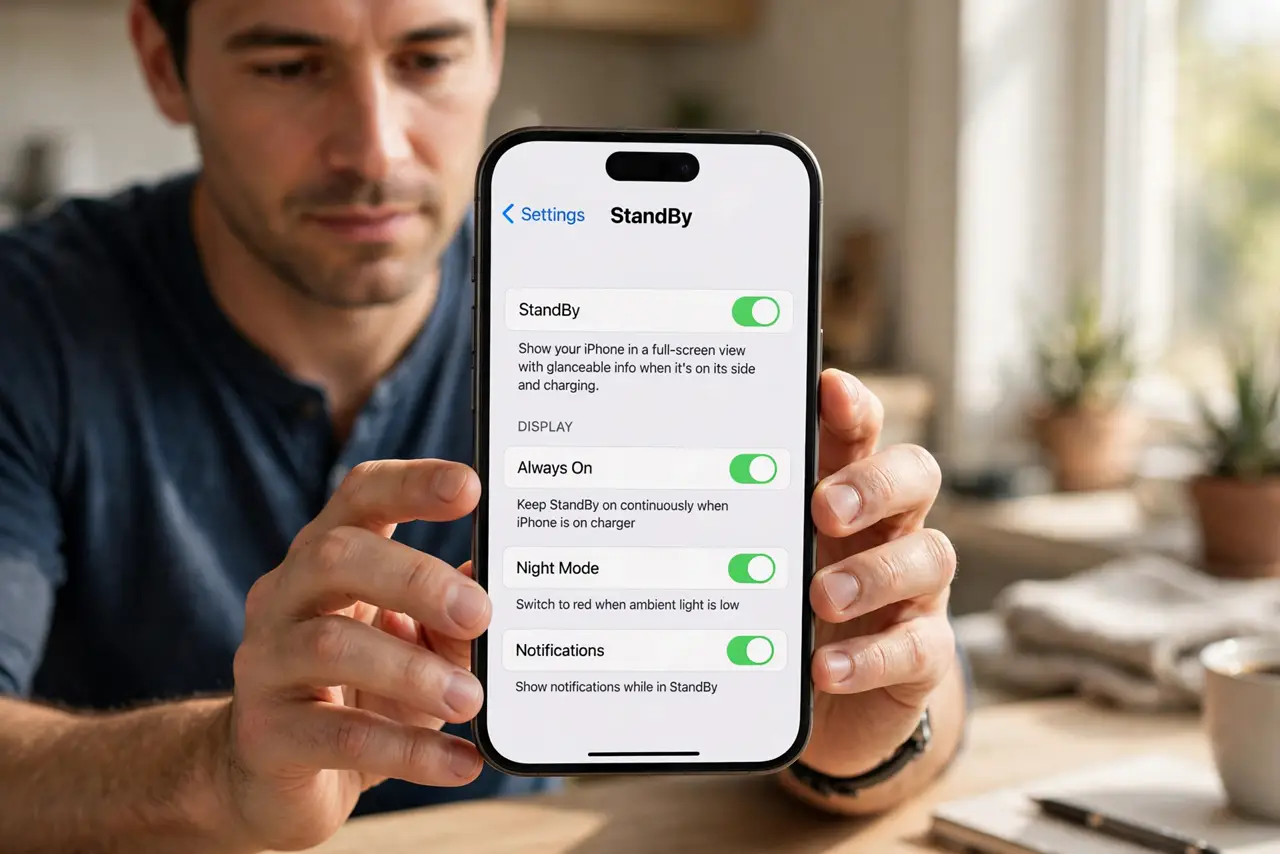
- Confirm StandBy is actually on. Open Settings, then StandBy, and confirm StandBy is on. If it is off, the iPhone shows the normal lock screen instead, which can look like the wrong StandBy layout.
- Edit the widget stack in StandBy. With the iPhone charging on its side, press and hold the widget area, then remove the wrong widget and add the one you want. StandBy keeps its own widgets, separate from the lock screen.
- Swipe between StandBy screens. Swipe left and right in StandBy to see its different screens. The widget you want may sit on another StandBy screen, while the screen you see is simply not the one you set up.
- Check Night Mode behavior. In StandBy settings, review Night Mode. At night, StandBy dims to red and can hide widgets, so a widget that looks missing may only be dimmed for the night.
- Check the active Focus mode. A Sleep or Do Not Disturb focus can change what StandBy shows. Turn the focus off for a test night, or edit that focus to allow the widgets you expect.
- Restart the iPhone if the layout will not stick. If edits keep reverting, restart the iPhone once, then set the StandBy widgets again. A restart clears a stuck StandBy layout that editing alone cannot fix.
What NOT to do
- Do not delete widgets from your lock screen to fix StandBy. StandBy widgets live separately, so lock screen edits will not change what StandBy shows at night.
- Do not turn StandBy off over one wrong widget. Editing the stack in StandBy itself is the fix, and turning it off loses the night clock entirely.
- Do not test StandBy flat on a table. StandBy only appears when the iPhone charges on its side, so a flat test cannot show the real layout.
- Do not assume a dim red screen means widgets are gone. Night Mode dims StandBy on purpose, and the widgets return in normal color in the morning.
Frequently asked questions
Why does StandBy show different widgets than my lock screen?
Because StandBy keeps its own widget layout, edited while the iPhone charges on its side, separate from the lock screen.
Why do widgets vanish at night?
Night Mode dims StandBy to red and can hide widgets, so they may only look missing until morning.
StandBy never appears at all. Why?
The iPhone must be charging and on its side, with StandBy turned on in Settings.