Juggle Time Zones
Scheduling across time zones is where simple mistakes become missed meetings — ‘3 PM’ means nothing until everyone agrees which 3 PM. Your iPhone and Android both have tools that pin events to the right zone and show two clocks at once. Set them up once and the mental math disappears.
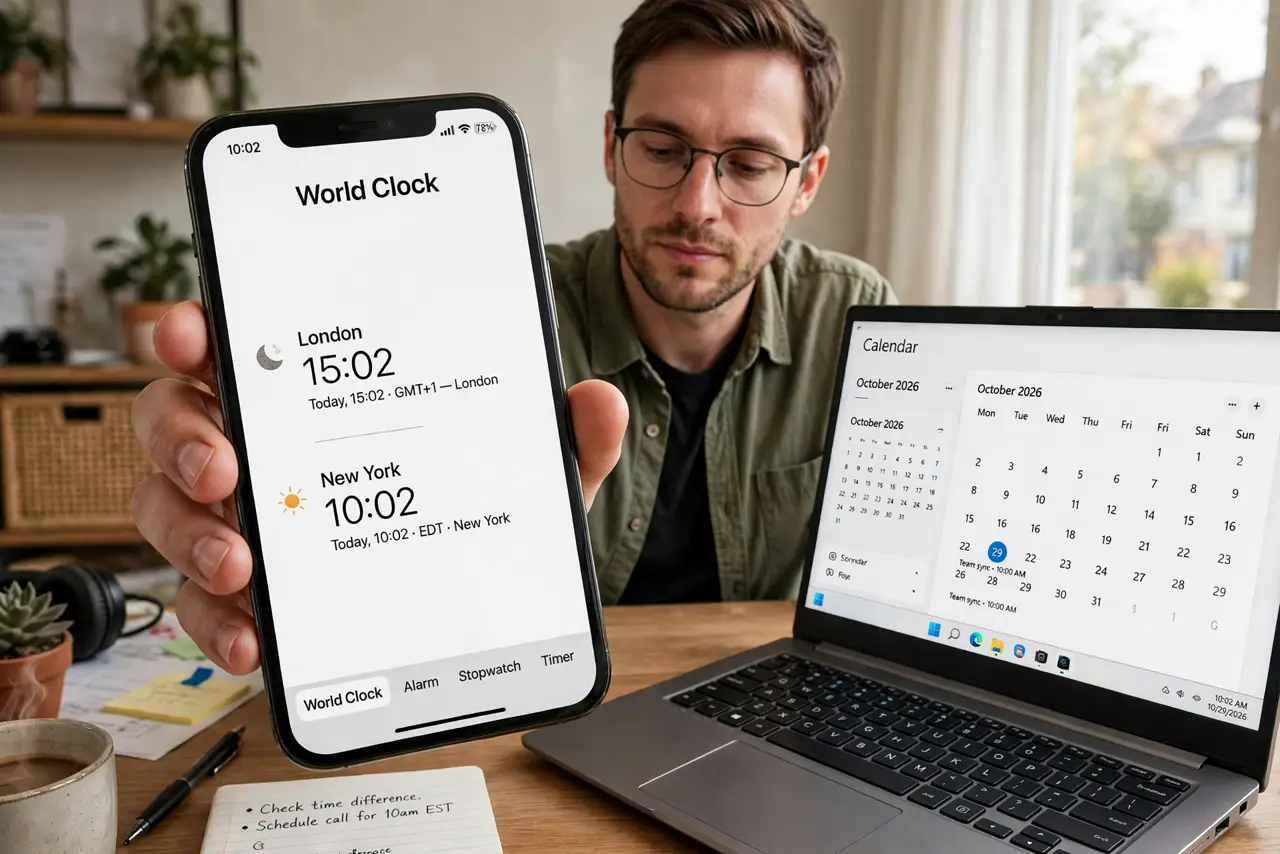
TL;DR / Quick Fix
Quick fix: when creating a calendar event, tap the time zone field and set the event’s actual zone — the phone converts it elsewhere. Add a second clock for the other zone in the Clock app, and keep automatic date and time on so travel never silently shifts your alarms.
Follow these steps
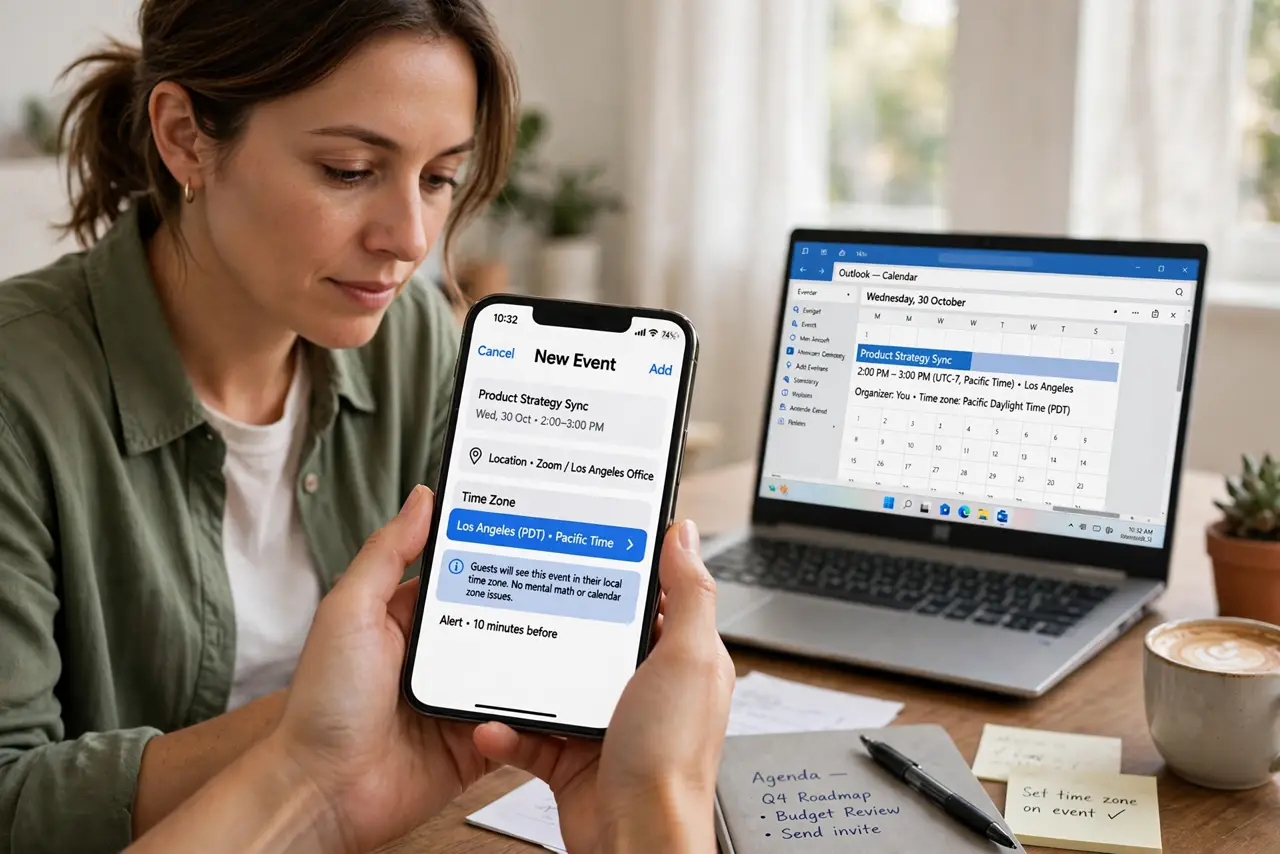
- Set time zones on the event, not in your head. When creating a meeting, tap the time zone option and choose where the meeting actually happens. The phone then shows it correctly everywhere — this beats mental math and the calendar zone mess it causes.
- Add a second clock for the other zone. In the Clock app, add the city you coordinate with most. Glancing at ‘their 9 AM’ before proposing a time prevents the classic 3 AM invitation.
- Keep date and time automatic. In Settings, leave Set Automatically on. Manual time is how alarms and calendar alerts drift — and travel across zones with manual time is a reliable way to miss a flight. See wrong time after travel if it already happened.
- Use world-clock widgets. Put a world clock widget on your home screen for the zones you juggle weekly. One glance beats opening an app, and it keeps the conversion in front of you when scheduling on the fly.
- Confirm the zone in the invite text. When sending a meeting invite, write the zone explicitly: ‘3 PM New York time.’ The calendar handles the conversion, but humans read the text — belt and suspenders.
- Double-check recurring meetings after daylight-saving changes. Recurring meetings can shift by an hour when one zone changes clocks and the other does not. After each daylight-saving transition, scan your repeating events for surprises.
What NOT to do
- Do not schedule by converting in your head. Even careful people slip by an hour — let the phone do the math every time.
- Do not turn off automatic time to ‘fix’ a wrong clock. That masks the real problem; fix the zone setting instead.
- Do not assume both zones change clocks together — many regions skip daylight saving entirely, which shifts the gap twice a year.
- Do not rely on a single clock when traveling. Add the home zone to your world clock so you can call family at a sane hour.
Frequently asked questions
Why did my meeting move an hour?
One of the zones entered or left daylight saving. Check the event’s time zone setting — events pinned to a zone adjust correctly; events created in ‘floating’ time do not.
How do I see two time zones on my iPhone lock screen?
Add a world clock widget to the lock screen or home screen. The Clock app supports multiple cities with one tap to add.
Do alarms follow time zones?
Alarms fire at the local time where the phone is — an 8 AM alarm rings at 8 AM local after you land. Keep automatic time on so ‘local’ stays correct.