Set Up Visual Voicemail
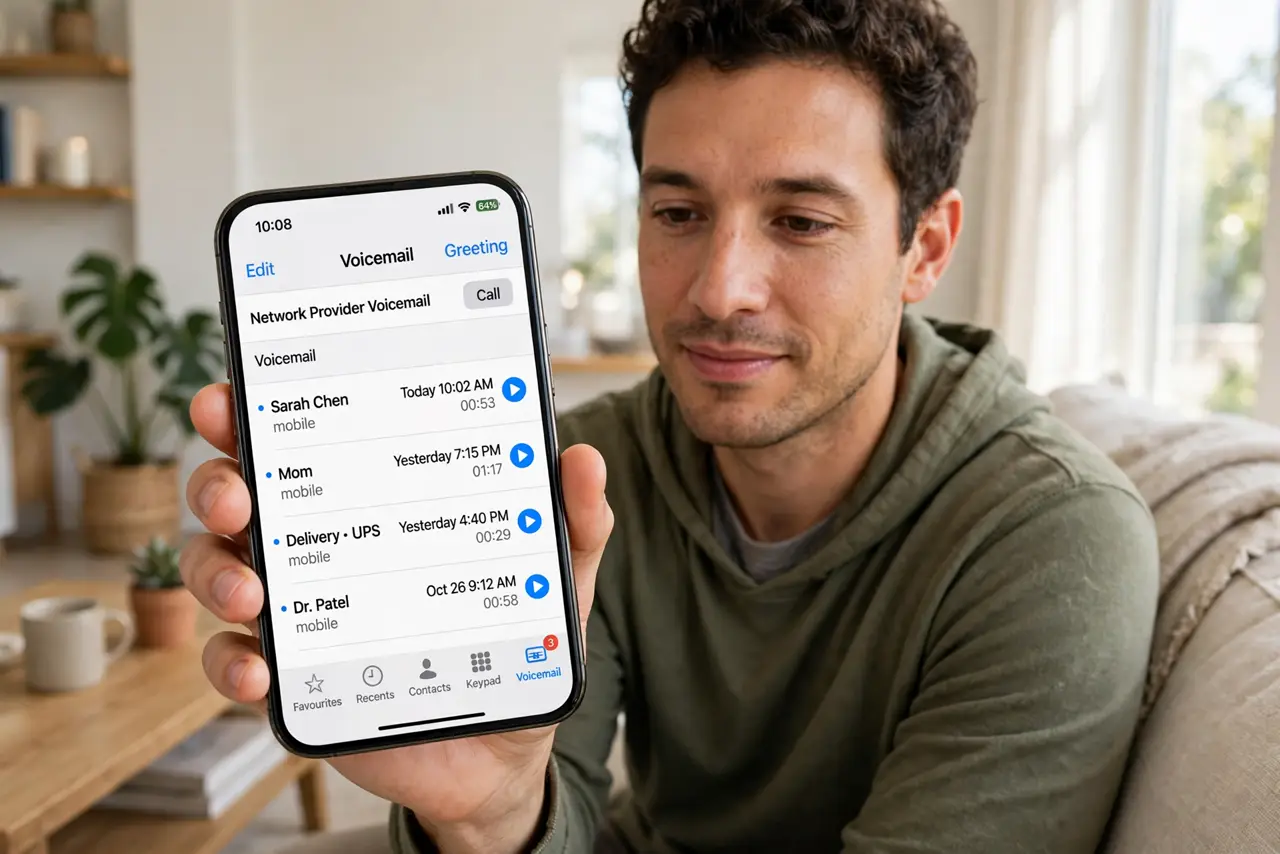
Visual voicemail shows your messages as a list you can play in any order, instead of dialing in and listening through them one by one. Most carriers support it, but it sometimes needs a nudge to activate — a greeting to record, a setting to toggle, or a call to your carrier. Here is the setup that works on iPhone and Android.
TL;DR / Quick Fix
Visual voicemail lists your messages so you can play them in any order without dialing in. On iPhone, open the Phone app's Voicemail tab and follow the setup prompts; on Android, open the Phone app, then Settings, then Voicemail. If setup stalls, your carrier may need to enable it.
Follow these steps
- Open the voicemail section of your phone app. On iPhone, tap Phone then Voicemail at the bottom right. On Android, open the Phone app, tap the three dots, then Settings and Voicemail. This is where setup lives on both platforms.
- Follow the on-screen setup prompts. You will usually be asked to create a voicemail password and record a greeting. Do both — skipping the greeting leaves callers hearing a robotic default.
- Check that your carrier supports visual voicemail. Most major carriers do, but some prepaid or regional plans only offer basic dial-in voicemail. If setup stalls, your carrier's support page will say whether visual voicemail is included in your plan.
- Call your carrier if activation is stuck. Sometimes the feature needs enabling on the carrier's side even when your phone supports it. A quick support chat usually flips the switch within minutes.
- Test it with a real message. Call your own number from another phone, leave a short message, and check that it appears in the visual list. Testing now beats discovering a problem when an important message arrives.
- Learn the difference from live voicemail. Live voicemail shows a real-time transcript as the caller speaks; visual voicemail lists finished messages. If transcripts look wrong, the live voicemail transcript guide covers that separately.
What NOT to do
- Do not skip recording a personal greeting. Callers who hear the default robotic greeting often hang up thinking the number is dead.
- Do not assume visual voicemail is free on every plan. A few carriers charge extra or exclude it from prepaid tiers — check before you depend on it.
- Do not delete the setup texts from your carrier. Activation sometimes arrives as a configuration message; deleting it can stall the process.
- Do not confuse a full mailbox with broken voicemail. If new messages stop arriving, delete old ones — a full mailbox rejects new recordings silently.
Frequently asked questions
Why does my voicemail still make me call in?
Your carrier likely has not enabled visual voicemail on your line. Contact them — the phone side is usually ready and waiting.
Can I keep my old greeting when switching phones?
Greetings usually live on the carrier's system, not the phone, so they often survive a switch. Re-record anyway to confirm it sounds right.
Does visual voicemail use mobile data?
A tiny amount — messages download as small audio files. On Wi-Fi it costs nothing; on cellular it is negligible.