Voice Control? Basics
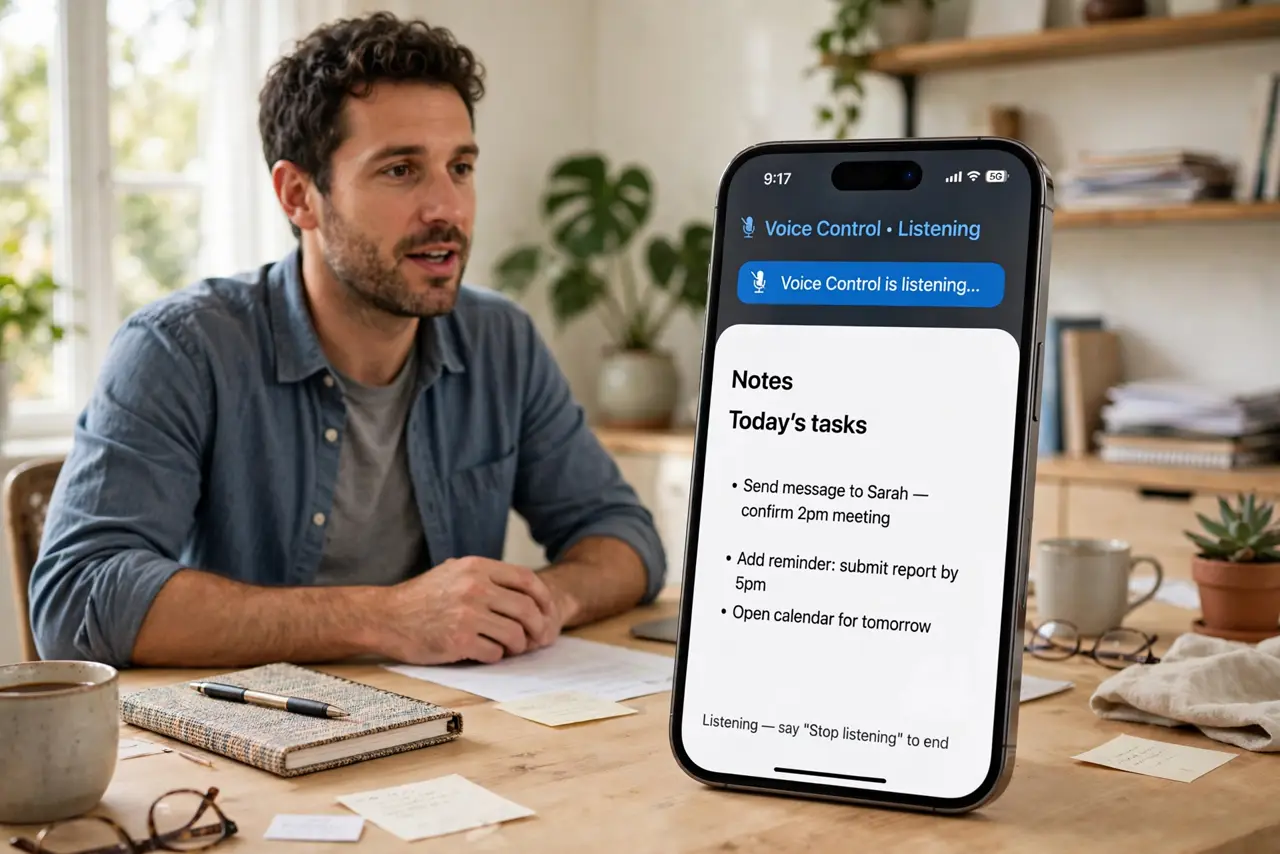
Voice Control lets you operate your iPhone entirely by voice — every tap, swipe, and text field, hands-free. It was built for accessibility, but anyone with full hands or a broken screen benefits. Say 'open Messages,' 'tap send,' or 'scroll down' and the phone obeys. It is different from Siri: this is full device control, not a voice assistant. Here is how to start.
TL;DR / Quick Fix
Quick fix: on iPhone open Settings, Accessibility, Voice Control, and turn it on. A microphone icon appears in the status bar. Say 'Open Safari' or 'Go home' to try it. Say 'Show numbers' to label everything tappable, then 'Tap 5'. It works offline after a one-time download.
Follow these steps
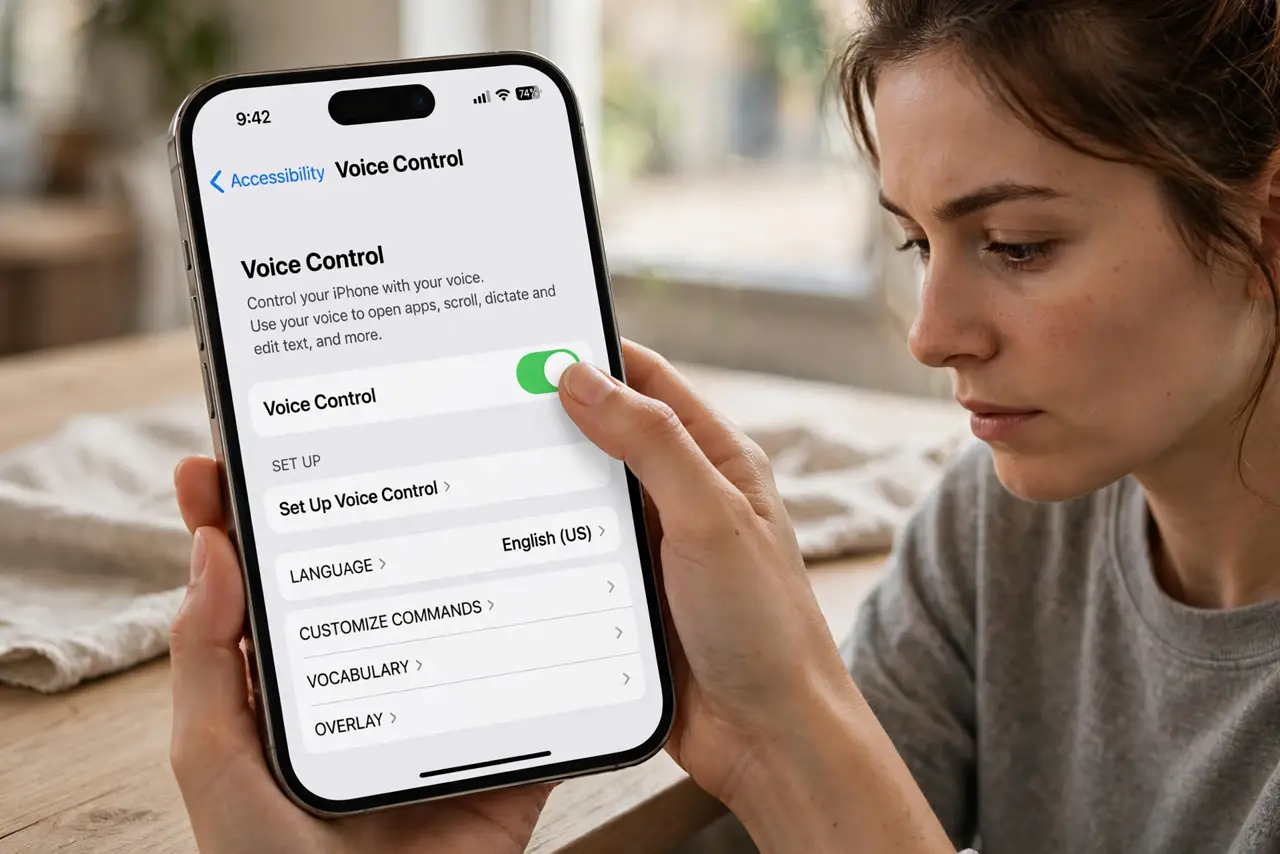
- Turn it on. Open Settings, Accessibility, Voice Control, and toggle it on. iOS downloads the language files once — after that it works fully offline. A small mic icon in the status bar shows it is listening.
- Learn the core commands. Try: 'Open Messages,' 'Go home,' 'Scroll down,' 'Tap send.' Speak naturally — Voice Control understands plain phrasing, not robot commands. Say 'Show commands' anytime for the full list.
- Use Show numbers. Say 'Show numbers' and every tappable item gets a number overlay. Then 'Tap 12' presses it. This is the precision tool — it reaches anything your voice alone cannot name.
- Dictate text. In any text field say 'Tap message field' then dictate naturally, including punctuation: 'Hey comma are we still on for lunch question mark.' It beats pecking with one thumb — see also keyboard dictation for the lighter version.
- Handle conflicts. If commands misfire, say 'Stop listening' to pause, or open Settings and retrain. The Mac version has its own quirks, but the iPhone one is generally smoother.
- Know it is not Siri. Siri answers questions; Voice Control operates the phone. You can use both: 'Hey Siri' still works while Voice Control runs. Do not expect Voice Control to know facts — that is Siri's job.
What NOT to do
- Do not confuse Voice Control with Siri. Siri is an assistant that answers; Voice Control is a controller that taps — different tools.
- Do not leave it listening in meetings. It may act on overheard speech — say 'Stop listening' or 'Go to sleep' first.
- Do not expect it to work instantly in noise. Loud environments confuse it; move somewhere quieter for important commands.
- Do not skip Show numbers. Naming on-screen items by voice is imprecise — numbers are the reliable path.
Frequently asked questions
What is the difference between Voice Control and Siri?
Siri answers questions and runs shortcuts; Voice Control fully operates the phone — tapping, scrolling, dictating — by voice. They complement each other.
Does Voice Control work offline?
Yes, after the initial language download. That is a key advantage — it works on planes and in dead zones.
Why is my iPhone doing things I did not say?
It is hearing speech as commands. Say 'Stop listening' to pause it, or check for command conflicts if a specific phrase keeps triggering.