Read Voicemails
A voicemail arrives during a meeting and listening is impossible — or it is a two-minute ramble you do not have time for. Visual voicemail with transcription turns it into text you can skim in seconds, right in the Phone app. This guide enables it, reads transcriptions well, and handles the cases where the robot mangles the message. For the spam calls filling that inbox, learn to block a caller.
TL;DR / Quick Fix
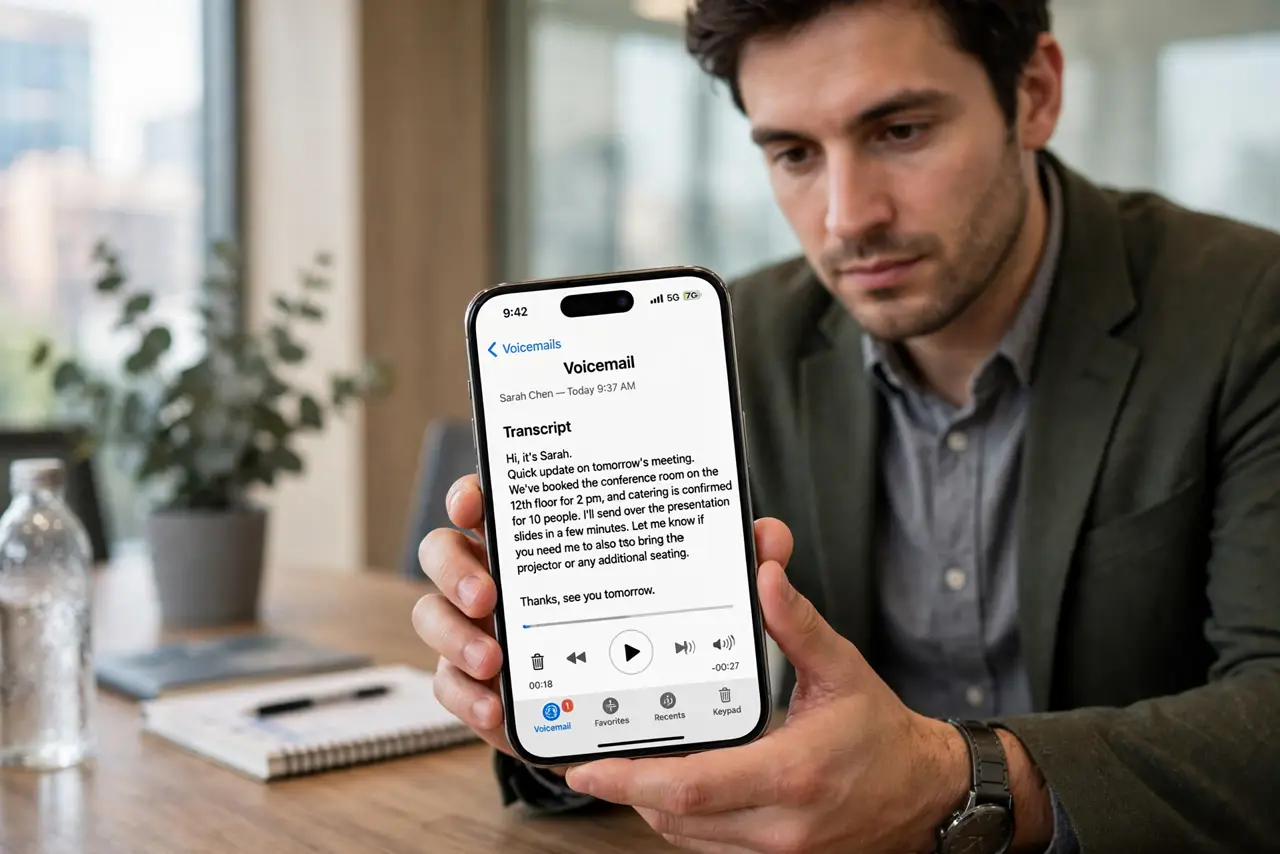
Quick fix: open the Phone app, tap Voicemail, and tap any message to read its automatic transcription — no setup needed on most carriers. If transcription is missing, check that visual voicemail is active with your carrier. Skim the text; tap play only when the robot clearly mangled something.
Follow these steps
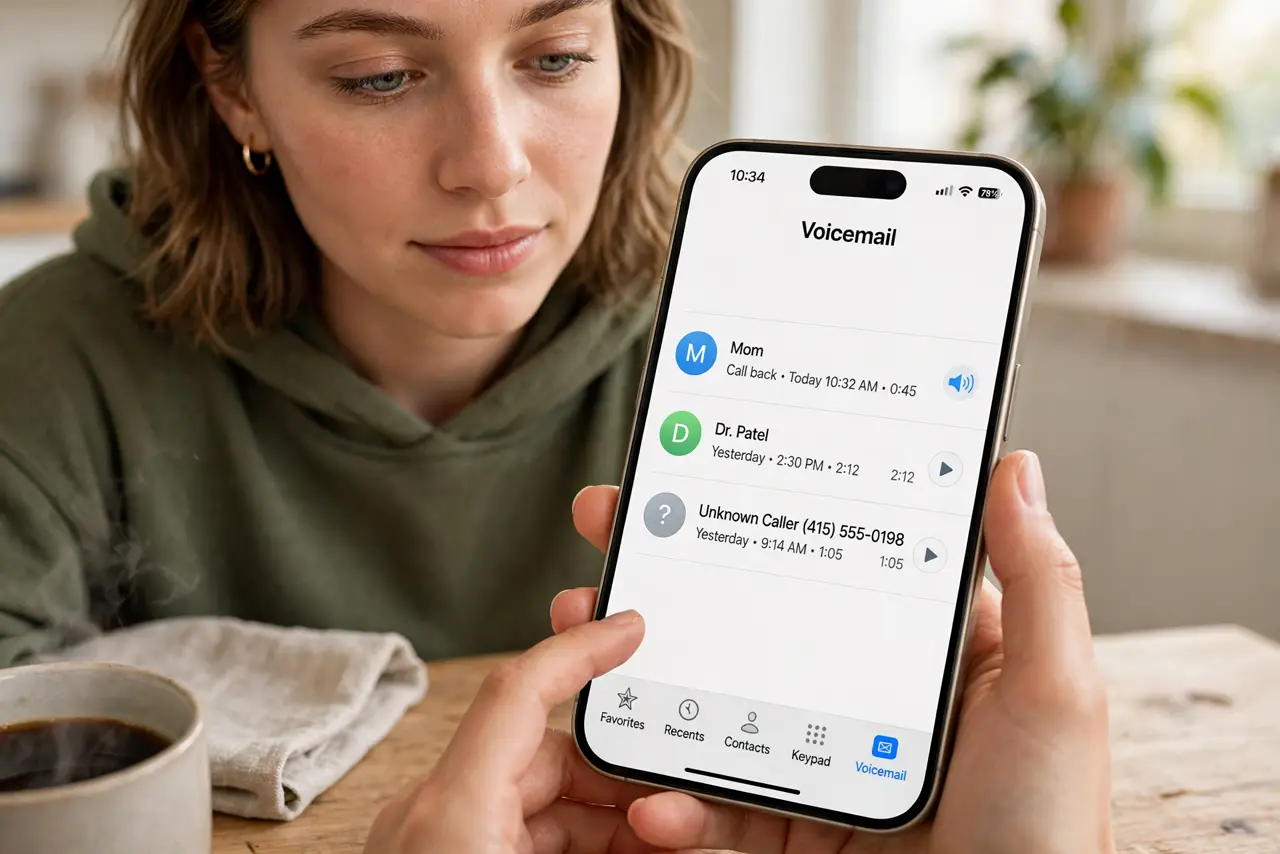
- Open the Voicemail tab. In the Phone app, tap Voicemail at the bottom right. Messages list newest first, each with a play button and, usually, a transcription below.
- Read the transcription. Tap a message to expand it and read the text. For routine messages — appointment confirmations, delivery updates — the text is all you need.
- Know when to listen anyway. Transcription stumbles on names, accents, and background noise. If the text reads like word salad, tap play — the audio is the source of truth.
- Delete and manage. Swipe to delete junk and old messages. A full voicemail box bounces new callers, so a monthly clear-out keeps it working.
- Check carrier support. Transcription needs visual voicemail from your carrier. If messages show no text at all, call your carrier — some plans and prepaid lines lack the feature.
- Set up the greeting once. Tap Greeting to record a personal message. A clear greeting with your name cuts down on hang-ups and 'is this the right number' callbacks.
What NOT to do
- Do not trust the transcription for critical details. Times, dosages, and addresses deserve a listen — robots mishear numbers most.
- Do not let the box fill up. Carriers bounce new voicemails when full, and you will never know what you missed.
- Do not ignore visual voicemail setup after switching carriers. The feature follows the carrier, not the phone — re-enable it on new plans.
- Do not play sensitive voicemails on speaker in public. Transcription exists precisely so you can read privately instead.
Frequently asked questions
Why do some voicemails have no transcription?
The carrier may not support it on your plan, or the audio was too poor to transcribe. Both are common.
Can I save a voicemail?
Yes — tap the share button on a message to save the audio file or send it elsewhere. Useful for the ones that matter.
Does transcription work in other languages?
It follows your iPhone's language settings for supported languages. Mixed-language messages confuse it, as they would anyone.