The Wallet App? Basics
The Wallet app is your iPhone's pocket for the things you used to carry — payment cards, boarding passes, loyalty cards, keys, and IDs. Most people add one card and stop there, missing the genuinely useful half. Here is what Wallet does and how to set up each part properly.
TL;DR / Quick Fix
Quick fix: the iPhone Wallet holds payment cards for Apple Pay, boarding passes, loyalty cards, tickets, and keys — open the app and tap + to add each type. Double-click the side button to pay in stores. Remove expired passes regularly to keep the stack usable.
Follow these steps
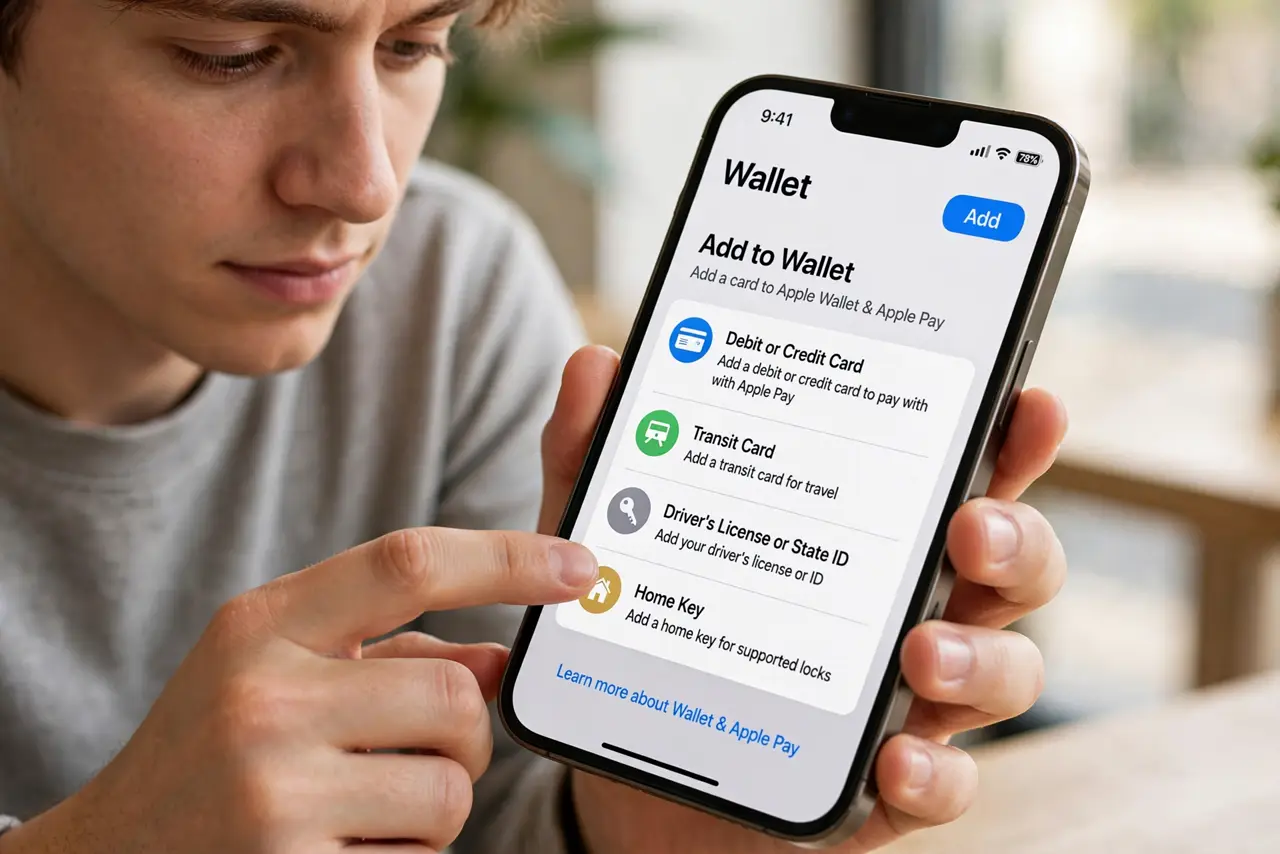
- Add a payment card. Open Wallet, tap +, and follow the prompts to add a debit or credit card — your bank verifies it, usually by text. Apple Pay then works in stores, apps, and websites.
- Pay with a double-click. Double-click the side button, authenticate with Face ID, and hold near the reader. Faster than digging out a card, and the number is never shared with the merchant.
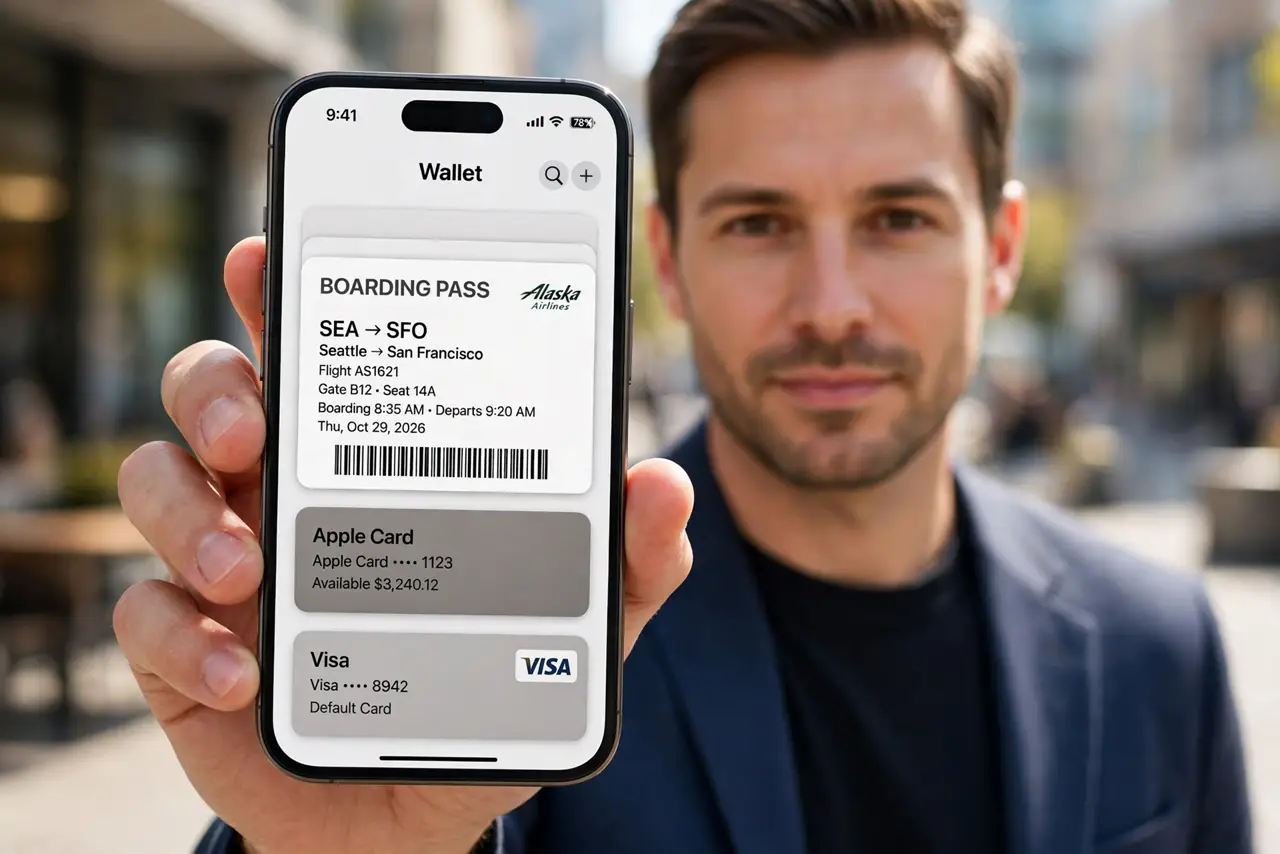
- Add boarding passes and tickets. Airlines, cinemas, and event apps offer 'Add to Wallet' — passes appear automatically at the right time and place via location. A boarding pass surfacing at the airport is the killer feature.
- Store loyalty and rewards cards. Coffee shops and grocery chains offer Wallet cards — points accrue without the physical card. Less wallet bulk, same rewards.
- Add keys and transit cards. Hotel keys, home smart-lock keys, and transit cards live here too. Express Transit lets you tap through gates without even unlocking the phone.
- Clean up expired passes. Old boarding passes pile up — swipe to remove them periodically. If a card ever vanishes mysteriously, check the disappeared-card fixes before re-adding.
What NOT to do
- Do not add cards on public Wi-Fi without care. Use your cellular connection or a trusted network for bank verification steps.
- Do not ignore the bank's verification. An unverified card will decline at the worst moment — complete setup fully.
- Do not forget Express Transit settings. Set your commuting card as the Express card or you will fumble at the gate.
- Do not keep expired passes forever. Clutter hides the pass you need right now — prune after each trip.
Frequently asked questions
Is Apple Pay safe?
Very — the merchant never sees your real card number, each transaction uses a one-time code, and it requires your face or passcode.
Can I use Wallet without Apple Pay?
Absolutely — boarding passes, tickets, loyalty cards, and keys work fine with no payment card added.
What happens to my cards if I lose my iPhone?
Suspend them instantly via Find My or iCloud.com — your actual cards stay safe, and the phone's tokens are useless without your face.