iPhone Wallpaper Changed After Update? Fix It
After an update, the Lock Screen or Home Screen shows a different picture, and your own photo seems gone. Updates can replace a wallpaper or switch the paired Lock Screen, but your photo is usually still in your library.
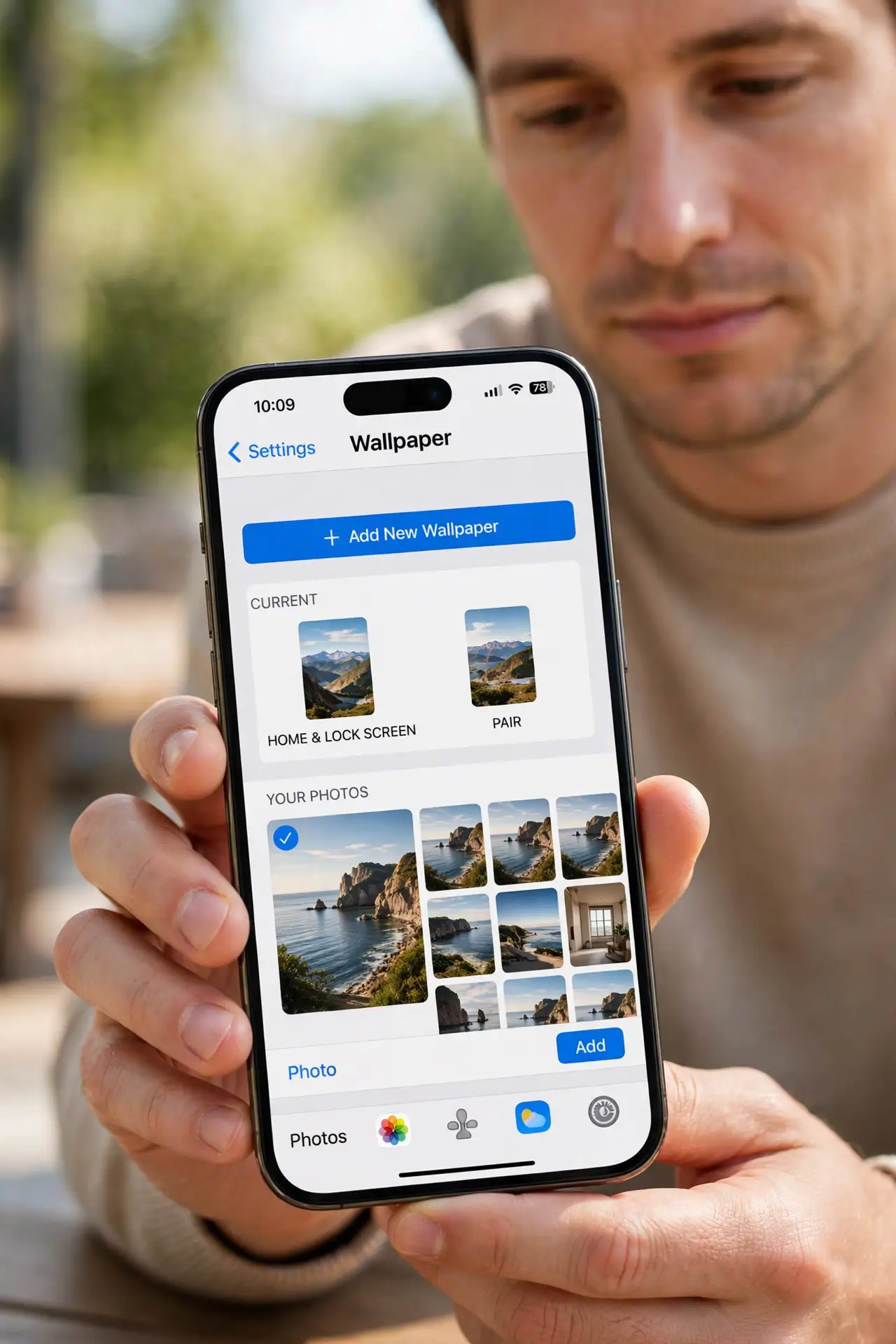
TL;DR / Quick Fix
Quick fix: open Settings, then Wallpaper, and re-apply your chosen photo to the Lock Screen and Home Screen. Check whether a Focus mode has its own wallpaper, then keep the original photo saved so you can restore it anytime. Test once more after a restart.
Follow these steps
- Open Wallpaper settings. Open Settings, then Wallpaper, and look at the current Lock Screen and Home Screen pair. This shows exactly what the update left in place, before you change anything.
- Re-apply your own photo. Tap Add New Wallpaper or the current wallpaper, choose Photos, and pick your original photo from the library. Set it for the Lock Screen, the Home Screen, or both, as you prefer.
- Check Focus mode wallpapers. A Focus mode can link its own Lock Screen, so switching Focus changes the wallpaper too. Open Settings, then Focus, and check each Focus you use for a linked wallpaper.
- Check Perspective Zoom and cropping. If the photo looks zoomed or cut off, adjust the crop and pinch before you confirm. A badly cropped photo looks like the wrong photo, even when it is the right one.
- Keep the original photo saved. Make sure the original photo is still in Photos and backed up, so you can re-apply it after any future update. Do not delete the only copy of a photo you use as wallpaper.
- Restart and check both screens. Restart the iPhone, then lock and unlock it and open the Home Screen. If both screens show your photo, the fix held through a restart.
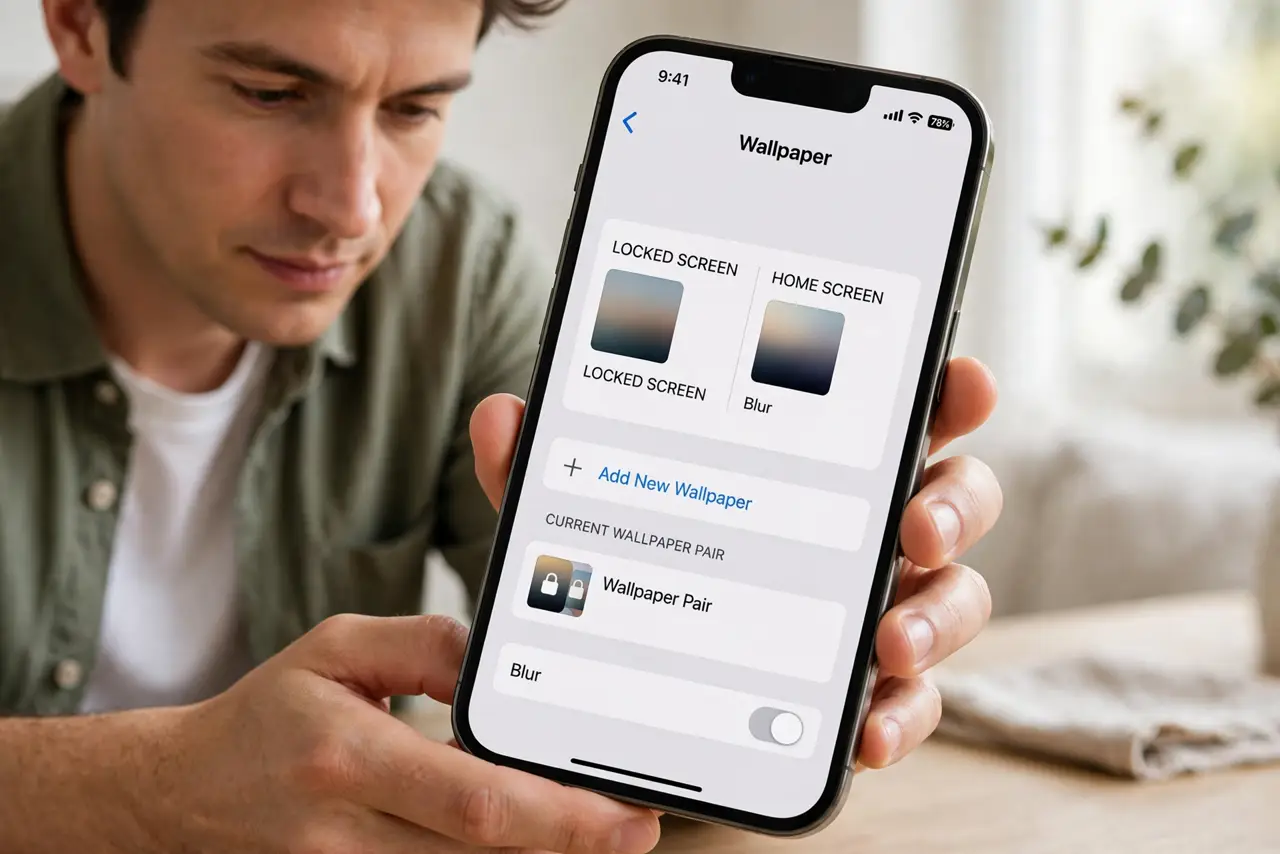
What NOT to do
- Do not delete the original photo after re-applying it. If you delete it, the next update leaves you with nothing to restore.
- Do not use a screenshot of your old wallpaper as the new one. Screenshots are lower quality and show icons and text from the old screen.
- Do not change every Focus wallpaper at once without checking. Change one Focus, test it, and then move to the next.
- Do not assume the photo is lost because the wallpaper changed. Check Photos first, since the image is usually still in the library.
Frequently asked questions
Why did my wallpaper change after an update?
An update can replace a wallpaper or switch the paired Lock Screen. Re-applying your photo in Wallpaper settings restores it.
Why does the wallpaper change when I switch Focus?
That Focus has its own linked Lock Screen. Check Focus settings and remove or change the linked wallpaper.
Is my old wallpaper photo deleted?
Usually not. Open Photos and search for it before assuming it is gone.