Turn Off Wi-Fi Assist
Your mobile data evaporates mid-month and you barely streamed anything — the culprit might be Wi-Fi Assist, the iPhone feature that silently switches to cellular when Wi-Fi gets weak. It is helpful in theory and expensive in practice. Turning it off takes twenty seconds, and you will know exactly where your data goes.
TL;DR / Quick Fix
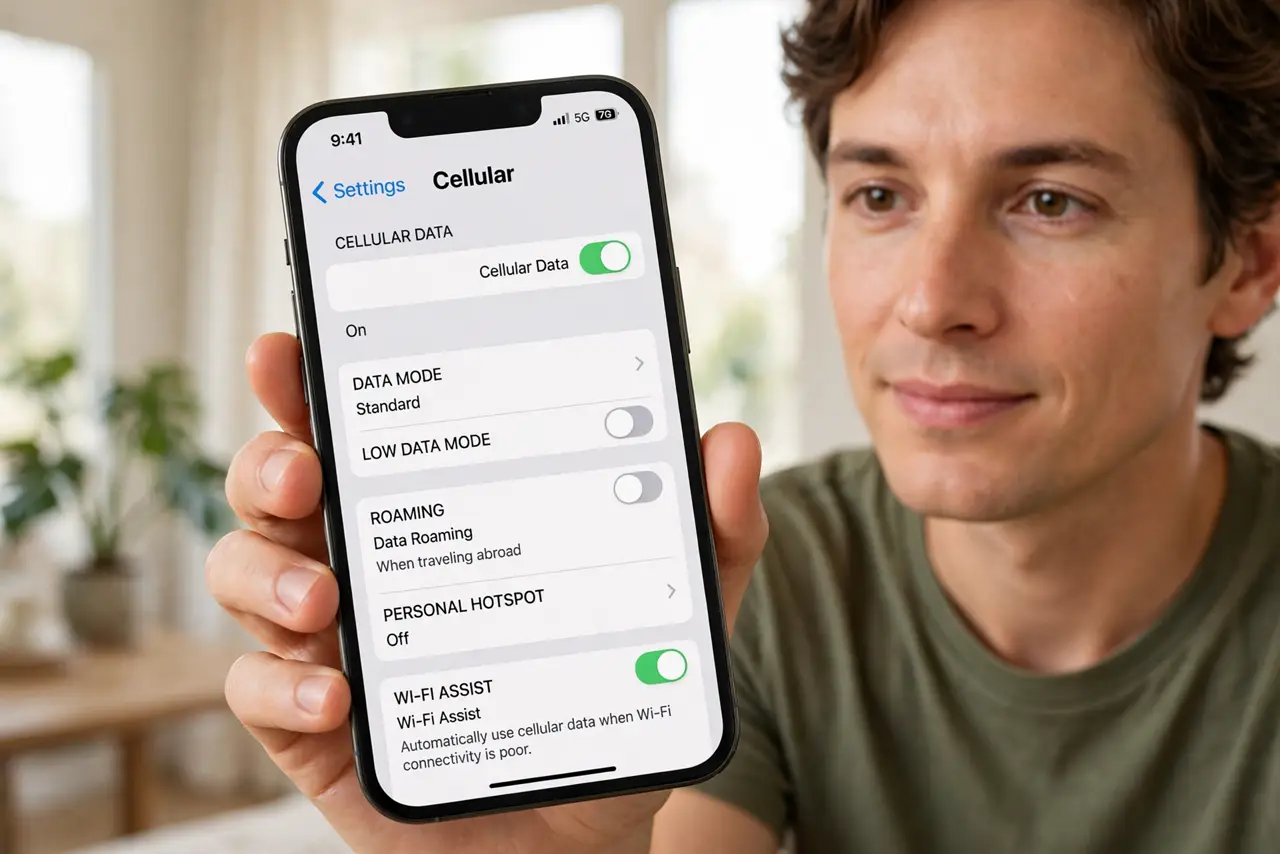
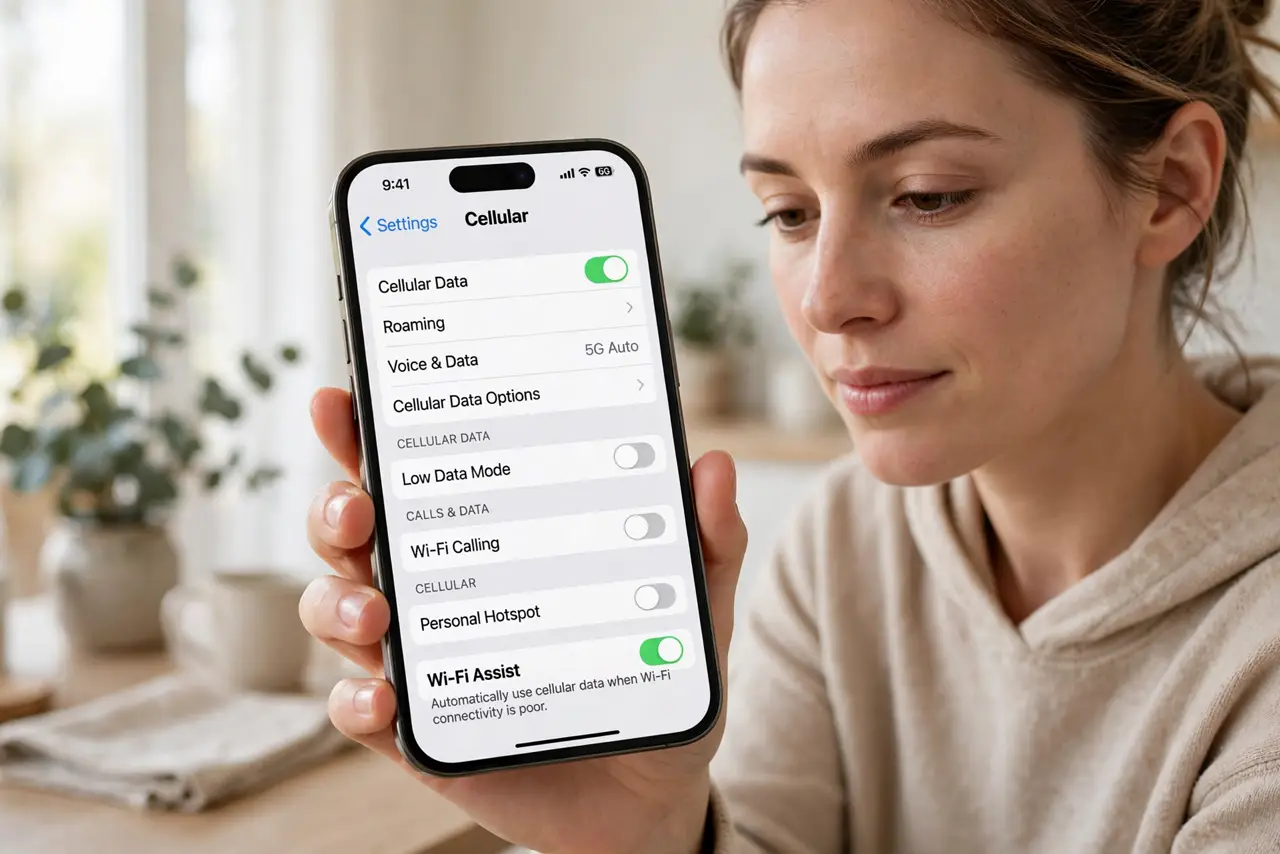
Quick fix: open Settings, go to Cellular, scroll to the bottom, and toggle off Wi-Fi Assist. Your phone will stop silently burning mobile data when Wi-Fi weakens. Check which apps used the most data on the same screen — one rogue app often explains the drain better than Wi-Fi Assist.
Follow these steps
- Find the Wi-Fi Assist toggle. Open Settings, tap Cellular (or Mobile Data), and scroll all the way down. Wi-Fi Assist sits at the very bottom, below the per-app data list — easy to miss, which is rather the point.
- Turn it off. Toggle Wi-Fi Assist off. Your phone will now cling to weak Wi-Fi instead of silently spending cellular data — you will notice the slowdown, but your data plan survives.
- Check per-app data use. On the same screen, review which apps consumed the most data this period. One data-hungry app usually explains mysterious drain better than any setting.
- Reset the statistics. Tap Reset Statistics at the bottom to start a fresh measurement period. Without a reset, the numbers accumulate forever and tell you nothing useful.
- Understand what Wi-Fi Assist did. When Wi-Fi weakened — elevator, far corner, crowded cafe — the phone quietly used cellular to keep things smooth. Helpful, but invisible spending — the data-use explainer shows how it adds up.
- Decide if you miss it. With it off, weak Wi-Fi just feels slow. If you hate that more than the data cost, turn it back on — it is a tradeoff, not a moral failing.
What NOT to do
- Do not blame Wi-Fi Assist without checking. Per-app data stats usually reveal the real hog — video apps on cellular, cloud photo uploads, and the like.
- Do not forget it exists on family phones. If a kid's line burns data mysteriously, check their Wi-Fi Assist too.
- Do not confuse it with Wi-Fi Calling. Unrelated features — turning off Wi-Fi Assist changes nothing about calls over Wi-Fi.
- Do not expect zero data use with it off. Apps still use cellular whenever Wi-Fi is fully disconnected — this toggle only covers the weak-Wi-Fi middle ground.
Frequently asked questions
Will turning off Wi-Fi Assist break anything?
No — apps simply wait on slow Wi-Fi instead of switching to cellular. Everything still works, just slower in weak-signal spots.
Why is Wi-Fi Assist buried at the bottom?
Because it is a carrier-friendly default. Apple keeps it on for smoothness; your data plan pays for that smoothness.
Does Android have Wi-Fi Assist?
Android has similar features under names like Switch to mobile data or Adaptive Wi-Fi — usually in network settings, and equally worth checking.