Wi-Fi Assist Eats Your Mobile Data? Fix It
Wi-Fi Assist silently switches to mobile data when Wi-Fi gets weak — and your data plan pays the price. It is meant to keep you connected, but on flaky Wi-Fi it can burn through gigabytes. This guide shows where the data went and how to tame it, especially if your phone uses data despite Wi-Fi.
TL;DR / Quick Fix
Quick fix: turn off Wi-Fi Assist in mobile data settings if your Wi-Fi is unreliable. Check which apps used the most data and restrict the hungriest ones. On weak Wi-Fi, consider turning Wi-Fi off entirely so the phone commits to one connection instead of flip-flopping.
Follow these steps
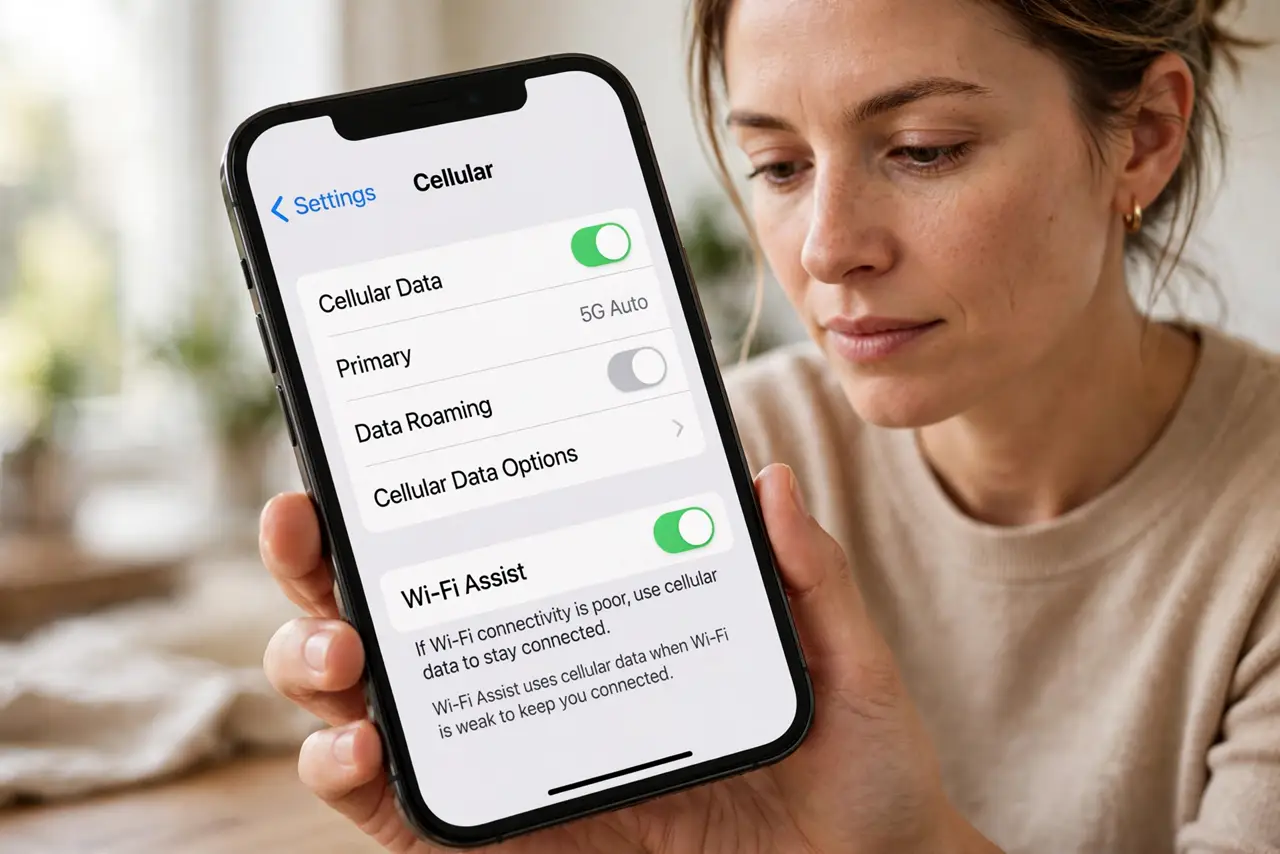
- Find the Wi-Fi Assist toggle. On iPhone, go to Settings, Mobile Data, and scroll to the bottom for Wi-Fi Assist. That one toggle controls the whole behavior.
- Turn it off on flaky Wi-Fi. If your Wi-Fi drops or slows regularly, disable Wi-Fi Assist. A slow-but-free connection beats a fast one that secretly bills you.
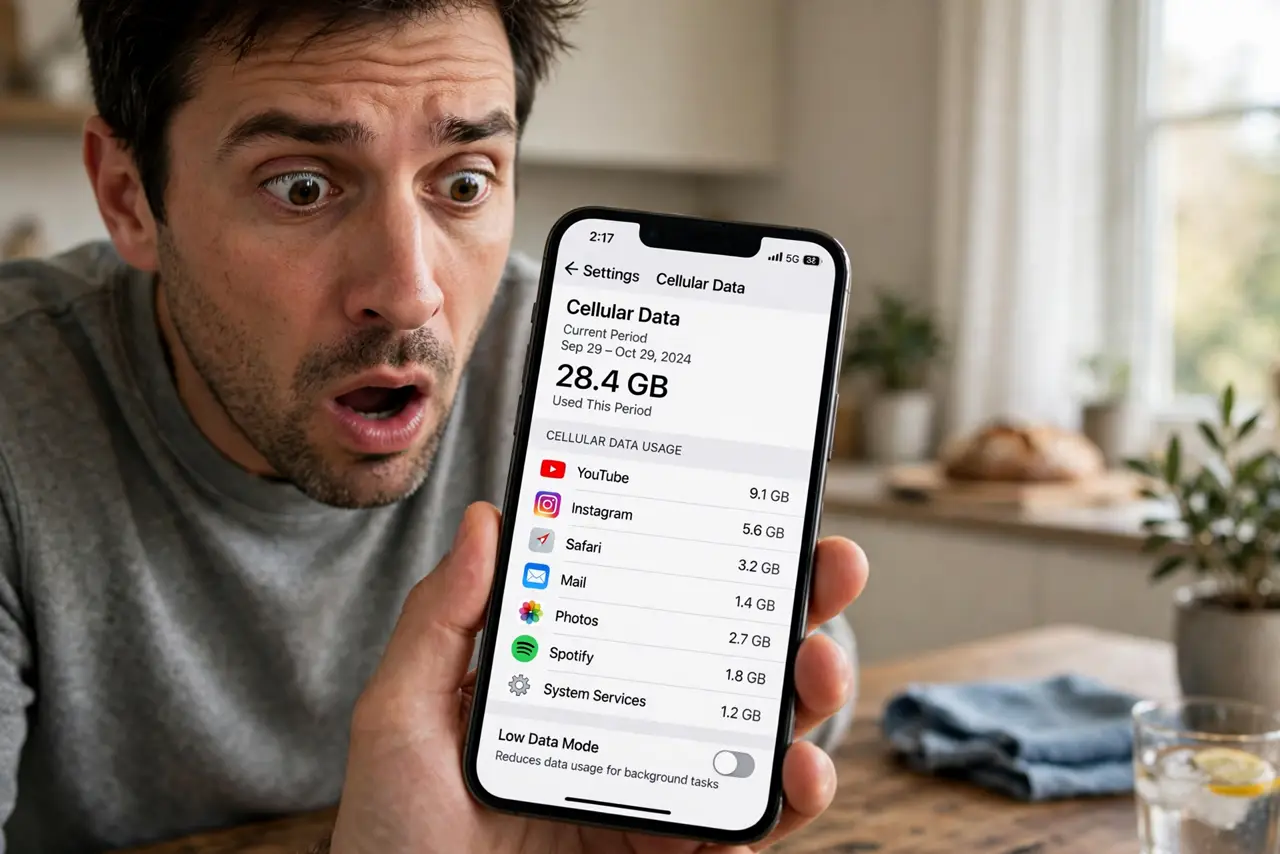
- Check per-app data usage. Look at which apps consumed mobile data recently. Video and cloud-backup apps are the usual culprits when Wi-Fi Assist was active.
- Restrict the hungriest apps. Turn off mobile data for apps that do not need it on the go. They will wait for Wi-Fi instead of riding the Wi-Fi Assist escape hatch.
- Commit to one connection on weak Wi-Fi. When Wi-Fi is barely usable, turn Wi-Fi off entirely and use mobile data deliberately — or stay on Wi-Fi and accept the slowness. Flip-flopping is the expensive middle ground.
- Monitor for a week. After changing the setting, watch data usage for a week. If the drain stops, Wi-Fi Assist was the leak.
What NOT to do
- Do not leave Wi-Fi Assist on with a weak home signal. That combination is the classic recipe for a surprise data bill.
- Do not blame the apps first. When data spikes on weak Wi-Fi, the switching feature — not the app — is usually the enabler.
- Do not forget Android has equivalents. Adaptive Wi-Fi and 'switch to mobile data' settings do the same thing on Android — check them too.
- Do not stream video on marginal Wi-Fi with the assist on. Video plus automatic switching is the fastest way to burn a data cap.
Frequently asked questions
What is Wi-Fi Assist?
An iPhone feature that switches to mobile data when Wi-Fi connectivity is poor, keeping apps working — at the cost of your data plan.
How do I know if Wi-Fi Assist used my data?
Check per-app mobile data usage for spikes during times you were on weak Wi-Fi. The timing usually gives it away.
Should I leave Wi-Fi Assist on?
On strong, reliable Wi-Fi, yes — you will barely notice it. On flaky Wi-Fi, turn it off to protect your data cap.