KVM Switch Makes the Mouse Lag? Fix It
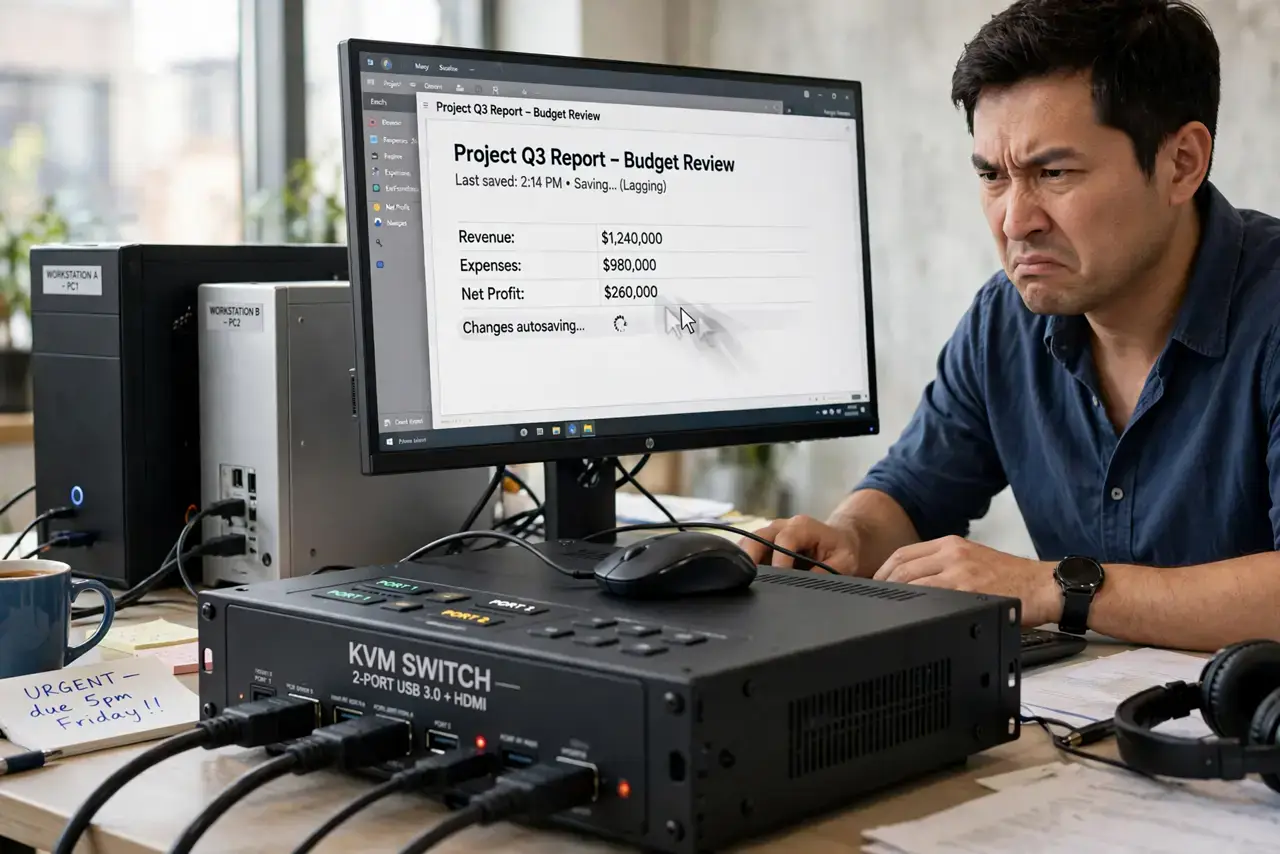
Your mouse was perfect until you routed it through a KVM switch — now it stutters, lags, or jumps between two computers. KVMs add a processing hop that cheap or overloaded switches handle badly, and USB polling gets mangled along the way. This guide smooths it out, starting with the same isolation test you would use for any cursor problem.
TL;DR / Quick Fix
Quick fix: plug the mouse into the computer to confirm the KVM is the cause. Then use the KVM's USB 2.0 ports, lower the mouse polling rate to 500Hz, and update the KVM firmware. If lag persists, the switch's chipset cannot keep up — a better KVM is the fix.
Follow these steps
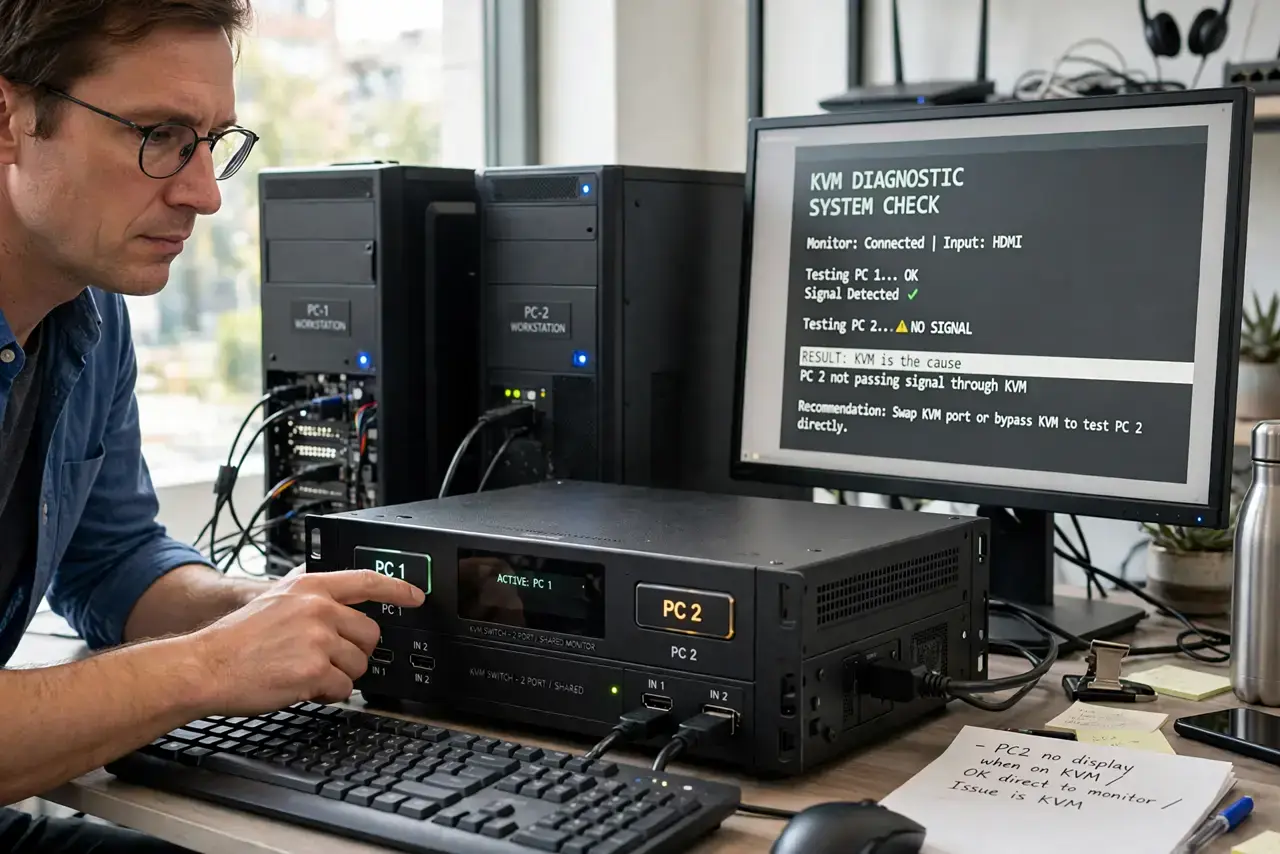
- Confirm the KVM is the cause. Plug the mouse straight into the computer and test. If the lag vanishes, the KVM is guilty; if it stays, troubleshoot the mouse itself.
- Use the USB 2.0 ports. Many KVMs handle USB 2.0 far better than USB 3.0 for input devices. Move the mouse receiver to a USB 2.0 port on the switch.
- Lower the polling rate. Gaming mice at 1000Hz overwhelm cheap KVM chipsets. Drop the polling rate to 500Hz or 250Hz in the mouse software — you will not feel the difference, but the KVM will.
- Update the KVM firmware. Check the manufacturer's site for firmware updates. KVM makers quietly fix input-lag bugs that plagued early firmware versions.
- Shorten the cable runs. Long USB cables between computer, KVM, and peripherals add latency and signal loss. Keep every leg as short as practical.
- Try a different USB port on the computer. Some motherboard USB ports share bandwidth awkwardly with the KVM. Moving the KVM's uplink to another port can smooth things out.
What NOT to do
- Do not run a 1000Hz gaming mouse through a budget KVM and expect miracles. The switch's chipset is the bottleneck — match the mouse to what the KVM can handle.
- Do not plug the mouse into the KVM's hub ports meant for storage. Some KVMs treat front ports differently; use the dedicated keyboard/mouse ports.
- Do not ignore keyboard lag either. If the mouse lags, the keyboard often does too — fix the KVM once for both, possibly with the keyboard lag checklist.
- Do not daisy-chain two KVMs. Each switch adds latency, and two in series turn minor lag into an unusable mess.
Frequently asked questions
Why does the KVM add lag at all?
The switch must read, process, and re-emit every USB signal while deciding which computer gets it. Cheap chipsets do this slowly.
Will a more expensive KVM fix it?
Usually, yes — better chipsets handle high polling rates and USB 3.0 properly. Check reviews specifically mentioning mouse performance.
Can I use Bluetooth through a KVM?
Poorly, in most cases. KVMs are built for wired USB; pair Bluetooth devices directly to each computer instead.