Language Bar Keeps Switching? Fix It
When the language bar switches layouts by itself, you usually have extra layouts installed, or a shortcut you press by accident switches them. Removing extras and turning off the shortcut stops the switching.

TL;DR / Quick Fix
Quick fix: open Settings, then Time and language, then Language and region, and remove every keyboard layout you do not use. Then turn off the input switching shortcut, and test typing for a day with only your main layout installed.
Follow these steps
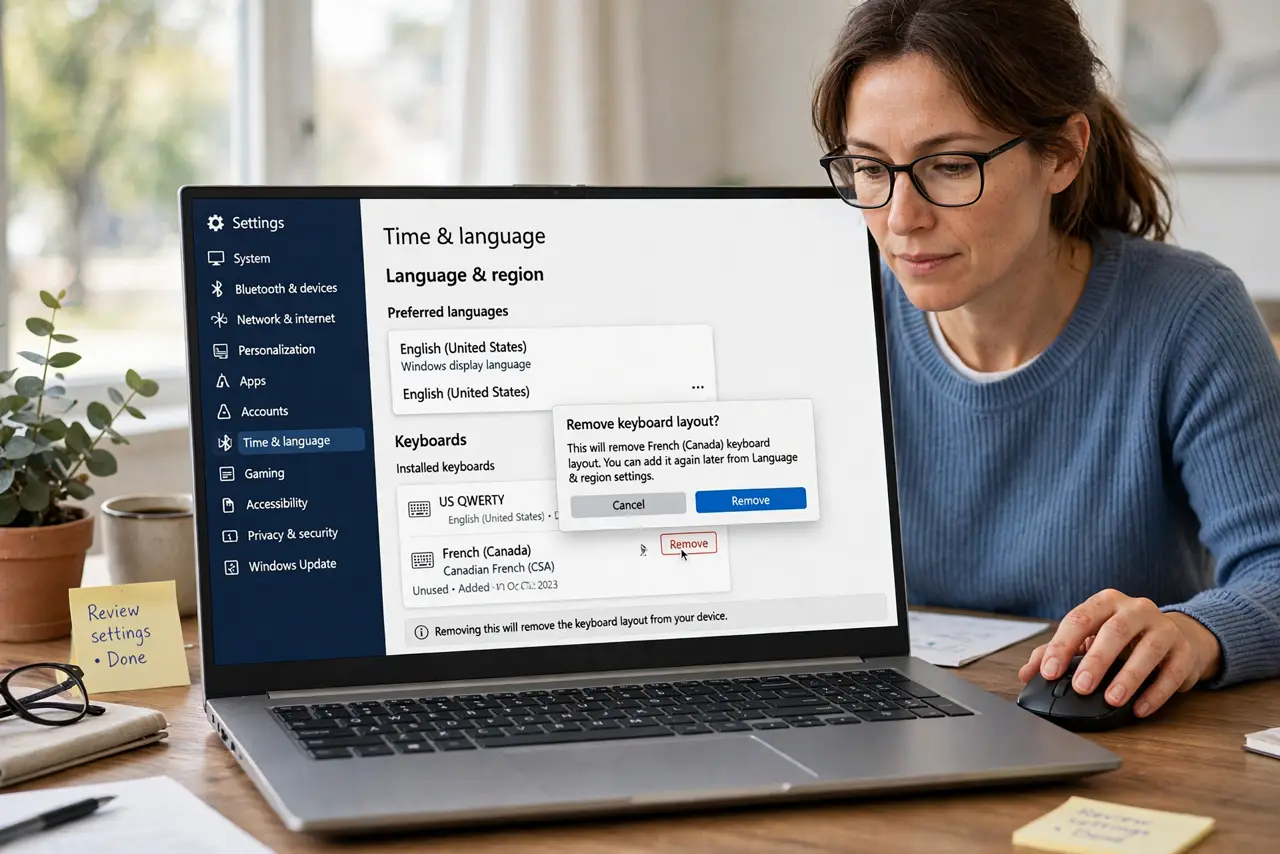
- Remove layouts you do not use. Open Settings, then Time and language, then Language and region, and remove every layout except your main one. Fewer layouts means fewer ways to switch by accident.
- Turn off the switching shortcut. In Advanced keyboard settings, check the input language hot keys. Turn off or change the shortcut that switches layouts, especially if you press it during normal typing.
- Check the language bar setting. In the same Advanced keyboard settings, check whether the language bar is set to show. If you do not need it, hide it, so it cannot distract or invite accidental clicks.
- Test typing for a full day. Type normally for a day with only one layout installed. If switching stops, an extra layout or the shortcut was the cause.
- Check per-app layout settings. Some settings let each app keep its own layout. If switching happens only in one app, check that app layout option and set it to follow the system layout.
- Restart and confirm one layout remains. Restart the computer and check Language settings again. If an extra layout returned, a sync or installer restored it, so remove it again and check sync settings.
What NOT to do
- Do not keep switching layouts back manually all day. That treats the symptom, while removing extra layouts and the shortcut fixes the cause.
- Do not change the system language to fix layout switching. Language and keyboard layout are separate, and changing language changes menus too.
- Do not install a layout manager to fix switching. Windows already lets you remove layouts and turn off the shortcut, without extra software.
- Do not blame the keyboard for layout switching. A keyboard sends key presses, while Windows chooses which layout interprets them, so the setting is the place to fix it.
Frequently asked questions
Why does it switch when I press Alt and Shift?
That shortcut switches input languages by default. Turning it off in Advanced keyboard settings stops accidental switching during normal typing.
I need two layouts. Can I keep both safely?
Yes. Keep both, turn off the shortcut, and switch only from the language bar when you mean to. That keeps control without accidental flips.
Why does it switch only in one app?
That app may keep its own layout. Set the app to follow the system layout, or switch it back once and see if it stays.