Cool a Hot Laptop
A laptop that roars like a hair dryer and burns your lap is not just annoying — sustained heat shortens component life and throttles speed. Most overheating is fixable without opening anything: blocked vents, dust-choked fans, and runaway apps cause the vast majority. Cool air in, hot air out — that is the whole game.
TL;DR / Quick Fix
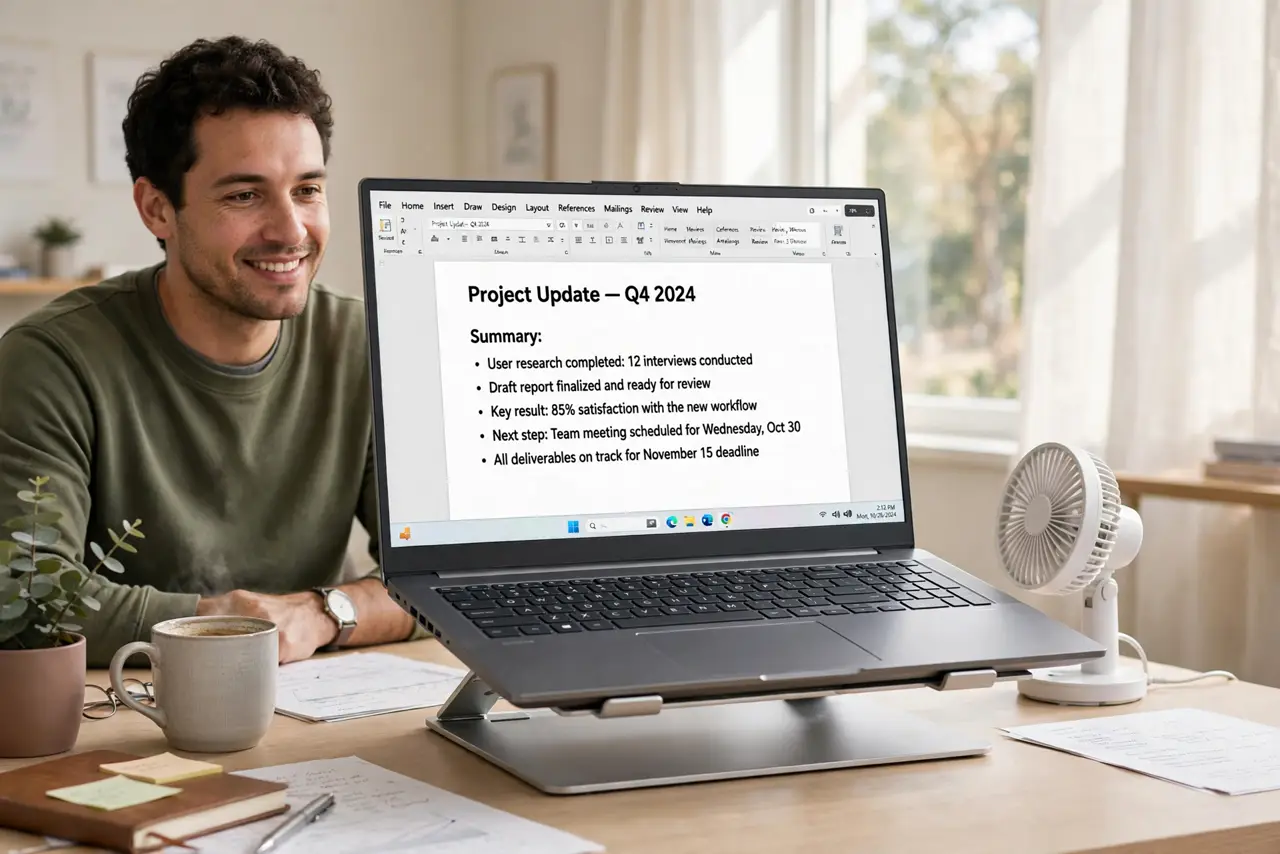
Quick fix: lift the laptop so vents breathe, quit the runaway app eating CPU, and move off soft surfaces that seal the intakes. Clean dust from vents with short bursts of compressed air. If it still screams at idle after that, the heat sink or fan may need professional attention.
Follow these steps
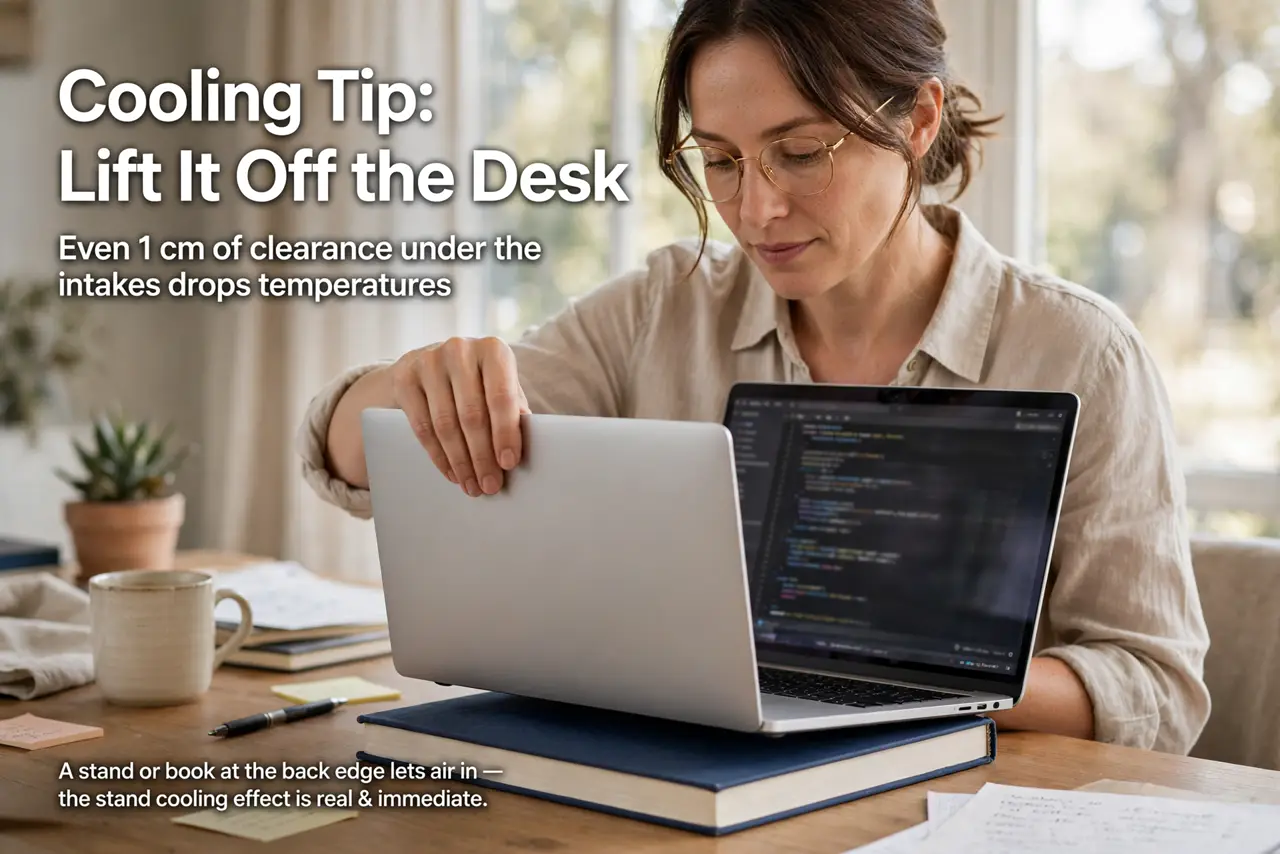
- Lift it off the desk. Even a centimeter of clearance under the intakes drops temperatures. A stand, a book at the back edge — anything that lets air in. The stand cooling effect is real and immediate.
- Find the runaway process. One stuck app can pin the CPU at 100% and cook the machine. Check your task manager, quit the offender, and watch temperatures fall within minutes.
- Get off soft surfaces. Beds, couches, and laps seal the bottom intakes. Hard, flat, ventilated — that is the surface rule. A cooling pad helps chronic cases, but surface discipline comes first.
- Blow out the dust. Power off, then short bursts of compressed air through the vents — never a vacuum, never sustained blasts that overspin the fan. Dust blankets are the number one slow-developing cause.
- Lower the workload honestly. Gaming or rendering on a thin ultrabook will always run hot. Cap frame rates, close background apps, and accept the machines thermal limits.
- Know when it is hardware. Heat at idle after cleaning, or a fan that never spins, means the heat sink or fan itself. That is a repair shop visit — see whether a repaste is worth it for older machines.
What NOT to do
- Do not use the laptop on a bed or pillow. Soft surfaces block intakes completely — the fastest route to thermal throttling.
- Do not blast compressed air continuously into the fan. Sustained spinning can damage bearings; short bursts only.
- Do not ignore a fan that never spins. No airflow plus heat equals a dead machine walking — get it serviced.
- Do not repaste a laptop under warranty yourself. Opening it can void coverage; let the maker handle young machines.
Frequently asked questions
How hot is too hot for a laptop?
Sustained CPU temps above 90°C under load are the worry zone; brief spikes are normal. At idle it should sit far lower.
Do cooling pads actually work?
Modestly — a few degrees, mostly from the elevation. They help chronic hot-runners; they do not fix blocked vents.
Why does my laptop only overheat when charging?
Charging adds heat while the CPU works. It is normal to run warmer plugged in — but screaming fans at idle still deserve investigation.