Laptop Key Sticks After a Spill? Clean It Safely
A spill on a laptop keyboard leaves sticky residue that glues a key down, and liquid inside can damage the board if the laptop stays on. The first move is always power off, not typing through it. Dry patiently, clean only the key area gently, and watch for wider damage before you trust the laptop again. A key that popped off cleanly, without a spill, needs the popped key refit steps instead.
TL;DR / Quick Fix
Quick fix: Power off and unplug at once. Turn the laptop upside down to drain. Then work through the remaining steps in order, checking one change at a time, and stop for a technician if you see damage, swelling, or a burning smell.
Follow these steps
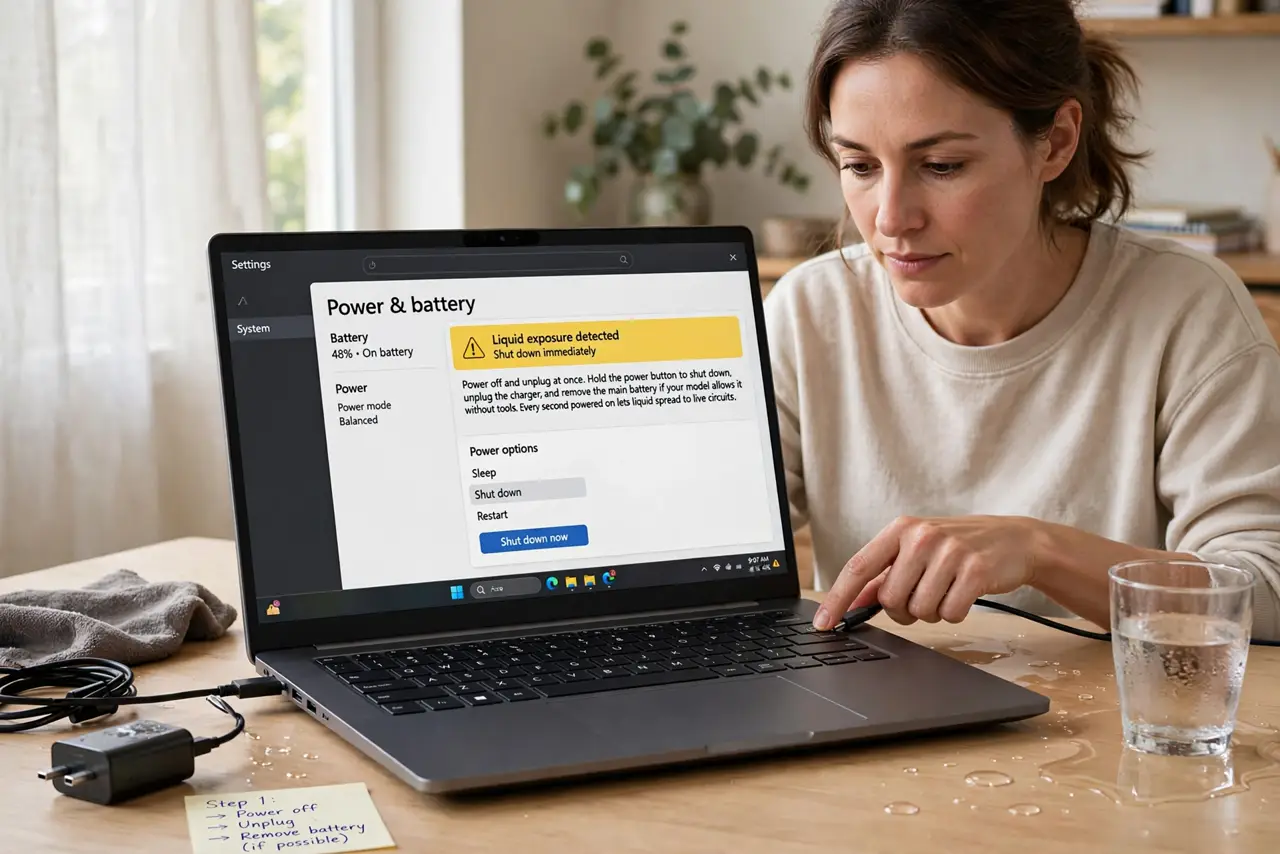
- Power off and unplug at once. Hold the power button to shut down, unplug the charger, and remove the main battery if your model allows it without tools. Every second powered on lets liquid spread to live circuits.
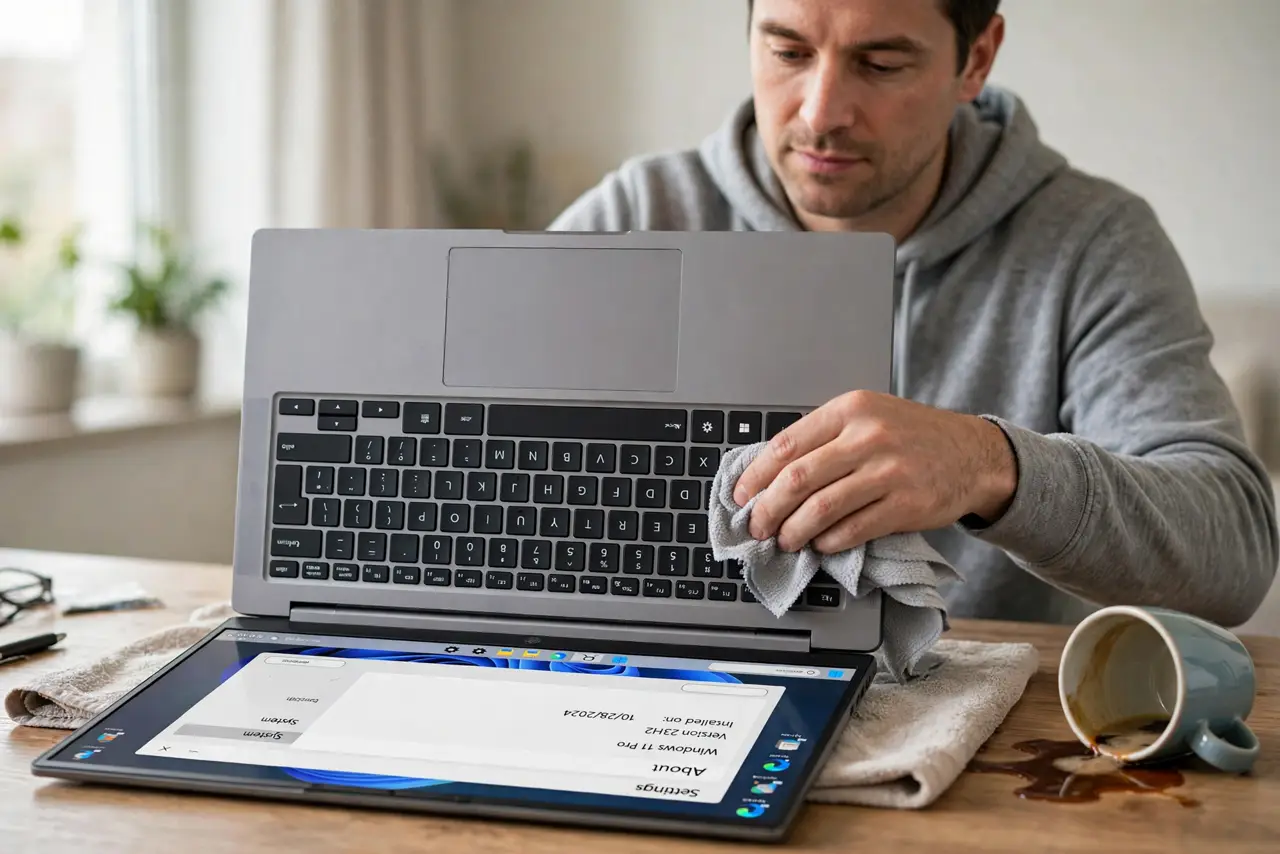
- Turn the laptop upside down to drain. Tilt the laptop upside down over a towel so liquid drains out of the keyboard, not deeper inside. Leave it draining for several minutes, dabbing the surface gently, not rubbing.
- Dry patiently, with no heat. Leave the laptop upside down or on its side in a dry room for at least a day. Do not use a hair dryer, radiator, or direct sun, because heat can warp keys and push liquid deeper.
- Clean the sticky key gently. Dampen a cloth with a little clean water, wring it almost dry, and wipe around the sticky key. Press the key repeatedly to work the residue loose, and do not pour water on the keyboard.
- Test the key after full drying only. After a full day of drying, power on and test the sticky key and its neighbours in a blank document. If keys type wrong characters or several keys fail, liquid reached deeper, so book a repair.
- Back up your files if the laptop works again. If the laptop recovers, back up your important files at once. Spill damage can appear days later as corrosion, so a working laptop after a spill still needs a backup and a check.
What NOT to do
- Do not keep using a laptop after a spill to see if it is fine. Liquid on live circuits causes short circuits, so power off first, every time.
- Do not use a hair dryer or heater to dry a laptop. Heat warps plastic, damages batteries, and can drive liquid deeper into the machine.
- Do not pour cleaning liquid or water over the keyboard to rinse it. More liquid makes the damage worse, so clean with a barely damp cloth only.
- Do not power on a wet laptop to test it early. Powering on before it is fully dry can turn a recoverable spill into a dead board.
Frequently asked questions
How long must a spilled laptop dry?
At least a day in a dry room, longer if the spill was large. Patience matters more than any drying trick, because hidden liquid takes time to evaporate.
Can I clean under a sticky key myself?
Only gently around the key. Removing keycaps on a laptop risks broken clips, so if residue sits under the key, a technician clean is safer.
What if only one key sticks after drying?
That key likely has residue under it. Gentle wiping and repeated pressing may free it, but if it stays stuck, book a key or keyboard repair.