Laptop Microphone Picks Up Fan Noise? Fix It
When callers hear your laptop fan more than your voice, the microphone sits too close to the fan, the fan works too hard, or the call app has no noise reduction turned on. Fix the fan load and the microphone position first, because software alone cannot remove loud fan noise cleanly. A microphone that is simply too quiet needs the too quiet microphone checks instead.

TL;DR / Quick Fix
Quick fix: Lift the laptop off soft surfaces. Close heavy apps before a call. Then work through the remaining steps in order, checking one change at a time, and stop for a technician if you see damage, swelling, or a burning smell.
Follow these steps
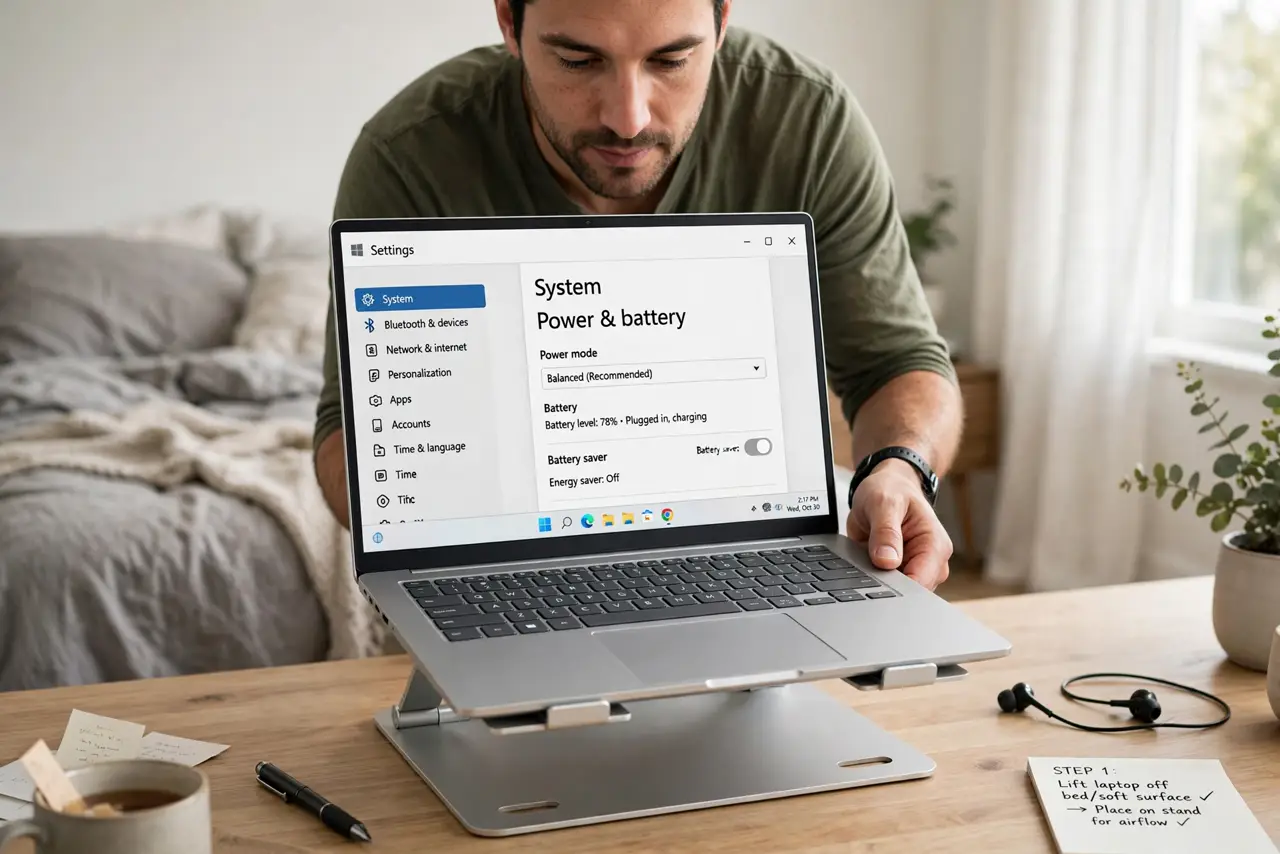
- Lift the laptop off soft surfaces. Put the laptop on a hard desk or a stand so air flows under it. A laptop on a bed or a lap blocks vents, the fan works harder, and the microphone hears all of it.
- Close heavy apps before a call. Close games, video editing, and dozens of browser tabs before a call, and let the fan slow down for a minute. A fan at full speed during a call is usually a workload problem, not a microphone problem.
- Turn on noise reduction in the call app. In the call app audio settings, turn on noise suppression or noise reduction if offered. This filters steady fan hum while keeping your voice, though it cannot fix a roaring fan alone.
- Sit closer and speak toward the microphone. Sit a normal arm length from the laptop and speak toward the screen, not away from it. A closer voice lets the app separate your speech from background fan noise more easily.
- Use a headset for important calls. Plug in a headset or earbuds with a microphone for calls that matter. A headset microphone sits near your mouth and far from the fan, which is the most reliable fan-noise fix.
- Check the microphone level and position settings. In sound settings, check the microphone input level and that the right microphone is selected. A level set too high boosts fan noise as much as voice, so lower it until your voice stays clear.
What NOT to do
- Do not block laptop vents to quiet the fan. Blocked vents make the fan work harder and hotter, so the noise gets worse, not better.
- Do not set the microphone level to maximum. Maximum level boosts every background sound, including the fan, and makes your voice distort as well.
- Do not use a fan-control tool to stop the fan entirely. A stopped fan overheats the laptop, and heat damage costs far more than fan noise on a call.
- Do not hold the laptop on your lap during a call and blame the microphone. Lap use blocks vents and heats the fan, so a desk or stand is part of the fix.
Frequently asked questions
Why do callers hear my fan but I do not?
You hear your own room, while callers hear only the microphone, which sits centimetres from the fan. The microphone hears the fan far louder than you do.
Does noise reduction remove all fan noise?
No. It reduces steady hum well, but a loud or changing fan still leaks through. Lowering fan load plus a headset gives the best result.
What if the fan is loud even with no apps open?
The laptop may need a vent clean or a cooling check, because a fan that roars at idle points to dust, blocked vents, or a failing fan.