Windows Laptop Touchpad Not Working? Fix It Safely
A laptop touchpad can stop working after an accidental key press, a setting change, or an update, and it can feel like the laptop is broken. In many cases the touchpad is simply disabled, or an external mouse setting is hiding it. Check the simple switches before you arrange a repair.
TL;DR / Quick Fix
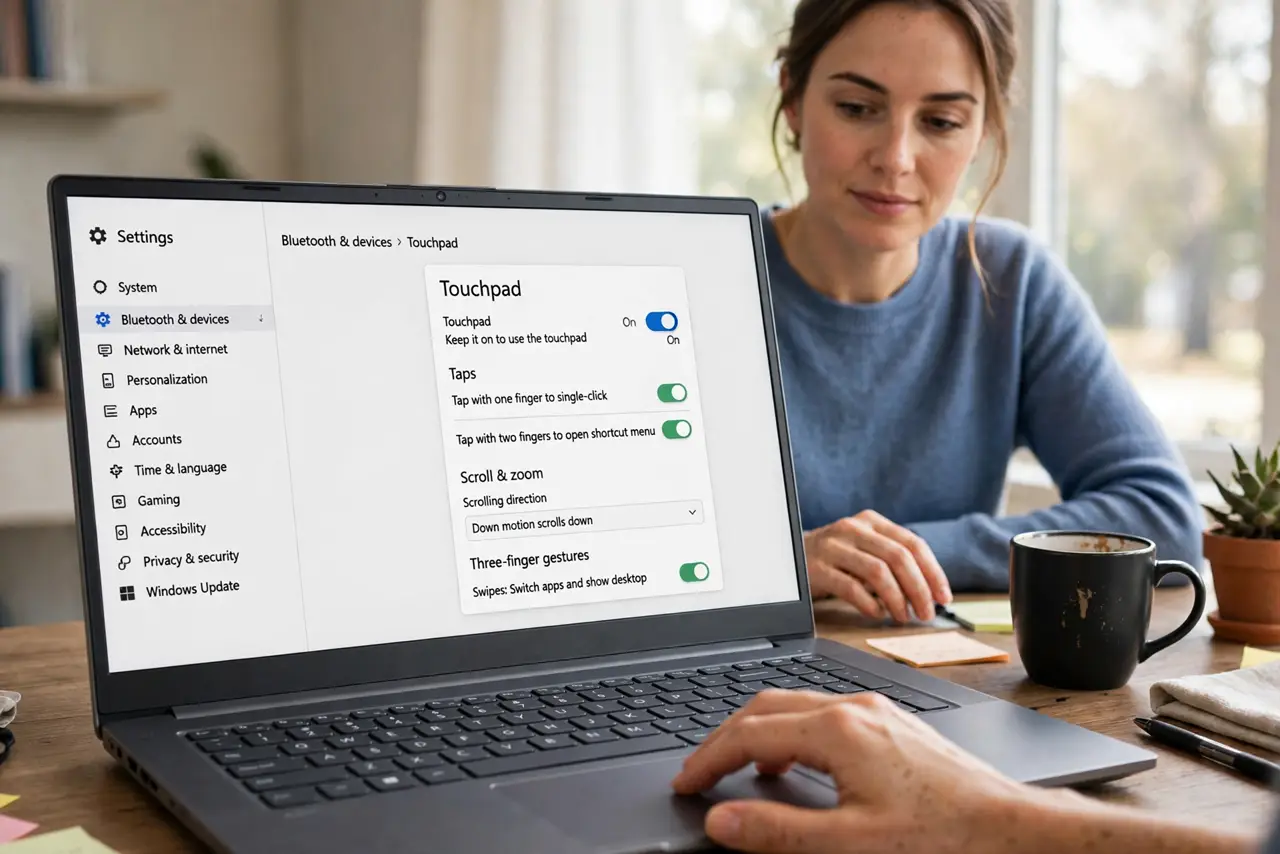
Quick fix: press the touchpad toggle key on your laptop, usually Fn plus a function key with a touchpad symbol. Then open Settings, then Bluetooth and devices, then Touchpad, and make sure Touchpad is on. If an external mouse is connected, unplug it and test again.
Follow these steps
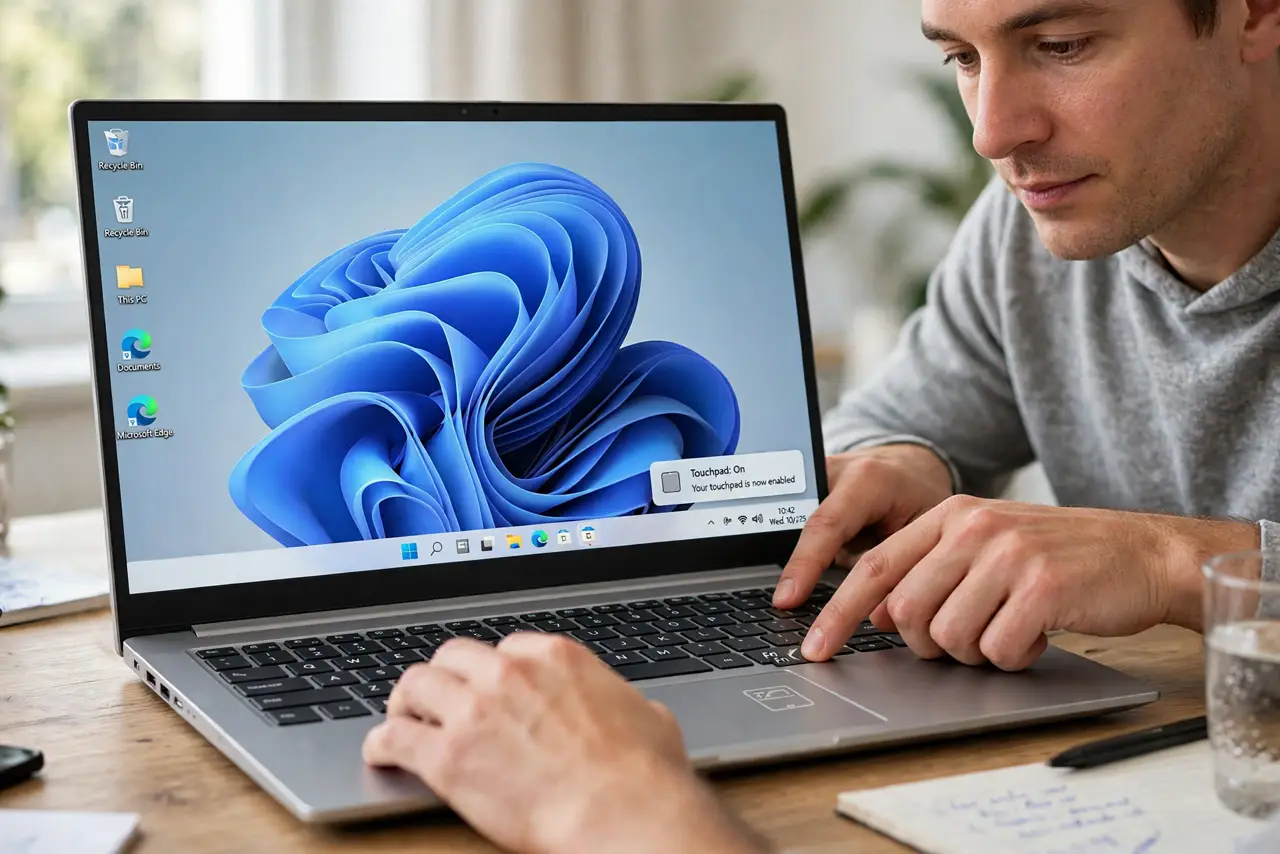
- Try the touchpad toggle key. Look for a touchpad symbol on a function key, then press Fn plus that key. Many laptops have a toggle that disables the touchpad by accident. Press it once, wait a few seconds, and test the touchpad again.
- Check Touchpad settings. Open Settings, then Bluetooth and devices, then Touchpad, and make sure Touchpad is on. Check the toggle for leaving the touchpad on when a mouse is connected, because that setting can disable it when a mouse is plugged in.
- Unplug external mice and receivers. Unplug any external mouse and its wireless receiver, then test the touchpad again. If the touchpad works without the mouse, the mouse setting was the cause, not the touchpad hardware.
- Restart the laptop normally. Save your work, then restart the laptop from the Start menu. A restart can clear a stuck driver state after an update. Do not force the laptop off by holding the power button unless it is fully frozen.
- Check for a driver problem in Device Manager. If the touchpad still does not work, open Device Manager only if you are comfortable, expand Mice and other pointing devices, and check for a warning symbol. Do not uninstall a driver unless you know how to reinstall it.
- Test with a clean, dry surface. Clean the touchpad gently with a dry soft cloth and test with dry hands. Moisture, a screen protector edge, or a case pressing on the touchpad can interfere with tracking.
What NOT to do
- Do not press every function key at random. You can turn on airplane mode, mute sound, or change brightness without realising, so use only the touchpad toggle key.
- Do not uninstall the touchpad driver as a first fix. If the driver is removed and Windows cannot reinstall it, the touchpad can stay off until a repair.
- Do not open the laptop to reseat the touchpad cable unless you are trained. Laptop cases, batteries, and ribbon cables are easy to damage, and opening can void a warranty.
- Do not assume the touchpad is broken after one test. Check the toggle, settings, and external mouse first, because those are the most common causes.
Frequently asked questions
Why did my touchpad stop working suddenly?
Often the touchpad toggle key was pressed by accident, or a setting turned it off when a mouse was connected. Check those first.
Does an external mouse disable the touchpad?
It can, if Touchpad settings are set to turn the touchpad off when a mouse is connected. Change that setting or unplug the mouse to test.
When should I seek a repair?
If the toggle, settings, restart, and a clean surface do not help, and Device Manager shows a fault, take the laptop for a repair check.