Google Inactive Manager
Your Google account holds years of photos, email, and documents — and if something happens to you, your family is locked out with no recourse. Google's Inactive Account Manager lets you decide in advance: who gets what, and when. It is Google's version of a digital will, and it takes ten minutes.
TL;DR / Quick Fix
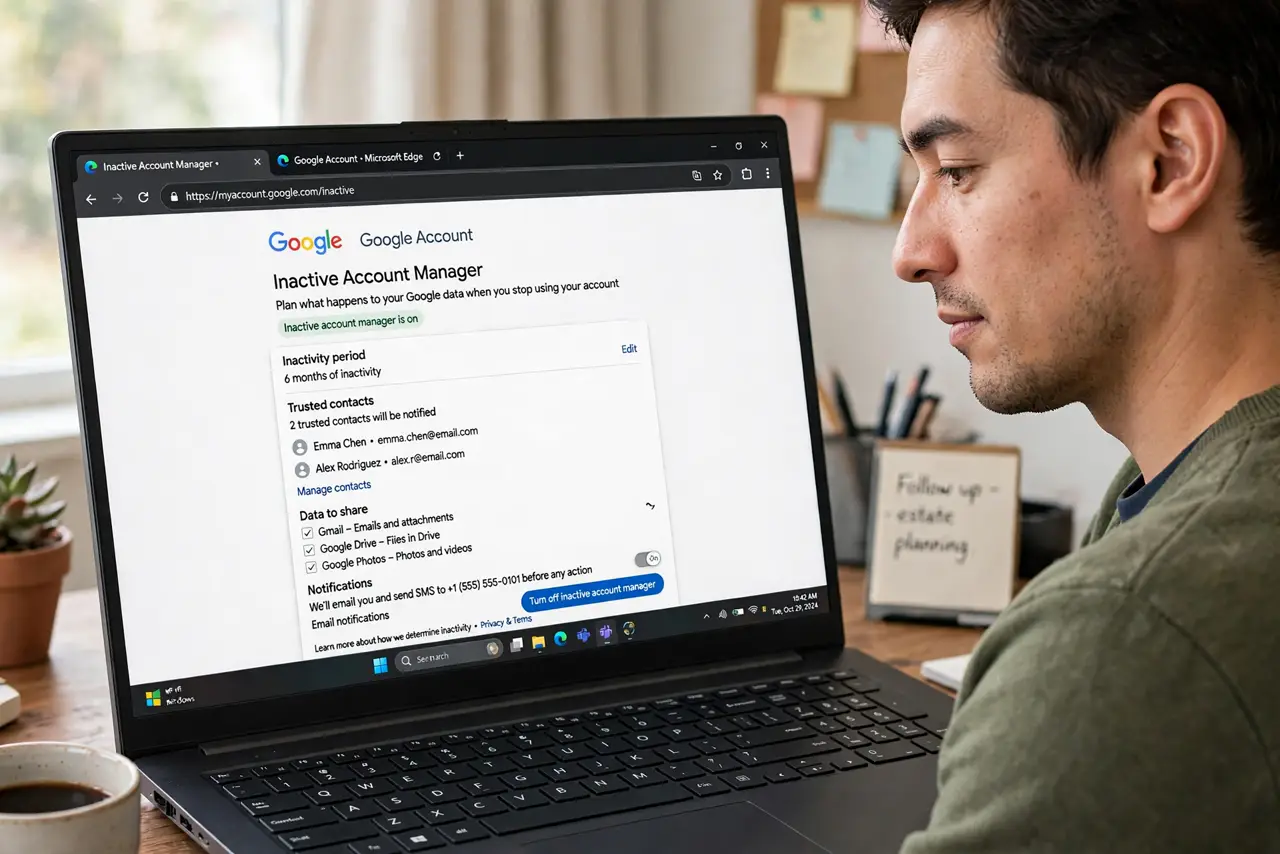
Quick fix: open your Google Account, go to Data and privacy, and set up Inactive Account Manager — choose who gets your data and what happens after months of inactivity. It is Google's version of a digital will. Review it yearly as your life changes.
Follow these steps
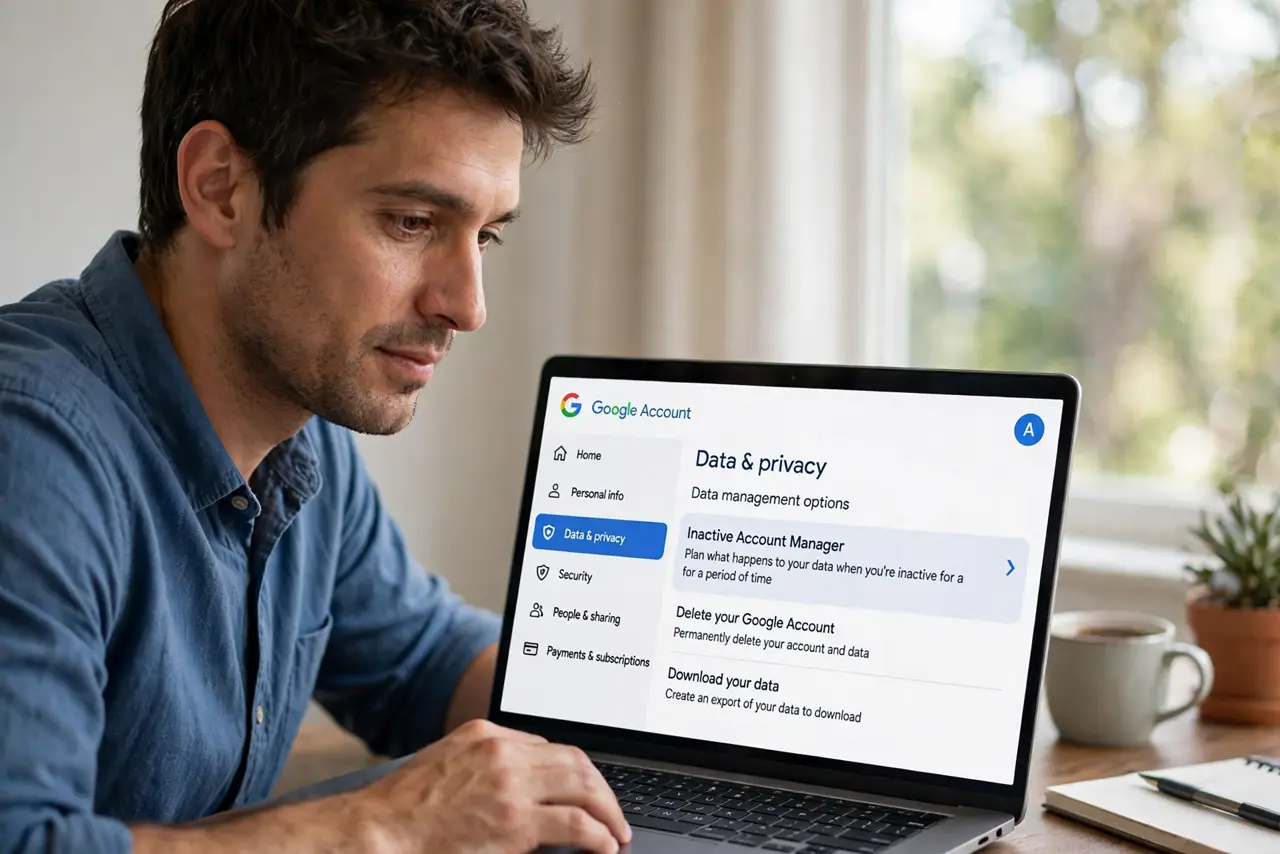
- Open Data and privacy. In your Google Account settings, go to Data and privacy and find Inactive Account Manager — it sits under the data management options.
- Set the inactivity period. Choose how long of no activity triggers it — 3, 6, 12, or 18 months. Google will nudge you before anything happens, so a forgotten vacation never triggers it.
- Name your trusted contacts. Add up to ten people who get notified, and choose what each can download. Be deliberate — see the digital legacy overview for what access really means.
- Write the notification message. Tell them what is happening and where things are. A clear message now prevents confusion later — this is the kindest email you will ever write.
- Choose deletion or sharing. You can have Google delete everything after sharing, or leave the account. Deletion is cleaner; sharing preserves memories — your call.
- Pair it with Apple's side. Inactive Manager covers Google — see the Apple legacy contact for your iPhone side. Every ecosystem needs its own plan.
What NOT to do
- Do not skip the notification message. A bare data dump confuses grieving people — a few sentences of guidance matter enormously.
- Do not set the timeout too short. Three months can pass during a long illness with no logins — twelve months is the safer default.
- Do not name contacts without telling them. They need to know the role exists before the notification arrives out of the blue.
- Do not forget to review yearly. Trusted contacts change — an ex with data access is a failure of maintenance, not of planning.
Frequently asked questions
What happens if I never set it up?
The account sits dormant under Google's standard policies — your family has no clean path to the photos and documents.
Can contacts see everything?
Only what you grant — you choose per-person data scopes. Nothing is all-or-nothing unless you make it so.
Does it notify me first?
Yes — Google warns you repeatedly before the timeout triggers. Accidental activation is very hard.