Set a Legacy Contact
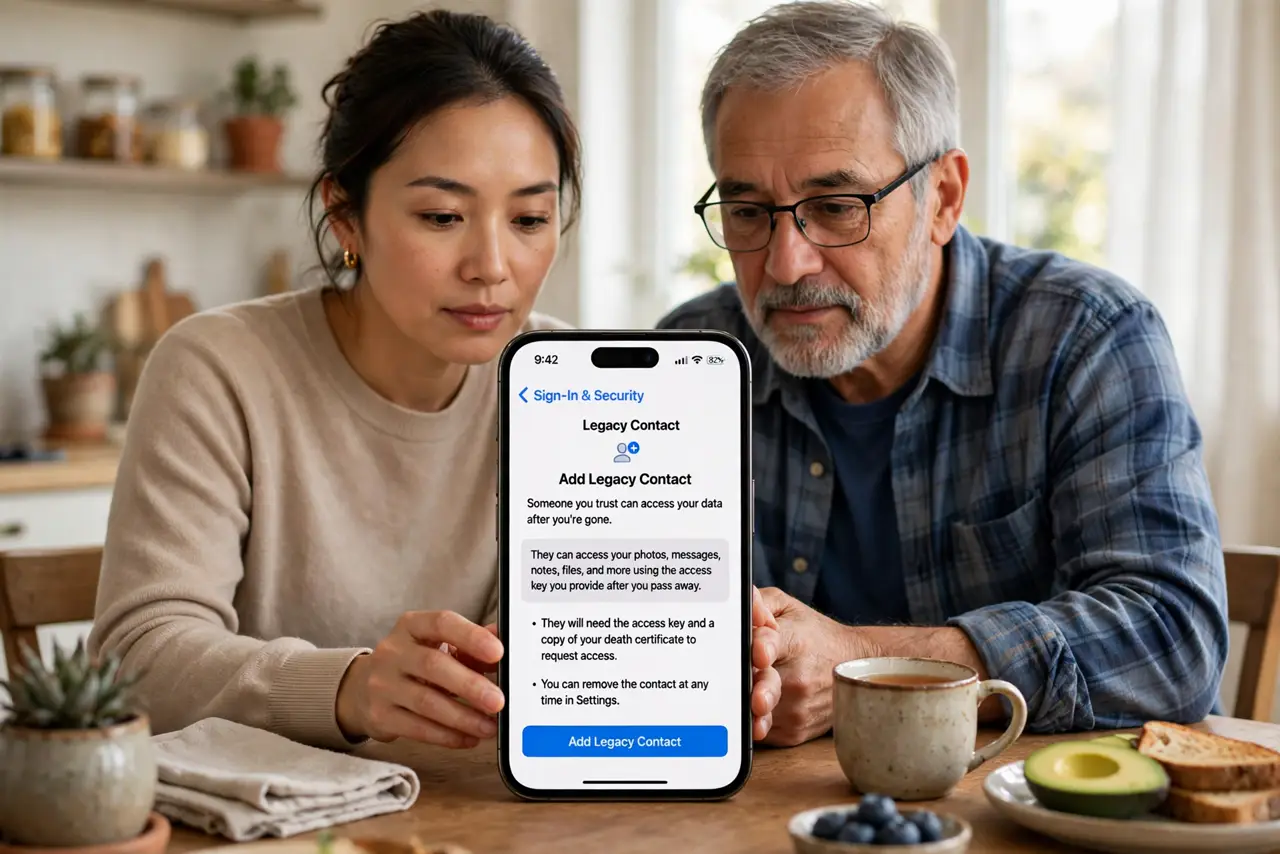
Nobody likes planning for it, but your photos, messages, and memories live in an account nobody else can open. Apple's Legacy Contact lets you name someone who can access your data after you pass away — with a key they keep safe now. It is five minutes of setup and a profound gift. Here is how.
TL;DR / Quick Fix
Quick fix: on iPhone, open Settings, your name, Sign-In and Security, and add a legacy contact — someone who can access your account data after you pass away. They get an access key to keep safe. It is the kindest digital paperwork you can do for your family.
Follow these steps
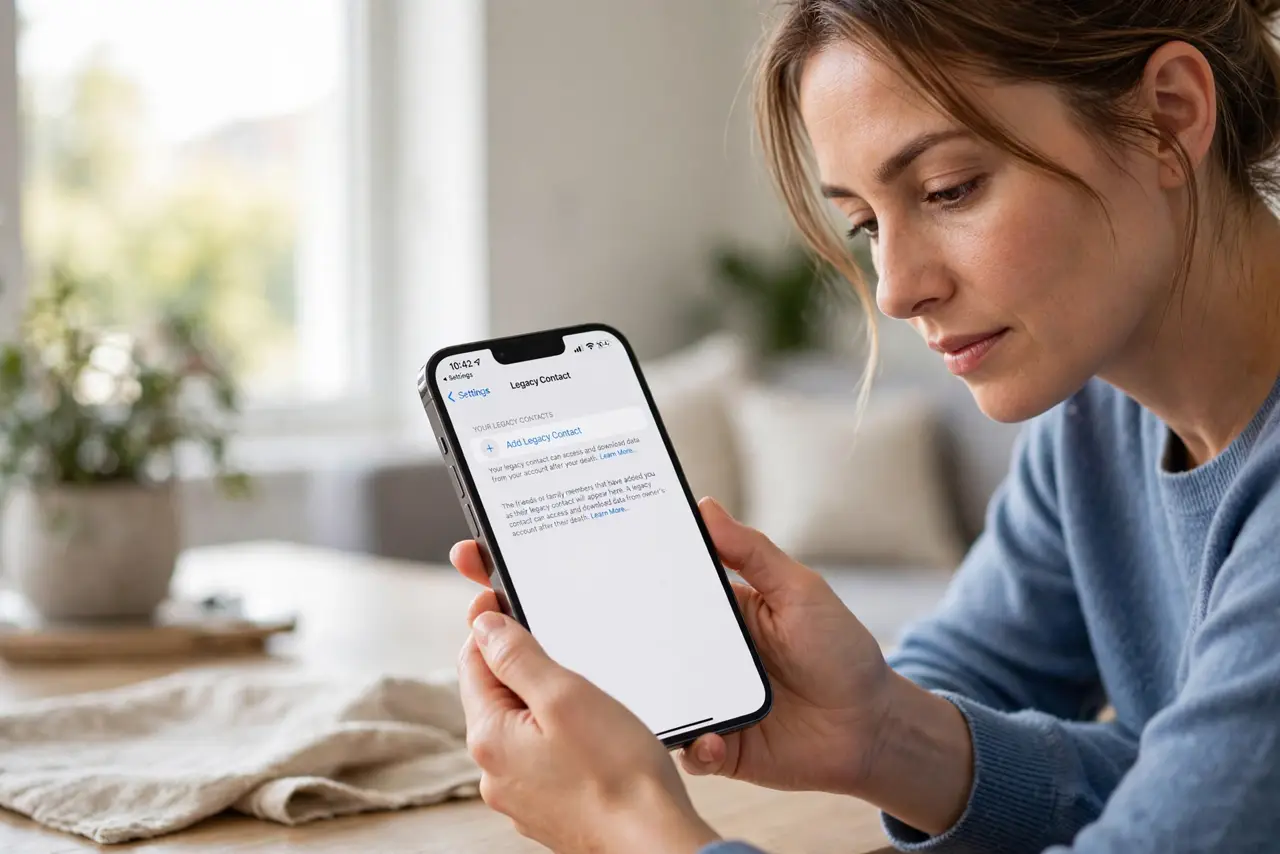
- Open the Legacy Contact settings. On iPhone, go to Settings, your name, Sign-In and Security, Legacy Contact. The setup walks you through choosing someone — see Apple's legacy contact setup for the official walkthrough.
- Choose your person. A spouse, adult child, or trusted friend — someone who will outlive you and can handle the responsibility. Talk to them first; this should never be a surprise.
- Share the access key. They receive an access key to store safely — printed, in their password manager, somewhere durable. Without the key plus a death certificate, access does not happen.
- Understand what they get. Photos, messages, notes, and most iCloud data — not payment info, not licensed media. See the digital legacy overview for the full scope.
- Pair it with the living plan. Legacy contact handles after; a recovery contact handles lockouts while you are alive. Set up both — they are companion features.
- Review when life changes. Marriage, divorce, new children — revisit the choice when life shifts. An outdated legacy contact is barely better than none.
What NOT to do
- Do not skip the conversation. Naming someone without telling them creates confusion at the worst possible time — talk first.
- Do not assume the key alone is enough. Access requires the key plus proof — make sure your person knows where both live.
- Do not name someone who cannot handle it. Grief plus technical process is a lot — choose someone steady and organized.
- Do not forget non-Apple accounts. Legacy Contact covers Apple — see the Google inactive manager for your Google side. Every account needs its own plan.
Frequently asked questions
What can a legacy contact access?
Most iCloud data — photos, messages, notes, contacts. Not stored passwords for everything, not purchased media licenses.
How do they actually get in?
With the access key plus a death certificate, through Apple's Digital Legacy request process. It takes some days.
Can I change my legacy contact?
Yes, anytime in the same settings. Remove the old, add the new, share the new key.
What to read next
- Add a Recovery Contact
- Set an Apple Recovery Key