Listen to Articles Read Aloud
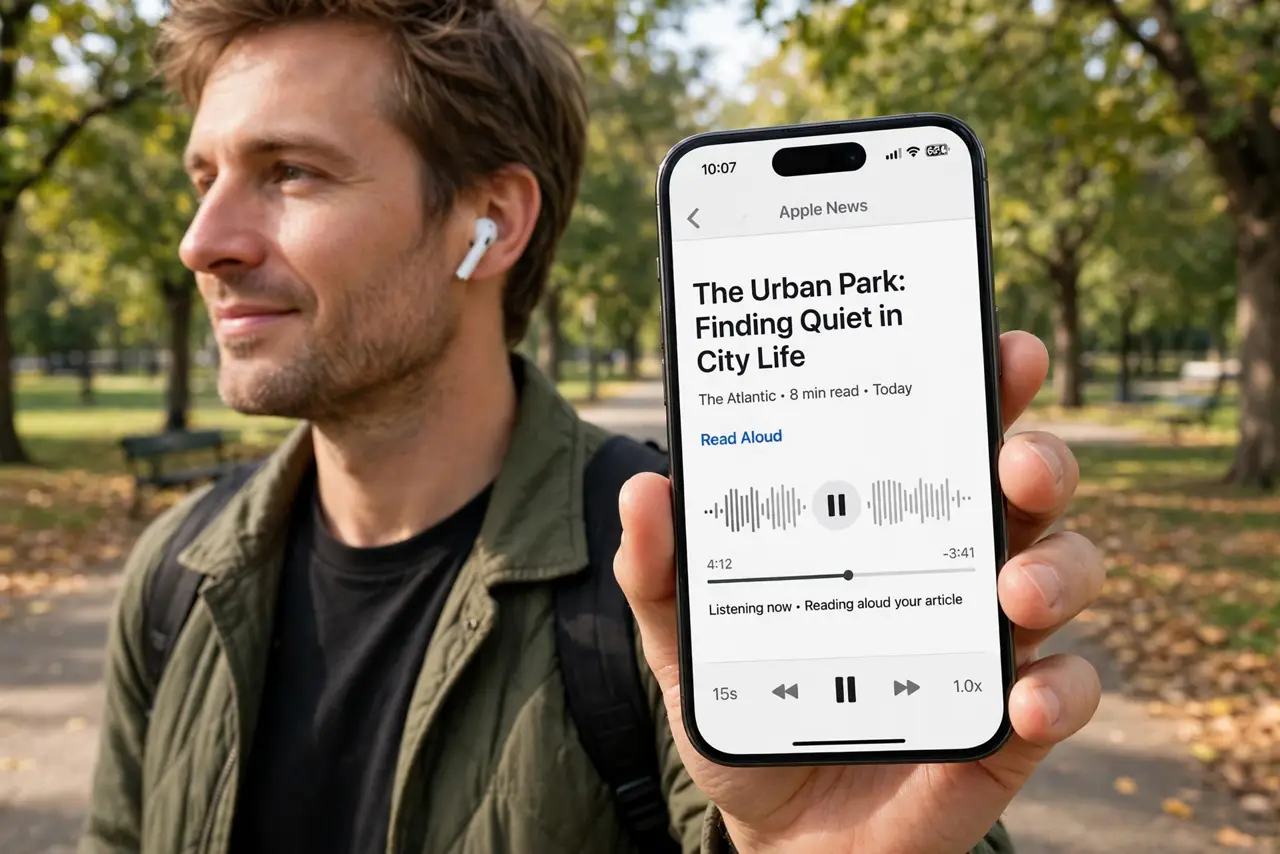
Long articles pile up because your eyes are tired, not because you're lazy. Your devices already read text aloud — browsers, phones, and word processors all have it built in, free. Here's how to turn any article into a podcast for your walk, commute, or couch.
TL;DR / Quick Fix
Quick fix: use the read-aloud feature already on your device — Edge and Safari both read pages aloud, and phones have a speak-screen option in accessibility settings. Adjust the speed until it feels natural. It's perfect for long articles when your eyes are tired, or for listening while you walk.
Follow these steps
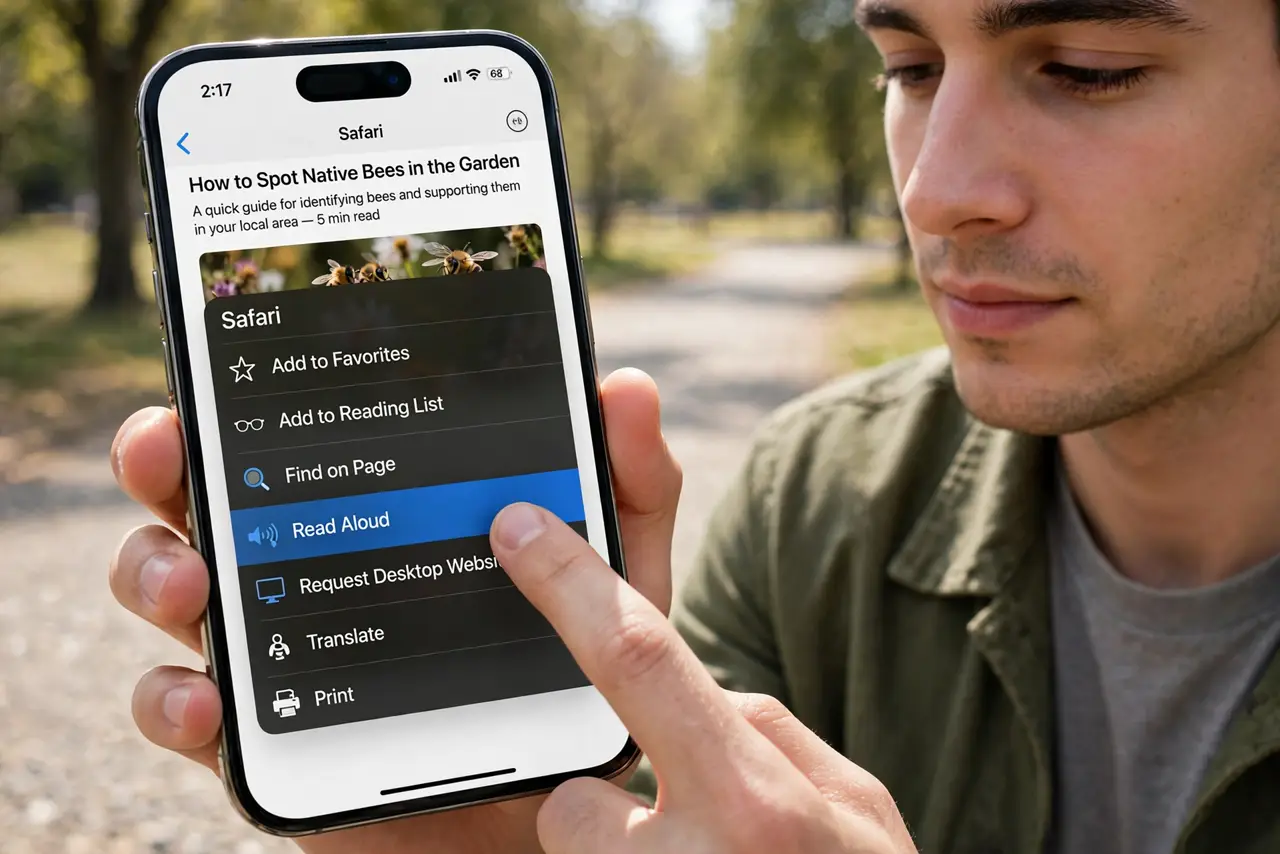
- Use your browser's built-in read-aloud. Edge has Read Aloud in its menu; Safari on Mac and iPhone offers spoken content for pages. No extensions, no accounts — it's already there. Try Word read-aloud for documents.
- Turn on speak-screen on your phone. In accessibility settings, enable Speak Screen, then swipe down with two fingers on any article. Your phone reads the page while you do dishes.
- Adjust the speed to your taste. Start near normal speed and nudge up as your ears adapt. Slightly faster than comfortable keeps your attention; too fast turns it into noise.
- Use it for the reading backlog. Queue long articles for walks, commutes, and chores. Listening counts as reading for everything except the parts you need to quote — those deserve eyes.
- Try your Mac's spoken content too. macOS reads selected text aloud with a shortcut — see the Speak Selection guide for setup. Great for proofreading your own writing; errors jump out when heard.
- Pick a voice you can stand. You'll listen for hours, so spend a minute previewing voices. A voice you like is the difference between a habit and a chore.
What NOT to do
- Do not install shady 'reader' extensions before trying built-ins. Browser and OS features do this free — extensions mostly add ads and tracking.
- Do not expect human-narrator quality. Synthetic voices are good now, not great — fine for articles, not for savoring prose.
- Do not pay for a read-aloud app before testing free options. The built-ins cover most needs; paid apps rarely add enough to justify it.
- Do not listen while doing anything safety-critical. Walking is fine; driving in traffic with full attention on an article is not.
Frequently asked questions
Can it read PDFs?
Browsers read web pages best; for PDFs, open them in an app with its own read-aloud, like Edge's PDF reader or Word.
Does it work offline?
Downloaded voices work offline on phones and computers. Streaming-quality premium voices may need a connection.
Will it read in other languages?
Yes — install the voice for the language. It reads what's written, so mixed-language pages switch awkwardly.